![Install Golang on Windows [Step-by-Step]](/install-golang-on-windows/install-go-windows.jpg)
Today’s post will guide you through the detailed steps to install Go on Windows. Go is an open-source and statically typed programming language developed in 2007 by Robert Griesemer, Rob Pike, and Ken Thompson at Google but launched in 2009. It is also known as the Golangand it supports the procedural programming language. It’s really simple to install Golang on Windows, please follow the below steps
Method-1: Install GoLang from official archive
Step-1: Installing git [Optional]
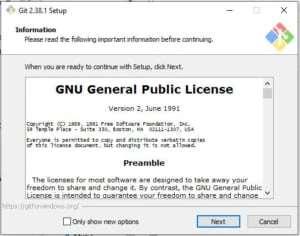
We need version control software to manage go projects and download libraries. In this tutorial, we will use Git. Go to the download page and choose the latest (2.38.1)64-bitversion ofGit for Windows. This is the most recently maintained build. Run the .exe file and follow the guide to install Git on Windows:
Go should be checked to see if it is already installed on your system before we start the installation process. Go to the Command line to see if Golang is already installed on your device.
go version
If Golang is already installed, a message including all the details of the version that are available will be generated; otherwise, if Golang is not installed, an error stating Bad command or file name will be generated.
Step-2: Downloading Go
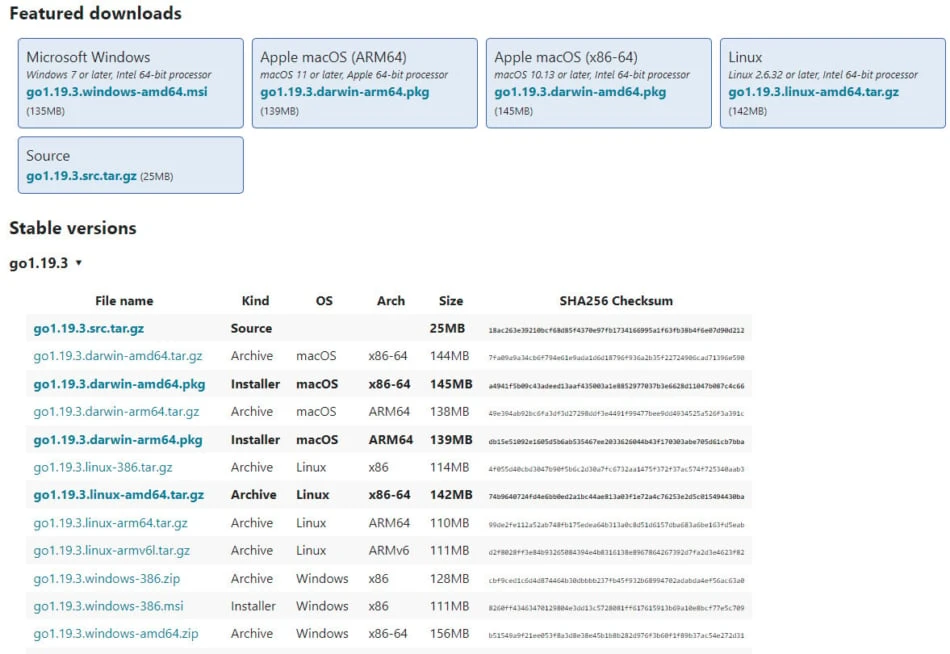
The first step is to download Golang. For that, all versions of Go for Windows are available on golang.org. Choose your version and click download the msi file (for example https://go.dev/dl/go1.19.3.windows-amd64.msi)
Step-3: Install go from .msi file
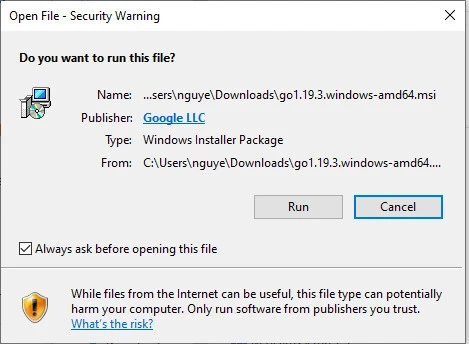
After launching the installer (.msi file) the installer will begin:
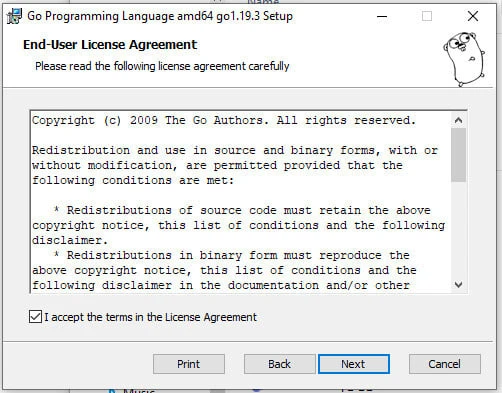
Accept the Go license agreement and click Next:
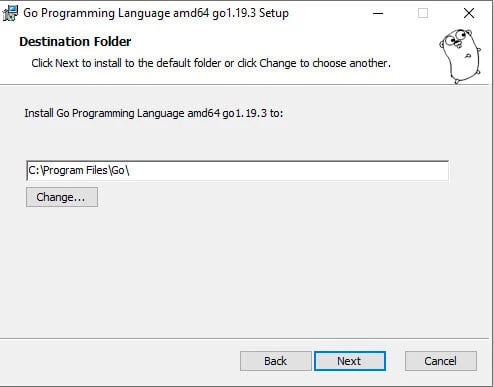
There is already a value in the destination Go installation. Simply click Change if you want to make changes. But leaving it at its default setting is recommended:
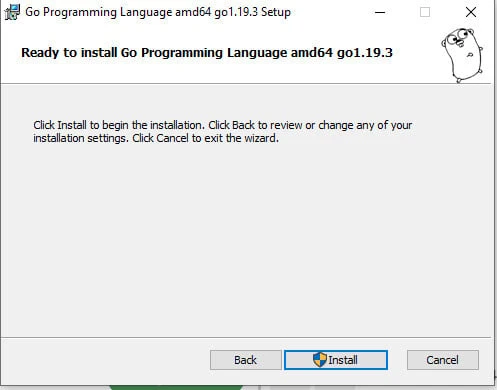
To start the installation, click Install. Windows will request administrative permission to install Go, just accept Yes:
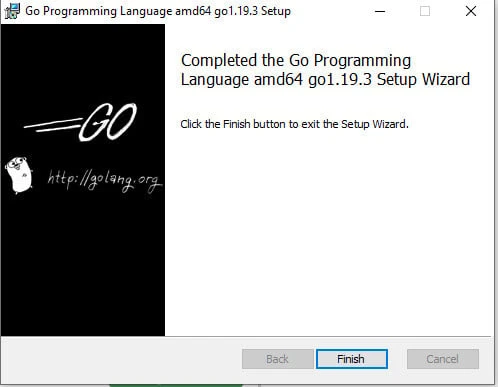
Click Finish to complete the setup after it has finished installing:
Step-4: Check GoLang version installed
To check the GoLang version that is installed, go to cmd and use the command below:
go version
The system will prompt the installed go version:

Step-5: Setup GOPATH
The Go compiler needs a way to know how to find our source files (packages) so that the compiler can build and install them. The compiler utilizes two environmental variables for this job.$GOROOTand$GOPATH tell the Go compiler where to search for the locations of the Go packages listed by theimportstatement.
TheGOPATHenvironment variable lists places to look for Go code. On
Unix, the value is a colon-separated string. On Windows, the value is a
semicolon-separated string.
GOPATHmust be set to get, build and install packages outside the
standard Go tree.
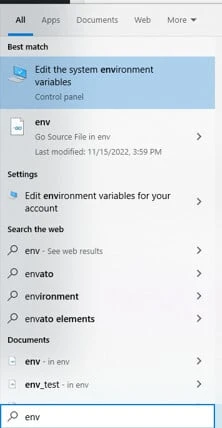
To verify setting up these environment, search Environment and click Edit system Environment variables
Click onEnvironment Variables:
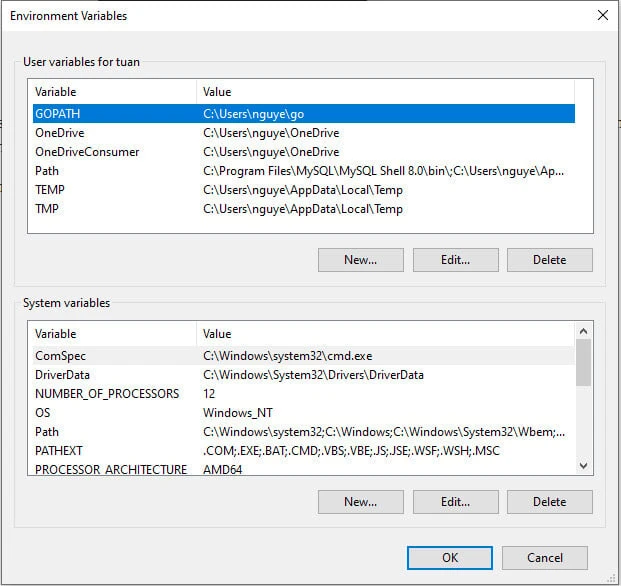
You can set GOPATH to any folder you prefer. To change GOPATH just clickEditand then either write the path or browse the folder.
Method-2: Install Golang using Chocolatey
Chocolatey is a package management for Windows. Chocolatey has the largest online registry of Windows packages. Chocolatey packages encapsulate everything required to manage a particular piece of software into one deployment artifact by wrapping installers, executables, zips, and/or scripts into a compiled package file.
Requirements
- Windows 7+ / Windows Server 2003+
- PowerShell v2+ (minimum is v3 for install from this website due toTLS 1.2 requirement)
- .NET Framework 4+ (the installation will attempt to install .NET 4.0 if you do not have it installed)(minimum is 4.5 for install from this website due toTLS 1.2 requirement)
Install Chocolatey with powershell
Ensure that you are using an administrative shell- you can also install as a non-admin, check outNon-Administrative Installation.
With PowerShell, you must
ensureGet-ExecutionPolicyis not Restricted. We suggest
usingBypassto bypass the policy to get things installed
orAllSignedfor quite a bit more security.
RunGet-ExecutionPolicy. If it returnsRestricted, then
runSet-ExecutionPolicy AllSignedorSet-ExecutionPolicy Bypass -Scope Process.
Now run the following command:
Set-ExecutionPolicy Bypass -Scope Process -Force; [System.Net.ServicePointManager]::SecurityProtocol = [System.Net.ServicePointManager]::SecurityProtocol -bor 3072; iex ((New-Object System.Net.WebClient).DownloadString('https://community.chocolatey.org/install.ps1'))
Paste the copied text into your shell and press Enter and wait a few seconds for the command to complete.
If you don’t see any errors, you are ready to use Chocolatey!
Typechocoorchoco -? to check if choco already installed.
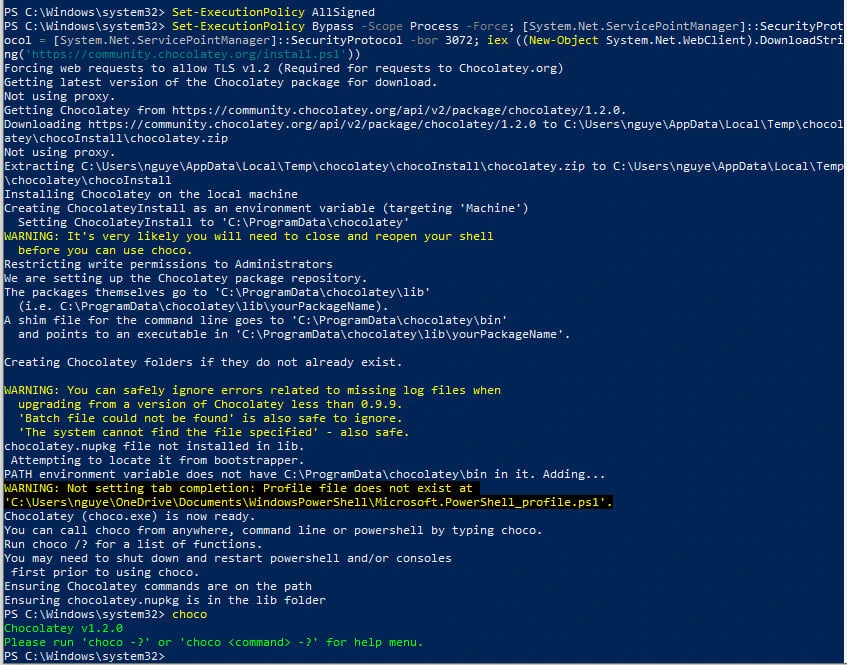
Install Golang using chocolatey
To install Go Programming Language, run the following command from the command line or from PowerShell:
choco install golang
Summary
Go on Windows 10 is comparatively easy to install. Downloads for all platforms that are supported are available from the Golang website. Simply download the file, double click it, and finish the installation on Windows 10. You can also use Chocolatey - package management for Windows to install Go.
References
https://go.dev/doc/install
https://en.wikipedia.org/wiki/Windows_Installer