

In this tutorial I will explain about Kubernetes Sidecar using an example.
Pre-requisites
You must have a basic idea on following topics:
Architecture of Kubernetes
Basic
understanding of Kubernetes Pods
Overview on Kubernetes Sidecar Container
- The sidecar pattern is about co-locating another container in a pod in addition to the main application container.
- The application container is unaware of the sidecar container and just goes about its business.
- One Pod can host many containers, using the same of different Docker images. Containers in the Pod can communicate using the localhost address
- The sidecar container will use the same network namespace as of the main container so you don’t have to assign any network interfaces or ip addresses to the sidecar container. The containers will talk to each other using different ports.
- Each container has it’s own filesystem, but volumes are defined at the Pod level and can be mounted into multiple containers to share data
Let’s take an example of logging service:
Imagine you have a Linux server with a web server application which
stores the logs inside /var/log/app.log . Later the log entries from
this file are processed to generate alarms to a central logging server.
Suppose you had to apply some patch to the logging service so even your
application gets impacted as both are running on the same server.
So we add a sidecar container along with the main container, now the
application will run in the main container while sidecar container will
be used for the logging service. So now any patch to be applied to
logging service can be done separately and can be re-deployed without
any impacts to the main application container.
Multi-container Architecture
Following image depicts how a sidecar container and main container would be there in a Pod. You can add n number of sidecar containers to a Pod
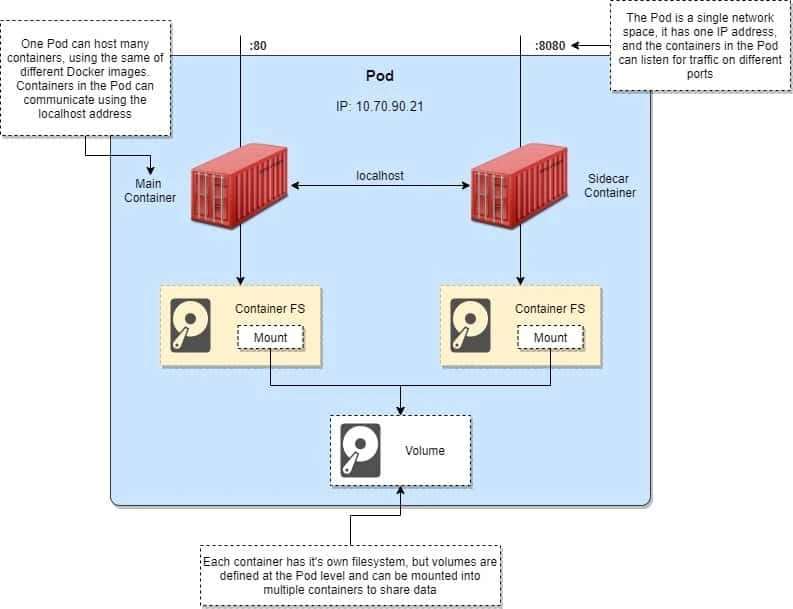
Kubernetes sidecar example
Let us quickly deploy a single pod with two containers i.e one sidecar container with main container. Here is my YAML file to create this Pod:
~]# cat sidecar-example.yaml
apiVersion: v1
kind: Pod
metadata:
  name: sidecar-pod-1
spec:
  volumes:
  - name: log
    emptyDir: {}

  containers:
  - image: busybox
    name: main-container
    args:
     - /bin/sh
     - -c
     - >
      while true; do
        echo "$(date) INFO hello from main-container" >> /var/log/myapp.log ;
        sleep 1;
      done
    volumeMounts:
    - name: log
      mountPath: /var/log

  - name: sidecar-container
    image: busybox
    args:
     - /bin/sh
     - -c
     - tail -fn+1 /var/log/myapp.log
    volumeMounts:
    - name: log
      mountPath: /var/log
Let us understand this YAML file:
- For the sake of understanding I have named my containers as main-container and sidecar-container.
- The main container will be our application which will continuously
write something to
/var/log/myapp.log - The
/var/log/path is mounted on the containers using separate volume. This path is mounted usingvolumeMountsin both the containers so that the path is shared across both the containers. - The sidecar container will read the log file content using
tail -fn+1 /var/log/myapp.log
Let us create this Pod:
 ~]# kubectl create -f sidecar-example.yaml
pod/sidecar-pod-1 created
Check the status of the Pod, it shows that there are two containers and both of them are in Running state:
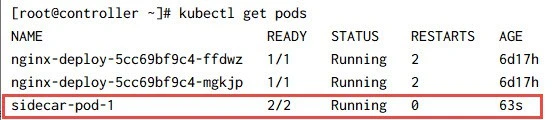
List all the containers from the Pod
Use the following command to list the available containers inside the Pod:
 ~]# kubectl get pods sidecar-pod-1 -o jsonpath='{.spec.containers[*].name}'
main-container sidecar-container
So we have two containers inside sidecar-pod-1:
- main-container
- sidecar-container
Verify communication between main and sidecar container
Now you can check the output of sidecar-container which should show
the logs coming from main-container:
 ~]# kubectl logs -f sidecar-pod-1 -c sidecar-container
Wed Jun  9 08:52:11 UTC 2021 INFO hello from main-container
Wed Jun  9 08:52:12 UTC 2021 INFO hello from main-container
Wed Jun  9 08:52:13 UTC 2021 INFO hello from main-container
Wed Jun  9 08:52:14 UTC 2021 INFO hello from main-container
Wed Jun  9 08:52:15 UTC 2021 INFO hello from main-container
Wed Jun  9 08:52:16 UTC 2021 INFO hello from main-container
Verify Network Namespace between main and sidecar container
As we told initially, all the containers inside the Pod will share the same network namespace. So, first check the IP of the POD:
~]# kubectl get pods -o wide
NAME                            READY   STATUS    RESTARTS   AGE     IP             NODE                   NOMINATED NODE   READINESS GATES
nginx-deploy-5cc69bf9c4-ffdwz   1/1     Running   2          6d18h   10.0.142.32    worker-2.example.com   <none>           <none>
nginx-deploy-5cc69bf9c4-mgkjp   1/1     Running   2          6d18h   10.0.142.182   worker-1.example.com   <none>           <none>
sidecar-pod-1                   2/2     Running   0          102m    10.0.142.183   worker-1.example.com   <none>           <none>
So the IP of our sidecar pod is 10.0.142.183. Let us check this on
both of our containers:
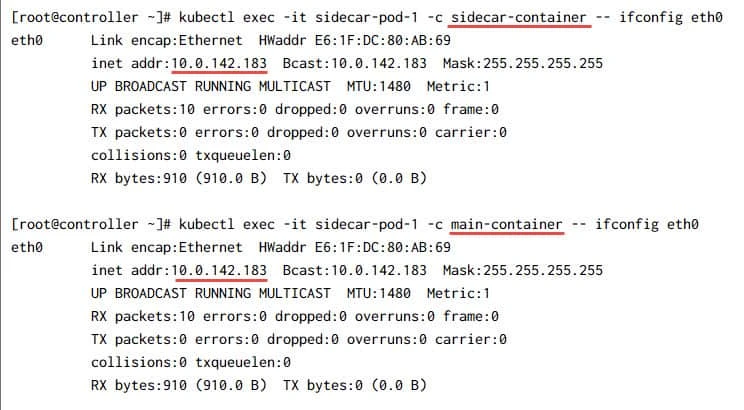
Similarly you can check, both the containers will have the same hostname:
[root@controller ~]# kubectl exec -it sidecar-pod-1 -c main-container -- cat /etc/hostname
sidecar-pod-1

[root@controller ~]# kubectl exec -it sidecar-pod-1 -c sidecar-container -- cat /etc/hostname
sidecar-pod-1
Summary
In this tutorial we learned about Kubernetes sidecar and I also shared an example to help you understand
- How to create sidecar container in Kubernetes
- How sidecar container communicate internally with main container inside the Pod
- How to share volume across all the containers inside the same Pod
- How all the containers inside the same Pod share the same namespace.
Further Readings
Using a sidecar
container with the logging agent
Communicate
Between Containers in the Same Pod Using a Shared Volume
Related Searches: kubernetes sidecar container example, kubernetes sidecar injection, kubernetes sidecar yaml, kubernetes sidecar logging, kubernetes shared volume between pods
