
![[SOLVED] Mount multiple K8 secrets to same directory](/k8-mount-multiple-secrets-to-same-directory/kubernetes_mount_secrets.jpg)
In this tutorial we will cover different examples to mount multiple
Kubernetes secrets to the same directory using volumes and
volumeMounts.
Normally if you don’t follow the procedure properly, then you may end up overwriting the current directory content with the newly mounted secrets.
Method-1: Mount multiple secrets on same directory
Here we have created 2 Kubernetes secrets using following YAML file
(secret.yaml). Here each K8 secret has a single key value pair.
apiVersion: v1
kind: Secret
metadata:
  name: db-secret-usr
  namespace: dummy
type: Opaque
data:
    username: dXNlcjE=
---
apiVersion: v1
kind: Secret
metadata:
  name: db-secret-pwd
  namespace: dummy
type: Opaque
data:
    password: UGFzc3cwcmQK
---
We will mount both of these secrets on /etc/profile.d path on our pod
using the following test-pod.yaml file. Here we are not using
subPath so that the secrets can support runtime update, i.e. if you
modify the content of these secrets later (once the secrets are created)
then the changes will be immediately visible inside the Pod.
apiVersion: v1
kind: Pod
metadata:
  name: test-pod
  namespace: dummy
spec:
  containers:
  - name: main
    image: docker-registry:8090/customsql:latest
    command: ["supervisord", "-c", "/etc/supervisord.conf"]
    securityContext:
      runAsUser: 1025
      privileged: false
      allowPrivilegeEscalation: false
    volumeMounts:
    - name: db-user
      mountPath: /etc/profile.d/dbuser
    - name: db-password
      mountPath: /etc/profile.d/dbpassword

  volumes:
  - name: db-user
    secret:
      secretName: db-secret-usr
  - name: db-password
    secret:
      secretName: db-secret-pwd
Let’s create the secret and the pod:
# kubectl create -f secret.yaml
secret/db-secret-usr created
secret/db-secret-pwd created

# kubectl create -f test-pod.yaml
pod/test-pod created
Verify that the pod is created and Running:
# kubectl get po -n dummy
NAME                 READY   STATUS    RESTARTS   AGE
test-pod             1/1     Running   0          21s
Next connect to the pod and make sure both our secrets are mounted on the same volume path without impacting existing content:
]# kubectl exec -it test-pod -n dummy -- bash
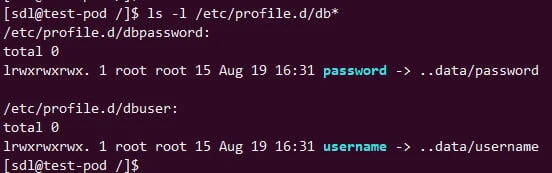
As you can see, the secrets are properly mounted as symbolic links. This as I mentioned earlier is to support runtime secret update.
Method-2: Mount multiple keys from the secret on same directory
Here we will create a single secret with 2 key value pairs as shown in
the below secret.yaml file:
apiVersion: v1
kind: Secret
metadata:
  name: db-credentials
  namespace: dummy
type: Opaque
data:
    username: dXNlcjEK
    password: UGFzc3cwcmQK
---
Now we will mount both these keys on the same volume path i.e.
/etc/profile.d under different files using below test-pod.yaml file:
apiVersion: v1
kind: Pod
metadata:
  name: test-pod
  namespace: dummy
spec:
  containers:
  - name: main
    image: docker-registry:8090/customsql:latest
    command: ["supervisord", "-c", "/etc/supervisord.conf"]
    securityContext:
      runAsUser: 1025
      privileged: false
      allowPrivilegeEscalation: false
    volumeMounts:
    - name: db-user
      mountPath: /etc/profile.d

  volumes:
  - name: db-user
    secret:
      secretName: db-credentials
      items:
      - key: username
        path: dbusername
      - key: password
        path: dbpassword
Here, as you can see we have defined items section with the key and
path field:
The username key from db-credentials secret is available to the
container at the path /etc/profile.d/dbusername instead of at
/etc/profile.d/username. Similarly, the password key from
db-credentials secret will be mounted at /etc/profile.d/dbusername
instead of at /etc/profile.d/password.
Let’s create our pod and verify the same:
]# kubectl create -f test-pod.yaml
pod/test-pod created
Make sure it is UP and Running:
]# kubectl get po -n dummy
NAME                 READY   STATUS    RESTARTS   AGE
test-pod             1/1     Running   0          7s
Next, connect to the pod and verify the mount points:
]# kubectl exec -it test-pod -n dummy -- bash
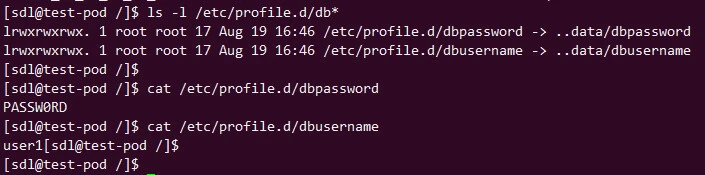
As expected, our secret keys are mounted on the same volume path under
/etc/profile.d.
With this approach also if you make any changes to your secrets, the changes will be visible inside the container without any pod restart.
Method-3: Mount multiple secrets on same volume path using projected volumes
Projected volumes can be used to mount secrets, configmaps,
serviceAccountToken and downwardAPI.Here we will create 2 secrets with
each secret having 2 keys i.e. username and password using below
secret.yaml file:
apiVersion: v1
kind: Secret
metadata:
  name: db-credentials
  namespace: dummy
type: Opaque
data:
    username: dXNlcjEK
    password: UGFzc3cwcmQK
---
apiVersion: v1
kind: Secret
metadata:
  name: app-credentials
  namespace: dummy
type: Opaque
data:
    username: dXNlcjEK
    password: UGFzc3cwcmQK
---
Now we will mount these secrets to /etc/secrets using Kubernetes
projected volume. In my case, /etc/secrets folder doesn’t exist and it
will get created runtime once the pod is created. So you don’t have to
worry about creating parent directory.
apiVersion: v1
kind: Pod
metadata:
  name: test-pod
  namespace: dummy
spec:
  containers:
  - name: main
    image: docker-registry:8090/customsql:latest
    command: ["supervisord", "-c", "/etc/supervisord.conf"]
    securityContext:
      runAsUser: 1025
      privileged: false
      allowPrivilegeEscalation: false
    volumeMounts:
    - name: all-secrets
      mountPath: /etc/secrets

  volumes:
  - name: all-secrets
    projected:
      sources:
      - secret:
          name: db-credentials
          items:
            - key: username
              path: dbusername
            - key: password
              path: dbpassword
      - secret:
          name: app-credentials
          items:
            - key: username
              path: appusername
            - key: password
              path: apppassword
Let’s go ahead and create these secrets and pod:
]# kubectl create -f secret.yaml
secret/db-credentials created
secret/app-credentials created

]# kubectl create -f test-pod.yaml
pod/test-pod created
Make sure the pod is UP and Running
]# kubectl get pods -n dummy
NAME                 READY   STATUS    RESTARTS   AGE
test-pod             1/1     Running   0          4s
Next connect to the pod and verify the mounted secrets:
]# kubectl exec -it test-pod -n dummy -- bash
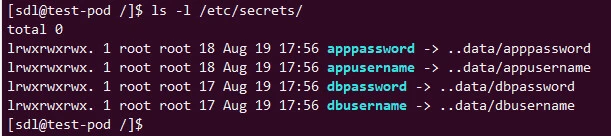
As expected, all our secrets are mounted under the same volume path i.e.
/etc/secrets. All secrets mounted with this method will support
runtime updates without any pod or container restart
Method-4: Mount Kubernetes secrets using subPath on same directory
We also have an option to use subPath to define the filename to be
used while mounting the secret. Here we will create a secret using a
file with the following content:
# cat /tmp/credentials.sh
username=user1
password-Passw0rd
We will use kubectl command to create the secret in our namespace:
# kubectl create secret generic db-credentials --from-file=credentials.sh=/tmp/credentials.sh -n dummy
secret/db-credentials created
Next let’s update our test-pod.yaml file to mount this secret using
subPath:
apiVersion: v1
kind: Pod
metadata:
  name: test-pod
  namespace: dummy
spec:
  containers:
  - name: main
    image: docker-registry:8090/customsql:latest
    command: ["supervisord", "-c", "/etc/supervisord.conf"]
    securityContext:
      runAsUser: 1025
      privileged: false
      allowPrivilegeEscalation: false
    volumeMounts:
    - name: secret1
      mountPath: /etc/secrets1/credentials.sh
      subPath: credentials.sh

  volumes:
  - name: secret1
    secret:
      secretName: db-credentials
Here we have used subPath to mount our secret under
/etc/profile.d/credentials.sh file. We use subPath so that we don’t
overwrite the content of existing directories where the secret is
getting mounted. But the same be also achieved using items and key
combination which we used in previous examples.
Let’s create the pod and make sure it is UP and Running:
# kubectl create -f test-pod.yaml
pod/test-pod created
Connect to the pod and verify the secrets:
# kubectl exec -it test-pod -n dummy -- bash
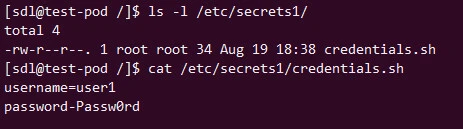
The downside of using this method is that the secrets mounted with
subPath cannot be updated runtime and would require a container or pod
restart to update the secret value. I have already written another
detailed article covering the
difference
between mountPath and subPath in Kubernetes.
Summary
In this tutorial we covered multiple ways to mount kubernetes secrets
using volume and volumeMounts on a single PATH. There are many ways to
access Kubernetes secrets, such as you can also create environment
variables and mount them to containers as env variables. But we do
some times face issues when there are multiple secrets to be mounted on
the same path. In such cases we see issues such as the existing content
of the directory gets overwritten or sometimes the secret is mounted as
symbolic link instead of file.
