
![25+ yum command examples in Linux [Cheat Sheet]](/yum-command-in-linux/yum_command.jpg)
Introduction to yum command
yum (Yellowdog Updater Modified) is a tool in an RPM-based Linux system for managing the packages. It can install, update and remove packages on the system. It also provides information about installed packages on the system and available packages on the default repositories. yum automatically resolves dependencies and performs obsolete processing based on repository metadata.
How yum works
- YUM is basically a package management tool which relies on repositories to look for packages for install/update/downgrade/remove purpose
- So you must have a repository to be able to use yum.
- All supported Linux distributions come with their own set of
repositories. By default all the repository files are configured
inside
/etc/yum.repos.dwith.confextension. - The repo configuration file include repo name, repo path, gpg check and enabled parameter. Based on this parameter, yum will query the repository for available packages.
- You can also configure your own repository.
Here is a sample repo configuration file:
[BaseOS]
name=CentOS-$releasever - Base
mirrorlist=http://mirrorlist.centos.org/?release=$releasever&arch=$basearch&repo=BaseOS&infra=$infra
#baseurl=http://mirror.centos.org/$contentdir/$releasever/BaseOS/$basearch/os/
gpgcheck=1
enabled=1
gpgkey=file:///etc/pki/rpm-gpg/RPM-GPG-KEY-centosofficial
Here,
- name: Repository Name
- mirrorlist/baseurl: Path of the repository which contains all the
packages. Supports HTTP(S), FTP(S), FILE etc. NFS is not supported
directly, so you must manually first mount the NFS share and the use
file://to access the repo. - gpgcheck: perform a checksum match using the GOG key to make sure
no one has contaminated the repo.
0(Zero) means disable the check. - enabled: You can enable or disable specific repo.
0(Zero) means disabled and1(One) means enabled - gpgkey: Path of the gpgkey to be used for checksum validation if
gpgcheck = 1
Different examples to use yum command
You need to have the root privileges to execute the yum command.
You can either switch to root or use sudo to get the root privilege.
The basic syntax of yum command is:
$ sudo yum [options] [command] [package_name]
Below, we will look at different examples of yum commands to manage the packages in an RPM-based Linux distribution.
1. Install a package along with it’s dependencies using yum command
You can use this command to install any packages on the system. It will automatically install the latest version and its dependencies.
$ sudo yum install package_name
Sample Output:
[deepak@localhost ~]$ sudo yum install iotop
...
Resolving Dependencies
--> Running transaction check
---> Package iotop.noarch 0:0.6-4.el7 will be installed
--> Finished Dependency Resolution

...
Installed:
  iotop.noarch 0:0.6-4.el7

Complete!
2. Remove a package and it’s dependencies using yum command
You can use remove command to remove any installed packages and their
dependencies from the system. You cannot remove the yum package as it is
included in the protected_packages configuration.
$ sudo yum remove package_name
Sample Output:
[deepak@localhost ~]$ sudo yum remove iotop
Loaded plugins: fastestmirror, langpacks
Resolving Dependencies
--> Running transaction check
---> Package iotop.noarch 0:0.6-4.el7 will be erased
--> Finished Dependency Resolution

...

Removed:
  iotop.noarch 0:0.6-4.el7

Complete!
3. yum command to update a package and its dependencies
You can update any installed package with yum command. It only updates
the package if the latest versions are available.
$ sudo yum update package_name
As you can observe here, all dependent packages of NetworkManager have been updated.
Sample Output:
[deepak@localhost ~]$ sudo yum update NetworkManager
...
Resolving Dependencies
--> Running transaction check
---> Package NetworkManager.i686 1:1.18.8-1.el7 will be updated
--> Processing Dependency: NetworkManager = 1:1.18.8-1.el7 for package: 1:NetworkManager-ppp-1.18.8-1.el7.i686
--> Processing Dependency: NetworkManager = 1:1.18.8-1.el7 for package: 1:NetworkManager-tui-1.18.8-1.el7.i686
--> Processing Dependency: NetworkManager(x86-32) = 1:1.18.8-1.el7 for package: 1:NetworkManager-team-1.18.8-1.el7.i686
--> Processing Dependency: NetworkManager(x86-32) = 1:1.18.8-1.el7 for package: 1:NetworkManager-adsl-1.18.8-1.el7.i686
--> Processing Dependency: NetworkManager(x86-32) = 1:1.18.8-1.el7 for package: 1:NetworkManager-ppp-1.18.8-1.el7.i686
--> Processing Dependency: NetworkManager(x86-32) = 1:1.18.8-1.el7 for package: 1:NetworkManager-wifi-1.18.8-1.el7.i686
---> Package NetworkManager.i686 1:1.18.8-2.el7_9 will be an update
--> Processing Dependency: NetworkManager-libnm(x86-32) = 1:1.18.8-2.el7_9 for package: 1:NetworkManager-1.18.8-2.el7_9.i686

...

Updated:
  NetworkManager.i686 1:1.18.8-2.el7_9                 NetworkManager-glib.i686 1:1.18.8-2.el7_9

Dependency Updated:
  NetworkManager-adsl.i686 1:1.18.8-2.el7_9              NetworkManager-libnm.i686 1:1.18.8-2.el7_9
  NetworkManager-ppp.i686 1:1.18.8-2.el7_9               NetworkManager-team.i686 1:1.18.8-2.el7_9
  NetworkManager-tui.i686 1:1.18.8-2.el7_9               NetworkManager-wifi.i686 1:1.18.8-2.el7_9

Complete!
If it is run without specifying a package name, it updates every installed package on the system.
$ sudo yum update
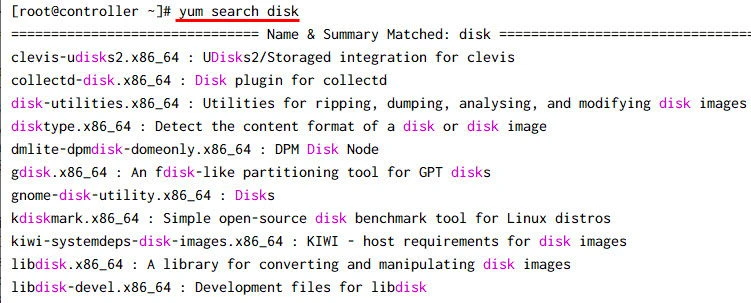
4. yum command to search a package from available repositories
search command allows you to find the packages by name. It does not
have to be the exact name. It displays all the available packages that
match the word.
$ sudo yum search package_name
Sample Output:
5. yum command to get the list of all packages
list command prints the list of all packages that are installed and
available in the package management repositories.
$ sudo yum list
Sample Output:
[deepak@localhost ~]$ sudo yum list
Loaded plugins: fastestmirror, langpacks
Loading mirror speeds from cached hostfile
 * base: mirror-hk.koddos.net
 * extras: mirror-hk.koddos.net
 * updates: mirror-hk.koddos.net
Installed Packages
GConf2.i686                                                  3.2.6-8.el7                               @anaconda
GeoIP.i686                                                   1.5.0-14.el7                              @anaconda
ModemManager.i686                                            1.6.10-4.el7                              @anaconda
ModemManager-glib.i686                                       1.6.10-4.el7                              @anaconda
NetworkManager.i686                                          1:1.18.8-2.el7_9                          @updates

...
Available Packages
3proxy.x86_64                               0.8.13-1.el8                            epel
AusweisApp2.x86_64                          1.22.2-3.el8                            epel
AusweisApp2-data.noarch                     1.22.2-3.el8                            epel
AusweisApp2-doc.noarch                      1.22.2-3.el8                            epel
BackupPC.x86_64                             4.4.0-1.el8                             epel
BackupPC-XS.x86_64                          0.62-1.el8                              epel
BibTool.x86_64                              2.68-1.el8                              epel
...
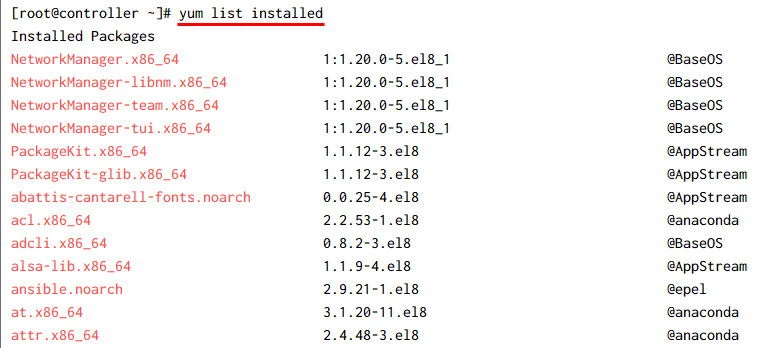
6. List all the installed packages with yum command
To get the list of only installed packages on the system, you can use the following command.
$ sudo yum list installed
Sample Output:
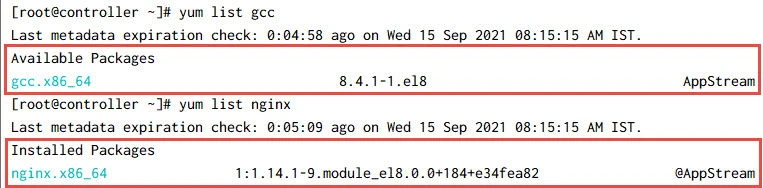
7. yum command to get the list of a specific package
You can specify the package name to get the list or find the package. It shows both available or installed packages.
$ sudo yum list package_name
Sample Output:
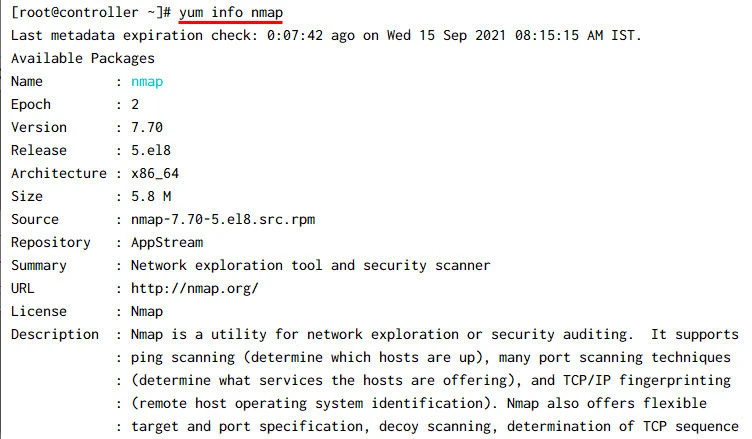
8. yum command to get information of a package
If you want to know the information of the package, you can use this command. It displays the name, architecture, version, release, size, license, and other details.
$ sudo yum info package_name
Sample Output:
9. Reinstall a package with yum command
You can also reinstall a package that is already installed on the system.
$ sudo yum reinstall package_name
Sample Output:
[deepak@localhost ~]$ sudo yum reinstall nmap
...
Resolving Dependencies
--> Running transaction check
---> Package nmap.i686 2:6.40-19.el7 will be reinstalled
--> Finished Dependency Resolution

Dependencies Resolved

================================================================================================================
 Package                 Arch                    Version                          Repository               Size
================================================================================================================
Reinstalling:
 nmap                    i686                    2:6.40-19.el7                    base                    3.9 M

Transaction Summary
================================================================================================================
Reinstall  1 Package

...

Installed:
  nmap.i686 2:6.40-19.el7

Complete!
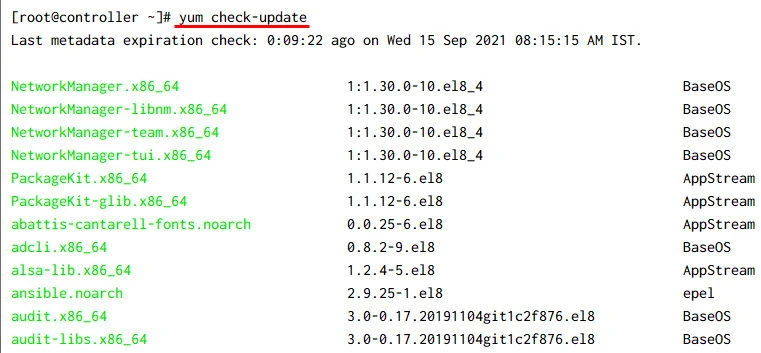
10. yum command to check the available updates of packages
You can check if any of the installed packages on your system have updates available with this command.
$ sudo yum check-update
Sample Output:
11. yum command to download package instead of installing
Sometimes, you may need to download the packages without installing them
in your system. In that case, you can use --downloadonly option. To
specify the download directory, use --downloaddir=<DIR_PATH> option.
$ sudo yum install package_name --downloadonly --downloaddir=DIR_PATH
Sample Output:
## Suppress output and give YES to the prompt
~]# yum -q -y install mariadb --downloadonly --downloaddir=/root/

## Following packages were downloaded
~]# ls -l mariadb-*
-rw-r--r-- 1 root root 6309098 Sep 15 08:27 mariadb-10.3.28-1.module_el8.3.0+757+d382997d.x86_64.rpm
-rw-r--r-- 1 root root 65086 Sep 15 08:27 mariadb-common-10.3.28-1.module_el8.3.0+757+d382997d.x86_64.rpm
-rw-r--r-- 1 root root 204648 Sep 15 08:27 mariadb-connector-c-3.1.11-2.el8_3.x86_64.rpm
-rw-r--r-- 1 root root 14908 Sep 15 08:27 mariadb-connector-c-config-3.1.11-2.el8_3.noarch.rpm

## Mariadb rpm was not installed
 ~]# rpm -qa | grep mariadb
12. List all group packages using yum command
The collection of packages in a certain group are called group packages. This command lists all the available groups for the system.
$ sudo yum grouplist
Sample Output:
[deepak@localhost ~]$ sudo yum grouplist
Loaded plugins: fastestmirror, langpacks
There is no installed groups file.
Maybe run: yum groups mark convert (see man yum)
Loading mirror speeds from cached hostfile
 * base: mirror-hk.koddos.net
 * extras: mirror-hk.koddos.net
 * updates: mirror-hk.koddos.net
Available Environment Groups:
   Minimal Install
   Compute Node
   Infrastructure Server
   File and Print Server
   Basic Web Server
   Virtualization Host
   Server with GUI
   GNOME Desktop
   KDE Plasma Workspaces
   Development and Creative Workstation
Available Groups:
   Compatibility Libraries
   Console Internet Tools
   Development Tools
   Graphical Administration Tools
   Legacy UNIX Compatibility
   Scientific Support
   Security Tools
   Smart Card Support
   System Administration Tools
   System Management
Done
13. yum command to install a group package
If you install a group package, it will install all the packages present in that group. You can use this command to install a group package.
$ sudo yum groupinstall group_package
Sample Output:
[deepak@localhost ~]$ sudo yum groupinstall 'Compatibility Libraries'
Loaded plugins: fastestmirror, langpacks
There is no installed groups file.
Maybe run: yum groups mark convert (see man yum)
Loading mirror speeds from cached hostfile
 * base: mirror-hk.koddos.net
 * extras: mirror-hk.koddos.net
 * updates: mirror-hk.koddos.net
Resolving Dependencies
--> Running transaction check
---> Package compat-db47.i686 0:4.7.25-28.el7 will be installed
--> Processing Dependency: compat-db-headers = 4.7.25-28.el7 for package: compat-db47-4.7.25-28.el7.i686
---> Package compat-exiv2-023.i686 0:0.23-2.el7 will be installed
---> Package compat-glibc.i686 1:2.12-4.el7.centos will be installed
--> Processing Dependency: compat-glibc-headers = 1:2.12-4.el7.centos for package: 1:compat-glibc-2.12-4.el7.centos.i686
---> Package compat-libcap1.i686 0:1.10-7.el7 will be installed
---> Package compat-libf2c-34.i686 0:3.4.6-32.el7 will be installed
---> Package compat-libgfortran-41.i686 0:4.1.2-45.el7 will be installed
--> Finished Dependency Resolution

...

Installed:
  compat-db47.i686 0:4.7.25-28.el7                     compat-exiv2-023.i686 0:0.23-2.el7
  compat-glibc.i686 1:2.12-4.el7.centos                compat-libcap1.i686 0:1.10-7.el7
  compat-libf2c-34.i686 0:3.4.6-32.el7                 compat-libgfortran-41.i686 0:4.1.2-45.el7
  compat-libtiff3.i686 0:3.9.4-12.el7                  compat-openldap.i686 1:2.3.43-5.el7
  libpng12.i686 0:1.2.50-10.el7                        openssl098e.i686 0:0.9.8e-29.el7.centos.3

Dependency Installed:
  compat-db-headers.noarch 0:4.7.25-28.el7                    compat-glibc-headers.i686 1:2.12-4.el7.centos
  kernel-headers.i686 0:3.10.0-1160.42.2.el7.centos.plus

Complete!
14. yum command to update group package
You can use this command to update any installed group package in your system.
$ sudo yum groupupdate group_package
Sample Output:
[deepak@localhost ~]$ sudo yum groupupdate 'Compatibility Libraries'
Loaded plugins: fastestmirror, langpacks
Loading mirror speeds from cached hostfile
 * base: mirror-hk.koddos.net
 * extras: mirror-hk.koddos.net
 * updates: mirror-hk.koddos.net
Maybe run: yum groups mark install (see man yum)
No packages in any requested group available to install or update
15. yum command to remove group package
The removal of a group package from the system removes all the packages that belong to that group. It is not recommended unless you want to get rid of all packages of a certain group.
$ sudo yum groupremove group_package
Sample Output:
[deepak@localhost ~]$ sudo yum groupremove 'Compatibility Libraries'
Loaded plugins: fastestmirror, langpacks
Loading mirror speeds from cached hostfile
 * base: mirror-hk.koddos.net
 * extras: mirror-hk.koddos.net
 * updates: mirror-hk.koddos.net
No environment named Compatibility Libraries exists
Resolving Dependencies
--> Running transaction check
---> Package compat-db47.i686 0:4.7.25-28.el7 will be erased
---> Package compat-exiv2-023.i686 0:0.23-2.el7 will be erased
---> Package compat-glibc.i686 1:2.12-4.el7.centos will be erased
--> Processing Dependency: compat-glibc = 1:2.12-4.el7.centos for package: 1:compat-glibc-headers-2.12-4.el7.centos.i686
---> Package compat-libcap1.i686 0:1.10-7.el7 will be erased
---> Package compat-glibc-headers.i686 1:2.12-4.el7.centos will be erased
--> Finished Dependency Resolution

...
Running transaction
  Erasing    : 1:compat-glibc-2.12-4.el7.centos.i686                                                       1/11
  Erasing    : 1:compat-glibc-headers-2.12-4.el7.centos.i686                                               2/11
  Erasing    : compat-libf2c-34-3.4.6-32.el7.i686                                                          3/11
  Erasing    : openssl098e-0.9.8e-29.el7.centos.3.i686                                                     4/11
  Erasing    : compat-libtiff3-3.9.4-12.el7.i686                                                           5/11
  Erasing    : libpng12-1.2.50-10.el7.i686                                                                 6/11

...
Removed:
  compat-db47.i686 0:4.7.25-28.el7                     compat-exiv2-023.i686 0:0.23-2.el7
  compat-glibc.i686 1:2.12-4.el7.centos                compat-libcap1.i686 0:1.10-7.el7
  compat-libf2c-34.i686 0:3.4.6-32.el7                 compat-libgfortran-41.i686 0:4.1.2-45.el7
  compat-libtiff3.i686 0:3.9.4-12.el7                  compat-openldap.i686 1:2.3.43-5.el7
  libpng12.i686 0:1.2.50-10.el7                        openssl098e.i686 0:0.9.8e-29.el7.centos.3

Dependency Removed:
  compat-glibc-headers.i686 1:2.12-4.el7.centos

Complete!
16. List currently enabled repositories with yum command
This command prints the list of all enabled repositories on the system.
$ sudo yum repolist
OR
$ sudo yum repolist enabled
Sample Output:
[deepak@localhost ~]$ sudo yum repolist
Loaded plugins: fastestmirror, langpacks
Loading mirror speeds from cached hostfile
 * base: mirror-hk.koddos.net
 * extras: mirror-hk.koddos.net
 * updates: mirror-hk.koddos.net
repo id                                            repo name                                              status
base/7/i386                                        CentOS-7 - Base                                        7,611
extras/7/i386                                      CentOS-7 - Extras                                        404
updates/7/i386                                     CentOS-7 - Updates                                     1,992
repolist: 10,007
You can also list the disabled yum repositories by passing the argument
disabled.
$ sudo yum repolist disabled
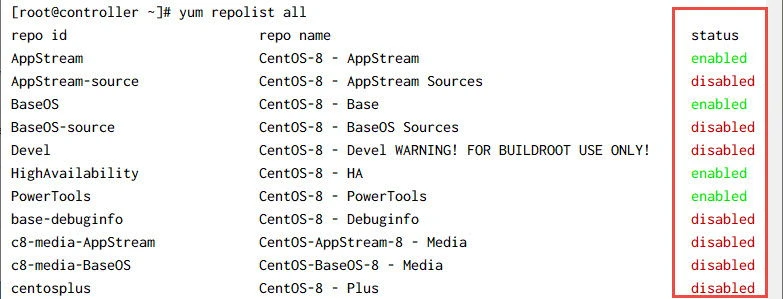
17. yum command to list all yum repositories
You can list all the configured repositories on your system using all
option.
$ sudo yum repolist all
Sample Output:
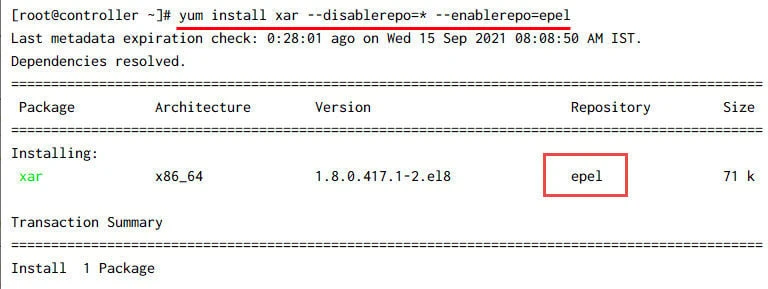
18. Enable specific repository for runtime execution
--enablerepo option allows you to install a package from any specific
repository. It also enables a disabled repository to install a package.
$ sudo yum install package_name --enablerepo=repo_name
OR
You can decide to disable all the repositories and only use a single repository using
$ sudo yum install package_name --disablerepo=* --enablerepo=repo_name
Sample Output:
19. Disable specific repository for runtime execution
--disablerepo option disables the repository, and the package will not
be installed from that repository. If the package mentioned is not
available in any of the enabled repositories, you may not be able to
install the package.
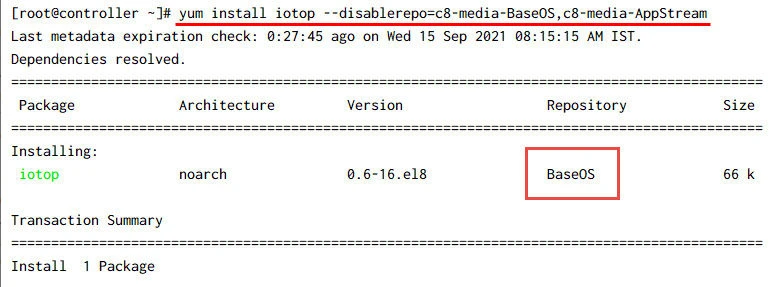
$ sudo yum install package_name --disablerepo=repo_name
For Example, due to some issues two of my repositories were unreachable with following error:
Errors during downloading metadata for repository 'c8-media-BaseOS':
  - Curl error (37): Couldn't read a file:// file for file:///media/CentOS/BaseOS/repodata/repomd.xml [Couldn't open file /media/CentOS/BaseOS/repodata/repomd.xml]
Errors during downloading metadata for repository 'c8-media-AppStream':
  - Curl error (37): Couldn't read a file:// file for file:///media/CentOS/AppStream/repodata/repomd.xml [Couldn't open file /media/CentOS/AppStream/repodata/repomd.xml]
Due to this error, yum was not allowing me to install the packages. So I chose to temporarily disable these repos and continue with package installation as anyhow I didn’t need those repos for the package which I was planning to install:
~]# yum install iotop --disablerepo=c8-media-BaseOS,c8-media-AppStream
Sample Output:
20. Find which rpm package provides a specific file
You can use this command to find a specific file of packages. You can
provide the file name or the path to be searched with yum provides or
whatprovides command as shown below:
$ sudo yum provides file_name
OR
$ sudo yum whatprovides file_name
For Example, to find the rpm which provides useradd command we can use:
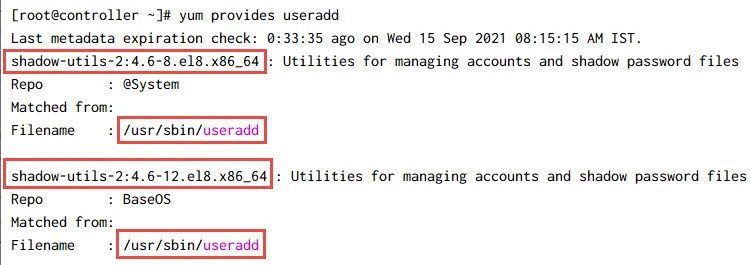
As you can see, it has given the RPM name which is responsible for installing useradd binary. But there may be some more files with the same name.
To get that complete list you can use regex with yum command:
[root@controller ~]# yum provides */useradd
Last metadata expiration check: 0:35:45 ago on Wed 15 Sep 2021 08:15:15 AM IST.
bash-completion-1:2.7-5.el8.noarch : Programmable completion for Bash
Repo        : @System
Matched from:
Filename    : /usr/share/bash-completion/completions/useradd

bash-completion-1:2.7-5.el8.noarch : Programmable completion for Bash
Repo        : BaseOS
Matched from:
Filename    : /usr/share/bash-completion/completions/useradd

shadow-utils-2:4.6-8.el8.x86_64 : Utilities for managing accounts and shadow password files
Repo        : @System
Matched from:
Filename    : /etc/default/useradd
Filename    : /usr/sbin/useradd

shadow-utils-2:4.6-12.el8.x86_64 : Utilities for managing accounts and shadow password files
Repo        : BaseOS
Matched from:
Filename    : /etc/default/useradd
Filename    : /usr/sbin/useradd
So now we get a whole list of useradd files which are available in
different path along with the owner rpm name.
21. View the history of all the yum command executed on the node
This command shows the information of what has happened in the past
execution of yum command.
$ sudo yum history
Sample Output:
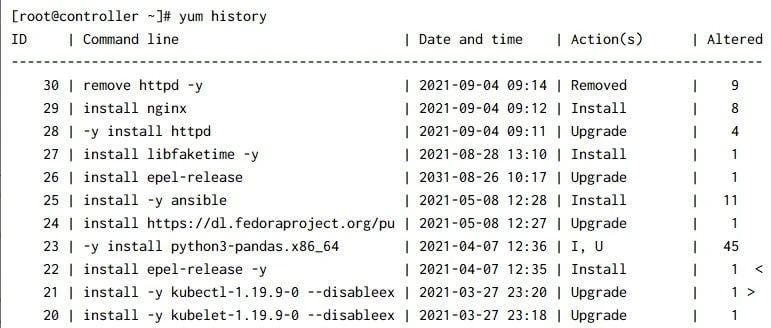
The output may look confusing to you, I have already written a detailed article covering this command.
23. yum command to undo and redo changes
You can undo and redo the changes made by specific yum command
execution. The transaction_id can be collected from yum history
command. To undo the change, you can use:
$ sudo yum history undo transaction_id
Sample Output:
[deepak@localhost ~]$ sudo yum history undo 10
Loaded plugins: fastestmirror, langpacks
Undoing transaction 10, from Mon Sep 13 19:36:08 2021
    Install iotop-0.6-4.el7.noarch @base
Resolving Dependencies
--> Running transaction check
---> Package iotop.noarch 0:0.6-4.el7 will be erased
--> Finished Dependency Resolution

Dependencies Resolved

================================================================================================================
 Package                  Arch                      Version                      Repository                Size
================================================================================================================
Removing:
 iotop                    noarch                    0.6-4.el7                    @base                    156 k

Transaction Summary
================================================================================================================
Remove  1 Package

...
Removed:
  iotop.noarch 0:0.6-4.el7

Complete!
[deepak@localhost ~]$
To redo the change, you can use:
$ sudo yum history redo transaction_id
Sample Output:
[deepak@localhost ~]$ sudo yum history redo 10
Loaded plugins: fastestmirror, langpacks
Repeating transaction 10, from Mon Sep 13 19:36:08 2021
    Install iotop-0.6-4.el7.noarch @base
Loading mirror speeds from cached hostfile
 * base: mirror-hk.koddos.net
 * extras: mirror-hk.koddos.net
 * updates: mirror-hk.koddos.net
Resolving Dependencies
--> Running transaction check
---> Package iotop.noarch 0:0.6-4.el7 will be installed
--> Finished Dependency Resolution

Dependencies Resolved

================================================================================================================
 Package                  Arch                      Version                       Repository               Size
================================================================================================================
Installing:
 iotop                    noarch                    0.6-4.el7                     base                     52 k

Transaction Summary
================================================================================================================
Install  1 Package

...

Installed:
  iotop.noarch 0:0.6-4.el7

Complete!
24. yum command to undo all transactions up to the specified transaction
You can use rollback command to undo all transactions up to the
specified transaction. Suppose, if you have 15 transactions in the yum
history and you pass the argument 5 as transaction ID. Then it will undo
all the transactions from 15 to 6.
$ sudo yum history rollback transaction_id
Sample Output:
[deepak@localhost ~]$ sudo yum history rollback 9
Loaded plugins: fastestmirror, langpacks
Rollback to transaction 9, from Mon Sep 13 19:34:36 2021
  Undoing the following transactions: 10, 11, 12, 13, 14, 15, 16, 17, 18, 19, 20, 21
    Updated     NetworkManager-1:1.18.8-1.el7.i686                   @anaconda
    Update                     1:1.18.8-2.el7_9.i686                 @updates
    Updated     NetworkManager-adsl-1:1.18.8-1.el7.i686              @anaconda
    Update                          1:1.18.8-2.el7_9.i686            @updates
    Updated     NetworkManager-glib-1:1.18.8-1.el7.i686              @anaconda
    Update                          1:1.18.8-2.el7_9.i686            @updates
    Updated     NetworkManager-libnm-1:1.18.8-1.el7.i686             @anaconda
    Update                           1:1.18.8-2.el7_9.i686           @updates
    Updated     NetworkManager-ppp-1:1.18.8-1.el7.i686               @anaconda
    Dep-Install compat-db-headers-4.7.25-28.el7.noarch               @base
    Install     iotop-0.6-4.el7.noarch                               @base
    Dep-Install kernel-headers-3.10.0-1160.42.2.el7.centos.plus.i686 @updates
    Reinstall   nmap-2:6.40-19.el7.i686                              @base
    Dep-Install nmap-ncat-2:6.40-19.el7.i686                         @base

...
25. Execute yum command without YES/NO prompt
By default, you will be asked a question when you try to install or
remove a package. You can use -y option to choose yes option in the
yum command.
$ sudo yum command -y package_name
Sample Output:
[deepak@localhost ~]$ sudo yum install mariadb -y
...
Resolving Dependencies
--> Running transaction check
---> Package mariadb.i686 1:5.5.68-1.el7 will be installed
--> Finished Dependency Resolution

Dependencies Resolved

================================================================================================================
 Package                   Arch                   Version                          Repository              Size
================================================================================================================
Installing:
 mariadb                   i686                   1:5.5.68-1.el7                   base                   8.8 M

Transaction Summary
================================================================================================================
Install  1 Package

...
Installed:
  mariadb.i686 1:5.5.68-1.el7

Complete!
[deepak@localhost ~]$
25. yum command to clean the yum caches
yum stores the package data in the**/var/cache/yum/**directory, where the caches are also created. The caches use some space in the disk and sometimes may cause errors. You can use this command to clean all those caches.
$ sudo yum clean all
Sample Output:
[deepak@localhost ~]$ sudo yum clean all
Loaded plugins: fastestmirror, langpacks
Cleaning repos: base extras updates
Cleaning up list of fastest mirrors
Other repos take up 348 k of disk space (use --verbose for details)
26. Enter the yum shell with yum command
You can use the interactive shell of yum to execute all the yum
commands.
$ sudo yum shell
Sample Output:
[deepak@localhost ~]$ sudo yum shell
Loaded plugins: fastestmirror, langpacks
> info yum
Loading mirror speeds from cached hostfile
 * base: mirror-hk.koddos.net
 * extras: mirror-hk.koddos.net
 * updates: mirror-hk.koddos.net
Installed Packages
Name        : yum
Arch        : noarch
Version     : 3.4.3
Release     : 168.el7.centos
Size        : 5.6 M
Repo        : installed
From repo   : anaconda
Summary     : RPM package installer/updater/manager
URL         : http://yum.baseurl.org/
License     : GPLv2+
Description : Yum is a utility that can check for and automatically download and
            : install updated RPM packages. Dependencies are obtained and downloaded
            : automatically, prompting the user for permission as necessary.

> repo list
repo id                     repo name
AppStream                   CentOS-8 - AppStream
BaseOS                      CentOS-8 - Base
HighAvailability            CentOS-8 - HA
PowerTools                  CentOS-8 - PowerTools
epel                        Extra Packages for Enterprise Linux 8 - x86_64
epel-modular                Extra Packages for Enterprise Linux Modular 8 - x86_64
extras                      CentOS-8 - Extras

> exit
Leaving Shell
[deepak@localhost ~]$
Conclusion
This article shows you the different examples of yum commands to
install, remove, search or update packages and their dependencies. You
can also manage the group packages and the repositories. yum command
is a useful tool to get information about packages in an RPM-based Linux
system.
What’s Next
6 practical examples of yum history to rollback updates and patches
