
![10+ xz command examples in Linux [Cheat Sheet]](/xz-commandin-linux/xz__command.jpg)
Intoduction to xz command
File compression is a technique in which the file or group of files is compressed into a single archive file to reduce the size. There are several tools that you can use to compress files in Linux such as gzip, 7zip, tar, bzip2, xz, etc.
xz is one of the popular compression tools for Linux. It only compresses a single file. xz is considered to be faster than bzip2 and gzip compression tools.
xz is the successor to the lzma tool. The native file format is
also the .xz format. However, using the lzma command compresses the
file as .lzma format. Lzma stands for Lempel-Ziv-Markov
chain Algorithm.
Syntax to use xz command
The syntax for xz command is as follows:
$ xz [option] [file]
It compresses or decompresses each file according to the selected operation mode. If no files are specified or file is -, xz reads from standard input and writes the processed data to standard output. But it refuses to write compressed data to standard output in the terminal.
Different examples to use xz command
1. Compress a single file using xz command
You can specify a file after the xz command to compress a file. The original file is replaced by the compression version of the file.
$ xz test.txt
Sample Output:
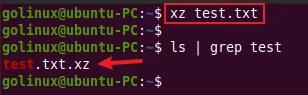
The options -z or --compress can also be used to compress a file.
$ xz -z test.txt
OR
$ xz --compress test.txt
2. xz command to compress multiple files
xz command allows you to specify multiple files so you can compress them all with a single command.
$ xz test1.txt test2.txt test3.txt
Sample Output:

You can use wildcard * to specify all files in the directory. If you
want to compress all .csv files in the directory, you can simply use
*.csv.
$ xz *.csv
3. Decompress a file
The -d or --decompress option is used to decompress or extract a
.xz file.
$ xz -d test.txt.xz
OR
$ xz --decompress test.txt.xz
Sample Output:
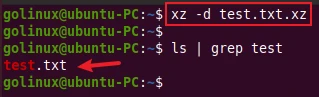
You can also use the unxz command which is equivalent to the
decompress option.
$ unxz test3.txt.xz
Sample Output:
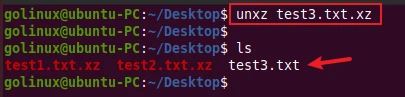
4. Test the integrity of a file
The -t or --test option is used to test the integrity of a
compressed file. It displays the error if the given file is not a valid
.xz file. If the file is valid, it does not print any output except with
the -v option.
$ xz -t test.txt.xz
OR
$ xz --test test.txt.xz
Sample Output:
With -v option, it shows the progress indicator.
golinux@ubuntu-PC:~$ xz -tv test.txt.xz
test.txt.xz (1/1)
  100 %                 80 B / 21 B = 3.810
If the .xz file is created by using the
cat or similar
commands, it displays an error saying file format not recognized.
golinux@ubuntu-PC:~$ cat > input.txt.xz
test file
golinux@ubuntu-PC:~$ xz -t input.txt.xz
xz: input.txt.xz: File format not recognized
5. Keep the input file
Normally, xz replaces the input file with the compressed or decompressed
version of the file. You can change this behavior and keep the original
file using -k or --keep option.
$ xz -k test.txt
OR
$ xz --keep test.txt
Sample Output:
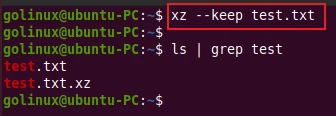
6. Force compression or decompression of a file
If the target file already exists, xz skips the file and displays the error.
golinux@ubuntu-PC:~$ xz test.txt
xz: test.txt.xz: File exists
The -f or --force option can be used to compress or decompress a
file forcefully. This option has several effects:
- If the target file already exists, it deletes the file before compressing or decompressing.
- It compresses or decompresses the file even if it is not a regular file.
$ xz -f test.txt
OR
$ xz --force test.txt
Sample Output:
golinux@ubuntu-PC:~$ xz -f test.txt
golinux@ubuntu-PC:~$
golinux@ubuntu-PC:~$ ls | grep test
test.txt.xz
7. Compress multiple files in a single xz file
As you know, xz compresses a single file only. To compress multiples
files to a single .xz file, you have to use the tar
command.
The following command will compress all .txt files into a
testfiles.tar.xz file. The -J option of tar command is used to
create the xz archive file.
$ tar -cJf testfiles.tar.xz *.txt
Sample Output:

8. Write the compressed or decompressed data to standard output
The -c or --stdout option writes the compressed or decompressed data
to the standard output of a file. xz will refuse (display an error and
skip the file) to write compressed data to standard output if it is a
terminal.
When decompressing the xz file, it shows the content of a file.
$ xz -cd test.txt.bz
OR
$ xz --stdout -d test.txt.bz
Sample Output:
golinux@ubuntu-PC:~$ xz -cd test.txt.xz
This is a test file.
You can also use xzcat command which is equivalent to the above
command.
golinux@ubuntu-PC:~$ xzcat test.txt.xz
This is a test file.
It only displays the file content but does not decompress the file in actual.
9. xz command to adjust compression levels
xz allows you to set compression levels while compressing files. By
default, xz uses the -6 compression level to compress files. You can
select the levels ranging from -0 to -9 for different compression
ratios.
-1 compression level which has thefastestcompression speed with
alessercompression ratio.
$ xz -1 test.txt
-9 has thelowestcompression speed with amaximumcompression
ratio.
$ xz -9 test.txt
10. View information about the compressed files
The -l or --list option displays the information about the
compressed files.
$ xz -l test.txt.xz
OR
$ xz --list test.txt.xz
Sample Output:
golinux@ubuntu-PC:~$ xz -l test.txt.xz
Strms  Blocks   Compressed Uncompressed  Ratio  Check   Filename
    1       1         80 B         21 B  3.810  CRC64   test.txt.xz
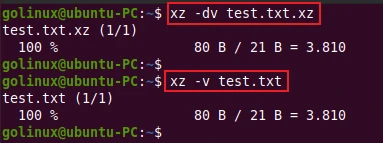
11. Display the verbose output
The -v or --verbose option helps to get the verbose output of the xz
command. For example, it displays a progress indicator when compressing
or decompressing files.
$ xz -v test.txt
OR
$ xz --verbose test.txt
Sample Output:
12. Suppress warnings and notices
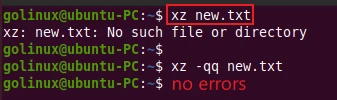
The -q or --quiet option can be used to suppress warning messages
and notices. You can specify this option twice to suppress errors
too.
$ xz -q file
OR
$ xz --quiet file
Sample Output:
Conclusion
This tutorial covers the most common examples of xz command in Linux. We hope this article helps you to understand how to use the xz command. If you have any confusion, please let us know in the comment section.
What’s Next
15+ tar command examples in Linux [Cheat
Sheet]
15+ tar command examples in Linux [Cheat
Sheet]
