
![15+ wget command examples in Linux [Cheat Sheet]](/wget-command-in-linux/wget_command.jpg)
wget is a popular command to download files from the internet. It can use HTTP, HTTPS, and FTP protocols for downloading files.
Since wget is non-interactive it can work in the background even if the user is not logged in. With wget, you can download multiple files, resume the download if interrupted, limit the bandwidth, mirror a website, download files in the background, download files from an FTP server, and many more.
Syntax to use wget command
The syntax for the wget command is as follows:
$ wget [option] URL
Different examples to use wget command
1. Download a webpage
You can simply specify a URL to download a webpage of the website. For
example, this command gets the HTML content of the page
https://ubuntu.com in index.html file.
$ wget https://ubuntu.com
Sample Output:
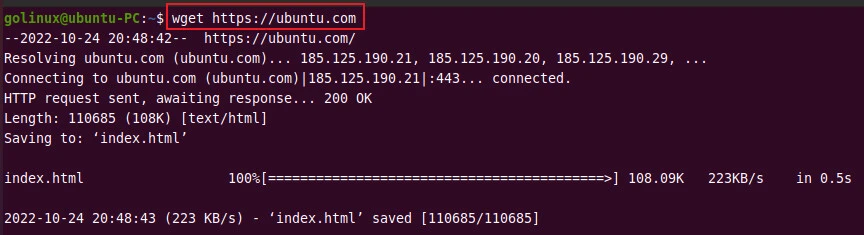
As you can see, wget shows the file that is being downloaded along with the progress bar, file size, transfer speed, estimated time, etc.
2. Download a file
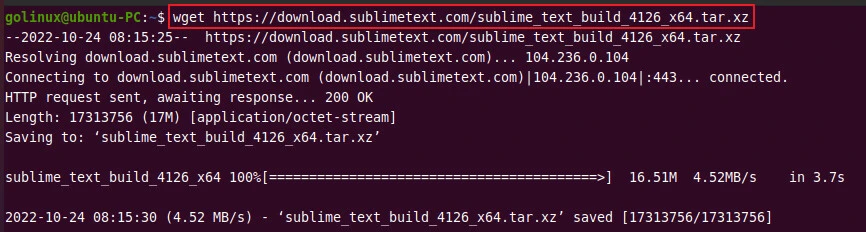
Similarly, you can use the wget command followed by a file URL to download that file.
$ wget url
Sample Output:
The following example downloads the tar archive file of Sublime Text.
3. Save a file with a different name
The -O or --output-document option allows you to save a downloaded
file as a given name.
$ wget -O filename url
OR
$ wget --output-document=file filename url
Sample Output:
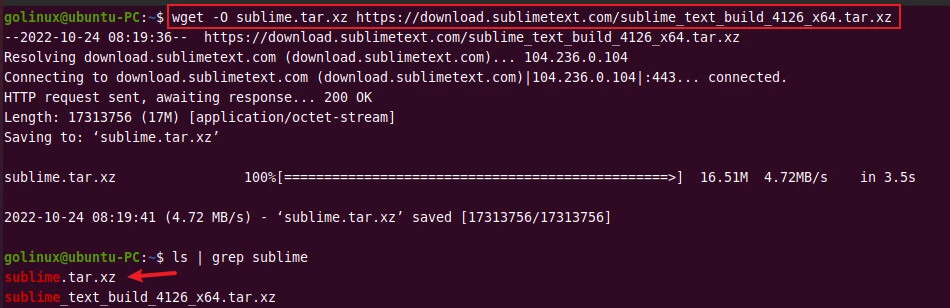
In this example, the original filename is
sublime_text_build_4126_x64.tar.xz which we are saving as
sublime.tar.xz with the help of -O option.
4. Download a file to the specific directory
By default, wget downloads a file to the current directory. To download
a file to a specific directory, you can use the -P or
--directory-prefix option.
$ wget -P dir url
OR
$ wget --directory-prefix=dir url
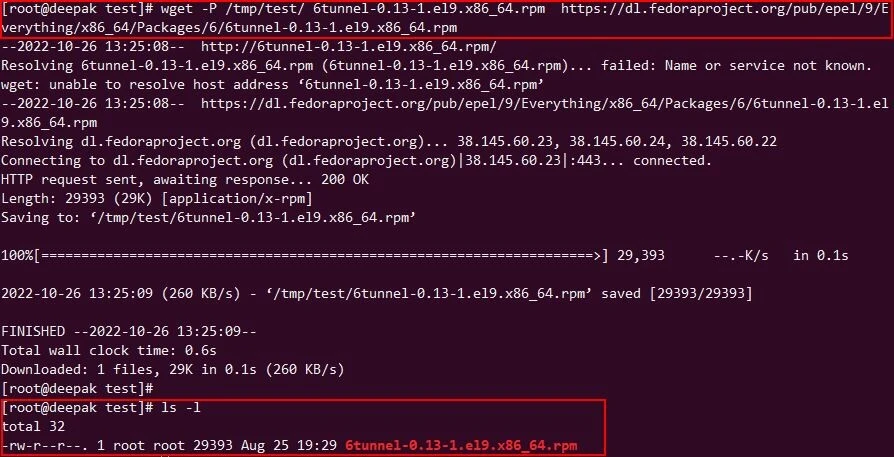
Sample Output:
The following example downloads a rpm to the directory /tmp/test.
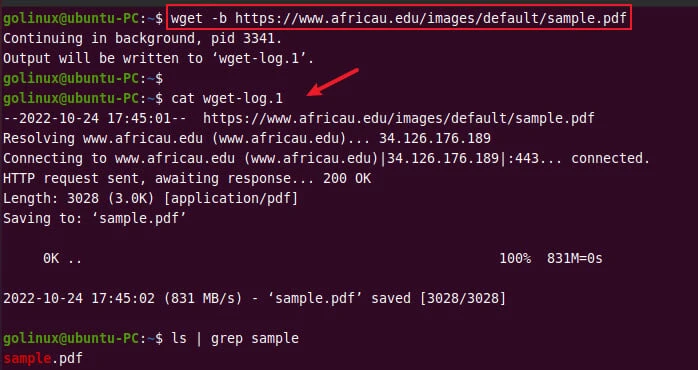
5. Download a file in background
The -b or --background option runs the background process to
download a file. The download progress can be viewed by opening
wget-log.1 file.
$ wget -b url
OR
$ wget --background url
Sample Output:
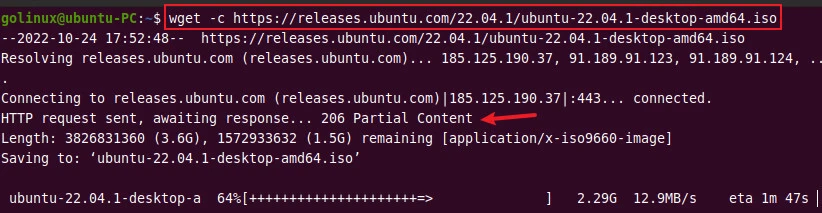
6. Resume a previous download
The -c or --continue option allows you to resume the partially
downloaded file.
$ wget -c url
OR
$ wget --continue url
Sample Output:
Here, we are resuming the download of Ubuntu .iso file.
7. Limit the download speed
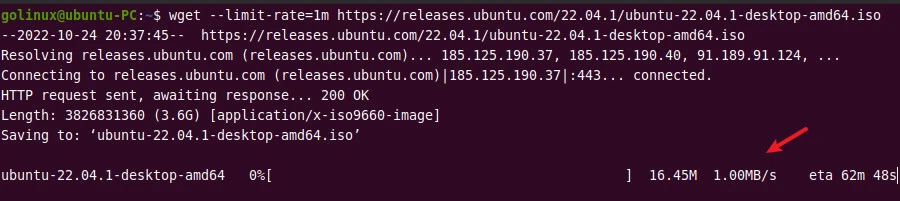
You can limit the download speed of wget using the --limit-rate
option. The default size is bytes per second. You can use k for
kilobytes, m for megabytes, and g for gigabytes.
The following example downloads the Ubuntu iso file with a speed of
1MB per second.
$ wget --limit-rate=1m url
Sample Output:
8. Use URLs from the file to download
The -i or --input-file option lets you read from a specified file.
You can use this option to specify the file containing a list of URLs to
be downloaded. Each URL in a file must be on a separate line.
$ wget -i file
OR
$ wget --input-file file
Sample Output:
We have created a url_list.txt file with the following URLs.
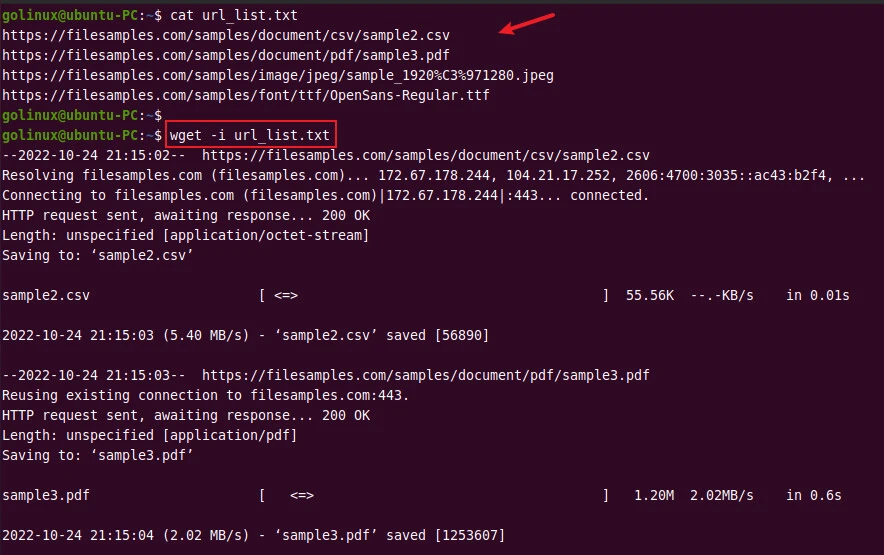
This option is helpful for downloading multiple files with the wget command.
9. Create a mirror of the website
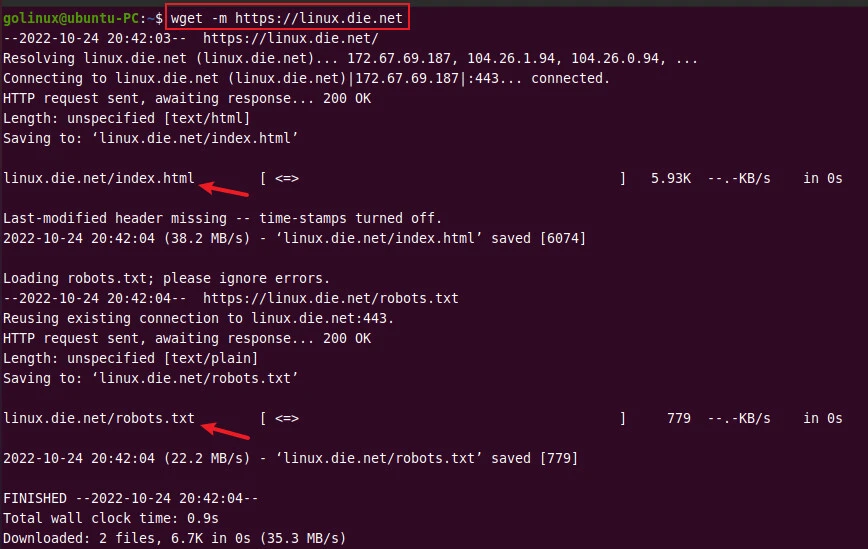
The -m or --mirror option is used to create a mirror of the website
which includes the complete website including its internal links,
images, CSS, and JavaScript.
$ wget -m url
OR
$ wget --mirror url
Sample Output:
10. Set the number of retries
You can set the number of retries to a specified number. The default behavior is to retry 20 times but errors like “connection refused” or “404 not found” are not retried.
$ wget -t num url
OR
$ wget --tries=num url
For infinite retry, you can use 0 or inf value.
11.Download from web server using user credentials
If your web server is protected by user password then you will have to
specify the login credentials while trying to access the web server.
Specify the username with --user and password with --password for
both FTP and HTTP file retrieval. These parameters can be overridden
using the --ftp-user and --ftp-password options for FTP connections
and the --http-user and --http-password options for HTTP
connections.
wget --user=(put username here) --password='(put password here)' http://example.com/
12. Turn off wget’s output
You can hide the output of wget using the -q or --quiet option.
$ wget -q url
OR
$ wget --quiet url
13. Download files and directories recursively
To download files and directories recursively you have to pass the
-np/--no-parent option to wget (in addition to -r/--recursive,
of course), otherwise it will follow the link in the directory index on
my site to the parent directory.
~]# wget --recursive --no-parent  https://dl.fedoraproject.org/pub/epel/9/Everything/

~]# ls -l dl.fedoraproject.org/pub/epel/9/Everything/
total 60
drwxr-xr-x. 6 root root 4096 Oct 26 12:45 aarch64
-rw-r--r--. 1 root root 1207 Oct 26 12:45 index.html
-rw-r--r--. 1 root root 1207 Oct 26 12:45 index.html?C=D;O=A
-rw-r--r--. 1 root root 1207 Oct 26 12:45 index.html?C=D;O=D
-rw-r--r--. 1 root root 1207 Oct 26 12:45 index.html?C=M;O=A
-rw-r--r--. 1 root root 1207 Oct 26 12:45 index.html?C=M;O=D
-rw-r--r--. 1 root root 1207 Oct 26 12:45 index.html?C=N;O=A
-rw-r--r--. 1 root root 1207 Oct 26 12:45 index.html?C=N;O=D
-rw-r--r--. 1 root root 1207 Oct 26 12:45 index.html?C=S;O=A
-rw-r--r--. 1 root root 1207 Oct 26 12:45 index.html?C=S;O=D
drwxr-xr-x. 6 root root 4096 Oct 26 12:45 ppc64le
drwxr-xr-x. 2 root root 4096 Oct 26 12:45 s390x
drwxr-xr-x. 2 root root 4096 Oct 26 12:45 source
-rw-r--r--. 1 root root   58 Oct 24 20:11 state
drwxr-xr-x. 2 root root 4096 Oct 26 12:45 x86_64
14. Reject or skip specific files during download
We also have an option tp skip or reject certain files from being
downloaded using -R/--reject option. For example, in the previous
command you can see there are multiple index.html files downloaded. So
let us skip all files with name index.html when downloading
recursively:
]# wget --recursive --no-parent -R "index.html*"  https://dl.fedoraproject.org/pub/epel/9/Everything/
...
--2022-10-26 12:45:48--  https://dl.fedoraproject.org/pub/epel/9/Everything/?C=N;O=D
Reusing existing connection to dl.fedoraproject.org:443.
HTTP request sent, awaiting response... 200 OK
Length: 1207 (1.2K) [text/html]
Saving to: ‘dl.fedoraproject.org/pub/epel/9/Everything/index.html?C=N;O=D’

100%[====================================================================================================================================================================>] 1,207       --.-K/s   in 0s

2022-10-26 12:45:48 (157 MB/s) - ‘dl.fedoraproject.org/pub/epel/9/Everything/index.html?C=N;O=D’ saved [1207/1207]

Removing dl.fedoraproject.org/pub/epel/9/Everything/index.html?C=N;O=D since it should be rejected.
....
As you can see, the index.html file was removed during wget download. Let’s check the downloaded content:
]# ls -l dl.fedoraproject.org/pub/epel/9/Everything/
total 24
drwxr-xr-x. 6 root root 4096 Oct 26 12:45 aarch64
drwxr-xr-x. 4 root root 4096 Oct 26 12:45 ppc64le
drwxr-xr-x. 2 root root 4096 Oct 26 12:45 s390x
drwxr-xr-x. 2 root root 4096 Oct 26 12:45 source
-rw-r--r--. 1 root root   58 Oct 24 20:11 state
drwxr-xr-x. 2 root root 4096 Oct 26 12:45 x86_64
As expected, we don’t have any index.html files anymore.
15. Download without the whole directory structure
You may have observed in our previous examples that even though we
wanted to download from “Everything” in the URL
https://dl.fedoraproject.org/pub/epel/9/Everything/, the downloaded
content started from hostname followed by path i.e.
dl.fedoraproject.org/pub/epel/9/Everything/. So we can also avoid
downloading content inside hostname or path and just have the target
path name using --cut-dirs where we have to specify the number of
directories to cut from the download.
For example in this case we would like to cut 4 directories i.e. pub,
epel, 9, Everything from the RUL path. Additionally to avoid generating
host-prefixed directories we use -nh/--no-host-directories So, let’s
try this command:
]# wget -r -nH --cut-dirs=4 --no-parent --reject="index.html*" https://dl.fedoraproject.org/pub/epel/9/Everything/

]# ls -l
total 20
drwxr-xr-x. 2 root root 4096 Oct 26 12:54 aarch64
drwxr-xr-x. 2 root root 4096 Oct 26 12:54 ppc64le
drwxr-xr-x. 2 root root 4096 Oct 26 12:54 s390x
drwxr-xr-x. 2 root root 4096 Oct 26 12:54 source
-rw-r--r--. 1 root root   58 Oct 24 20:11 state
As you can see, this time our downloaded content is directly from “Everything” directory.
17. Define the depth of recursive download
We know we can use -r or --recursive to turn on the recursive
download. But we can also control the maximum depth of recursive using
-l or --level. You have to specify the depth to which wget should
download the content. For example, I would like to download upto 2
levels of the path I have specified in the download URL:
# wget -r -nH --cut-dirs=4 --no-parent --reject="index.html*" --level 2 https://dl.fedoraproject.org/pub/epel/9/Everything/
As you can see in the output, files and directories upto 2 levels were only downloaded.
~]# tree .
.
├── aarch64
│ ├── debug
│ ├── drpms
│ ├── Packages
│ └── repodata
├── ppc64le
│ ├── debug
│ ├── drpms
│ ├── Packages
│ └── repodata
├── s390x
│ ├── debug
│ ├── drpms
│ ├── Packages
│ └── repodata
├── source
│ └── tree
├── state
└── x86_64
    ├── debug
    ├── drpms
    ├── Packages
    └── repodata

22 directories, 1 file
16. Execute commands during download
We can use -e to execute command as if it were a part of .wgetrc. A
command thus invoked will be executedafterthe commands in.wgetrc,
thus taking precedence over them. If you need to specify more than one
wgetrc command, use multiple instances of-e.
For example to turn off the robot exclusion we can execute:
wget -e robots=off http://www.example.com/
Conclusion
By now, you should have understood how to use wget commands and download files from the terminal. wget is a good alternative for curl in Linux.
If you have any questions or feedback, please let us know in the comment section.
