![How does vim split window horizontally? [SOLVED]](/vim-split-window-horizontally/vim-split-horizontally.jpg)
Vim is a powerful and popular text editor that is widely used by programmers and developers. One of the many features that makes Vim so versatile is its ability to split the editor window into multiple panes, allowing users to view and edit multiple files or sections of the same file simultaneously.
Horizontal splitting is a particularly useful feature in Vim that allows users to split the window into two panes horizontally, with each pane occupying an equal amount of space on the screen. This can be helpful for comparing two sections of the same file, working on different parts of a file simultaneously, or for referencing documentation while coding.
To split the window horizontally in Vim, users can use the command
“:split”, which will divide the current window into two panes
horizontally. Users can then navigate between the panes using various
commands and shortcuts, allowing for efficient multitasking and
productivity.
I have this file:
# cat file.txt
hello
how are you?
I am doing good
Thank You
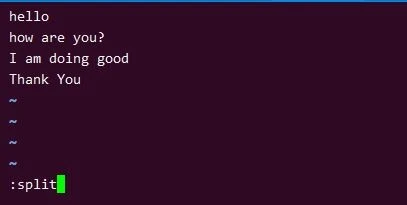
Method-1: Using :split
The “:split” command is the most common and simple method to split a
window horizontally in Vim. To use this method, open Vim and enter
command mode by pressing the Esc key. Then type “:split” followed by
Enter. This will divide the current window into two panes horizontally.
For example:
Method-2: Using the Ctrl+w, s shortcut
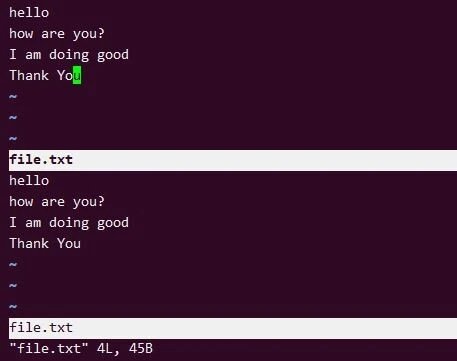
This method allows you to split the window horizontally using a keyboard
shortcut. First, enter command mode by pressing the Esc key, then press
Ctrl+w followed by s. This will split the window horizontally at the
current cursor position. For example:
Note: Don’t press colon. hit the combination just after pressing Esc
Method-3: Using the Ctrl+w, nshortcut
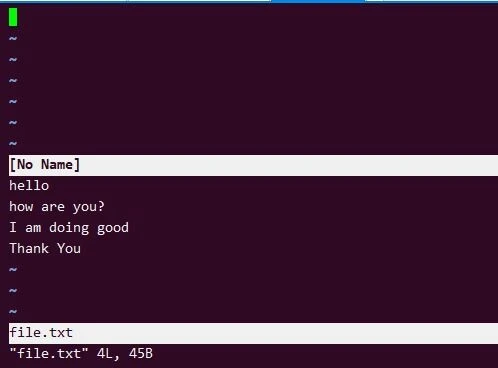
This method creates a new horizontal split and moves the cursor to it at
the same time. To use this method, enter command mode and press Ctrl+w
followed by n. This will split the window horizontally and move the
cursor to the new split. For example:
Note: Don’t press colon. hit the combination just after pressing Esc
Method-4: Using the “:new” command
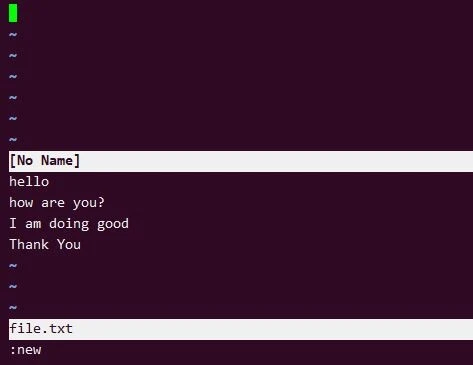
The “:new” command creates a new horizontal split, similar to the
“:split” command. To use this method, enter command mode and type
“:new” followed by Enter. This will create a new horizontal split. For
example:
Method-5: Using the “vsplit” command
This method splits the window horizontally and opens a new file in the
new split. To use this method, enter command mode and type
“:vsplit new_file.txt” followed by Enter. This will split the window
horizontally and open the “new_file.txt” file in the new split. For
example:
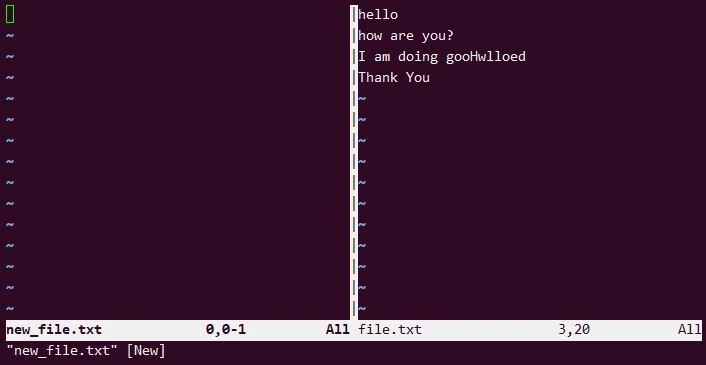
Once you save the changes, a new file will be created:
# ls -l new_file.txt
-rw-r--r-- 1 root root 0 Mar 14 11:23 new_file.txt
Method-6: Using “:sp” command
You can also split the window horizontally without opening a file by using the following command:
:sp
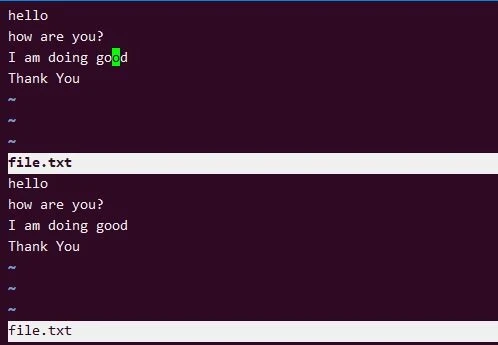
This will split the window horizontally without opening a file. You can then use the cursor to navigate between the two panes.
Opening two files in split mode in landscape window
In this method, you can provide 2 files which you wish to open in split mode:
vim -o file.txt new_file.txt
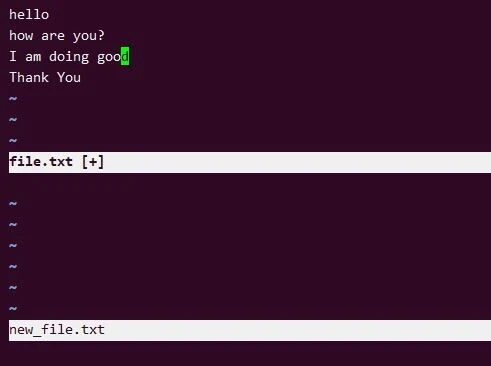
In Vim, the first file is displayed in the upper horizontal window, and the second file is displayed in the lower window.
Bonus Tips (Working with split screen)
To navigate between the panes in vim, you can use the following commands:
Ctrl+wandCtrl+w: This will move the cursor to the next pane.Ctrl+w j: This will move the cursor to the pane below the current pane.Ctrl+w k: This will move the cursor to the pane above the current pane.
To see all commands defined by vim itself type the following parameter in vim
":help index "
Summary
Vim is a popular and powerful text editor that allows users to split the
editor window into multiple panes, making it easier to view and edit
multiple files or sections of the same file simultaneously. One of the
most commonly used methods to split the window horizontally in Vim is
the “:split” command, which divides the current window into two panes
horizontally. Other methods include using keyboard shortcuts such as
Ctrl+W, S or Ctrl+W, N, or using the “:new” command or “vsplit”
command with the “--split” option to open a new file in the new split.
The horizontal splitting feature in Vim is particularly useful for
comparing two sections of the same file, working on different parts of a
file simultaneously, or for referencing documentation while coding. By
utilizing these methods, users can greatly enhance their editing
experience and increase their productivity.
Show Line Numbers in Vim [Absolute, Relative, Hybrid]
References
stackoverflow.com -To
switch from vertical split to horizontal split fast in Vim
superuser.com -How to open files in
vertically/horizontal split