
![15 usermod command examples in Linux [Cheat Sheet]](/usermod-command-in-linux/usermod_command.jpg)
Introduction to usermod command
usermod is a command-line tool in Linux to modify the details of an
existing user in the system. You can create a new user in the Linux
system by using useradd
command. After
adding a new user, you may need to change some details of the user.
usermod command can change user name, user ID, groups, home directory,
password, user shell, expiry date, and other user details.
Different examples to use usermod command
Only root user or sudo users can execute the usermod command. This
command changes the details of a user in files such as
/etc/passwd,/etc/shadow,/etc/groupand**/etc/gshadow**.
/etc/passwdstores the information of a user./etc/shadowcontains the encrypted password of each user./etc/groupstores the group information./etc/gshadowcontains the encrypted password of each group.
The basic syntax would be:
$ sudo usermod [option] user_name
In this article, we will go through the most used examples of usermod
command in Linux.
1. usermod command to change the name of a user
-l or --login option allows you to change or rename the name of any
existing user.
$ sudo usermod -l new_name old_name
Sample Output:
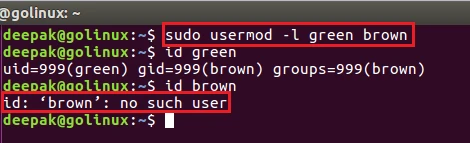
Here, we have changed the name of userbrowntogreen. When we searched for the userbrown, it is not found.
2. Change the user ID of a user with usermod command
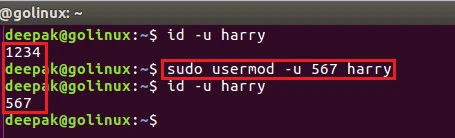
While adding a new user, the system automatically provides the next
available user ID. You can change the user ID with the help of -u or
--uid option.
$ sudo usermod -u new_uid username
Sample Output:
3. Set duplicate user ID using usermod command
Generally, every user has a unique user ID. But-o option allows you
to set duplicate user ID for a user.
$ sudo usermod -o -u user_ID user_name
Sample Output:
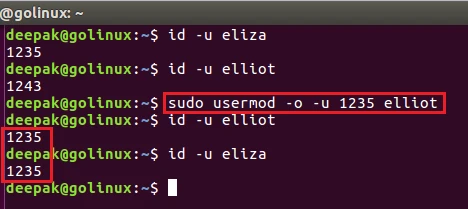
In the above output, the user ID ofelliotis changed to the user ID ofeliza. Now, they have same user ID 1235.
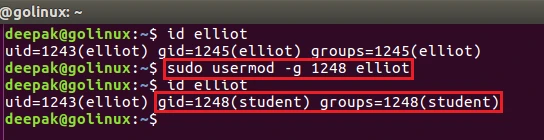
4. usermod command to change the primary group of a user
Sometimes, you may want to assign a different group to a user. You can
change the group of a user using -g or --gid option.
$ sudo usermod -g new_group user_name
Sample Output:
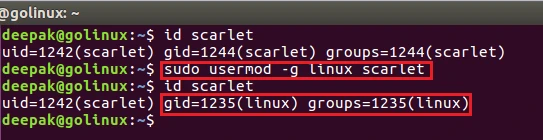
You can also change the group using the group ID instead of the name.
5. Add a user to secondary groups using usermod command
Each user can have only one primary group. But we can assign them to
zero or multiple secondary groups. -G option allows you to specify the
secondary group to a user.
$ sudo usermod -G secondary_group user_name
Sample Output:

You can assign multiple secondary groups using the same command but you have to separate group names by a comma.

You might have noticed the userdeepakhas been removed from the
groupcomputer. It is because usermod command removes the user from
other groups and adds to the listed groups only.
6. Append a user to secondary groups with usermod command
You can use -a option and add a user to the single or multiple
secondary groups without removing the current groups.
$ sudo usermod -a -G secondary_group user_name
Sample Output:

7. usermod command to modify the comment details of a user
The comment is a short information that can be added to a user account.
-c option sets or changes the comment of a user.
$ sudo usermod -c "comment" user_name
Sample Output:

8. Change the home directory of a user with usermod command
The default home directory of a user is /home/username. You can
simply change it by using -d or --home option.
$ sudo usermod -d directory_path user_name
Sample Output:
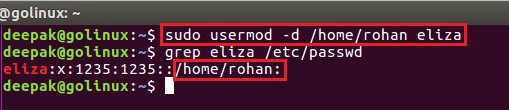
Changing home directory of an existing user using -d option will not
migrate the data or create the new path. You must manually create the
new home directory and arrange the permission so that your user is able
to login into the new HOME folder.
The old home directory will not be deleted so you must manually restore any files from the old PATH to the new PATH
9. Move the content of user’s home directory using usermod command
-m option allows you to move the content of the user’s home directory
to the new location. This option only works if it is used with -d or
--home option.
$ sudo usermod -d new_dir_path -m user_name
This command will also create the new home directory (if not present already) and copy all the file contents from users existing home directory to new path.
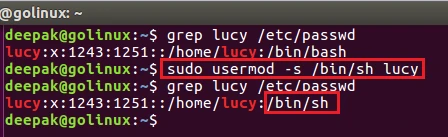
10. usermod command to modify the login shell for a user
-s option allows you to specify or modify the shell for a user. The
default user shell is /bin/bash in most of the Linux distributions.
$ sudo usermod -s new_shell_path user_name
Sample Output:
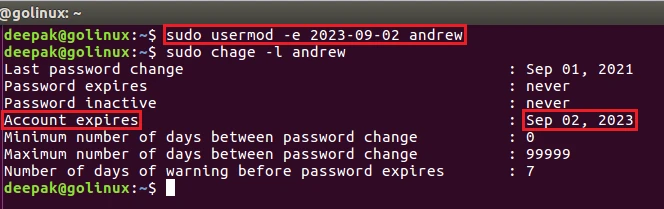
11. Modify the expiry date of a user account using usermod command
When adding a new user normally, the expiry date is set to never.
You can change the expiry date using -e option with usermod command.
The date must be provided in YYYY-MM-DD format.
$ sudo usermod -e YYYY-MM-DD user_name
Sample Output:
12. usermod command to set an unencrypted password for a user
-p option allows you to set an unencrypted password for a user. You
will require a root permission to view password in /etc/shadow file.
$ sudo usermod -p password user_name
Sample output:

13. Lock a user account with usermod command
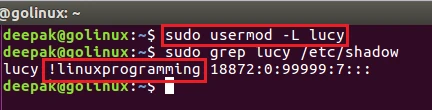
You can lock a user account using -L option. After locking an
account, the **exclamatory mark(!)**will appear before the password. It
indicates the password is disabled and you cannot login that user with
password authentication.
$ sudo usermod -L user_name
Sample Output:
14. usermod command to unlock an user account
After locking a user account, you may want to know how to unlock a
account. To unlock a user account, you can use -U option.
$ sudo usermod -U user_name
Sample Output:
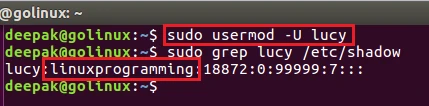
As you can see, the exclamatory mark(!) has disappeared now.
15. usermod command to set password to inactive after expiration
You can specify the number of days after a password expires until the
account is permanently disabled using -f or --inactive option. A
value of 0 disables the account as soon as the password has expired,
and a value of -1 disables the feature.
$ sudo usermod -f NUM user_name
Conclusion
These are the examples of most used usermod commands in Linux. Now,
you have an idea of using the usermod command and modifying an
existing user’s details in the Linux system. It is a simple but very
useful command. It helps system administrators to manage the user
accounts in the system easily.
What’s Next
15 most used useradd command examples in Linux
