
![15 useradd command examples in Linux [Cheat Sheet]](/useradd-command-in-linux/useradd_command.jpg)
Introduction to useradd command
We all know that we can have multiple users in the Linux systems. But, do you know how to add a new user in the Linux system?
useradd is a simple command-line tool in Linux for adding a new user
to the system. useradd is a symbolic link to adduser command. Both
the commands have similar functions. System administrators can use this
command to manage users in the system.
Different examples to use useradd command
Only root users or users having sudo permissions can execute the
useradd command. When the useradd command is successfully executed,
it does the following things:
- Adds details of a new user to files such as /etc/passwd, /etc/shadow, /etc/group and /etc/gshadow.
- Creates a new directory for a new user in the /home.
In this tutorial, you will find the different examples to create a new
user in the Linux system by using useradd command.
1. Create a new user using useradd command
This is the most basic command to create a new user in the Linux system. It only requires the name of a user. The name of a new user must be unique from other users in the system.
$ sudo useradd user_name
Sample Output:
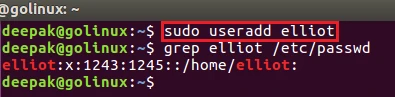
You can check the details of a new user added in /etc/passwd file using grep command. In the above output, you can see the details of a new userelliot. The details include the following things:
- **Username:**The username should be between 1-32 characters. It is also the login name for the user.
- **Password:**The user password is stored in encrypted format (x) in /etc/shadow file.
- **User ID:**Every user has a unique User Identification Number. 1243 is user ID ofelliot.
- Group ID: It shows the primary group ID of a user. The group IDs are stored in /etc/groupfile. In our case, 1245is the primary group ID of elliot.
- **User detail:**In between two colons, the comment or detail added for a new user will be displayed if any.
- Directory path: The path for the new user’s directory is displayed. The default location is the home directory.
2. useradd command to add a new user and user’s directory in home directory
In most Linux systems, the user’s directory is not created in the home
directory. You can use -m option to force the useradd command to
create the user’s directory in /home.
$ sudo useradd -m user_name
Sample Output:
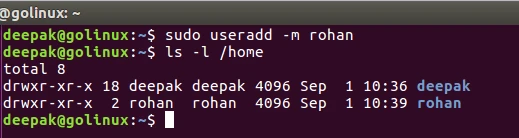
As you can see in the above output, the directory for user rohan is created but the previously added user elliot has no directory.
3. useradd command to create a new user without directory
In some Linux distributions, useradd command creates a new user and
its directory in the home directory. If you do not need the user’s
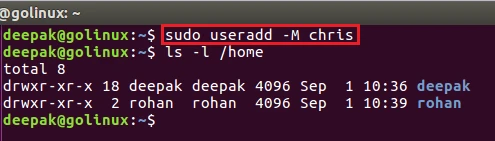
directory, use -M option so the useradd command only creates a new
user.
$ sudo useradd -M user_name
Sample Output:
4. useradd command to create a new user with custom home directory
You can use -d option to create user’s directory in another location
instead of the home directory. That directory must be present in the
system.
$ sudo useradd -d /directory_name/user_name user_name
Sample Output:

5. Create a new user with specific user ID with useradd command
In the Linux systems, every user has unique user name and user ID. By
default, useradd command assigns the next available user ID to a new
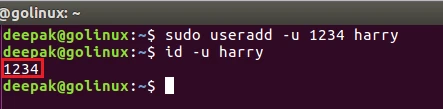
user. -u or --uid option allows you to create a new user with
specific user ID.
$ sudo useradd -u user_ID user_name
Sample Output:
6. Create a new user with specific group name with useradd command
This command allows you to assign the different group name to a new
user. Usually, useradd command provides the same group name as
username and the same group ID as the user ID. -g option allows you to
assign different group name to a new user. The group name must be
already present in the system.
You can check group name of user using id -gn user_name command.
$ sudo useradd -g group_name user_name
Sample Output:
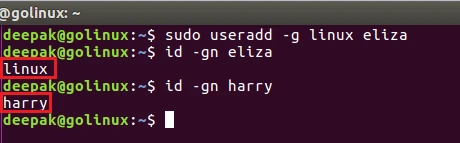
The above output shows the user eliza has group linux but the previously added user harry has group harry.
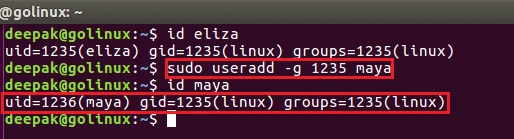
You can also create a new user by using specific group ID instead of
group name with useradd command.
$ sudo useradd -g group_ID user_name
Sample Output:
7. Create a new user and assign multiple groups using useradd command
In Linux systems, there are two types of group: Primary group and Secondary group. Every user can associate to only one primary group. But they can associate to none or multiple secondary groups.
-G option specifies the secondary groups to a new user.
$ sudo useradd -G secondary_group1,secondary_group2
Sample Output:
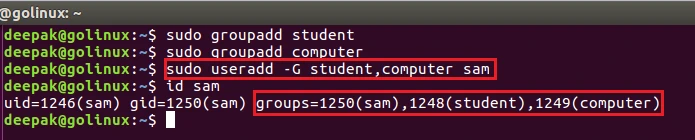
In the above output, sam is the primary group, and student and computer are the secondary groups.
8. useradd command to add a new user with an expiry date
By default, useradd command does not set the expiry date of a user.
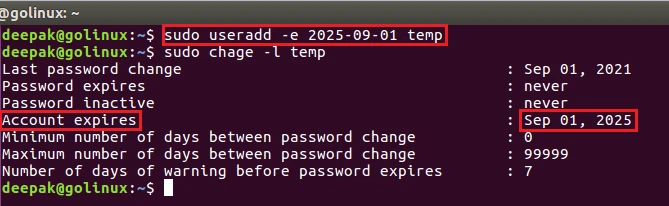
-e option allows you to specify the expiry date for a new user.
System administrators can use this command to create temporary accounts
in the system. The user expiry date can be viewed by using chage -l
command.
The date must be provided in YYYY-MM-DD format.
$ sudo useradd -e YYYY-MM-DD user_name
Sample Output:
9. Create a new user with comment using useradd command
This command allows you to create a new user with a brief comment. You
can add any comment using -c option. This is a useful command to store
a short information about the user.
$ sudo useradd -c "comment" user_name
Sample Output:

10. useradd command to create “system user”
Generally, system users are created during the installation of OS and
new packages. You can create a new system user using -r option with
useradd. The ID of system users and groups ranges from 100-999.
$ sudo useradd -r user_name
Sample Output:

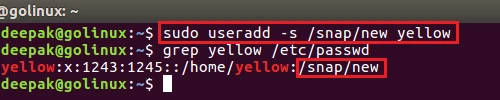
11. Create a new user with custom login shell using useradd command
The default login shell is /bin/sh or bin/bash in most of the
Linux distributions. -s option allows you to set the specific login
shell for a new user.
$ sudo useradd -s
Sample Output:
12. Declare default values for useradd command
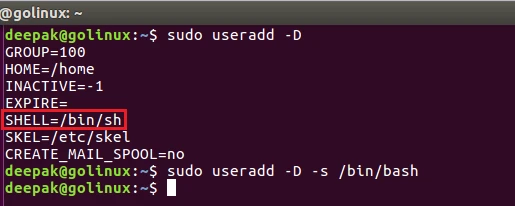
You can view the default useradd values using -D option. It also
allows you to edit the values. These values are stored in
/etc/default/useradd. To edit the default login shell, you can use:
$ sudo useradd -D -s new_shell
Sample Output:
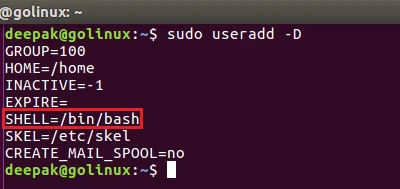
The default login shell of useradd is changed.
13. useradd command to create a new user with an unencrypted password
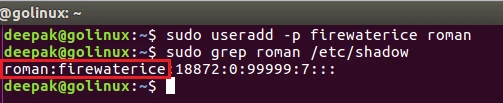
-p option allows you to specify an unencrypted password for a new
user. You can check the password stored in /etc/shadow file. You
will need root permission to access the file.
$ sudo useradd -p password user_name
Sample Output:
14. useradd command to create a new user with duplicate user ID
Generally, every user has a different user ID but -o option allows you
to create a new user with duplicate user ID.
$ sudo useradd -o -u user_ID user_name
Sample Output:
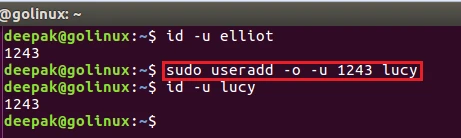
In the above output, both users elliot and lucy have same user ID.
15. Disable account once password expires after n number of inactive days
You can create a new user by defining a time period after which the user
account will be disabled if there is no activity from that user assuming
the password of the user has expired. Use --inactive or -f to define
the period after which account will be disabled. A value of 0 disables
the account as soon as the password has expired, and a value of -1
disables the feature.
$ sudo useradd --inactive NUM user_name
Conclusion
This article presents the most used useradd command in Linux. Now, you
can easily add a new user to the Linux system. You can use these
commands in Ubuntu, RHEL, CentOS, Fedora, Debian and any other Linux
distributions. useradd command is easy to use and helpful for creating
new users in the system.
What’s Next
4 easy methods to check sudo access for user in Linux
