
![20 top command examples in Linux [Cheat Sheet]](/top-command-in-linux/top_command.jpg)
Introduction to top command
top program provides a dynamic real-time view of processes running in the Linux system. It also displays the system summary information and processes or threads currently managed by the Linux kernel. The output of the top command is interactive and can be controlled by pressing keys to some extent.
Understanding the output of top command
The top command output contains the three main sections: Summary Area, Fields/Columns Headers, and Task Area.
These are the Fields/Columns Headers, which you will see on the top command output.
- **PID:**It is the task’s unique process ID.
- **USER:**It shows the owner of the tasks.
- **PR:**It is the priority of a task.
- **NI:**The nice value of a task. A negative value means higher priority, whereas a positive value means lower priority.
- VIRT: The total amount ofvirtualmemory used by the task.
- **RES:**The non-swapped physical memory used by a task.
- SHR: The amount ofsharedmemory used by a task.
- **S:**The process status of a task:
- D = uninterruptible sleep
- I = idle
- R = running
- S = sleeping
- T = stopped by job control signal
- t = stopped by debugger during trace
- Z = zombie
- %CPU: The percentage of CPU usage of a task.
- **%MEM:**The percentage of memory used by a task.
- TIME+: Total CPU time the task has used since it started.
- COMMAND: The command line which is used to start a task.
Different examples to use top command
Now, let’s have a look at some practical
examples of
top commands in the Linux system.
1. top command to display Linux processes
You can run top command without any options or arguments to display
running processes in the system. You can press q or kill the
program to exit the output mode.
$ top
Sample Output:
![20+ top command examples in Linux [Cheat Sheet]](/top-command-in-linux/top-1-1.webp)
2. top command to display output in batch mode
-b option displays the output in batch mode or non-interactive
mode. It will not accept any inputs and runs until you kill the
program.
$ top -b
Sample Output:
![20+ top command examples in Linux [Cheat Sheet]](/top-command-in-linux/top-2-1.webp)
3. Set the delay time of screen updates in top command output
-d option allows you to specify the delay time between screen updates.
It takes an argument of time in seconds as a number.
$ top -d num
For example, if you put the number 10 after-d option, the output will
be updated every 10 seconds. Try it on your terminal to get the desired
output.
4. Set the number of iterations in top command output
With -n option, you can put the limit of iterations top should produce
in the output.
$ top -n num
For example, if to put the iterations limit of 5, you can use the following command.
$ top -n 5
5. Monitor specific process with top command
Instead of viewing all the processes, you can monitor the specific
process using the process ID. -p option lets you specify the process
ID and view the particular process in the output.
$ top -p num
Sample Output:
![20+ top command examples in Linux [Cheat Sheet]](/top-command-in-linux/top-4.webp)
6. top command to display the process of specific user
Normally, top command displays the running processes of all users in the
output. To view the process by specific users, you can use -u option
followed by the user name. You can also use user ID instead of
the name.
$ top -u username
OR
$ top -u userID
Sample Output:
![20+ top command examples in Linux [Cheat Sheet]](/top-command-in-linux/top-31.webp)
7. Adjust the output width of top command
-w option allows you to adjust the output width by decreasing it. You
cannot increase the width of the output.
$ top -w num
Sample Output:
![20+ top command examples in Linux [Cheat Sheet]](/top-command-in-linux/top-5.webp)
8. Display Mem and Swap in KB/MB/GB/TB/PB/EB with top command
When top command is running, you can press E option to change the unit
of memory as displayed with top command. Different supported units are
as shown below:
k - kibibytes  -> top shows default in KB
m - mebibytes -> Press E one time
g - gibibytes -> Press E two time
t - tebibytes -> Press E three time
p - pebibytes -> Press E four time
e - exbibytes -> Press E five time
Sample Output:
By default top shows Memory and Swap in KB
![20+ top command examples in Linux [Cheat Sheet]](/top-command-in-linux/top-6.webp)
When E pressed one time (show in MB):
![20+ top command examples in Linux [Cheat Sheet]](/top-command-in-linux/top-7.webp)
When E pressed two time (show in GB):
![20+ top command examples in Linux [Cheat Sheet]](/top-command-in-linux/top-8.webp)
Similarly you can press E multiple times to change the Unit type of Memory.
9. Sort Processes by Memory Usage in top command output
You can sort the process by memory usage in the output using M key.
![20+ top command examples in Linux [Cheat Sheet]](/top-command-in-linux/top-9.webp)
10. Sort Processes by CPU Usage in top command output
To sort the processes by CPU Usage, press P at the displayed output.
![20+ top command examples in Linux [Cheat Sheet]](/top-command-in-linux/top-10.webp)
11. Add or Remove Fields in top command output
f key lets you select or order fields in the output. When you press
f, the field management screen appears.
Select Field: Press ’d’ or <Space> to select the field to display in the output.
Let’s add the field UID to the output.
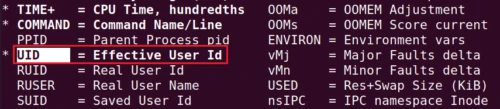
Then press ‘q’ or <Esc> to see the output.
![20+ top command examples in Linux [Cheat Sheet]](/top-command-in-linux/top-11.webp)
Order Field: Navigate with Up/Dn, Right selects for move then <Enter> or Left to save changes
Now, let’s order the field to a different location. Here, we are putting the field UID between USER and PR.
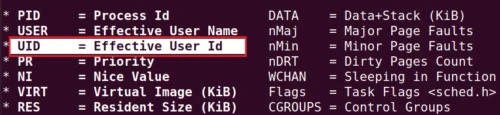
Press ‘q’ or <Esc> to see the output.
![20+ top command examples in Linux [Cheat Sheet]](/top-command-in-linux/top-12.webp)
12. Hide the value 0 in top command output
You can press 0 to hide or show the value 0 in top command
output. The blank field in the output contains 0, which is
suppressed.
![20+ top command examples in Linux [Cheat Sheet]](/top-command-in-linux/top-13.webp)
13. Toggle Alternate Display Mode in top command output
You can use A to switch between alternate display or full display mode in the output. Next you can press ‘g’ where you will be prompted to enter a number between 1 and 4 designating the field group which should be made the current window.
![20+ top command examples in Linux [Cheat Sheet]](/top-command-in-linux/top-14.webp)
14. Disable bold text in top command output
Pressing B key will disable or enable the bold text in the output.
It alters both the summary area and task area for the current
window. As we can see, the bold texts are disabled in the output below.
Without pressing **B
![20+ top command examples in Linux [Cheat Sheet]](/top-command-in-linux/top-15.webp)
**
After pressing **B
![20+ top command examples in Linux [Cheat Sheet]](/top-command-in-linux/top-16.webp)
**
15. Change delay time in top command output
If you press d, you will be prompted to enter the new delay time.
![20+ top command examples in Linux [Cheat Sheet]](/top-command-in-linux/top-17.webp)
16. Change memory unit type in task windows
With e, you can change the memory scale in the task window, which
ranges from kibibytes (KiB) to pebibytes (PiB). If the scaling range is
high, you are more likely to get zero value. Such zero values are not
suppressed by interactive command 0 .
k - kibibytes  -> top shows default in KB
m - mebibytes -> Press e one time
g - gibibytes -> Press e two time
t - tebibytes -> Press e three time
p - pebibytes -> Press e four time
e - exbibytes -> Press e five time
Press e one time (show in MB):
![20+ top command examples in Linux [Cheat Sheet]](/top-command-in-linux/top-18.webp)
Press e two times (show in GB):
![20+ top command examples in Linux [Cheat Sheet]](/top-command-in-linux/top-19.webp)
Press e three times (show in TB):
![20+ top command examples in Linux [Cheat Sheet]](/top-command-in-linux/top-20.webp)
17. Choose another window in top command output
When you press g, you will be prompted to enter the number between 1
and 4 which allows you to choose another window or field group.
![20+ top command examples in Linux [Cheat Sheet]](/top-command-in-linux/top-21.webp)
18. Display only active tasks with top command
You can view the active tasks in the system by pressing the key i.
Other idled or zombied processes will not be displayed.
![20+ top command examples in Linux [Cheat Sheet]](/top-command-in-linux/top-22.webp)
19. Change colour mapping in top command output
You can press Z key while top is running. After which you will be
presented with the list of colors to choose with. Follow the
instructions as shown below:
![20+ top command examples in Linux [Cheat Sheet]](/top-command-in-linux/top-23.webp)
Here we will select 3 for yellow, and by default only Task Information is selected:
![20+ top command examples in Linux [Cheat Sheet]](/top-command-in-linux/top-24.webp)
Accordingly you can choose between section 1 and section 2 and then press a to commit and add another combination. For example, here I have selected 4 = blue for S = Summary and then press a to commit and add another:
![20+ top command examples in Linux [Cheat Sheet]](/top-command-in-linux/top-25.webp)
20. Scroll a window in top command output
You can use the following keys to scroll the tasks or columns in the output.
Up, PgUp: The Up arrow key moves a single line while PgUp scrolls the entire window.
Down, PgDn: The Down arrow key moves a single line while PgDn scrolls the entire
window.
Left, Right: Move the view of displayable fields horizontally one column at a
time.
Home: Reposition the display to the un-scrolled coordinates.
End: Reposition the display to the last displayable field or last task.
Conclusion
This is the end of our tutorial on top command examples in the Linux system. We hope you will be now able to view the Linux processes using the top command. If you still have any confusion, use the comment section below to ask the questions.
What’s Next
14 iotop command examples [Monitor Disk IO]
