
![10+ tcpdump command examples in Linux [Cheat Sheet]](/tcpdump-command-in-linux/tcpdump_command.jpg)
tcpdump command in Linux captures and analyses network traffic arriving at or departing from the system. System administrators mostly use it for network troubleshooting and security testing.It also captures non-TCP packets such as UDP, ARP, or ICMP.
tcpdump is a powerful tool that allows you to use filters and capture
only the specific information on a network interface. Moreover, you can
save the information in a .pcap file that can be read by the tcpdump
command or
Wireshark.
How to install tcpdump
If tcpdump is not installed, you can use the following commands to get tcpdump according to your Linux distribution.
Install tcpdump on CentOS, RHEL, and Fedora
$ sudo dnf install tcpdump
Install tcpdump on Ubuntu and Debian
$ sudo apt install tcpdump
Syntax to use tcpdump
The basic syntax for tcpdump command is as follows:
tcpdump [options] [expression]
The expression indicates the packets to be captured.
You will require a sudo or root user account to run the tcpdump command. You will get a permission denied error if you execute the command as an unprivileged user.
Different examples to use tcpdump command
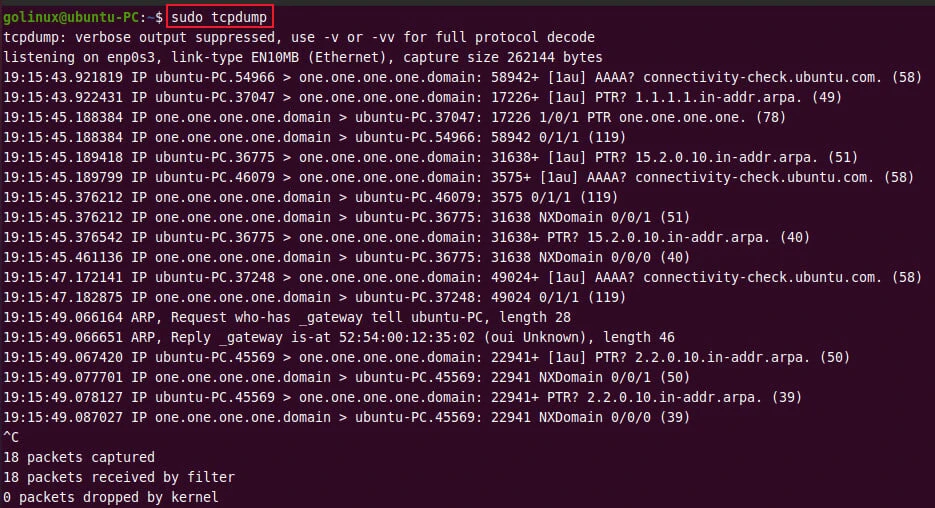
1. Capture packets on default network interfaces
When tcpdump command is used without any options and expressions, it
captures the packets from the system network interface. tcpdump searches
the system interface list for the lowest numbered, configured up
interface (excluding loopback), which may turn out to be, for example,
eth0.
$ sudo tcpdump
Sample Output:
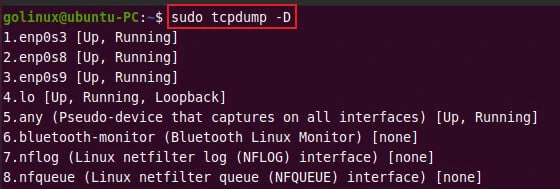
2. List available interfaces
The tcpdump command with -D flag displays a list of all available
network interfaces in the system.
$ sudo tcpdump -D
Sample Output:
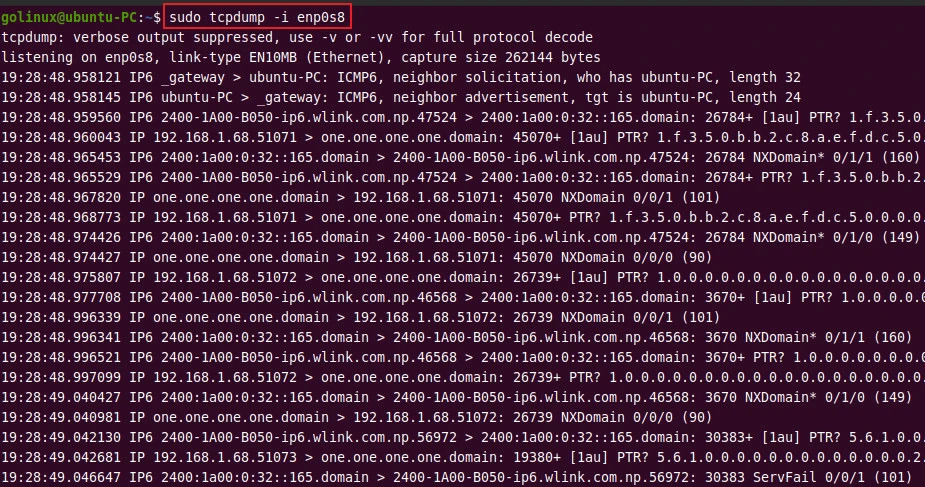
3. Capture packets from a specific network interface
The -i option lets you capture packets arriving at or departing from a
particular interface.
$ sudo tcpdump -i enp0s8
Sample Output:
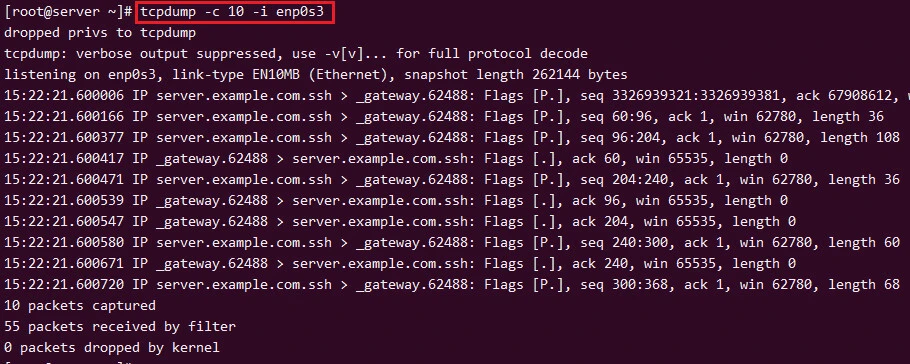
4. Capture a specific number of packets
By default, tcpdump captures packets until you cancel the command. With
-c option, you can capture a specific number of packets.
The following command prints 10 packets going to and from the
interface enp0s8.
$ sudo tcpdump -c 10 -i enp0s8
Sample Output:
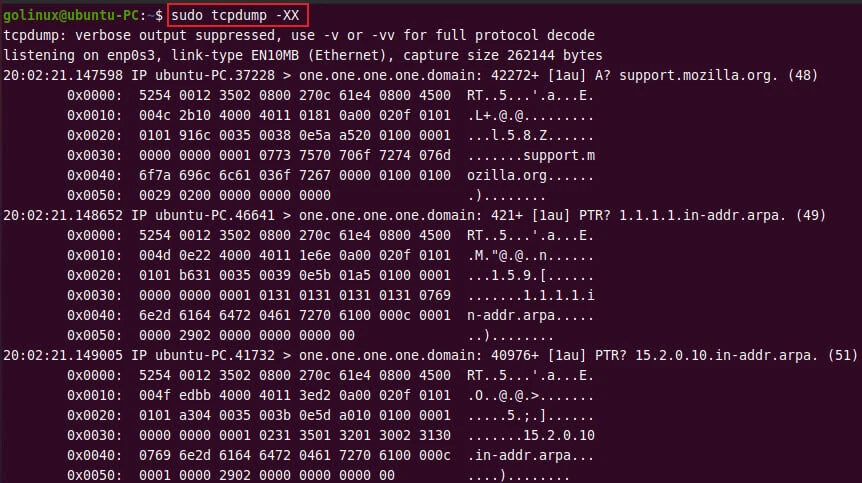
5. Display packets in HEX and ASCII format
You can print packets in HEX and ASCII format using the -XX option.
$ sudo tcpdump -XX
Sample Output:
6. Print captured packets in only ASCII format
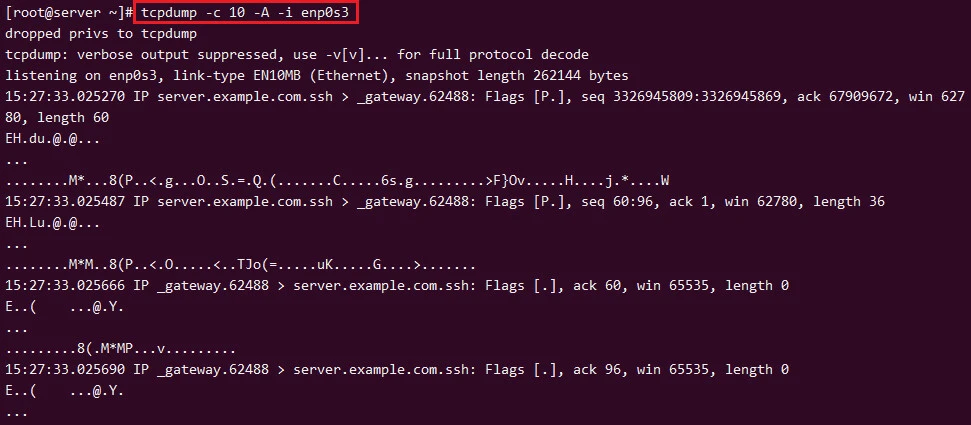
The -A option tells tcpdump to display captured packets in ASCII
values.
$ sudo tcpdump -A -i enp0s8
Sample Output:
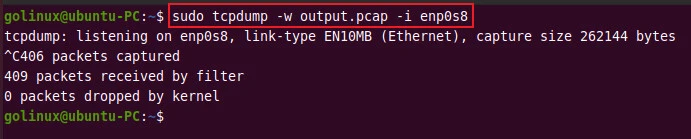
7. Write packets to a file (Save tcpdump output)
The -w option allows you to capture and save the packets to a .pcap
format file instead of printing them out.
$ sudo tcpdump -w output.pcap -i enp0s8
Sample Output:
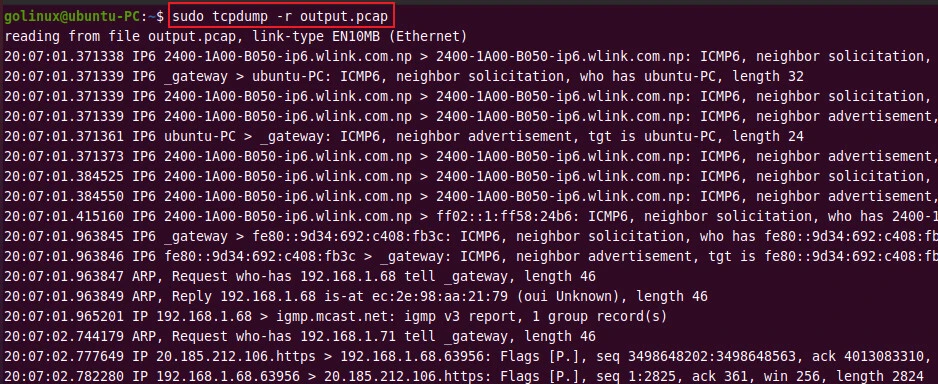
8. Read packets from a file
To read captured packets from a file created by -w option, you have to
use -r option.
$ sudo tcpdump -r output.pcap
Sample Output:
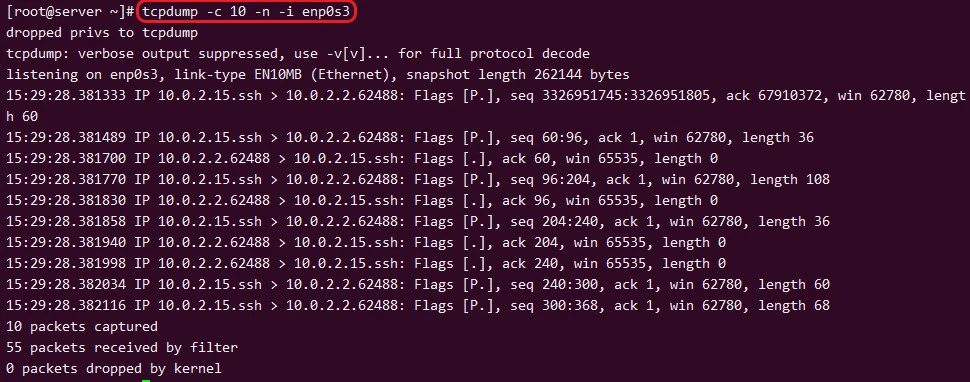
9. Capture packets with IP addresses (Convert hostname to IP Address)
The -n option tells the tcpdump command not to convert host addresses
to hostnames. As a result, the IP addresses are printed on the output.
$ sudo tcpdump -n -i enp0s8
Sample Output:
10. Capture only TCP packets
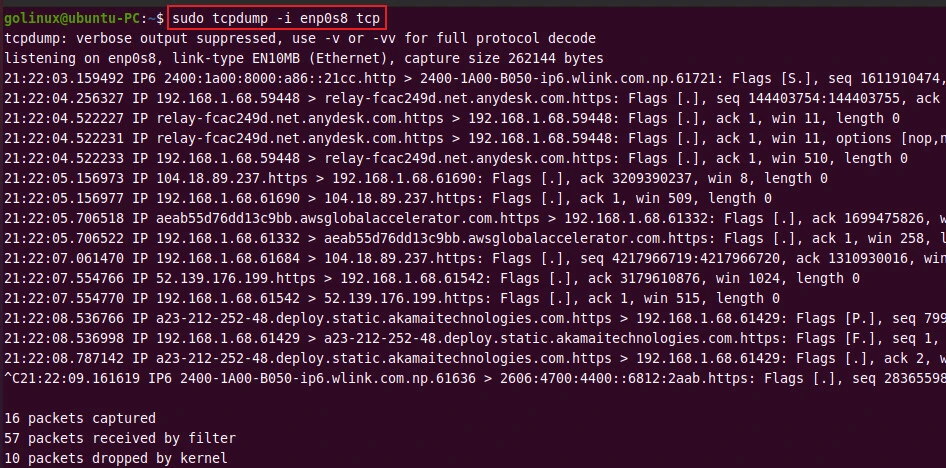
To print only TCP traffic with the tcpdump command, you have to specify
tcp to the command.
$ sudo tcpdump -i enp0s8 tcp
Sample Output:
11. Capture only UDP packets
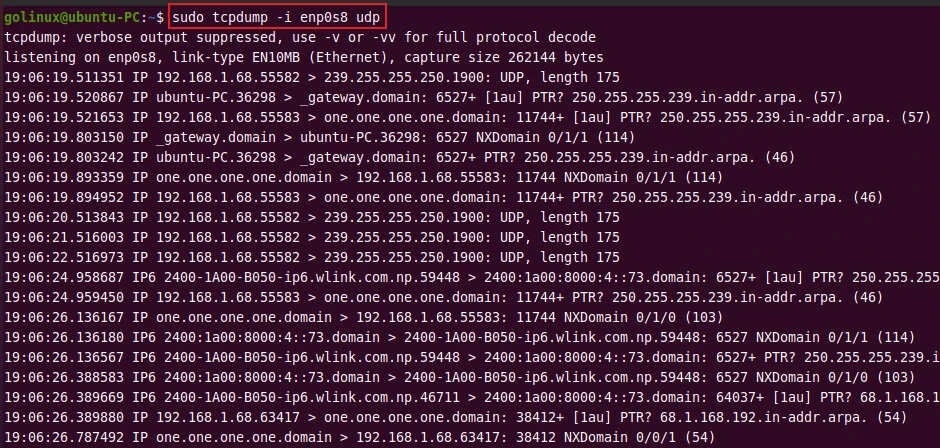
You can specify udp in the command to print only the UDP traffic.
$ sudo tcpdump -i enp0s8 udp
Sample Output:
Conclusion
tcpdump is a powerful command that helps to capture and analyze packets on a network interface. It can come in handy to troubleshoot connectivity issues.
This article has discussed different options and their usage in the tcpdump command. If you have any confusion, do let us know via comments.
What’s Next
Analyse Slow Networks with TCP Zero Window -
Wireshark
5 system tools to monitor network traffic in Linux with
examples
