

How to use tar --strip-components and zip --junk-paths to remove
absolute path from the archive.Tar is an archiving utility which needs
no introduction to Linux users. In this article I will help you
understand more about
tar --strip-componentszip --junk-paths
Both these options perform the same task i.e. stripping the relative path while extracting the archive.
Method 1: Use tar –strip-components to strip absolute path
Create tar archive
First let us create an archive. In this example I have created a nested
directory structure under /tmp which we can check using tree command
# tree /tmp/dir1/
/tmp/dir1/
└── dir2
    └── dir3
        ├── file1
        ├── file2
        ├── file3
        ├── file4
        └── file5

2 directories, 5 files
I will create tar archive using GZIP compression and store it inside
/root as myarchive.gz
# tar -czvf /root/myarchive.gz /tmp/dir1/dir2/dir3
Snippet from my terminal
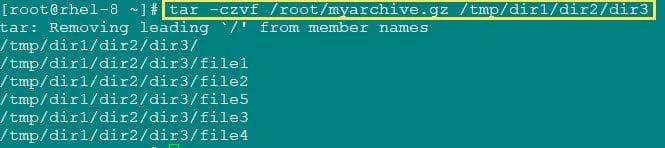
create tar archive with gzip compression
Extract archive without tar –strip-components
By default tar stores the absolute path of file. I will extract this
archive content under /extract
# tar -xzvf /root/myarchive.gz -C /extract/
Snippet from my terminal
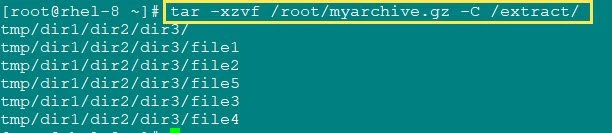
Extract without tar –strip-components
The archive extracts and stores the absolute path which may not be required in most cases
# tree /extract/
Snippet from my terminal
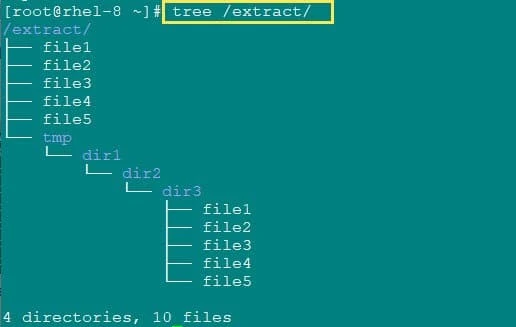
tree output
Extract archive with tar –strip-components
- In this example, we will strip the absolute path while performing the tar extract
- Provide a numerical value with
--strip-components, this number represents the number pf paths you want to strip while performing the extract - In this example there are 4 directories which we want to strip
from the output so we will use
--strip-components=4 - Here
-C DIRmeans change to DIR before performing any operations
# tar -xzvf /root/myarchive.gz --strip-components=4 -C /extract
Snippet from my terminal

Extract with tar –strip-components
Verify the content. Now we don’t have absolute path after extracting the archive.
# ls -l /extract/
Snippet from my terminal
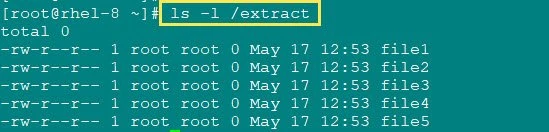
List content
Method 2: Use zip –junk-paths to remove absolute path
We can perform similar operation with zip command in Linux and Unix
Create zip archive without –junk-paths
First let me create a zip archive using BZIP2 compression
myarchive.bz2 under /root
# zip -Z bzip2 /root/myarchive.bz2 /tmp/dir1/dir2/dir3/*
Snippet from my terminal

Create BZIP2 archive without –junk-paths
By default, the archive here also store the absolute path of the file
Extract zip archive
We will extract this archive using unzip and store it inside
/extract folder
# unzip /root/myarchive.bz2 -d /extract/
Snippet from my terminal
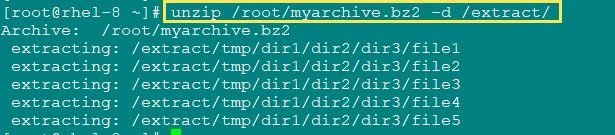
extract bzip2 archive
As expected, we have absolute path of the files under /extract
# tree /extract/
Snippet from my terminal
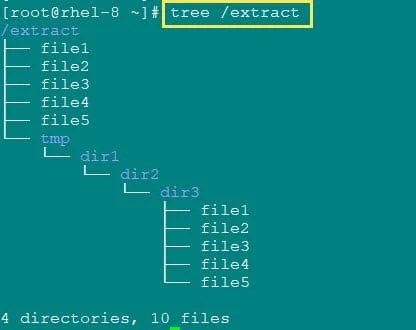
tree output
Create zip archive using –junk-paths
Now we will remove the absolute path of the file and just store the
relative path by using zip with --junk-paths
Since we are creating zip archive with bzip2 compression, we have
used -Z bzip2
# zip -Z bzip2 --junk-paths /root/myarchive.bz2 /tmp/dir1/dir2/dir3/*
Snippet from my terminal

create bzip2 archive with –junk-paths
From the output we can see that the absolute path is not stored any more
with zip --junk-paths
Extract zip archive
We will extract this archive using unzip and keep the files under
/extract
# unzip /root/myarchive.bz2 -d /extract/
Snippet from my terminal
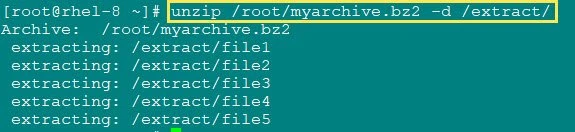
extract archive
So we have no absolute path anymore for the files under our archive
# ls -l /extract/
Snippet from my terminal
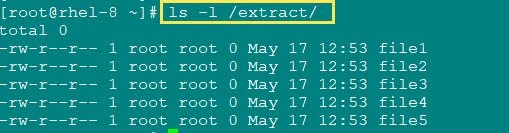
list content
So you can use either zip with --junk-paths or tar with
--strip-components to remove absolute path
Lastly I hope the steps from the article to understand
tar --strip-components and zip --junk-paths on Linux and Unix was
helpful. So, let me know your suggestions and feedback using the comment
section.
References:
man
page for tar
man page for zip
