
![Using SVG with JavaScript? [Tutorial]](/svg-javascript/javascript-svg.jpg)
Introduction
JavaScript can be used to create and manipulate SVG (Scalable Vector Graphics) images, which are a type of vector image that can be resized without losing quality. SVG images are composed of shapes and paths and can be created using a variety of tools, including text editors, vector editing software, and JavaScript libraries.
Developed by the W3C, we can create scalable images that are lossless
using the <svg> element on our webpage. However, if we want to create
SVG image using JavaScript, we have specific methods or string
approaches we can apply. In this article, we will discuss a couple of
ways to create SVG image using SVG elements.
Create SVG Image in JavaScript
We can create SVG images in JavaScript using different approaches which include creating the SVG using the built-in methods to SVG code strings.
Method-1: Using the createElementNS method
One way to create an SVG image using JavaScript is to create an SVG
<svg> element via the createElementNS method and then append child
elements, such as <rect>, <circle>, or <path>, to the <svg>
element. These child elements are used to create the shapes and paths
that make up the image.
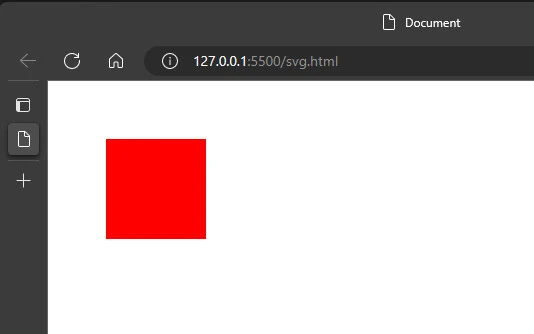
To illustrate how to create SVG image using JavaScript, we will create a
simple square with a red color fill via the rect attribute. Using the
setAttribute() method, we can set position and size of the rect
element. Finally, we append the SVG to the HTML document using the
appendChild() node method.
<!DOCTYPE html>
<html lang="en">
    <head>
        <meta charset="UTF-8" />
        <meta http-equiv="X-UA-Compatible" content="IE=edge" />
        <meta name="viewport" content="width=device-width, initial-scale=1.0" />
        <title>Document</title>
    </head>
    <body></body>
    <script>
        // Create an SVG <svg> element
        const svg = document.createElementNS(
            "<http://www.w3.org/2000/svg>",
            "svg"
        );

        // Set the width and height of the <svg> element
        svg.setAttribute("width", "200");
        svg.setAttribute("height", "200");

        // Create a <rect> element
        const rect = document.createElementNS(
            "<http://www.w3.org/2000/svg>",
            "rect"
        );

        // Set the position and size of the <rect> element
        rect.setAttribute("x", "50");
        rect.setAttribute("y", "50");
        rect.setAttribute("width", "100");
        rect.setAttribute("height", "100");

        // Set the fill color of the <rect> element
        rect.setAttribute("fill", "red");

        // Append the <rect> element to the <svg> element
        svg.appendChild(rect);

        // Append the <svg> element to the document
        document.body.appendChild(svg);
    </script>
</html>
Output
Methpd-2: Using string of SVG Code with innerHTML
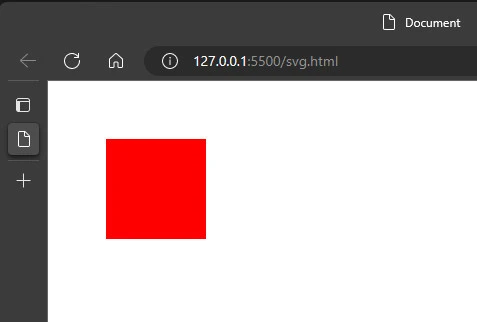
Another way to create an SVG image using JavaScript is to create a
string of SVG code and then use innerHTML to insert it into an HTML
element. This can be useful for creating complex images with multiple
shapes and paths.
<!DOCTYPE html>
<html lang="en">
    <head>
        <meta charset="UTF-8" />
        <meta http-equiv="X-UA-Compatible" content="IE=edge" />
        <meta name="viewport" content="width=device-width, initial-scale=1.0" />
        <title>Document</title>
    </head>
    <body>
        <div id="svg-container"></div>
    </body>
    <script>
        // Create a string of SVG code
        const svgCode =
            '<svg width="200" height="200">' +
            '<rect x="50" y="50" width="100" height="100" fill="red"/>' +
            "</svg>";

        // Get a reference to an HTML element
        const container = document.querySelector("#svg-container");

        // Insert the SVG code into the HTML element
        container.innerHTML = svgCode;
    </script>
</html>
Output
Method-3: Using third-party libraries
You can also use JavaScript libraries such as SVG.js, D3.js, Raphaël, and Snap.svg to create and manipulate SVG images. These libraries provide a wide range of tools and methods for creating, styling, and animating SVG images, and can be useful for creating interactive and animated data visualizations.
To show you how to make use of third-party using the SVG.js library. Before we can make use of the library, we can add the library via a CDN as below
<script src="<https://cdn.jsdelivr.net/npm/@svgdotjs/svg.js@3.0/dist/svg.min.js>"></script>
After, we can then include the library within our code environment and
make use of its built-in method such as SVG() and rect(). Here is
the code snippet to achieve a red box using the SVG.js library
<!DOCTYPE html>
<html lang="en">
    <head>
        <meta charset="UTF-8" />
        <meta http-equiv="X-UA-Compatible" content="IE=edge" />
        <meta name="viewport" content="width=device-width, initial-scale=1.0" />
        <title>Document</title>
        <script src="<https://cdn.jsdelivr.net/npm/@svgdotjs/svg.js@3.0/dist/svg.min.js>"></script>
    </head>
    <body></body>
    <script>
        var draw = SVG().addTo("body").size(300, 300);
        var rect = draw.rect(100, 100).attr({ fill: "red" });
    </script>
</html>
Output
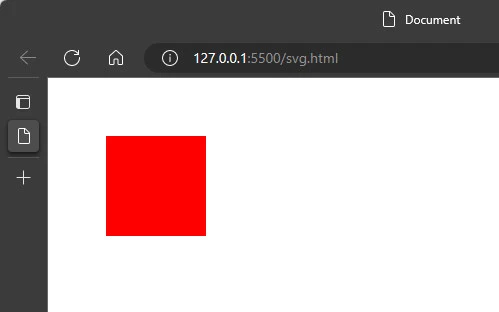
The addTo() method adds the SVG image created to the HTML document
body.
Create JavaScript SVG Animation
There are multiple ways to animate SVG elements in JavaScript. Some of the most common methods include:
- SMIL (Synchronized Multimedia Integration Language) - It is a specification for handling animation in SVG. SMIL allows you to animate the attributes of SVG elements using a simple set of elements and attributes. However, support for SMIL is limited, and it is not supported in some modern browsers.
- CSS - You can use CSS to animate SVG elements by applying CSS animations and transitions to SVG elements. This method is widely supported and works well for simple animations.
- JavaScript - You can use JavaScript to animate SVG elements by manipulating the attributes of SVG elements directly or by using a JavaScript animation library like GreenSock.
Here’s an example that animates the width and height of an SVG rectangle element using CSS:
<svg viewBox="0 0 200 100">
  <rect id="rect" x="10" y="20" width="50" height="30" fill="red"/>
</svg>
<style>
  #rect{
    transition: width 2s, height 2s;
  }
</style>
<button onclick="document.getElementById('rect').style.width='100px';document.getElementById('rect').style.height='60px';">Animate</button>
In this example, the width and height of the rectangle element will be animated over 2 seconds when the button is clicked.
You can also use JavaScript animation libraries like GreenSock to create more complex animations.
<svg viewBox="0 0 200 100">
  <rect id="rect" x="10" y="20" width="50" height="30" fill="red"/>
</svg>
<script src="https://cdnjs.cloudflare.com/ajax/libs/gsap/3.5.1/gsap.min.js"></script>
<script>
  var rect = document.getElementById("rect");
  gsap.to(rect, {duration: 2, width: "100px", height: "60px"});
</script>
This example use GreenSock library to animate width and height of rectangle on load.
In addition, you can also use the animate method of the SVG elements
to animate them.
<svg viewBox="0 0 200 100">
  <rect id="rect" x="10" y="20" width="50" height="30" fill="red"/>
</svg>
<script>
  var rect = document.getElementById("rect");
  rect.animate({width:["50px","100px"],height:["30px","60px"]},2000);
</script>
This example uses the animate method to animate the width and height
of the rectangle over 2 seconds.
Summary
JavaScript can be used to create and manipulate SVG images, which are a
type of vector image that can be resized without losing quality. SVG
images can be created by creating an SVG <svg> element and then
appending child elements, such as <rect>, <circle>, or <path>, to
the <svg> element. You can also create SVG images by creating a string
of SVG code and then using innerHTML to insert it into an HTML
element.
And there are various libraries such as SVG.js, D3.js, Raphaël, and Snap.svg that can help you to create and manipulate SVG images in a more efficient and convenient way. These libraries provide a wide range of tools and methods for creating, styling, and animating SVG images, and can be useful for creating interactive and animated data visualizations.
References
JavaScript provides a powerful toolset for creating and manipulating SVG images. You can use plain JavaScript to create an SVG image, or use some libraries such as SVG.js, D3.js, Raphaël, and Snap.svg to create and manipulate SVG images in a more efficient and convenient way. These libraries provide a wide range of tools and methods for creating, styling, and animating SVG images, and can be useful for creating interactive and animated data visualizations.
SVG: Scalable Vector Graphics |
MDN (mozilla.org)
SVG element reference - SVG:
Scalable Vector Graphics | MDN (mozilla.org)
