
![9 su command examples in Linux [Cheat Sheet]](/su-command-in-linux/su_command.jpg)
Introduction to su command
su is the short form for a switch or substitute user. su command in
Linux is used to run a shell with a different user. With the su
command, you can easily switch to the root user or any user in the
system.
This tutorial will introduce various methods to use the su command in
the Linux system.
Syntax to use su command in Linux
The syntax for the su command is:
su [options] [-] [<user> [<argument>...]]
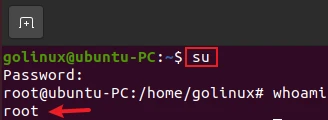
When su command is used without any options or arguments, it tries to
switch to the root user. You will need a password to switch to another
user. But the root user can change to any user without the password.
The most used options are:
- -c, –command=<command>: Pass command to the shell with the -c option.
- -f, –fast: Pass -f to the shell, which may or may not be useful, depending on the shell.
- -g, –group=<group>: Specify the primary group. This option is available to the root user only.
- -G, –supp-group=<group>: Specify a supplementary group
- -, -l, –login: Start the shell as a login shell with an environment similar to a real login
- -m, -p, –preserve-environment: Preserve the entire environment, i.e., do not set HOME, SHELL, USER or LOGNAME.
- -P, –pty: Create a pseudo-terminal for the session.
- -s, –shell=<shell>: Run the specified shell instead of the default.
Different examples to use su command
1. su command to make the shell a login shell
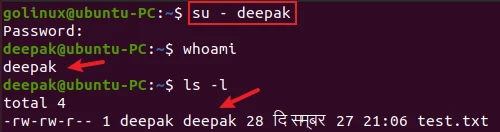
The -, -l, or --login options make the shell a login shell with an
interface similar to a normal login user. It is used to switch the
logged-in user in the terminal.
$ su - user
OR
$ su -l user
OR
$ su --login user
Sample Output:
It also sets the default home directory of a user deepak.
2. Difference between using su command with and without a hyphen
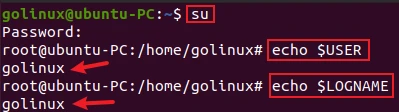
When su command is used without a hyphen, it keeps the environment
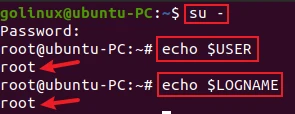
variables of the original user. Whereas, su - clears all the environment
variables of the original user.
$ su
Sample Output:
The user is switched but the variables $USER and $LOGNAME are still the same of the original user.
When you use su -, it resets those variables.
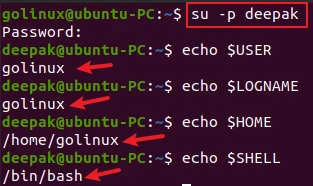
3. Preserve the environment while using su command
Similarly, the -m, -p, or --preserve-environment option does not
reset environment variables like HOME, SHELL, USER of the original
user.
$ su -m [user]
OR
$ su -p [user]
OR
$ su --preserve-environment [user]
Sample Output:
The user is switched to deepak, but it still shows the environment variables of golinux.
4. Use su with sudo command
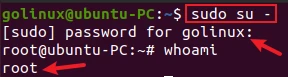
You can use su command with sudo command to switch the user by
entering the currently logged-in user’s password. It is helpful when you
do not have the password for another user.
$ sudo su - [user]
Sample Output:
You do not need to enter the password of the root to switch to the root user.
5. Use a different shell with su command
You can run the different shell using -s or --shell option if
/etc/shells allows it. The default shell is set in the /etc/passwd
file as bash.
$ su -s <shell>
OR
$ su --shell <shell>
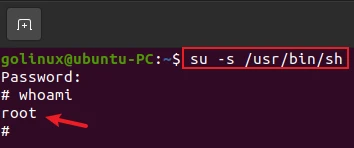
Sample Output:
For example, the command below will switch to the root user and run the
sh shell.
To switch back to the previous user and the shell, you can use:
# su -s /bin/bash golinux
golinux@ubuntu-PC:~$ whoami
golinux
6. Execute a command as different user with su command
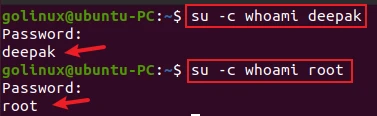
The -c or --command option is used to run the command as a different
user without entering the interactive shell.
$ su -c <command> user
OR
$ su --command=<command> user
Sample Output:
As you can notice, the command is executed as a different user.
7. Use su command non-interactively in a shell script
You can use the su command in the shell script to switch the user.
Although in such case, the su will prompt for the password of the user.
Alternatively you can use su with -c command to directly run the command
as another user.
But if you have a strict requirement to use su non-interactively then
you can use expect to pass the password to su command prompt.
We have a shell script file myscriptthat contains the following su
command used with expect.
#!/usr/bin/expect -f

set user [lindex $argv 0]
set password [lindex $argv 1]

spawn /bin/su $user

expect "Password:"
send "$password\r";

interact
Now, run the script using the command below.
sh ./myscript username password
For Example:
$ myscript root Passw0rd
spawn su root
Password:
[root@server /]#
8. Display the version of su command
The -V or --version option displays the version of the su in the
system.
$ su -V
OR
$ su --version
Sample Output:
golinux@ubuntu-PC:~$ su -V
su from util-linux 2.34

golinux@ubuntu-PC:~$ su --version
su from util-linux 2.34
9. Display the help menu of su command
The --help option displays the help for su command. It shows the
syntax and options available in su command.
$ su --help
Conclusion
su command is a useful command in Linux to switch users in the terminal and execute commands as a different user and shell. If you still have any confusion, please let us know in the comment section.
What’s Next
How to add user to sudoers with best practices &
examples
4 easy methods to check sudo access for user in
Linux
