

ClamAV is an open source antivirus tool. Its basic usage is for detecting viruses, malware, and malicious software on Linux-based machines. The threat from viruses, Trojans, and other forms of malware is real. They have grown exponentially in both quantity and in sophistication, and antivirus software have had to adopt sophisticated detection methods. While there’s no guarantee that your system will not fall victim to these unwanted bits of code, remaining mindful when using the Internet and sharing files, implementing common-sense security policies, and using an up-to-date antivirus program can go a long way in protecting you.
This article will show you how to install and configure ClamAV on CentOS 7 and CentOS 8. I have also added some tips for Ubuntu.

1. Install ClamAV packages
To install ClamAV on CentOS 7, we need to install and enable EPEL repository.
# yum install epel-release
You can follow clamav official website to get the details of installing ClamAV on other distributions
Then we can install ClamAV with all its useful tools:
# yum -y install clamav-server clamav-data clamav-update clamav-filesystem clamav clamav-scanner-systemd clamav-devel clamav-lib clamav-server-systemd
Below is a snippet from my server after the install was successful.

Below are the list of clamav rpms from my CentOS 7 environment
# rpm -qa | grep -i clamav
clamav-0.102.4-1.el7.x86_64
clamav-data-0.102.4-1.el7.noarch
clamav-filesystem-0.102.4-1.el7.noarch
clamav-update-0.102.4-1.el7.x86_64
clamav-lib-0.102.4-1.el7.x86_64
clamav-devel-0.102.4-1.el7.x86_64
2. Manually update the feshclam database
To update the database for the first time we need to run freshclam to
update the database manually and to check whether the configuration is
successfully set:
# freshclam
ClamAV update process started at Tue Nov 6 15:51:59 2018
WARNING: Can't query current.cvd.clamav.net
WARNING: Invalid DNS reply. Falling back to HTTP mode.
Reading CVD header (main.cvd): OK (IMS)
main.cvd is up to date (version: 58, sigs: 4566249, f-level: 60, builder: sigmgr)
Reading CVD header (daily.cvd): OK
Downloading daily-25006.cdiff [100%]
Downloading daily-25092.cdiff [100%]
Downloading daily-25093.cdiff [100%]
Downloading daily-25094.cdiff [100%]
Downloading daily-25095.cdiff [100%]
daily.cld updated (version: 25095, sigs: 2143057, f-level: 63, builder: neo)
Reading CVD header (bytecode.cvd): OK
bytecode.cvd is up to date (version: 327, sigs: 91, f-level: 63, builder: neo)
Database updated (6709397 signatures) from database.clamav.net (IP: 104.16.186.138)
This will add or update the existing database file inside
# ls -l /var/lib/clamav/
total 442156
-rw-r--r-- 1 clamupdate clamupdate    296388 Sep  5 17:16 bytecode.cvd
-rw-r--r-- 1 clamupdate clamupdate 334600704 Sep  5 14:44 daily.cld
-rw-r--r-- 1 clamupdate clamupdate 117859675 Nov 25  2019 main.cvd
3. Configure auto-update of freshclam database
Based on different distribution, the method to configure auto-update of
freshclam database may differ. I see different behaviour in CentOS7 ,
CentOS 8 and Ubuntu.
3.1: On Ubuntu with /etc/clamav/freshclam.conf
In the /etc/clamav/freshclam.conf file of your Ubuntu machine, you’ll
see the following lines at the end:
# Check for new database 24 times a day
Checks 24
DatabaseMirror db.local.clamav.net
DatabaseMirror database.clamav.net
So, essentially, this means that on Ubuntu, ClamAV will be checking for updates every hour.
3.2: On CentOS 7 with cron job
With clamav-update-0.102.4-1.el7.x86_64 I could find a cron job file
which is responsible for performing periodic update to the freshclam
database
# cat /etc/cron.d/clamav-update
## Adjust this line...
MAILTO=root

## It is ok to execute it as root; freshclam drops privileges and becomes
## user 'clamupdate' as soon as possible
0  */3 * * * root /usr/share/clamav/freshclam-sleep
The */3 in the second column from the left indicates that ClamAV will
check for updates every 3 hours.
You can change the default time to check for updates if you like,
but you’ll also need to change the setting in the
/etc/sysconfig/freshclam file.
Let’s say that you want CentOS to also check for ClamAV updates every
hour. In the cron job file, change */3 to *. (You don’t need to do
*/1 because the asterisk by itself in that position already indicates
that the job will run every hour.)
Then, in the /etc/sysconfig/freshclam file, look for this line:
# FRESHCLAM_MOD=
Uncomment that line and add the number of minutes that you want between updates. To set it to 1 hour, so that it matches the cron job, it will look like this:
FRESHCLAM_MOD=60
To disable the auto-update you can modify
# FRESHCLAM_DELAY=
Uncomment this line and add disabled to this value:
FRESHCLAM_DELAY=disabled
3.3: On CentOS 8 with systemd clamav-freshclam.service
In CentOS 8 with clamav-update-0.102.4-1.el8.x86_64 I observed that
below files were missing
/usr/share/clamav/freshclam-sleep/etc/cron.d/clamav-update files/etc/sysconfig/freshclam
It is possible with CentOS 8, the developer wants us to use
/usr/lib/systemd/system/clamav-freshclam.service to handle auto
updates of freshclam database. If you check the content of this service
unit file
[Unit]
Description=ClamAV virus database updater
Documentation=man:freshclam(1) man:freshclam.conf(5) https://www.clamav.net/documents
# If user wants it run from cron, don't start the daemon.
ConditionPathExists=!/etc/cron.d/clamav-freshclam
Wants=network-online.target
After=network-online.target

[Service]
ExecStart=/usr/bin/freshclam -d --foreground=true
StandardOutput=syslog

[Install]
WantedBy=multi-user.target
We have a condition
# If user wants it run from cron, don't start the daemon.
ConditionPathExists=!/etc/cron.d/clamav-freshclam
So if /etc/cron.d/clamav-freshclam exists then user cannot start this
daemon. You can find more details in this
Red Hat Bugzilla where the
developer seems to have done this intentionally so moving forward in
RHEL/CentOS we can expect to only see the service unit file.
But this service unit file with CentOS 8 is not well developed to handle the auto-update of the ClamAV database.
With cron we had a timer which was configured to perform the
auto-update. Similarly in systemd we should have an equivalent
clamav-freshclam.timer file for clamav-freshclam.service but this
was missing from my node.
So I decided to create my own systemd timer unit file
/etc/systemd/system/clamav-freshclam.timer with below content.
# cat /etc/systemd/system/clamav-freshclam.timer
[Unit]
Description=ClamAV virus database updater
After=network-online.target

[Timer]
OnCalendar=daily
Persistent=true

[Install]
WantedBy=timers.target
There was one more problem though..
The existing clamav-freshclam.service is configured to start as a
daemon in the foreground. When I was testing this, the timer never
worked i.e. it failed to execute the freshclam daemon. The reason was
because the daemon was always in running state
# ps -ef | grep freshclam
clamupd+    4874       1  0 17:14 ?        00:00:00 /usr/bin/freshclam -d --foreground=true
root        4907    2074  0 17:14 pts/1    00:00:00 grep --color=auto freshc
So if a daemon is already running, it is obvious that the timer won’t be
able to start the service again to initiate the auto update. So I
decided to modify this unit file and created my own file where I am just
executing freshclam without any arguments as I would do from the
terminal to update the database:
# cat /etc/systemd/system/clamav-freshclam.service
[Unit]
Description=ClamAV virus database updater
Documentation=man:freshclam(1) man:freshclam.conf(5) https://www.clamav.net/documents
# If user wants it run from cron, don't start the daemon.
ConditionPathExists=!/etc/cron.d/clamav-freshclam
Wants=network-online.target
After=network-online.target

[Service]
ExecStart=/usr/bin/freshclam
StandardOutput=syslog

[Install]
WantedBy=multi-user.target
Next enable and start the clamav-freshclam.timer. We don’t need to
start and enable the service as timer will take care of that.
# systemctl enable clamav-freshclam.timer --now
So we are all done, check the status of the timer:
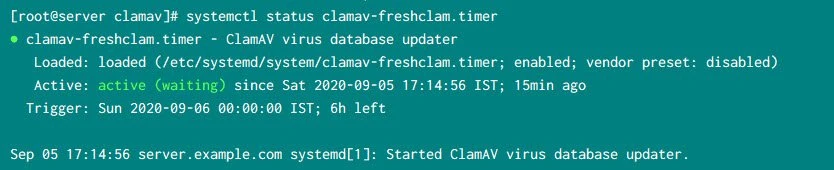
service status for clamav-freshclam.timer
Verify the list of available timers and check the time when the
clamav-freshclam.timer will be next executed.So our
clamav-freshclam.timer is configured to start the service next at
Sun 2020-09-06 00:00:00
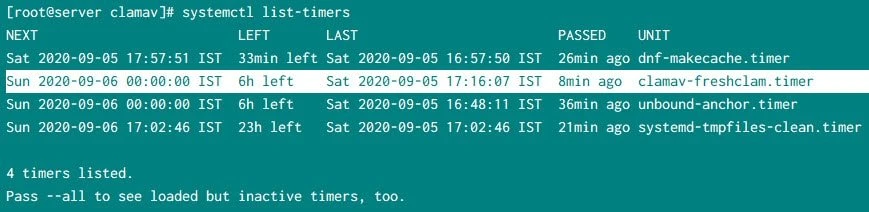
List the available systemd timers
Once the service is executed, we should see logs similar to below in journalctl
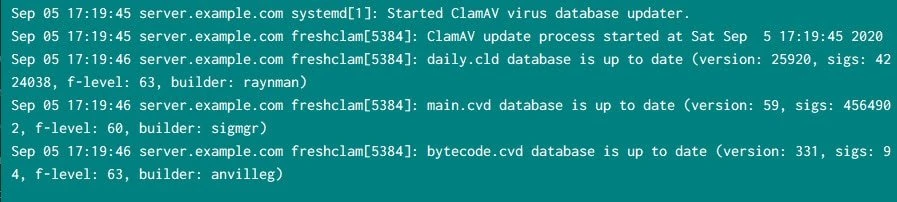
clamav database is getting updated
4. Configure /etc/clamd.d/scan.conf
The configuration file for ClamAV is available at
/etc/clamd.d/scan.conf. The default user for performing scan is
clamscan which is created as soon as we install clamav rpms
# id clamscan
uid=982(clamscan) gid=979(clamscan) groups=979(clamscan),980(virusgroup)
But we will change this to “root” user, search for
User clamscan
Comment this line and add a new line
User root
We can leave all other configuration options to default and next start the service:
5. Configure and start clamd.service
We have an example service file /usr/lib/systemd/system/clamd@.service
that we need to copy into the system services folder.
I will copy this
file to /etc/systemd/system/clamd.service. I hope you are familiar
with the different systemd
service file locations so you can understand why I preferred this
location instead of /usr/lib/systemd/system
# cp -ap /usr/lib/systemd/system/clamd@.service /etc/systemd/system/clamd.service
Next replace %i with scan.conf from both the Description and
ExecStart options in
/etc/systemd/system/clamd.service
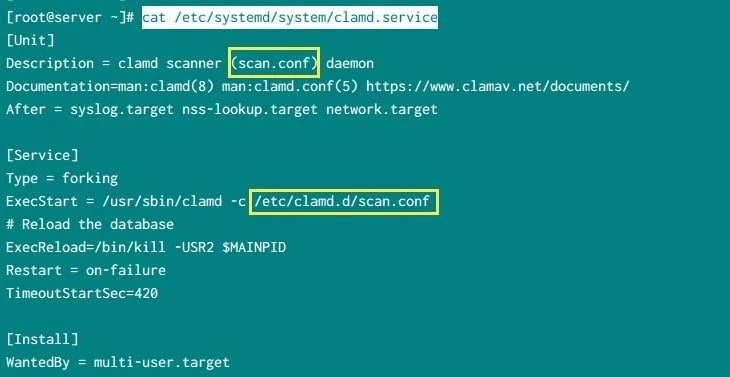
Enable and start the clamd service
# # systemctl enable clamd.service --now
Created symlink /etc/systemd/system/multi-user.target.wants/clamd.service → /etc/systemd/system/clamd.service
Check the status to make sure the service is active and running:
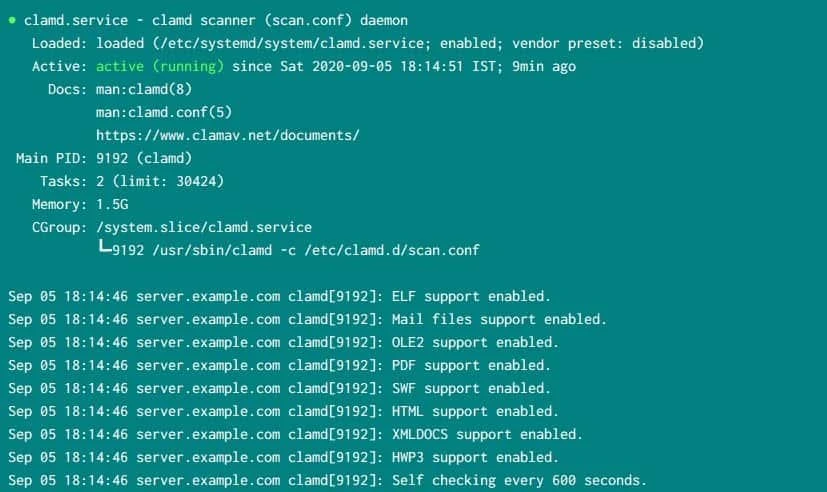
clamd service status
6. Configure periodic scan using clamdscan (Optional)
You can follow this step if you wish to configure auto scan of any directory as by default you will have to initiate manual scan.
We will create a new systemd service unit file :
# cat /etc/systemd/system/clamdscan-home.service
[Unit]
Description=ClamAV virus scan
Requires=clamd.service
After=clamd.service

[Service]
ExecStart=/usr/bin/clamdscan /home
StandardOutput=syslog

[Instal]
WantedBy=multi-user.target
To perform a periodic scan we also need a mapping timer unit file. Here
I have added time value of 18:40 to start the scan:
# cat /etc/systemd/system/clamdscan-home.timer
[Unit]
Description=Scan /home directory using ClamAV

[Timer]
OnCalendar=18:40:00
Persistent=true

[Install]
WantedBy=timers.target
Next enable and start the timer
# systemctl enable clamdscan-home.timer --now
Created symlink /etc/systemd/system/timers.target.wants/clamdscan-home.timer → /etc/systemd/system/clamdscan-home.timer.
We don’t need to start the service unit file as it will be controlled by the timer file
Now we monitor the journalctl logs at 18:40 PM
Sep 05 18:40:05 server.example.com systemd[1]: Started ClamAV virus scan.
Sep 05 18:40:17 server.example.com clamdscan[10901]: /home: OK
Sep 05 18:40:17 server.example.com clamdscan[10901]: ----------- SCAN SUMMARY -----------
Sep 05 18:40:17 server.example.com clamdscan[10901]: Infected files: 0
Sep 05 18:40:17 server.example.com clamdscan[10901]: Time: 11.725 sec (0 m 11 s)
7. Perform manual scan with clamscan
For a test scan of the current folder, we run the following command:
# clamscan --infected --remove --recursive ./

----------- SCAN SUMMARY -----------
Known viruses: 6702413
Engine version: 0.100.2
Scanned directories: 7
Scanned files: 9
Infected files: 0
Data scanned: 0.01 MB
Data read: 0.00 MB (ratio 2.00:1)
Time: 25.439 sec (0 m 25 s)
Here,
infected: prints only infected filesremove: removes infected filesrecursive: all the sub-directories in the provided directory will also be scanned
Conclusion
In this tutorial we learned about ClamAV scanner and it’s configuration in Linux. With different version of clamav the stepsof configuration seems to be changing. As I am more comfortable with systemd, I have used the same to demonstrate all the steps in this tutorial but you are free to write custom scripts with crond to perform auto scan and auto update of the freshclam database.
Lastly I hope the steps from the article to configure ClamAV on Ubuntu, CentOS 7 and CentOS 8 Linux was helpful. So, let me know your suggestions and feedback using the comment section.
References
I have used below external references for this tutorial guide
man page for systemd timer
