
![Revoke certificate and generate CRL OpenSSL [Step-by-Step]](/revoke-certificate-generate-crl-openssl/openssl.jpg)
Revoking a certificate means declaring the certificate as ‘Not Valid’ and it can’t be used any more. Once a certificate has been issued, it is generally put into production, where it will be distributed to many clients. If an attacker compromises the associated private key, he now has the ability to use the certificate even though it doesn’t belong to him. Assuming the proper owner is aware of the compromise, a new certificate with a new key pair should be obtained and put into use. In this situation there are two certificates for the same entity—both are technically valid, but one should not be trusted. The compromised certificate will eventually expire, but in the meantime, how will the world at large know not to trust it?
Enters Certificate Revocation List
Certificate Revocation List (CRL) - Overview
- A CRL contains a list of all of the revoked certificates a CA has issued that have yet to expire.
- When a certificate is revoked, the CA declares that the certificate should no longer be trusted.
- Bandwidth is a significant concern when distributing CRLs, since clients need to have reasonably current revocation information in order to properly validate a certificate.
- In an ideal world, the client would get up-to-date revocation information as soon as the CA gets the information.
- Unfortunately, many CAs distribute CRLs only as a huge list. Downloading a huge list before validating each certificate could easily add unacceptable latency and place an undue load on the server when there are a lot of clients.
- As a result, CAs tend to update their CRLs regularly, but not immediately after they learn about key compromises
- One solution to this problem is for the CA to break up its CRLs into segments. To do this, the CA specifies ranges of certificate serial numbers that each CRL contains. For example, the CA could create a different CRL for each 1,000 serial numbers. Therefore, the first CRL would be for serial numbers 1 through 1,000; the second would be for serial numbers 1,001 through 2,000, and so on.
In this tutorial we will cover different steps involved to revoke certificate using openssl command and generate CRL.
Lab Environment
First we will setup our Lab Environment with a bunch of certificates which we will revoke during the course of this tutorial. I have already created multiple tutorials covering different steps involved in generating RootCA , server and client certificate (you can find the links in the left sidebar menu).
We will store our rootCA certificate inside /root/tls directory:
[root@controller ~]# mkdir /root/tls; cd /root/tls
[root@controller tls]# mkdir certs private crl
[root@controller tls]# touch index.txt serial
[root@controller tls]# touch crlnumber
[root@controller tls]# echo 01 > serial
[root@controller tls]# echo 1000 > crlnumber
We have created two serial files wherein the serial file would be used
to add serial number for newly signed certificate while crlnumber file
would be used to assign the serial number to revoked certificates.
This is my openssl configuration file which I will use in this entire article:
[ ca ]
default_ca      = CA_default            # The default ca section

[ CA_default ]
dir             = /root/tls             # Where everything is kept
certs           = $dir/certs            # Where the issued certs are kept
crl_dir         = $dir/crl              # Where the issued crl are kept
database        = $dir/index.txt        # database index file.
new_certs_dir   = $dir/certs            # default place for new certs.
certificate     = $dir/certs/cacert.pem         # The CA certificate
serial          = $dir/serial           # The current serial number
crlnumber       = $dir/crlnumber        # the current crl number
crl             = $dir/crl.pem          # The current CRL
private_key     = $dir/private/cakey.pem # The private key
x509_extensions = v3_ca                 # The extensions to add to the cert
name_opt        = ca_default            # Subject Name options
cert_opt        = ca_default            # Certificate field options

# crlnumber must also be commented out to leave a V1 CRL.
 crl_extensions = crl_ext

default_days    = 365                   # how long to certify for
default_crl_days= 30                    # how long before next CRL
default_md      = sha256                # use SHA-256 by default
preserve        = no                    # keep passed DN ordering

policy          = policy_match

# For the CA policy
[ policy_match ]
countryName             = optional
stateOrProvinceName     = optional
organizationName        = optional
organizationalUnitName  = optional
commonName              = supplied
emailAddress            = optional

####################################################################
[ req ]
default_bits            = 2048
default_md              = sha256
default_keyfile         = privkey.pem
distinguished_name      = req_distinguished_name
attributes              = req_attributes
x509_extensions = v3_ca # The extensions to add to the self signed cert

[ req_distinguished_name ]
countryName                     = Country Name (2 letter code)
countryName_default             = IN
stateOrProvinceName             = State or Province Name (full name)
stateOrProvinceName_default     = Karnataka
localityName                    = Locality Name (eg, city)
localityName_default            = Bengaluru
0.organizationName              = Organization Name (eg, company)
0.organizationName_default      = GoLinuxCloud
organizationalUnitName          = Organizational Unit Name (eg, section)
organizationalUnitName_default  = Admin

commonName                      = Common Name (eg, your name or your server\'s hostname)
commonName_max                  = 64

emailAddress                    = Email Address
emailAddress_max                = 64

[ req_attributes ]
challengePassword               = A challenge password
challengePassword_min           = 4
challengePassword_max           = 20
unstructuredName                = An optional company name

[ v3_req ]
# Extensions to add to a certificate request
basicConstraints = CA:FALSE
keyUsage = nonRepudiation, digitalSignature, keyEncipherment

[ v3_ca ]
# Extensions for a typical CA
# PKIX recommendation.
subjectKeyIdentifier=hash
authorityKeyIdentifier=keyid:always,issuer
basicConstraints = critical,CA:true

[ crl_ext ]
# CRL extensions.
# Only issuerAltName and authorityKeyIdentifier make any sense in a CRL.
authorityKeyIdentifier=keyid:always
Generate RootCA certificate
I will not explain each step in detail as these are already covered in my previous tutorials which you can access from the left sidebar menu:
## navigate inside your tls path
cd /root/tls

## generate rootca private key
openssl genrsa  -out private/cakey.pem 4096

## generate rootCA certificate
openssl req -new -x509 -days 3650  -config openssl.cnf  -key private/cakey.pem -out certs/cacert.pem

## Verify the rootCA certificate content and X.509 extensions
openssl x509 -noout -text -in certs/cacert.pem
Generate server/client certificates
I will generate multiple server and client certificate using the following steps:
## navigate to /certs folder where we will store the certificates
cd /certs

## generate server private key
openssl genrsa -out server.key.pem 4096

## generate certificate signing request
openssl req -new -key server-1.key.pem -out server-1.csr

## generate and sign the server certificate using rootca certificate
openssl ca -config /root/tls/openssl.cnf -notext -batch -in server-1.csr -out server-1.crt -extfile ext_template.cnf
Following is the content of ext_template.cnf which contains the X,509
extension to be used for the server certificate:
basicConstraints = CA:FALSE
nsCertType = client, email
nsComment = "OpenSSL Generated Client Certificate"
subjectKeyIdentifier = hash
authorityKeyIdentifier = keyid,issuer
keyUsage = critical, nonRepudiation, digitalSignature, keyEncipherment
extendedKeyUsage = clientAuth, serverAuth
Next I generate a couple of server certificates inside /certs
directory:
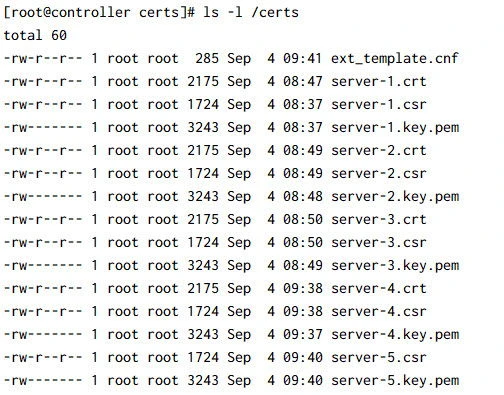
During this process, we have signed each of these certificates using our
rootca certificate so the index.txt file was updated every time we
signed the certificate.
[root@controller certs]# cat /root/tls/index.txt
V       220904031732Z           01      unknown /C=IN/ST=Karnataka/O=GoLinuxCloud/OU=Admin/CN=server-1.example.com
V       220904031929Z           02      unknown /C=IN/ST=Karnataka/O=GoLinuxCloud/OU=Admin/CN=server-2.example.com
V       220904032019Z           03      unknown /C=IN/ST=karnataka/O=golinuxcloud/OU=Admin/CN=server-3.example.com
V       220904040850Z           04      unknown /C=IN/ST=Karnataka/O=golinuxcloud/OU=admin/CN=server-4.example.com
V       220904042808Z           05      unknown /C=IN/ST=karnataka/O=golinuxcloud/OU=admin/CN=server-5.example.com
Next we will revoke these certificates using openssl and generate CRL.
Step-1: Revoke certificate using OpenSSL
Assuming you have the certificate which you plan to revoke, execute the
following command. Here we are revoking server-1.crt certificate:
[root@controller certs]# openssl ca -config /root/tls/openssl.cnf -revoke /certs/server-1.crt
Using configuration from /root/tls/openssl.cnf
Revoking Certificate 01.
Data Base Updated
No change is made to the certificate at all. In fact, the only noticeable change is to the CA’s database to indicate that the certificate has been revoked.
Step-2: Verify the rootCA database
Next you can check the rootCA index.txt file to make sure your certificate has been properly revoked:
[root@controller certs]# cat /root/tls/index.txt
R       220904031732Z   210904032109Z   01      unknown /C=IN/ST=Karnataka/O=GoLinuxCloud/OU=Admin/CN=server-1.example.com
V       220904031929Z           02      unknown /C=IN/ST=Karnataka/O=GoLinuxCloud/OU=Admin/CN=server-2.example.com
V       220904032019Z           03      unknown /C=IN/ST=karnataka/O=golinuxcloud/OU=Admin/CN=server-3.example.com
V       220904040850Z           04      unknown /C=IN/ST=Karnataka/O=golinuxcloud/OU=admin/CN=server-4.example.com
V       220904042808Z           05      unknown /C=IN/ST=karnataka/O=golinuxcloud/OU=admin/CN=server-5.example.com
Notice the first column of first row i.e. R for Revoked. So
certificate with server-1.example.com CN has been revoked
Step-3: Generate Certificate Revocation List (CRL)
Next we need to generate the Certificate Revocation List which will contain the list of the certificates which has been revoked. You can actually create a CRL even before a certificate is revoked in which case the revocation list will be empty inside the CRL.
[root@controller certs]# openssl ca -config /root/tls/openssl.cnf -gencrl -out /root/tls/crl/rootca.crl
Using configuration from /root/tls/openssl.cnf
Here /root/tls/crl/rootca.crl file will be created based on the
existing list of certificates that have been revoked.
Step-4: Check the Revoked Certificate List in CRL
We can get the list of certificates that have been revoked inside the CRL. Use the following command to view the CRL:
[root@controller certs]# openssl crl -in /root/tls/crl/rootca.crl -text -noout
Certificate Revocation List (CRL):
        Version 2 (0x1)
        Signature Algorithm: sha256WithRSAEncryption
        Issuer: C = IN, ST = Karnataka, L = Bengaluru, O = GoLinuxCloud, OU = Admin, CN = rootca.com
        Last Update: Sep  4 03:22:06 2021 GMT
        Next Update: Oct  4 03:22:06 2021 GMT
        CRL extensions:
            X509v3 CRL Number:
                4096
Revoked Certificates:
    Serial Number: 01
        Revocation Date: Sep  4 03:21:09 2021 GMT
    Signature Algorithm: sha256WithRSAEncryption
...
So the certificate with Serial Number 01 has been revoked which we
also verified using our index.txt file in the previous steps.
As soon as you generate or update a CRL, the crlnumber file gets
incremented with a new integer:
[root@controller tls]# cat crlnumber
1001
If you recall from our lab environment section, we had added 1000 as
the base value which now has been incremented to 1001 as one we
generated our first CRL.
Step-5: Verify certificate against RootCA certificate after revoking the certificate
You will define the CRL file location to your server application which will perform the certificate validation before initiating the connection to make sure that the certificate in use is valid or not.
But we can also manually verify the certificate. Create a temporary RootCA by merging the CRL file with the RootCA certificate:
[root@controller tls]# cat certs/cacert.pem crl/rootca.crl > /tmp/test.pem
Next verify the server-1.crt against this newly created bundle
containing rootCA + CRL file:
[root@controller tls]# openssl verify -extended_crl -verbose -CAfile /tmp/test.pem -crl_check /certs/server-1.crt
C = IN, ST = Karnataka, O = GoLinuxCloud, OU = Admin, CN = server-1.example.com
error 23 at 0 depth lookup: certificate revoked
error /certs/server-1.crt: verification failed
As you can see, the verification failed because the certificate was revoked.
You can use the same bundle to test remaining certificate and it should pass because those have not been revoked or expired yet:
[root@controller tls]# openssl verify -extended_crl -verbose -CAfile /tmp/test.pem -crl_check /certs/server-2.crt
/certs/server-2.crt: OK
Step-6: Revoke more certificates and update CRL
Next we will continue to revoke some more certificates:
[root@controller certs]# openssl ca -config /root/tls/openssl.cnf -revoke /certs/server-2.crt
Using configuration from /root/tls/openssl.cnf
Revoking Certificate 02.
Data Base Updated
Our database has been updated accordingly:
[root@controller tls]# cat index.txt
R       220904031732Z   210904032109Z   01      unknown /C=IN/ST=Karnataka/O=GoLinuxCloud/OU=Admin/CN=server-1.example.com
R       220904031929Z   210904033301Z   02      unknown /C=IN/ST=Karnataka/O=GoLinuxCloud/OU=Admin/CN=server-2.example.com
V       220904032019Z           03      unknown /C=IN/ST=karnataka/O=golinuxcloud/OU=Admin/CN=server-3.example.com
V       220904040850Z           04      unknown /C=IN/ST=Karnataka/O=golinuxcloud/OU=admin/CN=server-4.example.com
V       220904042808Z           05      unknown /C=IN/ST=karnataka/O=golinuxcloud/OU=admin/CN=server-5.example.com
Update the CRL
[root@controller tls]# openssl ca -config /root/tls/openssl.cnf -gencrl -out /root/tls/crl/rootca.crl
Using configuration from /root/tls/openssl.cnf
Verify the CRL file content to get the list of revoked certificates:
[root@controller tls]# openssl crl -in /root/tls/crl/rootca.crl -text -noout
Certificate Revocation List (CRL):
        Version 2 (0x1)
        Signature Algorithm: sha256WithRSAEncryption
        Issuer: C = IN, ST = Karnataka, L = Bengaluru, O = GoLinuxCloud, OU = Admin, CN = rootca.com
        Last Update: Sep  4 03:33:57 2021 GMT
        Next Update: Oct  4 03:33:57 2021 GMT
        CRL extensions:
            X509v3 CRL Number:
                4099
Revoked Certificates:
    Serial Number: 01
        Revocation Date: Sep  4 03:21:09 2021 GMT
    Serial Number: 02
        Revocation Date: Sep  4 03:33:01 2021 GMT
    Signature Algorithm: sha256WithRSAEncryption
...
Verify the server-2.crt against the test.pem bundle which we had
created earlier:
[root@controller tls]# openssl verify -extended_crl -verbose -CAfile /tmp/test.pem -crl_check /certs/server-2.crt
/certs/server-2.crt: OK
The validation says OK because we have not added our latest CRL inside
the test.pem bundle. let’s update the test.pem bundle and perform
re-validation:
[root@controller tls]# cat certs/cacert.pem crl/rootca.crl > /tmp/test.pem

[root@controller tls]# openssl verify -extended_crl -verbose -CAfile /tmp/test.pem -crl_check /certs/server-2.crt
C = IN, ST = Karnataka, O = GoLinuxCloud, OU = Admin, CN = server-2.example.com
error 23 at 0 depth lookup: certificate revoked
Step-7: Update the Certificate Expiration time for CRL in openssl.cnf
It is important that you are familiar with default_crl_days ,
default_days , and default_md values which we have added in our
openssl.cnf
Currently we have defined following values for these parameters in the openssl.cnf:
default_days    = 365                   # how long to certify for
default_crl_days= 30                    # how long before next CRL
default_md      = sha256                # use SHA-256 by default
Here,
- The
default_crl_dayskey specifies the number of days between CRLs. You may wish to usedefault_crl_hoursinstead if you plan to publish CRLs more than once a day. This setting computes thenextUpdatefield of the CRL when it is generated. - The
default_dayskey specifies the number of days an issued certificate will be valid. - The
default_mdspecifies the message digest algorithm that will be used to sign issued certificates and CRLs. Possible legal values for this key include md5, sha1, and mdc2.
If the CRL is expired then the certificate verification would fail. For example, here I am using faketime to manipulate the system time into thinking that we are in 2021 December which is past the date of expiry for our CRL. Now let’s validate one of our certificates against the CRL and RootCA certificate (bundle which we created in previous examples):
[root@controller tls]# faketime '2021-12-24 08:15:42' openssl verify -extended_crl  -CAfile /tmp/test.pem -crl_check /certs/server-5.crt
C = IN, ST = karnataka, O = golinuxcloud, OU = admin, CN = server-5.example.com
error 12 at 0 depth lookup: CRL has expired
error /certs/server-5.crt: verification failed
As you can see, the CRL is marked as expired hence the validation could not be performed.
So it is recommended that you update your CRL at regular intervals to keep the revocation list up to date.
Summary
In this tutorial we covered steps to properly revoke certificate using openssl command and generate CRL. Although we have only covered the steps to revoke any server or client certificate and generate the CRL. But there is also a possible problem when the root CA certificate needs to be revoked. A CRL can not be used to handle such scenarios. The reason because, a CRL is issued by the RootCA itself for its children i.e. intermediate certificates or server/client certificates but if the CA’s key is compromised then it still be be trued. Unfortunately this can not be handled by CRL.
IMPLEMENTING A
CERTIFICATION REVOCATION LIST
Network
Security OpenSSL
