

In this tutorial we will learn to work with files so your programs can quickly analyze lots of data. We will primarily use with open() function to create, read, append or write to file using Python programming language.
Below are the list of topics we will cover in this tutorial:
- How to create an empty file
- How to read the content of a text file
- How to write to a file
- How to append new content to an existing file
How would you write to a file in GUI Environment?
Let us understand in a very basic layman’s terms. As most of you I assume have an experience of windows environment, to write to a file in some notepad with graphical interface, what would you do?
- Create a new text file (if not already present)
- Open the file for editing
- Write your data into the file
- Save the file
- Close the file once done
We follow something similar approach in Python when working with text files to perform read/write operations.
Syntax to open files with the open() function
To open a file with the open() function, you pass it a string path
indicating the file you want to open; it can be either an absolute or
relative path.
Syntax 1: Using with open()
The syntax to open a file in Python would be:
with open('<PATH/OF/FILE>','<MODE>') as <FILE_OBJECT>:
- The
open()function needs one argument: the name of the file you want to open. - Python looks for this file in the directory where the program that’s currently being executed is stored.
- So it is recommended to use absolute or relative path for the provided file.
- The open() function returns a
FILE_OBJECTwhich represents the file. ThisFILE_OBJECTcan be any variable as per your choice. - Next you must assign a
MODEto open the file.
You can choose from the below available modes in Python:
| mode | What is does |
|---|---|
| ‘x’ | Create a new empty file |
| ‘r’ | The file must already exist, and it is opened in read-only mode. |
| ‘w’ | The file is opened in write-only mode. The file is truncated to zero length and overwritten if it already exists, or created if it does not exist. |
| ‘a’ | The file is opened in write-only mode. The file is kept intact if it already exists, and the data you write is appended to what’s already in the file. The file is created if it does not exist. |
| ‘r+’ | The file must already exist and is opened for both reading and writing |
| ‘w+’ | The file is opened for both reading and writing. The file is truncated and overwritten if it already exists, or created if it does not exist. |
| ‘a+’ | The file is opened for both reading and writing. The file is kept intact if it already exists, and the data you write is appended to what’s already in the file. The file is created if it does not exist. |
You also have an option to open the file in:
- Text mode ("t")
- Binary mode ("b")
write + binary mode then you should
give “wb”. By default open() will open the file in text mode so
you need not provide “t” every time you use open()
for text files.
Syntax 2: Using open() and close()
- Alternatively we can also open a file by directly using the
open()function and assigning it toFILE_OBJECT - This
FILE_OBJECTcan again be any variable. - We can use the same set of modes in the same format as we discussed above.
- The only difference here is that we must provide
close()function once we are done working with the file
FILE_OBJECT = open('<PATH/OF/FILE>','<MODE>')
# read write operations
FILE_OBJECT.close()
Which syntax should I use (with open() or open())?
- The keyword
close()closes the file once access to it is no longer needed. - You must have noticed, using “
with” how we callopen()in this program but notclose(). - You could open and close the file by calling
open()andclose()function respectively, but if a bug in your program prevents theclose()method from being executed, the file may never close. - This may seem trivial, but improperly closed files can cause data to be lost or corrupted.
- And if you call
close()too early in your program, you’ll find yourself trying to work with a closed file (a file you can’t access), which leads to more errors. - It’s not always easy to know exactly when you should close a file, but
with open()python will figure that out for you. - All you have to do is open the file and work
withit as desired, trusting that Python will close it automatically when the with block finishes execution.
How to create an empty file
Example 1: Using touch()
Ideally if your intention is just to create an empty file, you can use
touch() function as shown below or
subprocess.call
with touch command:
#!/usr/bin/env python3

from pathlib import Path

Path('/tmp/file.txt').touch()
This will create an empty file under /tmp/
# python3 file_operator.py
Verify if the new file was created:
# ls -l /tmp/file.txt
-rw-r--r-- 1 root root 0 Jul 19 11:08 /tmp/file.txt
Example 2: Using with open()
But since this tutorial is about open() and with open(), we will use
these functions in combination with different mode to create an empty
file. Next we will use with open() as shown below. Here I am using
file_object as the variable name for FILE_OBJECT, you can use any
other variable.
#!/usr/bin/env python3

with open('/tmp/file.txt', 'x') as file_object:
    pass
Here we will create /tmp/file.txt using “x” which means create an
empty file.
Execute the script:
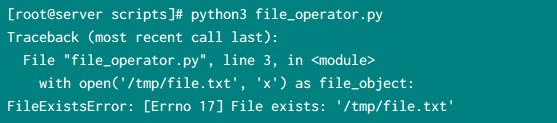
Python create file fails (if files exists)
This script fails with error “File exists”.
x” with open() we can create an empty file only if the file
is not present. If the provided file is already present, the create
operation will fail.
So we will delete our exiting /tmp/file.txt and re-execute the script:
# rm -f /tmp/file.txt

# python3 file_operator.py
So the new file is created now.
# ls -l /tmp/file.txt
-rw-r--r-- 1 root root 0 Jul 19 11:15 /tmp/file.txt
Example 3: Using open()
We can also use open() function in this format:
#!/usr/bin/env python3

file_object =  open('/tmp/file.txt', 'x')
file_object.close()
and this will also go ahead and create an empty file /tmp/file.txt (if
not present already)
How to read the contents of file
Now that you have a File object, you can start reading from it. There
can be different ways to read the content of file which we will learn in
this section with different examples:
The basic syntax to read the content of a file would be:
with open('<PATH/OF/FILE>','r') as <FILE_OBJECT>:
    FILE_OBJECT.read()
OR
FILE_OBJECT = open('<PATH/OF/FILE>','r')
FILE_OBJECT.read()
Here we use “<strong>r</strong>” i.e. read mode with open()
function. To actually read the content we need to use read() with our
file object value.
In the below examples, I will use this dataFile to test our read()
operation.
# cat dataFile
some date-1 5
some data-2 10
some data-3 15
Example 1: Read the content of a file as string
If you want to read the entire contents of a file as a string value, use
the File object’s read() method.
#!/usr/bin/env python3

# Open the file in read mode
file_object =  open('dataFile', 'r')
# Store the content of file in content var.
# You can use any name for this variable
content = file_object.read()
# print the content
print(content)
# Close the file object of file
file_object.close()
Execute the script:
# python3 file_operator.py
some date-1 5
some data-2 10
some data-3 15
read()
returns an empty string when it reaches the end of the file; this empty
string shows up as a blank line. If you want to remove the extra blank
line, you can use rstrip() in the call to print():
So, to remove the newline from the last line, our code would look like:
#!/usr/bin/env python3

# Open the file in read mode
file_object =  open('dataFile', 'r')
# Store the content of file in content var.
# You can use any name for this variable
content = file_object.read()
# print the content
print(content.rstrip())
# Close the file object of file
file_object.close()
Now this should not give any extra new line at the end of the print output.
Similarly to use with open() function
#!/usr/bin/env python3

# Open the file in read mode
with open('dataFile', 'r') as file_object:
    # Store the content of file in content var.
    # You can use any name for this variable
    content = file_object.read()

# print the content
print(content.rstrip())
Output from this script:
# python3 file_operator.py
some date-1 5
some data-2 10
some data-3 15
Example 2 : Read content of the file line by line
When you’re reading a file, you’ll often want to examine each line of the file. You might be looking for certain information in the file, or you might want to modify the text in the file in some way.
- You can use a
forloop on the file object to examine each line from a file one at a time - In this example we assign the file with it’s path to
filenamevariable - We again use the
withsyntax to let Python open and close the file properly. - To examine the file’s contents, we work through each line in the file by looping over the file object
#!/usr/bin/env python3

filename = '/root/scripts/dataFile'
# Open the file in read mode
with open(filename, 'r') as file_object:
    for line in file_object:
        print(line)
Output from this script. When we print each line, we find even more
blank lines. These blank lines appear because an invisible newline
character is at the end of each line in the text file. The print
function adds its own newline each time we call it, so we end up with
two newline characters at the end of each line, one from the file and
one from print().
# python3 file_operator.py
some date-1 5

some data-2 10

some data-3 15
Using rstrip() on each line in the print() call eliminates these
extra blank lines. Updated script using rstrip()
#!/usr/bin/env python3

filename = '/root/scripts/dataFile'
# Open the file in read mode
with open(filename, 'r') as file_object:
    for line in file_object:
        print(line.rstrip())
Output from this script:
# python3 file_operator.py
some date-1 5
some data-2 10
some data-3 15
Example 3 - Store the content from a file in List (readlines())
- When you use with, the file object returned by
open()is only available inside the with block that contains it. - If you want to retain access to a file’s contents outside the with block, you can store the file’s lines in a list inside the block and then work with that list.
- You can process parts of the file immediately and postpone some processing for later in the program.
#!/usr/bin/env python3

filename = '/root/scripts/dataFile'

# Open the file in read mode and store the content in file_object
with open(filename, 'r') as file_object:
    # Use readlines() to store the content in lines variable as a List
    lines = file_object.readlines()

# Use for loop outside the scope of with open() and
# print the content of lines
for line in lines:
    print(line.rstrip())
Output from this script:
# python3 file_operator.py
some date-1 5
some data-2 10
some data-3 15
Example 4 - Perform simple calculation
Now when we know how to read a file in python, let’s utilise this to
perform some basic addition. In this script we will calculate the third
column value and print the total. I have already explained each line
in the script’s comment section
filename = '/root/scripts/dataFile'
total = 0.0

# Open the file in write mode and store the content in file_object
with open(filename, 'r') as file_object:
    for line in file_object:
        # Split the line based on whitespace character
        parts = line.split( )
        # Convert the value into integer of 3rd column
        parts[2] = int(parts[2])
        # Add all the values from third column
        total += parts[2]

# Print the total
print(total)
The output from this script:
# python3 file_operator.py
30.0
Example 5: Read and align the data using format
In this example we will read the content from our dataFile and using
print format, we will align the content of this file. I have added
enough comments to explain each line of the code.
#!/usr/bin/env python3

filename = '/root/scripts/dataFile'

# Open the file in write mode and store the content in file_object
with open(filename, 'r') as file_object:
    # This section would be executed only if with is successful
    # Print a formatted string with First and Second is left aligned with a value of 10
    # and Third is right aligned with a value of 5
    print(f'{"First":<10}{"Second":<10}{"Third":>5}')
    for line in file_object:
        # Split the line based on whitespace character
        parts = line.split( )
        # Arrange the line content with the provided format
        # as we had used earlier for alignment
        print(f'{parts[0]:<10}{parts[1]:<10}{parts[2]:>5}')
Snippet of the script from my terminal:
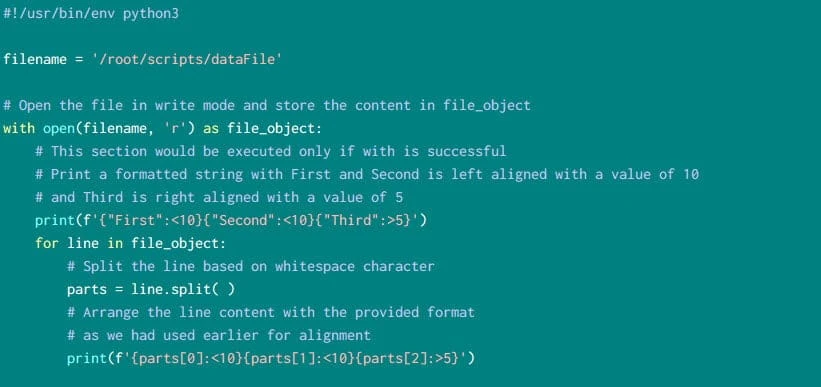
modify file content
Output from this script:
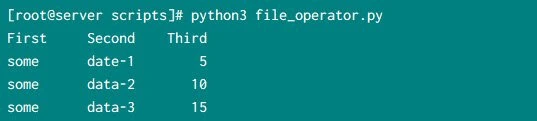
content of output file
How to write to file
- To write text to a file, you need to call open() with a second
argument “
w” i.e. write mode telling Python that you want to write to the file. - You should use “
<strong>w</strong>” cautiously because it will overwrite the existing content of the file. - If the provided file is not present, “
w” will create a new file and start writing to this file - If the file is already present with some data, “
w” will overwrite the content and then write data to this file.
Example 1 : Writing to an empty file
We can use either open() or with open(), since with open() is more
flexible and modern I will use only this for all my examples. But I hope
you have understood the syntax of open() so you can port them
accordingly.
In this example we will create a new file (/tmp/someData.txt) and put
some content into this file
#!/usr/bin/env python3

filename = '/tmp/someData.txt'

# Open the file in write mode and store the content in file_object
with open(filename, 'w') as file_object:
    file_object.write("Python write to file\n")
Execute this script:
# python3 file_operator.py
As expected, this program has no terminal output, but you can check if
/tmp/someData.txt is created and verify the content:
# cat /tmp/someData.txt
Python write to file
str() function.
Example 2: Write multiple lines
If you observe the previous example, I have added “\n” to end of the
print string. The write() function doesn’t add any newlines to the
text you write. So if you write more than one line without including
newline characters, your file may not look the way you want it to. So we
will use “\n” new line character to write multiple lines to our text
file.
#!/usr/bin/env python3

filename = '/tmp/someData.txt'

# Open the file in write mode and store the content in file_object
with open(filename, 'w') as file_object:
    file_object.write("First line\n")
    file_object.write("Second line\n")
Execute the script and observe the content of /tmp/someData.txt
# cat /tmp/someData.txt
First line
Second line
Example 3: Perform search and modify the content of file
In this example we will perform some search then modify the content of
the file which we will then store into separate file. We already have a
dataFile with below content
# cat /root/scripts/dataFile
some date-1 5
some data-2 10
some data-3 15
We wish to replace the value “10” to “20” in the second row of third
column so we will use read and write method with open() function and
write the updated content in a new file /tmp/temp_file.txt
#!/usr/bin/env python3

in_f = '/root/scripts/dataFile'
out_f = '/tmp/temp_file.txt'

# Open the file in read mode and store the content in input_f
input_f = open(in_f, 'r')
# Open the file in write mode and store the content in output_f
output_f = open(out_f, 'w')

# Access both the files using with
with input_f, output_f:
    # Run a loop for each line in the input file
    for line in input_f:
        # Split the content using whitespace character and store each field in first, second and third
        first, second, third = line.split( )
        # If third column doesn't contain 10 then just add the line in output file
        if third != '10':
            output_f.write(line)
        else:
            # if third column contains 10, then replace the whole line
            # with provided list
            new_line = ' '.join([first, second, '20'])
            # Add a new line at the end of above List
            output_f.write(new_line + "\n")
Output from this script:
# cat /tmp/temp_file.txt
some date-1 5
some data-2 20
some data-3 15
So our third column from the second row is properly updated with the new
value “20”
How to append content to a file
- If you want to add content to a file instead of writing over existing content, you can open the file in append mode.
- When you open a file in
appendmode, Python doesn’t erase the contents of the file before returning the file object. - Any lines you write to the file will be added at the end of the file.
- If the file doesn’t exist yet, Python will create an empty file for you.
Example 1: Append data to existing file
We will use our existing /tmp/someData.txt to add new line use open
and “a” i.e. append mode.
#!/usr/bin/env python3

filename = '/tmp/someData.txt'

# Open the file in append mode and append the new content in file_object
with open(filename, 'a') as file_object:
    file_object.write("Third line\n")
We execute this script and verify the content of /tmp/someData.txt
# python3 file_operator.py
The “Third line” is appended to our existing file
# cat /tmp/someData.txt
First line
Second line
Third line
Conclusion
In this tutorial we learned about different text manipulation using
open() function to create, read, write and append data to a file. You
can combine these modes with binary to also perform seek operation on
the text file. I have shared various examples to understand the
different modes related to the open() function. We also learned the
difference of open() and with open() and when should you choose
which function.
Lastly I hope the steps from the article to create, read, write to file in Python programming was helpful. So, let me know your suggestions and feedback using the comment section.
