

In my last article I shared the steps to set GRUB2 password for protecting the grub file so that non-authorized users cannot modify the grub entry at the boot loader stage. But what if you wish to protect GRUB2 from unauthorized access so no one else other than the specified user can boot the system from your kernel.

GRUB2 offers two types of password protection:
- Password is required for modifying menu entriesbut notfor booting existing menu entries;
- Password is required for modifying menu entriesandfor booting one, several, or all menu entries.
The steps to set password and protect GRUB2 for both the above use case
is same. Setting a password using thegrub2-setpasswordprevents menu
entries from unauthorized modification but not from unauthorized booting
a kernel at boot up stage.
Steps to protect GRUB2 from booting kernel without password
First of all create a password
usinggrub2-setpasswordandrootuser.
# grub2-setpassword
Enter password:
Confirm password:
This command will create (if already not existing) or update the content
of/boot/grub2/user.cfgwith the hash password
# cat /boot/grub2/user.cfg
GRUB2_PASSWORD=grub.pbkdf2.sha512.10000.BB05A464F1E8C1AFC62CAE808679084D07B2DB9635934A8B7640BF84329455114E36001854108B7080D0A8A6335CBCBBA3E7B86BDF7468F307EE4EEFDCC294E2.CED195B269E2C60A94B5C61EFCF6B610383C306D5313CDB65DBE8063C7B8BDB1E571BD4661D398A7626878BF6055435658741D804F01A8E679DC69E8510B72A0
Open the/boot/grub2/grub.cfgfile.
Find the boot entry that you want to protect with password by searching
for lines beginning withmenuentry.
Delete the--unrestrictedparameter from the menu entry block, for
example
menuentry 'Red Hat Enterprise Linux Server (3.10.0-862.6.3.el7.x86_64) 7.4 (Maipo)' --class red --class gnu-linux --class gnu --class os --unrestricted $menuentry_id_option 'gnulinux-3.10.0-862.6.3.el7.x86_64-advanced-eeec84ef-a61a-4907-adba-3a1ed52a144b' {
        load_video
        set gfxpayload=keep
        insmod gzio
        insmod part_msdos
        insmod part_msdos
        insmod diskfilter
        insmod mdraid1x
        insmod ext2
        set root='mduuid/8cde9b0cbcafd5dc9814309e952e758d'
After the changes the content should look like
menuentry 'Red Hat Enterprise Linux Server (3.10.0-862.6.3.el7.x86_64) 7.4 (Maipo)' --class red --class gnu-linux --class gnu --class os $menuentry_id_option 'gnulinux-3.10.0-862.6.3.el7.x86_64-advanced-eeec84ef-a61a-4907-adba-3a1ed52a144b' {
        load_video
        set gfxpayload=keep
        insmod gzio
        insmod part_msdos
        insmod part_msdos
        insmod diskfilter
        insmod mdraid1x
        insmod ext2
        set root='mduuid/8cde9b0cbcafd5dc9814309e952e758d'
Save and close the file.
grub2-mkconfig is used to regenerate initramfs file. So every time you
call grub2-mkconfig, you must re follow the above steps
Reboot your node to validate the changes. Once the system reaches the
boot loader stage, it will prompt for username and password
(assuming the default kernel access is restricted)
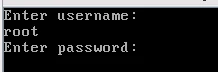
Password protect all the kernel entries in GRUB2
If you wish to password protect all the kernel entries available in your
grub2.cfg then you can delete --unrestricted parameter
from/etc/grub.d/10_linux
Take a backup of existing file
#/etc/grub.d/10_linux/etc/grub.d/10_linux.bkp
Delete the content with --unrestricted
# sed -i "/^CLASS=/s/ --unrestricted//" /etc/grub.d/10_linux
Next create a GRUB2 password for the root user to protect GRUB2
# grub2-setpassword
Enter password:
Confirm password:
Lastly rebuild your initramfs and vmlinuz with the new changes
For BIOS-based machines:
# grub2-mkconfig -o /boot/grub2/grub.cfg
For UEFI-based machines:
# grub2-mkconfig -o /boot/efi/EFI/redhat/grub.cfg
Proceed with the reboot to validate the changes
Steps to remove GRUB2 password
To revert back the changes you must re-add the –unrestricted value in /etc/grub.d/10_linux (or if you have a backup file then overwrite the existing file
Once the correct 10_linux file is in place, rebuild the initramfs
For BIOS-based machines:
# grub2-mkconfig -o /boot/grub2/grub.cfg
For UEFI-based machines:
# grub2-mkconfig -o /boot/efi/EFI/redhat/grub.cfg
Next remove the grub2 password which was created using
grub2-setpassword
# rm -f /boot/grub2/user.cfg
That is all, now you can reboot your node to validate the changes. The node will not prompt for any password any more at the boot loader stage.
Lastly I hope the steps from the article to protect GRUB2 from loading a kernel at boot up stage by unauthorized person without password in RHEL/CentOS 7 Linux was helpful. So, let me know your suggestions and feedback using the comment section.
