
![10+ pacman command Examples Arch Linux [Cheat Sheet]](/pacman-command-in-arch-linux/pacman_command.jpg)
Introduction to Pacman command
Arch is targeted more toward power users who like to have complete customization control over how their packages are built and added to the system. Arch uses a package-management tool calledpacman, which can be used to install both pre-built, binary packages and custom-built packages. The user has complete control over what gets installed, what gets upgraded (or not), and what dependencies are used when creating custom-built packages. Arch can use packages from its repository or can generate a package by building it on the user’s system.
The packages for Arch Linux are
compressed tar
files. The default compression is currently in transition from XZ to
Zstandard, with file extensions *.xz and *.zst, respectively. The
tar file contains both the package metadata and the files to be
installed.
*.gzto*.xz, and at the end of 2019 switched again to*.zst.
We can usetarto view the contents of apacmanpackage:
$ tar -tvf acpi-1.7-2-x86_64.pkg.tar.xz
-rw-r--r-- root/root     376 2017-08-15 19:06 .PKGINFO
-rw-r--r-- root/root    3239 2017-08-15 19:06 .BUILDINFO
-rw-r--r-- root/root     501 2017-08-15 19:06 .MTREE
drwxr-xr-x root/root       0 2017-08-15 19:06 usr/
drwxr-xr-x root/root       0 2017-08-15 19:06 usr/share/
drwxr-xr-x root/root       0 2017-08-15 19:06 usr/bin/
-rwxr-xr-x root/root   23560 2017-08-15 19:06 usr/bin/acpi
drwxr-xr-x root/root       0 2017-08-15 19:06 usr/share/man/
drwxr-xr-x root/root       0 2017-08-15 19:06 usr/share/man/man1/
-rw-r--r-- root/root     729 2017-08-15 19:06 usr/share/man/man1/acpi.1.
This example shows the simplicity of the package format. Several files in the root of the archive contain the package metadata. They are described in the Arch Linux Wiki and include:
.PKGINFOContains all the metadata needed bypacmanto deal with packages, dependencies, and so on..BUILDINFOContains information needed for reproducible builds. This file is present only if a package is built withPacman5.1 or newer..MTREEContains hashes and timestamps of the files, which are included in the local database sopacmancan verify the package’s integrity..INSTALLAn optional file used to execute commands after the install/upgrade/remove stage (this file is present only if specified in thePKGBUILD)..ChangelogAn optional file kept by the package maintainer documenting the changes of the package.
The.MTREEfile is a compressed list of timestamps, permissions, file
sizes, and cryptographic hashes. We can extract it by piping
thetaroutput intozcat:
$ tar -xOf acpi-1.7-2-x86_64.pkg.tar.xz .MTREE | zcat
#mtree
/set type=file uid=0 gid=0 mode=644
./.BUILDINFO time=1502816810.765987104 size=3239 md5digest=0fef5fa26593908cb0958537839f35d6
sha256digest=75eea1aee4d7f2698d662f226596a3ccf76e4958b57e8f1b7855f2eb7ca50ed5
./.PKGINFO time=1502816810.745986656 size=376 md5digest=c6f84aeb0bf74bb8a1ab6d0aa174cb13
sha256digest=83b005eb477b91912c0b782808cc0e87c27667e037766878651b39f49d56a797
/set mode=755
./usr time=1502816810.602650109 type=dir
./usr/bin time=1502816810.685985311 type=dir
./usr/bin/acpi time=1502816810.682651903 size=23560 md5digest=4ca57bd3b66a9afd517f49e13f19688f
sha256digest=c404597dc8498f3ff0c1cc026d76f7a3fe71ea729893916effdd59dd802b5181
./usr/share time=1502816810.592649885 type=dir
./usr/share/man time=1502816810.592649885 type=dir
./usr/share/man/man1 time=1502816810.699318943 type=dir
./usr/share/man/man1/acpi.1.gz time=1502816810.609316926 mode=644 size=729
md5digest=fb0da454221383771a9396afad250a44
sha256digest=952b21b357d7d881f15942e300e24825cb3530b2262640f43e13fba5a6750592
Syntax to use Pacman command
The syntax for pacman command is as follows:
$ sudo pacman option [package]
Different examples to use pacman command
1. Install the package
You can use the -S option followed by a package name to install the
package in Arch Linux.
$ sudo pacman -S package_name
Sample Output:
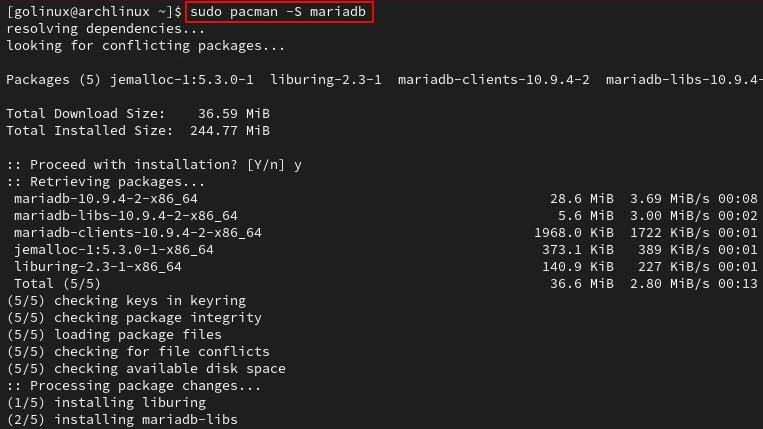
You can specify multiple package names and install them all using a single command.
$ sudo pacman -S package1 package2 package3
2. Upgrade the system
pacman allows you to upgrade the full system with just one command. It updates all installed packages that are out-of-date.
$ sudo pacman -Suy
Sample Output:
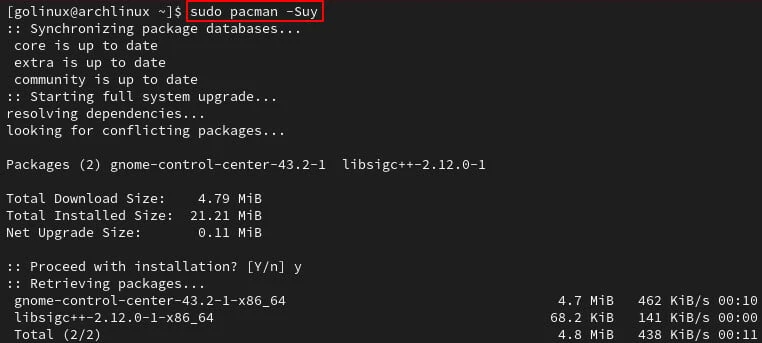
Here,
-S: synchronize packages-u: upgrade all packages-y: download fresh package databases
3. Update the package databases
To update only the package database, run pacman command with -Syy
options.
$ sudo pacman -Syy
Sample Output:
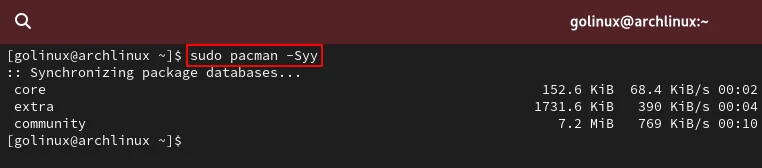
Here,
-S: synchronize packages-y: download fresh package databases (Use twice to force a refresh even if databases are up to date)
4. Search the package
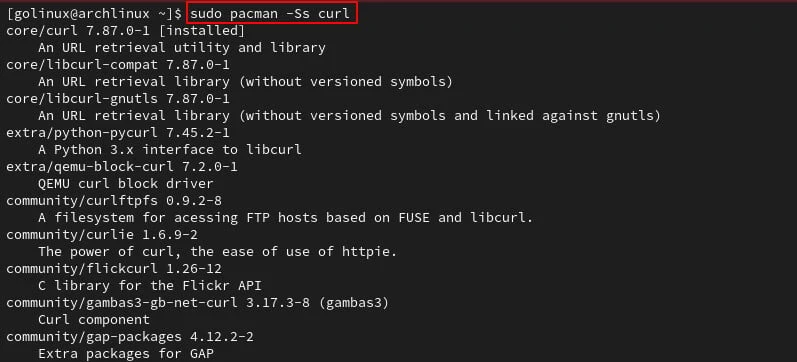
The -Ss flag allows you to search for packages in the database. It
finds the given text in the package’s name and description.
$ sudo pacman -Ss text
Sample Output:
Here, we are searching for the package curl with pacman. But it
displays all packages that match the text curl in their names or
descriptions.
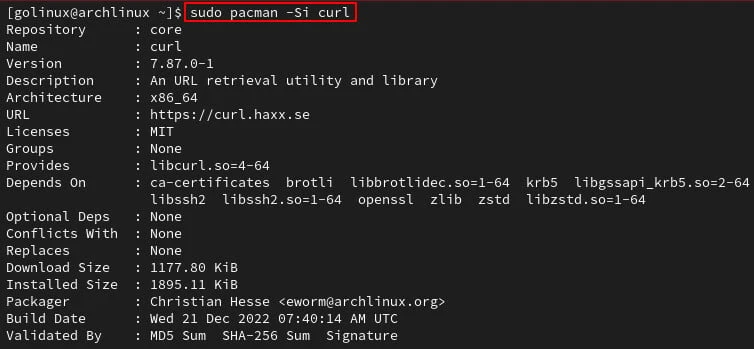
5. Show package information
The -Si option lets you view detailed information about any Arch Linux
packages. You need to provide the exact name of the package.
$ sudo pacman -Si package_name
Sample Output:
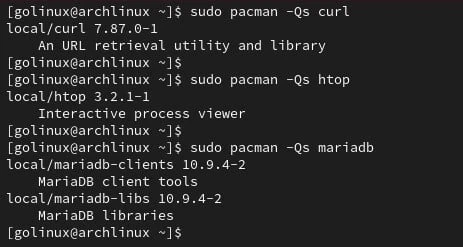
6. Search for installed packages
Use the pacman command with -Qs option to search only installed
packages in the system. It only looks for the given text in the names
and descriptions of installed packages.
$ sudo pacman -Qs text
Sample Output:
7. Download the package
You can run this command if you need to download the package instead of installing it on the system.
$ sudo pacman -Sw package_name
Sample Output:
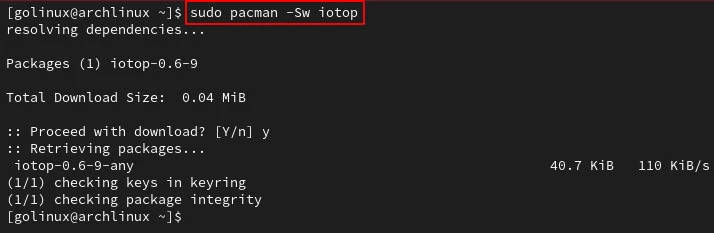
The files are downloaded in the /var/cache/pacman/pkg directory as
defined in the /etc/pacman.conf file.
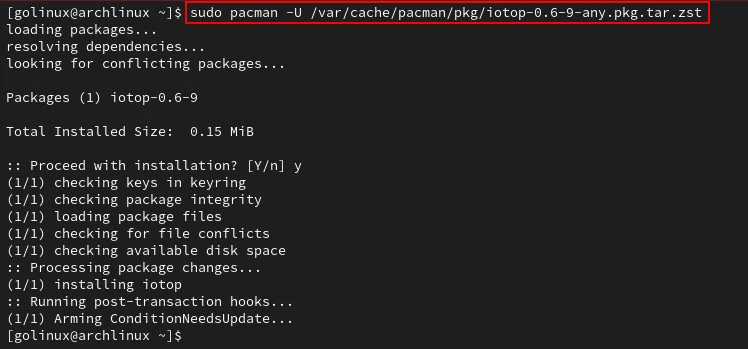
8. Install the downloaded package
To install the package from a file, you can use the -U option followed
by the path to the package file.
$ sudo pacman -U package_file
Sample Output:
The following command installs the iotop package which we downloaded
in the previous example.
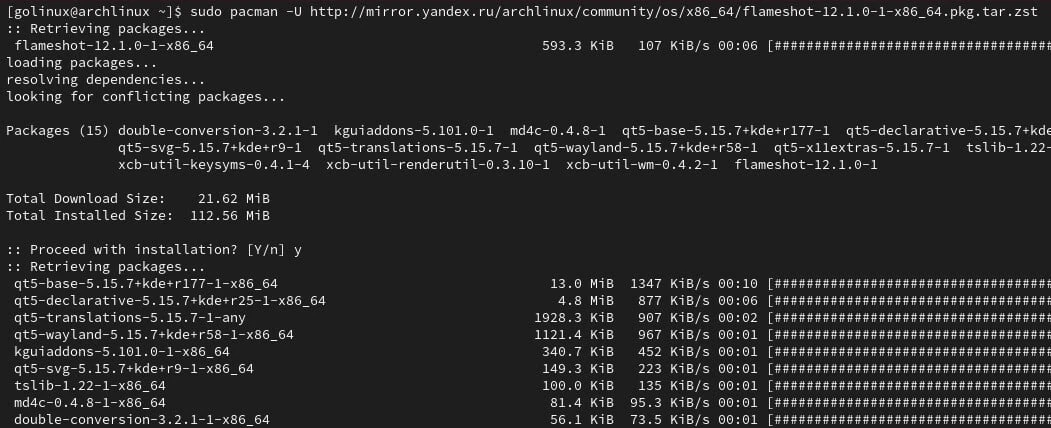
9. Install the package from a URL
Similarly, you can use the -U option to install the package from a
URL.
$ sudo pacman -U package_url
Sample Output:
10. Uninstall the package
The -R option removes an installed package from the system.
$ sudo pacman -R package_name
Sample Output:
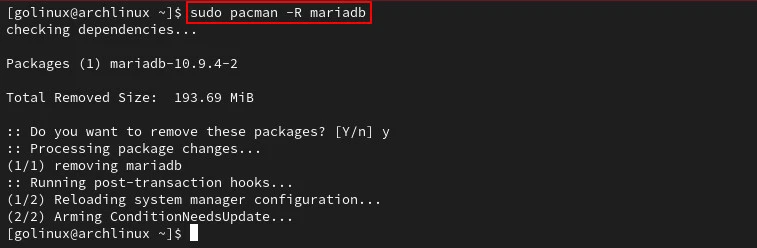
It does not delete the dependencies of the package. Use the -Rs option
to remove a package and its all dependencies that are not needed for
other installed packages.
$ sudo pacman -Rs package
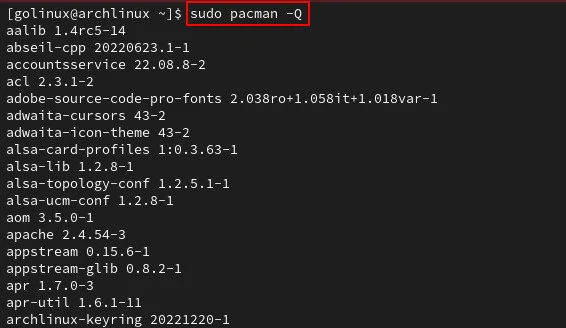
11. List all installed packages
The -Q option prints a list of all installed packages on the system.
$ sudo pacman -Q
Sample Output:
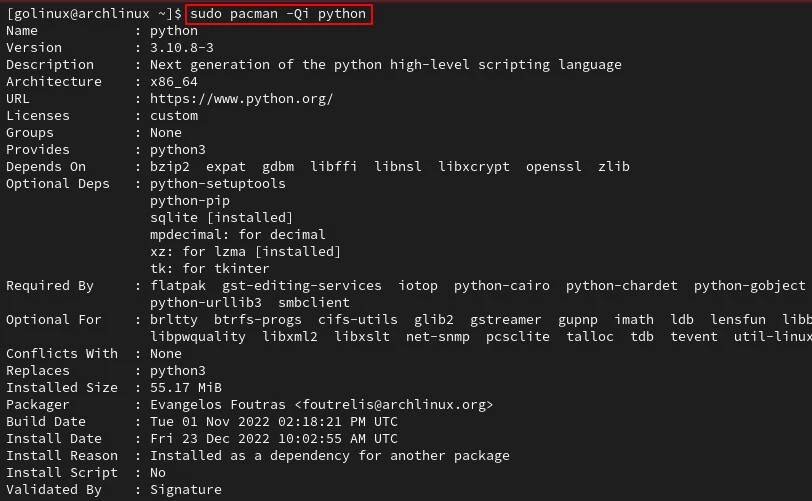
12. View details of an installed package
The -Qi option displays detailed information about the specified
package. It also shows meta-information of a package, such as
dependencies, conflicts, install date, build date, size, etc.
$ sudo pacman -Qi package_name
Sample Output:
13. View details of non-installed package
The-Qipflags specify a query operation, information option, and a
package filename for a target, respectively:
$ pacman -Qip acpi-1.7-2-x86_64.pkg.tar.xz
Name            : acpi
Version         : 1.7-2
Description     : Client for battery, power, and thermal readings
Architecture    : x86_64
URL             : https://sourceforge.net/projects/acpiclient/files/acpiclient/
Licenses        : GPL2
Groups          : None
Provides        : None
Depends On      : glibc
Optional Deps   : None
Conflicts With  : None
Replaces        : None
Compressed Size : 10.47 KiB
Installed Size  : 24.00 KiB
Packager        : Alexander RÃÿdseth <rodseth@gmail.com>
Build Date      : Di 15 Aug 2017 19:06:50
Install Script  : No
Validated By    : None
Signatures      : None
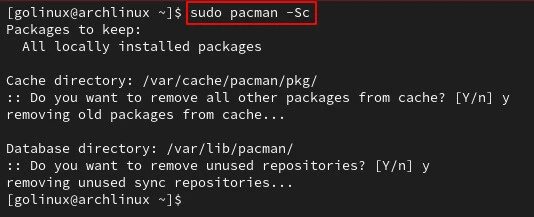
14. Clean the package cache
pacman stores the package files in the /var/cache/pacman/pkg
directory. It does not remove these files automatically when you
uninstall the packages. Sometimes, these files use a lot of
disk space on the
system.
To clean up the package caches, execute the command below.
$ sudo pacman -Sc
Sample Output:
Conclusion
Now you should know how to use pacman command to manage packages in Arch-based Linux systems. You have learned to perform different operations such as installing, removing, downloading, updating, queries, and more.
We hope you have found this article helpful. If you have any questions or feedback, please let us know in the comment section.
What’s Next
15 apt command practical examples in Linux [Cheat
Sheet]
25+ dnf command examples in Linux [Cheat
Sheet]
