
The built-in fs module simplifies Node.js write file. You import the
module’s writeFile() method and then use it by inputting the file
name, new content, and a callback function.
const fs = require('fs')
fs.writeFile(<file name>, <content>, <callback function>)
The file name and content should be in string formats. The callback function often contains an error object that checks for anything that could go wrong after the asynchronous function has finished running.
Apart from knowing the structure of the fs module, you need to
comfortably Nodejs write files ending in .txt, .html, .js, and
.json extensions. That calls for understanding how the module works
and knowing alternative ways to write a file in Nodejs.
This article explains concepts like synchronous and asynchronous Nodejs write files, file encoding, and appending new content to existing files. It then walks you through step-by-step writing text, HTML, JavaScript, and JSON files.
Let’s start with the key concepts.
Nodejs write file concepts
Synchronous vs. asynchronous file writes
Synchronous file writing means stopping Nodejs from executing subsequent portions of the code until the writing is complete. Asynchronous programming is where a function can fetch data without stopping following code blocks from running.
Although Nodejs file write is asynchronous by default, it permits you to
control program flow with synchronous functions. That is why the
asynchronous fs module’s methods have synchronous versions denoted by
Sync. For example, you can use the writeFile() method or
writeFileSync() method to Nodejs write files.
Data types and encoding
It would help understand the buffer, string, utf-8, and object file
types and their conversions before doing Nodejs write file practically.
A buffer is binary data arranged in memory. Such data is called raw because a computer primarily understands binary (1s and 0s) data. Converting data to other forms requires standardization to accommodate computing evolution and human languages.
One of the standards is ASCII which maps digits to characters before
decoding the data to
binary.
Another data encoding standard is the utf-8 which converts binary data
to strings for more effortless transfer over the internet.
A group of characters forms a string. On the other hand, an object in JavaScript is a key-value paired data type. You can implement it using an object literal.
const people = {
    name: "Rajesh",
    email: "rajeshprakash@golinuxcloud.com"
}
Where name and email are keys, while the in-quotes are values. When the keys are quoted, the object is referred to as JavaScript Object Notation (JSON).
Alternatively, you can create objects using constructors, prototypes, and classes.
Now that you understand the data types that we will manipulate in this tutorial, let’s find out how to store them.
File types
A file type determines the data types to store. For example, the .txt
files primarily store text without special tags or means. .html files
store (tagged) HTML content. .js files handle code meant for
JavaScript engines, while .json files store JSON files only.
The list of file types you can handle can be longer than the ones
explained here. However, we will not go through them since you should
comfortably manipulate them after Nodejs write files ending with .txt,
.html,.js, and .json.
Let’s do that right away.
Lab setup to practice Nodejs write file
The main requirement for following subsequent sections is having Node.js version 17.6 or above and a code editor like Visual Studio Code.
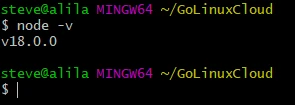
After installing
Nodejs
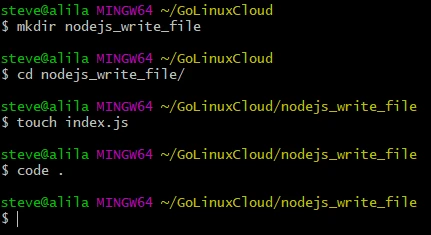
and a code editor, let’s proceed and create the working directory. I am
creating a folder called nodejs_write_file with a file called
index.js and then opening it with Visual Studio Code.
After that, we can look at some examples.
Example-1: Nodejs write files of various types
Import the fs module.
const fs = require('fs')
Write test.txt, index.html, and main.js files.
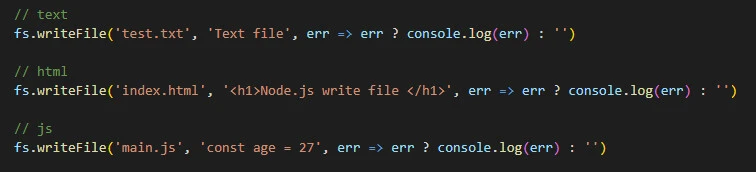
We create each of the three files asynchronously with the writeFile()
method and add some data to them. The process requires a callback function. So, we catch the
error using err argument by logging it down or reporting nothing if
the process runs successfully.
The new files pop up on running the index.js file with node.
node index.js
We can also write the files synchronously by not including the callback part.
// text
fs.writeFileSync('test.txt', 'Text file')

// html
fs.writeFileSync('index.html', '<h2>Node.js write file </h2>')

// js
fs.writeFileSync('main.js', 'const age = 27')
We should use try/catch this time around to accommodate error
handling.
try {
    fs.writeFileSync('anotherFile.js', console.log('Catch the errors!'))
} catch (e) {
    console.log(e)
}
The writeFile() method rewrites the file contents with the new data.
It would help if you used appendFile() to write extra content into an
existing file instead.
Example-2: Append content to an existing file’s data
Assume we want to print the age in the main.js file. We can do that
using appendFile() method of the fs module.
fs.appendFile('main.js', '\n console.log(age)', error => {
   if(error) console.log(error)
   console.log('Appended!')
})
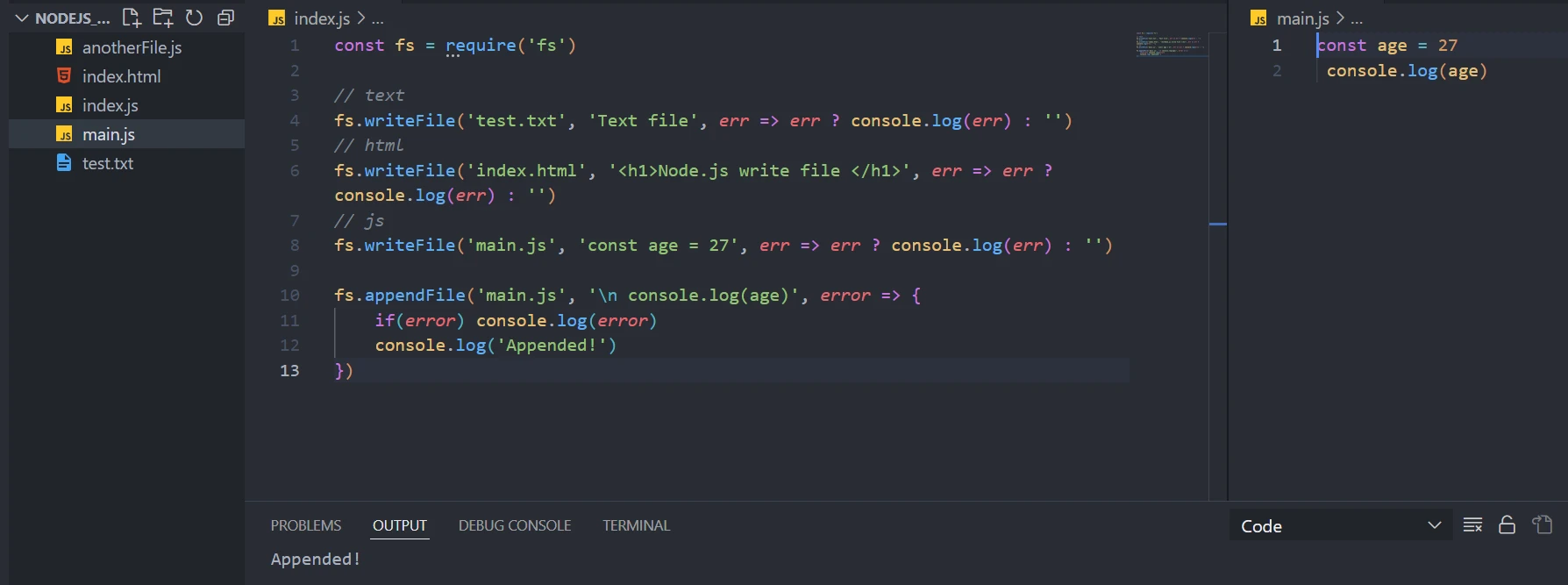
We write console.log(age) to a new line in the main.js file with the
help of \n. We then check for any errors. If there is no error, we
will ascertain the process’ success by running the console-logged
message: Appended!
Example-3: Read and write file with external data
Another typical way to Nodejs write files is to fetch the data from an
API. Assume we want to fetch the first three users from the
JSON Placeholder API and write them in a new file
called users.json.
const storeUsers = async () => {
    const res = await fetch('https://jsonplaceholder.typicode.com/users?_start=0&_limit=3')
    const data = await res.json()
    fs.writeFile('users.json', JSON.stringify(data, null, 2), e => e ? console.log(e) : '')
}

storeUsers()
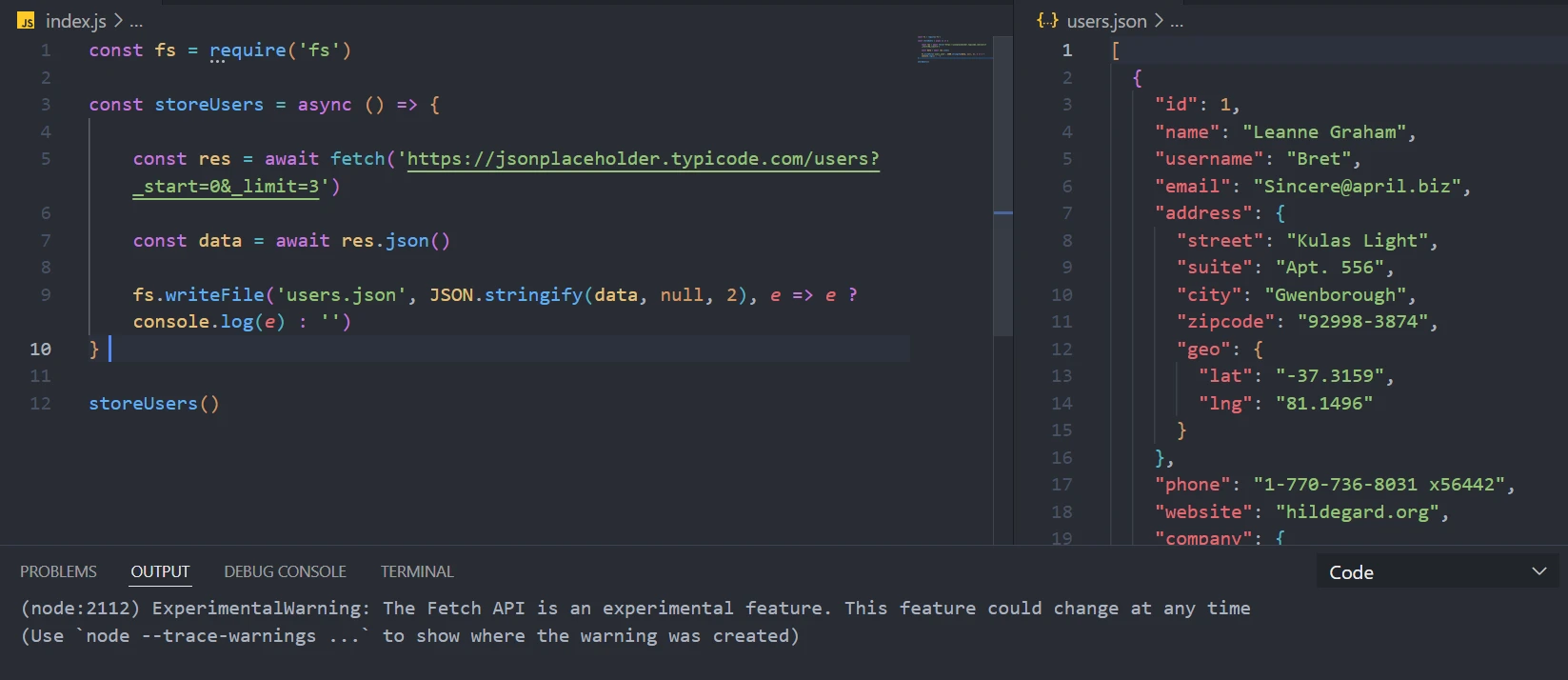
We create a function, storeUsers(), to fetch the data remotely and
write it in a file using the writeFile() method. Before storing the
data, we convert it to a string using JSON’s stringify() method. Else
we log the error to the console.
The system should create a users.json file on running the main.js
file. The new file should contain the following data.
[
  {
  "id": 1,
  "name": "Leanne Graham",
  "username": "Bret",
  "email": "Sincere@april.biz",
  "address": {
   "street": "Kulas Light",
   "suite": "Apt. 556",
   "city": "Gwenborough",
   "zipcode": "92998-3874",
   "geo": {
    "lat": "-37.3159",
    "lng": "81.1496"
    }
   },
  "phone": "1-770-736-8031 x56442",
  "website": "hildegard.org",
  "company": {
   "name": "Romaguera-Crona",
   "catchPhrase": "Multi-layered client-server neural-net",
   "bs": "harness real-time e-markets"
   }
  },
  {
  "id": 2,
  "name": "Ervin Howell",
  "username": "Antonette",
  "email": "Shanna@melissa.tv",
  "address": {
   "street": "Victor Plains",
   "suite": "Suite 879",
   "city": "Wisokyburgh",
   "zipcode": "90566-7771",
   "geo": {
    "lat": "-43.9509",
    "lng": "-34.4618"
    }
   },
  "phone": "010-692-6593 x09125",
  "website": "anastasia.net",
  "company": {
   "name": "Deckow-Crist",
   "catchPhrase": "Proactive didactic contingency",
   "bs": "synergize scalable supply-chains"
   }
  },
  {
  "id": 3,
  "name": "Clementine Bauch",
  "username": "Samantha",
  "email": "Nathan@yesenia.net",
  "address": {
   "street": "Douglas Extension",
   "suite": "Suite 847",
   "city": "McKenziehaven",
   "zipcode": "59590-4157",
   "geo": {
    "lat": "-68.6102",
    "lng": "-47.0653"
    }
   },
  "phone": "1-463-123-4447",
  "website": "ramiro.info",
  "company": {
   "name": "Romaguera-Jacobson",
   "catchPhrase": "Face to face bifurcated interface",
   "bs": "e-enable strategic applications"
   }
  }
]
You may get some warnings on the console output because fetch API is an experimental feature in Node.js when writing this tutorial.
Example-4: Nodejs write file after reading content from another local file
Lastly, let’s read the users.json file’s data and write it into
newFile.json file.
fs.readFile('users.json', 'utf-8', (err, data) => {
    if(err) console.log(err)
    fs.writeFile('newFile.json', data, e => e ? console.log(e) : '')
})
Since the readFile() method returns a buffer, we convert the data to a
string using utf-8 before running a callback function with an error
object and the (response) data.
Suppose there is an error, the system prints it. Otherwise, we get the
expected (string) data. Lastly, we write the data in newFile.json
file.
Conclusion
Nodejs write file is easy if you understand the fs module, file types,
and encoding. Then, you can write a file with data from a local file or
remotely fetch data.