
![10+ lzop command examples in Linux [Cheat Sheet]](/lzop-command-examples-in-linux/lzop_command.jpg)
Introduction to lzop command
File compression is a process in which the file or group of files is compressed into a single archive file to reduce the size. It is used to store or share larger files efficiently after reducing their sizes. There are several tools that you can use to compress files in Linux such as gzip, 7zip, tar,bzip2, xz, lzop, etc.
lzop is a file compressor tool that uses LZO (Lempel-Ziv-Oberhumer) algorithm. lzop stands for Lempel-Ziv-Oberhumer Packer. It favors speed over compression ratio. A file is compressed with the extension .lzo, while keeping the same ownership modes, access, and modification times.
How to install lzop
lzop might not be installed by default in most of the Linux systems. You can use the following command to install lzop according to your Linux distributions.
To install lzop on CentOS, Fedora and RHEL
$ sudo yum install lzop
To install lzop on Ubuntu and Debian
$ sudo apt install lzop
Syntax to use lzop command
The syntax for the lzop command is as follows:
$ lzop [ command ] [ options ] [ filename ... ]
lzop only attempts to compress regular files or symbolic links and ignores directories. It can compress a single file only.
Different examples to use lzop command
1. lzop command to compress a file
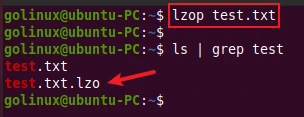
You can specify a file name after lzop command to compress that file.
$ lzop filename
Sample Output:
2. Compress multiple files using lzop command
To compress multiple files, you have to specify multiple files.
$ lzop filename1 filename2 filename3
Sample Output:

3. lzop command to decompress a file
You can decompress a .lzo file using -d, --decompress, or
--uncompress option. Decompressed files are be placed into same
directory as the compressed file.
$ lzop -d filename
OR
$ lzop --decompress filename
Sample Output:
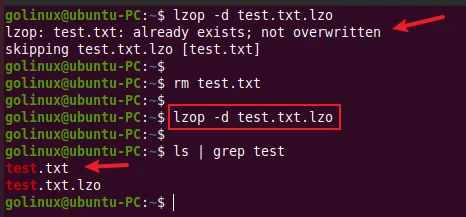
When we first tried to decompress a file, it shows an error as
test.txt file already exists in the location. Then we removed the
test.txt file and decompressed it again successfully.
You can decompress multiple files at once by specifying all files. You
can use *.lzo to decompress all compressed files in the directory.
$ lzop -d *.lzo
Sample output:

4. Extract compressed files to the current working directory
The -x or --extract options extract compressed files to the current
working directory. It is similar to the above -d or --decompress
option.
$ lzop -x filename
OR
$ lzop --extract filename
5. Show detailed information on compressed file
The -l or --list option can be used to view the detailed information
of a compressed lzop file.
$ lzop -l filename
OR
$ lzop --list filename
Sample Output:
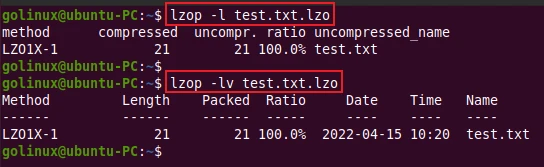
- method: compression method
- compressed: size of the compressed file
- uncompr.: size of the uncompressed file
- ratio: compression ratio
- uncompressed_name: name of the uncompressed file
- date & time: time stamp for the uncompressed file
6. Test the integrity of a compressed file
You can check the integrity of a compressed file using -t or --test
option.
$ lzop -t filename
OR
$ lzop --test filename
Sample Output:
golinux@ubuntu-PC:~$ lzop -t test.txt.lzo
testing test.txt.lzo OK
golinux@ubuntu-PC:~$
golinux@ubuntu-PC:~$ lzop -t test.txt
lzop: test.txt: not a lzop file
7. Force lzop to overwrite existing files
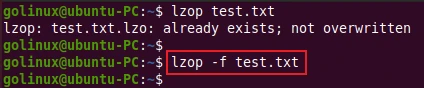
The -f or --force option forces lzop command to overwrite existing
files.
$ lzop -f filename
OR
$ lzop --force filename
Sample Output:
8. Specify the compression level when compressing a file
You can specify a compression level to compress a file. By default, lzop
uses the compression level -3. The compression level value ranges from
-1 to -9.
-1 or --fast indicates the fastest compression method (less
compression).
$ lzop -1 filename
OR
$ lzop --fast filename
-9 or --best indicates the slowest compression method (best
compression).
$ lzop -9 filename
OR
$ lzop --best filename
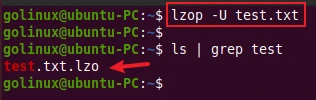
9. Delete input files after successful compression or decompression
lzop does not
delete input
files after compression or decompression. You can use -U or
--delete option if you want to delete original files after the
successful operation.
$ lzop -U filename
OR
$ lzop --delete filename
Sample Output:
10. Suppress all warnings messages
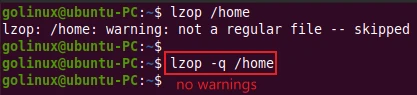
The -q, --quiet, or --silent option helps to suppress all warnings
and decrease the verbosity of some commands like --list or --test.
$ lzop -q filename
OR
$ lzop --quiet filename
OR
$ lzop --silent filename
Sample Output:
11. Display verbose output
The -v or --verbose option can be used to display the verbose
output. It displays the name for each file compressed or decompressed.
Multiple -v options increase the verbosity of some commands like
--list or --test.
$ lzop -v filename
OR
$ lzop --verbose filename
Sample Output:
golinux@ubuntu-PC:~$ lzop -v test.txt
compressing test.txt into test.txt.lzo
Conclusion
lzop is a file compressor tool which is very similar to gzip. We hope this tutorial helps you to understand how to use lzop commands in Linux. If you still have any confusion, let us know in the comment section below.
What’s Next
10+ xz command examples in Linux [Cheat
Sheet]
10+ bzip2 command examples in Linux [Cheat
Sheet]
Linux zip folder | 16 practical Linux zip command
examples
