
![10 locate command examples in Linux [Cheat Sheet]](/locate-command-in-linux/locate_command.jpg)
There are multiple tools in Linux that allows you to search files and
directories in the system. locate is one of the most used tools for
searching files in Unix-based operating systems. It locates the files by
their names. It searches for files whose names match a specified pattern
in the command.
locate command vs. find command
find is another
popular command-line tool for searching files and directories in the
Linux system. Both locate and find commands have similar functionality,
but they work in different ways. locate searches files in the database
whereas find searches files in the entire file system. Due to this,
locate is faster than the find command in searching files.
findhas advanced options to search files based on different
conditions, making it more powerful than the locate command. Here is a
summary of comparison:
locateis much faster thanfindbecause it searches a prebuilt database rather than the filesystem.findsearches the filesystem in real time, so it always provides up-to-date results.locateis simpler to use for quick searches based on file names.findsupports a wide range of search criteria, including file type, size, modification time, permissions, and more.locaterelies on a database that is periodically updated (typically daily). This means it may not find very recent files or reflect recent deletions.locateprimarily searches by file name and does not support complex search criteria (e.g., file size, modification time).findcan execute actions on the files it finds (e.g., delete, move, copy, execute commands).
locate Example
# Find files named 'myfile.txt'
locate myfile.txt

# Find files with 'log' in the name (case-insensitive)
locate -i 'log'

# Limit the number of results to 10
locate -n 10 '*.log'
find Example:
# Find files named 'myfile.txt' starting from the root directory
find / -name myfile.txt

# Find files larger than 100MB in the /home directory
find /home -size +100M

# Find files modified in the last 7 days
find / -mtime -7

# Find files and execute a command (e.g., delete)
find /tmp -name '*.tmp' -exec rm {} \;

# Find files owned by a specific user
find /home -user username
How to install locate command
locate command is not installed by default in Linux systems. You can install locate command using the package manager tool of your Linux distros.
Install locate on Ubuntu, Debian, and Linux Mint:
$ sudo apt install plocate
Install locate on Fedora, CentOS, AlmaLinux, and Red Hat:
$ sudo dnf install plocate
plocate is a replacement for the older mlocate package. If your
system is unable to locate plocate package, use mlocate instead.
When installing the plocate package, the plocate database is also
initialized on the system.
Syntax to use locate command in Linux
The syntax for using locate command is as follows:
locate [options] pattern
Common Options:
-A, --all: Print only entries that match all patterns.-b, --basename: Match only the base name against the specified patterns.-c, --count: Instead of printing the matched file names, print the number of matching entries.-d, --database DBPATH: Use the specified database instead of the default one.-e, --existing: Print only entries that refer to files existing at the timelocateis run.-i, --ignore-case: Ignore case distinctions in both the pattern and the file names.-l, --limit, -n LIMIT: Limit the number of results toLIMIT.-r, --regexp REGEXP: Search for a basic regular expression REGEXP.-S, --statistics: Print statistics about the locate database and exit.-0, --null: Separate the output with the null character instead of the newline.
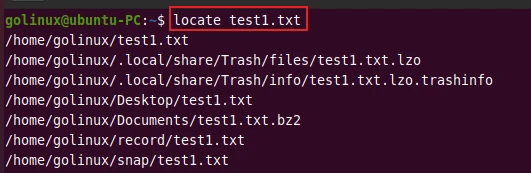
1. locate files having a specific name
You can specify a file name to the locate command and search for all
files that match the specified pattern. The following command locates
all files having name test1.txt.
$ locate test1.txt
Sample Output:
2. Update locate database file
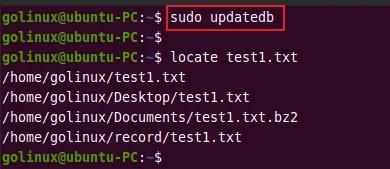
If you just created new files, you have to update the database to show them in the locate command output. Also, if you get the deleted files in the output, then the database has not been updated yet.
You can manually update the database using the command below.
$ sudo updatedb
Sample Output:
After updating the database, you will get the updated file results.
The database is regularly updated every 24 hours automatically.
3. Print only existing files at the time locate is run
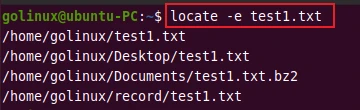
When you have not updated the database, the deleted files still appear in the result when locate command is used. To get only the names of files that exist at the time locate command is run, you can use -e or –existing flag.
$ locate -e test1.txt
OR
$ locate --existing test1.txt
Sample Output:
4. Count the number of matching entries
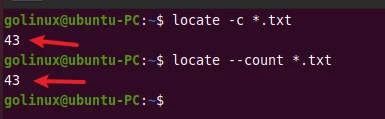
With -c or --count option, locate command displays the number of
matching entries instead of printing their full path. The following
command counts the number of all .txt files on the computer.
$ locate -c *.txt
OR
$ locate --count *.txt
Sample Output:
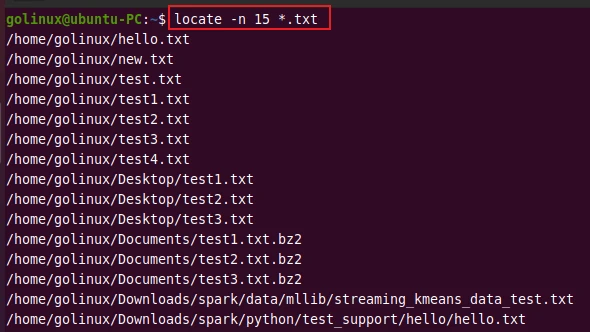
5. Limit the number of output
By default, locate command displays all files that match the specified
pattern. You can use the -l, --limit, or -n option to limit the
number of files displayed on the output.
The following commands print the name of the first 15 .txt files.
$ locate -l 15 *.txt
OR
$ locate --limit 15 *.txt
OR
$ locate -n 15 *.txt
Sample Output:
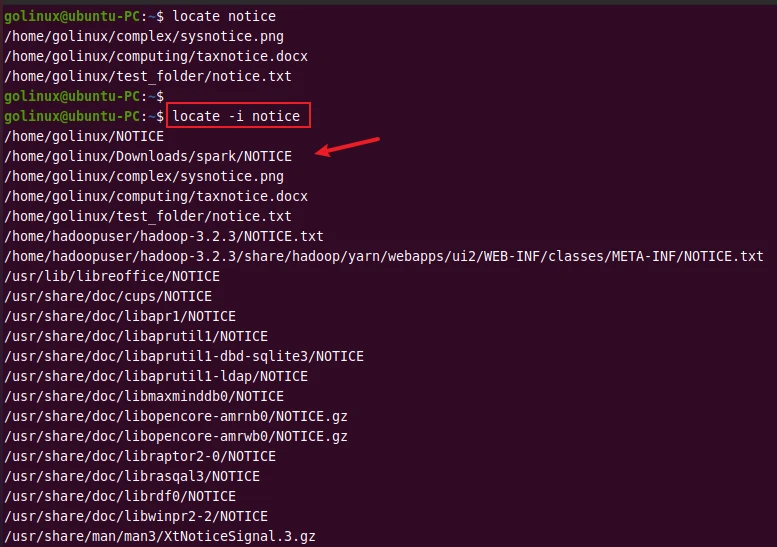
6. Ignore cases when matching patterns
You can use -i or --ignore-case option to ignore case-sensitive
files when searching for files. File names with both uppercase and
lowercase characters are displayed in the output.
$ locate -i pattern
OR
$ locate --ignore-count pattern
Sample Output:
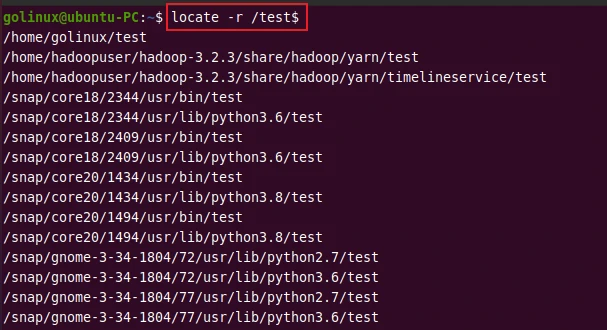
7. Display the names of files with an exact name
By default, locate command searches for files whose name contains the
specified pattern. For example, searching for a pattern test displays
all files or directories that have a string test in their names.
To display results having an exact match only, you can use the -r or
--regex option.
$ locate -r /test$
OR
$ locate --regex /test$
Sample Output:
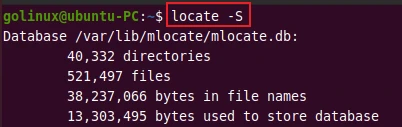
8. Display statistics about the locate database
You can view the current statistics of your mlocate database using the
-S or --statistics option.
$ locate -S
OR
$ locate --statistics
Sample Output:
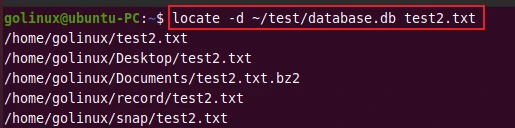
9. Use a different database instead of the default
The default database used to search files is
/var/lib/mlocate/mlocate.db. You can specify a different database with
-d or --database option.
$ locate -d DBPATH pattern
OR
$ locate --database DBPATH pattern
Sample Output:
The following example searches the test2.txt pattern in the database
/test/database.db in the home directory.
10. Hide the error message in the output
Sometimes, locate command displays the error message while searching the
file. The -q or --quiet option tells locate to suppress the error
output. It can be used to hide errors like permission denied.
$ locate -q
OR
$ locate --quiet
Sample Output:

Conclusion
In this tutorial, we have discussed different examples of using locate commands in Linux. locate command is helpful for searching files quickly. The mlocate database needs to be updated whenever you create or remove files on your system. If you have any questions, please let us know in the comment section.
What’s Next
25+ most used find commands in Linux [Cheat
Sheet]
How to find and remove duplicate files using shell script in
Linux
