
In this article, we will discuss how to list installed packages in Ubuntu using the command line interface. By following these instructions, users can easily see a list of all the packages installed on their Ubuntu system, allowing them to manage and organize their software installations more effectively. Whether you are a new Ubuntu user or a seasoned Linux professional, learning how to list installed packages in Ubuntu is an essential skill for managing your system.
Different methods to list installed packages in Ubuntu
There are many methods you can use to list the packages installed in Ubuntu. Let us explain these methods with examples.
1. Using dpkg command
This is the most used method. The dpkg command lists the packages
installed on the system with the --list or -l parameter:
dpkg --list
Output:
$ dpkg --list
Desired=Unknown/Install/Remove/Purge/Hold
| Status=Not/Inst/Conf-files/Unpacked/halF-conf/Half-inst/trig-aWait/Trig-pend
|/ Err?=(none)/Reinst-required (Status,Err: uppercase=bad)
||/ Name                                       Version                                      Architecture Description
+++-==========================================-============================================-============-========================================>
ii  accountsservice                            22.07.5-2ubuntu1.3                           amd64        query and manipulate user account inform>
ii  acl                                        2.3.1-1                                      amd64        access control list - utilities
ii  acpi-support                               0.144                                        amd64        scripts for handling many ACPI events
ii  acpid                                      1:2.0.33-1ubuntu1                            amd64        Advanced Configuration and Power Interfa>
ii  adduser                                    3.118ubuntu5                                 all          add and remove users and groups
ii  adwaita-icon-theme                         41.0-1ubuntu1                                all          default icon theme of GNOME (small subse>
ii  aisleriot                                  1:3.22.22-1                                  amd64        GNOME solitaire card game collection
ii  alsa-base                                  1.0.25+dfsg-0ubuntu7                         all          ALSA driver configuration files
...
A list of installed packages will be displayed. Each line of the list contains the package name, version, and description. Package names identify packages and are used to remove or update packages.
You can get help from the grep command to see a package you are looking for from the list. For example:
$ dpkg --list | grep unzip
ii  unzip                                      6.0-26ubuntu3.1                              amd64        De-archiver for .zip files
You can narrow the list by typing the package name after the grep command.
Listing Only Application Packages
You can use the following command to list only application packages in Ubuntu:
$ dpkg --get-selections | grep -v uninstall | awk '{print $1}'
accountsservice
acl
acpi-support
acpid
...
Packages are listed on the screen in alphabetical order. Only package names are displayed on the screen.
Listing System Packages Only
To list only system packages in Ubuntu, the command is written like this:
$ dpkg --get-selections | grep -v uninstall | grep linux-image | awk '{print $1}'
linux-image-5.15.0-43-generic
linux-image-5.15.0-53-generic
linux-image-5.19.0-35-generic
linux-image-generic-hwe-22.04
It lists a list of Linux kernel image packages installed on the system on the screen.
2. Using dpkg-query command
We can also use the dpkg-query command to list installed packages in
Ubuntu. Here’s the syntax:
dpkg-query -l
This command will list all the packages installed on your Ubuntu system,
along with their version numbers, descriptions, and other details. You
can also use the grep command to filter the list and search for
specific packages. For example, to find all installed packages related
to xorg, you can use:
dpkg-query -l | grep -i xorg
This will list all the packages that have the word “xorg” in their name or description.
Sometimes it is necessary to list only memory-intensive packages. You can use the following command for this:
$ dpkg-query -Wf '${Package}\t${Installed-Size}\n' | sort -n -k 2.2 | grep -v uninstall | awk '$2 > 102400 {print $1}'
linux-modules-5.15.0-43-generic
yaru-theme-icon
libllvm15
linux-modules-5.15.0-53-generic
libreoffice-core
linux-modules-5.19.0-35-generic
cpp-12
gcc-12
libnvidia-compute-525
thunderbird
linux-modules-extra-5.15.0-43-generic
linux-modules-extra-5.15.0-53-generic
linux-modules-extra-5.19.0-35-generic
linux-firmware
...
This command displays a list of packages installed on the system that occupy more than 100 MB of memory.
3. Using apt command
This command lists all the packages installed on your Ubuntu system using the apt package manager.
apt list --installed
To list only upgradeable packages, you can use the following command:
apt list --upgradable
This command displays a list of packages that can be upgraded to the system as package name, repository name, installed version, upgradeable version.
4. Using aptitude command
The aptitude command is another way to list installed packages on
Ubuntu. This command may not be installed by default so you can install
the same using:
apt install aptitude
To list installed packages you can use:
aptitude search '~i'
The ~i option tells aptitude to search for installed packages only.
The output will display a list of all installed packages, along with
their descriptions, versions, and other details.
You can also use the aptitude command to search for specific packages.
For example, to search for installed packages related to Apache, you can
use:
aptitude search '~i apache'
This will display a list of all installed packages that have the word “apache” in their name or description.
One advantage of using aptitude over other methods is that it provides
a user-friendly interface for managing packages. You can use the arrow
keys to navigate through the list of packages, and press Enter to view
more details about a particular package. You can also use the + and
- keys to mark packages for installation or removal.
5. Get list of all installed packages from dpkg.log
You can see a list of installed packages by looking at the dpkg.log
files in /var/log.
$ grep " install " /var/log/dpkg.log
2022-08-09 11:48:12 install base-passwd:amd64 <none> 3.5.52build1
2022-08-09 11:48:12 install base-files:amd64 <none> 12ubuntu4
2022-08-09 11:48:13 install libc6:amd64 <none> 2.35-0ubuntu3
2022-08-09 11:48:13 install perl-base:amd64 <none> 5.34.0-3ubuntu1
2022-08-09 11:48:14 install mawk:amd64 <none> 1.3.4.20200120-3
2022-08-09 11:48:14 install debconf:all <none> 1.5.79ubuntu1
...
This command will search for all lines in the dpkg.log file that
contain the word “install”. These lines indicate packages that have been
installed on your system.
However, the output of this command may include more than just a list of installed packages. It may also include lines that show packages that have been upgraded, removed, or reinstalled. Therefore, you may need to filter the output further to display only the list of installed packages.
One way to do this is to use the awk command to extract the package
names from the output of the grep command. Here’s an example:
grep " install " /var/log/dpkg.log | awk '{print $4}'
This command will extract the fourth field (which contains the package
name) from each line that contains the word “install” in the dpkg.log
file, and display only the list of package names.
For archived logs:
$ zgrep " install " /var/log/dpkg.log.2.gz
With this method, you can access the installation date of the package from the list.
6. Using GUI
If you are using an Ubuntu with GUI, this method is for you. Go to Activities → Ubuntu Software. Then click Installed in the application that opens, you will see the packages installed in the system.
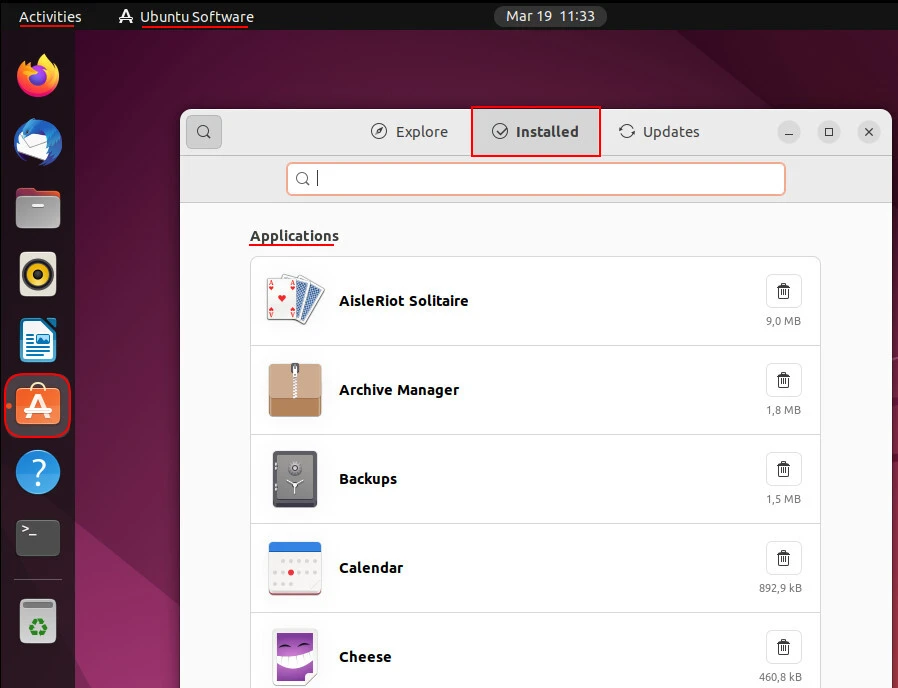
You can search within installed packages. By clicking on any application, you can see the application details and remove the application from the system.
What is NEXT?