

How to list processes by user and name in Linux? How to check if process
is running by pid? How to check process status? which command is used
to kill a process?
In this tutorial we will cover all these questions and explore different
commands and tools to list and manage processes in Linux and Unix. ps
command is the best tool to list down all the running processes across
the server. There are a wide range of arguments which can be used with
ps to list processes based in our requirement.
List all the running processes
Method-1: Using “px aux”
To list every process on the system using BSD syntax:
# ps aux
Here,
ax     Lift the BSD-style "only yourself" restriction, which is imposed upon the set of all
       processes when some BSD-style (without "-") options are used or when the ps personality
       setting is BSD-like.

u      Display user-oriented format.
This will give you a long list of output with more details on individual process such as memory and cpu usage, status, user owner of the process and more. Following is a snippet from my terminal:
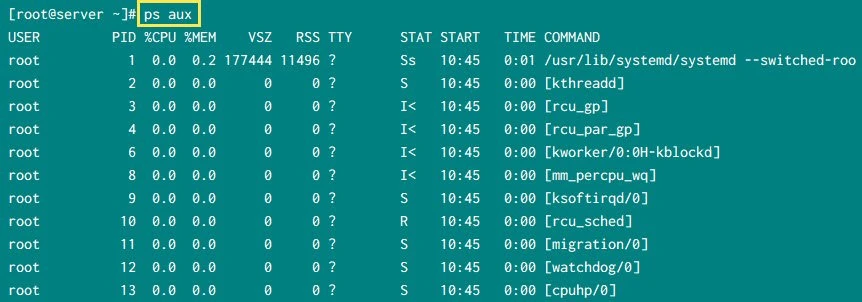
ps aux output
Method-2: Using “ps -ef”
The next method will list all the running process using standard syntax:
# ps -ef
Here,
 -e     Select all processes
 -f     Do full-format listing.
This gives lesser information compared to ps aux:
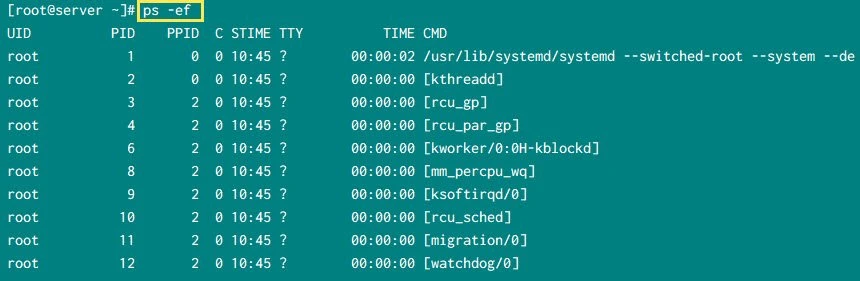
ps -ef output
Method-3: Using “ps -ely”
We can use some more arguments with ps to list the running processes
in Linux:
# ps -ely
Here,
-e     Select all processes.
-l     Long format
-y     Do not show flags; show rss in place of addr
This command will give us additional detail compared to ps -ef such as
priority and nice value of individual process.
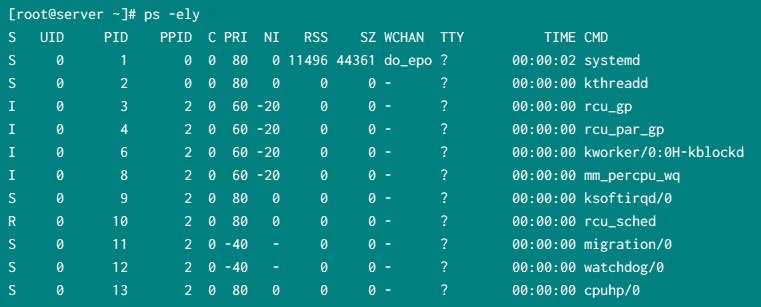
ps -ely output
List processes by user
To list all the processes based on user owner we can use following syntax:
ps -U USER -u USER u
Here,
-U userlist   Select by real user ID (RUID) or name.  It selects the processes whose real user name or
              ID is in the userlist list.  The real user ID identifies the user who created the
              process,

-u userlist   Select by effective user ID (EUID) or name.  This selects the processes whose effective
              user name or ID is in userlist.

u             Display user-oriented format.
To list the process started by user root:
~]# ps -U root -u root u
Sample output from my terminal:
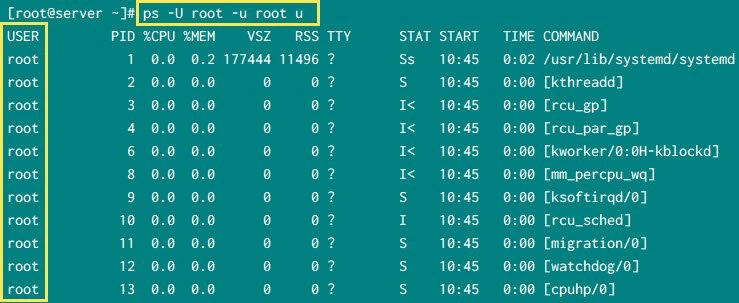
list processes by user
To list the process started by normal user deepak:
~]# ps -U deepak -u deepak u
USER       PID %CPU %MEM    VSZ   RSS TTY      STAT START   TIME COMMAND
deepak    5575  0.0  0.0 280884  8508 ?        S    Oct20   0:05 python /opt/deepak/jboss/bin/dualprim_watch.py -a 20 -m 500 -U nds -L 500 -t 10
deepak    8995  0.0  0.0 113420  1628 ?        S    Oct20   0:00 /bin/sh /opt/deepak/jboss/bin/standalone.sh -b 0.0.0.0 -c standalone-full-adm.xml
deepak    9208  2.9  3.6 23510668 4848336 ?    Sl   Oct20  50:04 /usr/lib/jvm/java-1.8.0-openjdk-1.8.0.252.b09-2.el7_8.x86_64/jre/bin/java -D[Standal
List the process tree
Method-1: Using “ps axjf” or “ps -ef –forest”
We can also use ps command to list the running process in the tree
format to understand the parent and child processes.
~]# ps axjf
OR
~]# ps -ef --forest
Sample output:
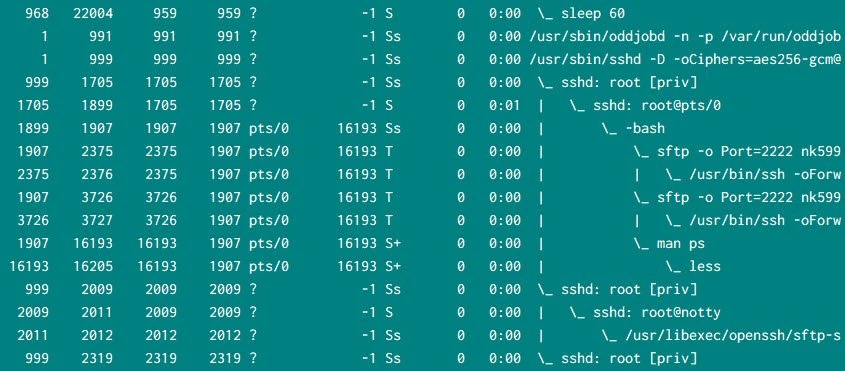
list process in tree structure
Method-2: Using pstree
Although you have a better alternative to above command if you wish to
see the structure of all the running process using pstree which is
part of psmisc rpm in RHEL/CentOS distribution. This command is used
to display the parent-child relationship in hierarchical format.
~]# pstree -p
Here,
-p Show PIDs. PIDs are shown as decimal numbers in parentheses after each process name
Sample output:
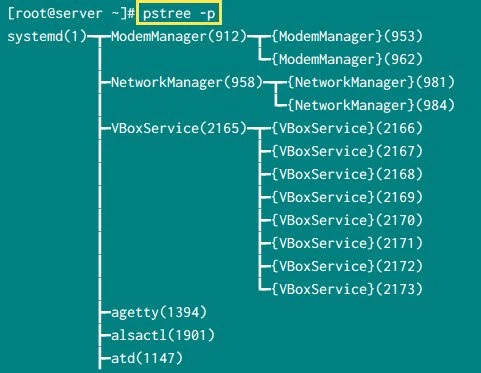
pstree output
To list the process tree of process started by individual user, you can use
~]# pstree -p USERNAME
For example to show the process tree of user deepak:
~]# pstree -p deepak
You can check the man page of pstree for more list of supported options.
List thread count for individual process
We can use -L argument to list the number of threads along with
individual process. It will add a new column in the output possibly with
LWP and NLWP
~]# ps -eLf
Sample output from this command:
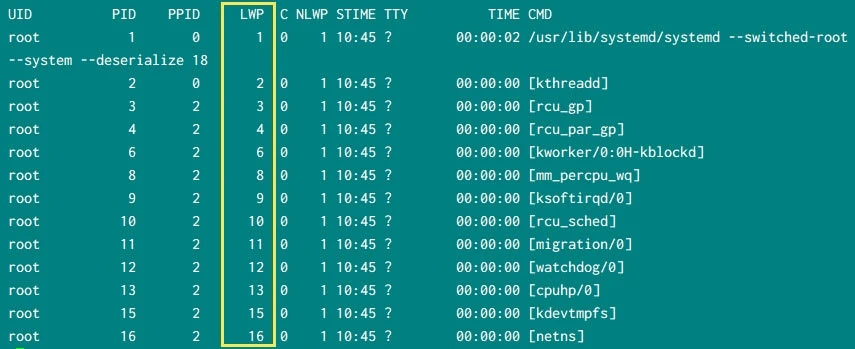
list process with thread count
List process with user defined format
By default ps will show a certain default list of columns. You can
manipulate and print your own set of columns to get the required details
of a process by using following syntax:
ps -eo ARUMENTS
Here, you can replace the ARGUMENTS with supported list of values from man page of ps
Example-1: Show only PID and command
To show only the list of PID and their respective commands:
 ~]# ps -eo pid,comm
    PID COMMAND
      1 systemd
      2 kthreadd
      3 rcu_gp
      4 rcu_par_gp
      6 kworker/0:0H-kblockd
      ...
Example-2: Show memory and cpu details of each process
There are different arguments which you can use to print the memory and cpu related information of individual process, here I have consolidated a few:
 ~]# ps -eo pid,%mem,%cpu,rss,rsz,vsz,comm
    PID %MEM %CPU   RSS   RSZ    VSZ COMMAND
....
    902  0.2  0.0 14420 14420 424800 sssd
    904  0.1  0.0  5220  5220  82744 avahi-daemon
    905  0.4  0.0 22152 22152 1626068 polkitd
    912  0.2  0.0 14640 14640 462728 ModemManager
    914  0.0  0.0  2012  2012  18872 lsmd
    916  0.0  0.0  2136  2136  17408 mcelog
....
Get process ID of a process
Now assuming you have a running process for which you want to get the
PID so we can again use ps in this format:
ps -C PROCESS -o pid=
Here we need to replace PROCESS with the name of the process or
command for which we want to perform the lookup of PID. For example to
get the PID of rsyslogd process:
~]# ps -C rsyslogd -o pid=
   1540
Similarly to get the list of PID for sshd daemon
 ~]# ps -C sshd -o pid=
    999
   1705
   1899
   2009
   2011
   2319
   2321
   2342
   2344
  13874
  13879
Get process name using the PID
Now if the situation is reversed, i.e. you have the PID and you wish to get the process or command of the mapping PID then you can use following format:
ps -q PID -o comm=
Here, replace PID with the pid value of the process for which you have to perform lookup. Following are some examples where we get the process name using the PID value.
 ~]# ps -q 2009 -o comm=
sshd

~]# ps -q 1 -o comm=
systemd
List stopped processes
You can stop a running or hung process using ctrl+z short key. When you press this key combination, the ongoing process on the terminal will be forcefully stopped.
For example, here I had an SFTP session which was stuck so I pressed
ctrl+z to stop the process forcefully which immediately stops the
process and returns to console.
~]# sftp -o Port=2222 deepak@server.ext.example.com
deepak@server.ext.example.com's password:
Connected to deepak@server.ext.example.com.
sftp> exit

Interrupt
^Z
[3]+  Stopped                 sftp -o Port=2222 deepak@server.ext.example.com
To list all the processes which are in stopped state use jobs command
 ~]# jobs
[1]   Stopped                 sftp -o Port=2222 deepak@server.ext.example.com
[2]-  Stopped                 sftp -o Port=2222 deepak@server.ext.example.com
[3]+  Stopped                 sftp -o Port=2222 deepak@server.ext.example.com
So currently in my server, I have 3 stopped processes. To kill a stopped process we use
kill %[JOB ID]
where JOB ID is the ID number you see with “Stopped” under square brackets.
So for example to kill the process with job ID 3 we will use:
~]# kill %3

[3]+  Stopped                 sftp -o Port=2222 deepak@server.ext.example.com
Next if I check the current stopped processes then I see that the process with JOB ID 3 is marked as Exit which means it is in the verge of getting killed (almost dead)
 ~]# jobs
[1]   Stopped                 sftp -o Port=2222 deepak@server.ext.example.com
[2]-  Stopped                 sftp -o Port=2222 deepak@server.ext.example.com
[3]+  Exit 1                  sftp -o Port=2222 deepak@server.ext.example.com
We check the status again in few seconds and our process with JOB ID 3 is not there in the list any more and was killed successfully
]# jobs
[1]-  Stopped                 sftp -o Port=2222 deepak@server.ext.example.com
[2]+  Stopped                 sftp -o Port=2222 deepak@server.ext.example.com
Conclusion
In this tutorial we learned about listing and managing Linux processes
using ps command. We also have other tools such as top, htop which
can list the system processes but I find ps more suitable in most
scenarios. If you requirement is to watch the runtime status of process
i.e. to monitor a process and it’s status then top would be your best
alternative as it continuously monitors the status of process and shows
you latest stat for memory, cpu
usage and other related values.
