![How to Keep Alive SSH Sessions in Linux? [SOLVED]](/keep-alive-ssh-sessions-in-linux/tcp-keep-alive-session.jpg)
In today’s fast-paced digital world, managing remote servers and ensuring seamless connectivity have become critical tasks for developers and system administrators. One of the most widely used tools for remote server management is the Secure Shell (SSH) protocol. However, maintaining an uninterrupted SSH session can sometimes prove challenging, as idle sessions often get disconnected due to various factors, such as network issues or server settings. In this article, we will explore how to keep SSH sessions alive in Linux, ensuring that your connection remains stable and active even during periods of inactivity. By following the techniques and tips outlined in this guide, you will be able to enhance your productivity, reduce the risk of data loss, and experience a smoother workflow while working with remote Linux servers. So, let’s dive in and learn how to keep your SSH sessions up and running without any interruptions.
Why SSH connections close automatically after some time?
- SSH connections typically close due to TCP timeouts. These timeouts occur when a TCP connection or a network operation waits for a response for a certain duration and then considers the process failed if no response is received.
- In Linux, TCP timeout settings dictate how long a TCP connection or operation should wait before assuming a packet has been lost or a connection has become unresponsive.
- This mechanism ensures network communication is reliable and efficient, but it can lead to SSH sessions being terminated due to inactivity.
Key System Parameters:
- tcp_keepalive_time: This parameter sets the interval between sending TCP keepalive probes on an idle TCP connection. These probes check whether a remote peer is still alive and responsive, even when no data is being transferred.
- tcp_keepalive_probes: This represents a small packet sent by a TCP endpoint to check the health and responsiveness of the remote endpoint in an idle connection. It helps detect if the remote endpoint has become unreachable or if the connection has been lost due to network issues.
- tcp_keepalive_intvl: This parameter controls the interval between sending keepalive probes on an idle TCP connection.
Each of these values is measured in seconds and can be checked and configured in the Linux system.
For instance, a typical keepalive time might be 7200 seconds (2 hours), but this doesn’t mean the SSH session will stay active for that duration without any interaction. The system’s default might send nine probes at 75-second intervals, totaling 675 seconds, after which the session is considered failed and closed. Thus, without activity, an SSH session could be terminated in just over 11 minutes.
Configure SSH “Client” to Keep the SSH Session Alive
ServerAliveInterval and ServerAliveCountMax are SSH client-side settings that help maintain an active and stable connection to the remote server during periods of inactivity. These settings implement an application-level keep-alive mechanism, which is more reliable than the TCP keep-alive mechanism.
- ServerAliveInterval: This setting defines the time interval (in seconds) between keep-alive packets sent from the client to the server. If the server does not respond to a keep-alive packet, the client will continue sending these packets at the specified interval.
- ServerAliveCountMax: This setting defines the maximum number of keep-alive packets that the client will send to the server without receiving a response. If the server still doesn’t respond after reaching this limit, the client will close the connection.
Configuring SSH Client in Linux (Using Client SSH Config):
Create or edit the ~/.ssh/config file in your home directory and
execute following commands:
mkdir -p ~/.ssh
touch ~/.ssh/config
chmod 600 ~/.ssh/config
nano ~/.ssh/config
Add these lines to the config file:
Host *
ServerAliveInterval 120
ServerAliveCountMax 30
Here,
Host *applies the settings to all hosts.ServerAliveInterval 120means the client will send a keepalive message every 120 seconds.ServerAliveCountMax 30means the client will attempt to send 30 keepalive messages before disconnecting.
I have given some dummy timeout values which you can modify based on your environment
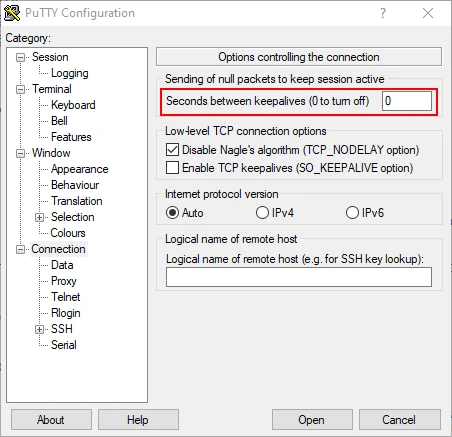
Configuring SSH Client in Windows (Using PuTTY)
- Open PuTTY and navigate to the ‘Connection’ category in the settings.
- In the ‘Seconds between keepalives’ field, enter a value greater than zero (e.g., 60 for one minute).
- This means PuTTY will send a keepalive message every specified number of seconds.
Configure SSH “Server” to Keep the SSH Session Alive
In the context of sshd (the SSH server daemon), keep-alive
configurations can be adjusted to ensure that the SSH connection remains
active. These settings can be modified in the sshd_config file, which
is typically located in the /etc/ssh directory.
There are two primary settings to consider when configuring Keep Alive SSH Sessions in sshd:
- TCPKeepAlive: This setting controls the use of the underlying TCP
protocol’s keep-alive mechanism. When enabled (set to ‘
yes’), the SSH server will send periodic keep-alive packets to the client to maintain the connection. However, these packets may not be reliable as they can be dropped by firewalls or routers. The default value for this setting is ‘yes’. - ClientAliveInterval and ClientAliveCountMax: These settings
work together to implement an application-level keep-alive mechanism
that is more reliable compared to TCP keep-alive packets.
ClientAliveIntervaldefines the time interval (in seconds) between keep-alive packets sent from the server to the client. If the client does not respond to a keep-alive packet, the server will continue sending these packets until the maximum number specified inClientAliveCountMaxis reached. If the client still doesn’t respond after reaching this limit, the server will close the connection.
1. Using TCPKeepAlive
TCPKeepAlive is a setting in the SSH
server configuration that controls the usage of the TCP protocol’s
built-in keep-alive mechanism. This mechanism is designed to maintain
the connectivity between two devices in a network by periodically
sending keep-alive packets to verify that the connection is still
active. If one of the devices stops responding, the other will
eventually close the connection, considering it as dead.
In the context of SSH, enabling TCPKeepAlive helps maintain an active
and uninterrupted SSH session between the client and the server,
particularly during periods of inactivity. However, the TCP keep-alive
mechanism can be less reliable, as some firewalls or routers may drop
these packets, leading to unintended disconnections.
To enable TCPKeepAlive in the SSH server, you need to modify the
sshd_config file, which is usually located in the /etc/ssh
directory. Open the file with your preferred text editor, and add or
modify the following line:
Open the sshd_config file with a text editor:
$ sudo vi /etc/ssh/sshd_config
#TCPKeepAlive yes
remove the # at the beginning of the line:
TCPKeepAlive yes
Then save the file and exit. Restart the sshd service for the settings to take effect:
$ sudo systemctl restart sshd
After the changes you have made in the sshd_config file, ssh
connections will be kept alive.
Example:
Consider a scenario where an SSH client is connected to an SSH server,
and the user is idle for a certain period. With TCPKeepAlive enabled,
the SSH server will send keep-alive packets to the client at regular
intervals (defined by the system’s TCP settings) to ensure the
connection is still active. If the client does not respond to these
packets, the server will continue to send them for a specific number of
times or until a certain time limit is reached (defined by the system’s
TCP settings). If the client still doesn’t respond, the server will
eventually close the connection.
TCPKeepAlive alone might not be sufficient to maintain
stable SSH sessions in all cases, as the packets can be dropped by
network devices. To ensure a more reliable keep-alive mechanism,
consider using the application-level keep-alive settings in the SSH
server configuration, such as ClientAliveInterval and
ClientAliveCountMax, which are designed specifically for maintaining
SSH connections.
2. Using ClientAliveInterval and ClientAliveCountMax
ClientAliveInterval and ClientAliveCountMax are two settings in the
SSH server configuration that work together to implement an
application-level keep-alive mechanism. This mechanism is more reliable
compared to the TCP keep-alive mechanism, as it is specifically designed
for maintaining SSH connections.
- ClientAliveInterval: This setting defines the time interval (in seconds) between keep-alive packets sent from the server to the client. If the client does not respond to a keep-alive packet, the server will continue sending these packets at the specified interval.
- ClientAliveCountMax: This setting defines the maximum number of keep-alive packets that the server will send to the client without receiving a response. If the client still doesn’t respond after reaching this limit, the server will close the connection.
To configure these settings, you need to modify the sshd_config file,
usually located in the /etc/ssh directory. Open the file with your
preferred text editor and add or modify the following lines:
ClientAliveInterval 120
ClientAliveCountMax 3
In this example, the server will send a keep-alive packet to the client every 120 seconds. If the client does not respond, the server will continue to send keep-alive packets until it reaches the maximum of 3 unacknowledged packets. After that, the server will close the connection.
After making these changes, save the file and restart the SSH service to apply them:
sudo systemctl restart sshd
ServerAliveInterval Vs ClientAliveInterval
You should use ServerAliveInterval and ServerAliveCountMax options
in situations where maintaining an active and stable SSH connection is
crucial, and there’s a risk of disconnection due to network issues or
periods of inactivity. Examples include:
- Long-running tasks or processes that require occasional user input
- Unstable network connections that can cause the connection to drop
- Network devices (firewalls, routers) that may close idle connections
- Remote sessions where you need to ensure connectivity for an extended period
Keep in mind that these settings are client-side and should be used when you have control over the client configuration or when you are connecting to a remote server with unknown server-side settings.
On the other hand, ClientAliveInterval and ClientAliveCountMax are
server-side settings that serve a similar purpose. These options are
used when you have control over the server configuration and want to
ensure active and stable SSH connections for all connected clients.
In summary, choose ServerAliveInterval and ServerAliveCountMax when
configuring the client-side settings, and ClientAliveInterval and
ClientAliveCountMax when configuring the server-side settings. Both
pairs of settings help maintain stable SSH connections during periods of
inactivity or network instability, but they target different sides of
the connection (client or server).
If you don’t have access to SSHD server,you can set the client-side
options, which are ServerAliveInterval and ServerAliveCountMax.
These options will achieve the same goal of maintaining an active SSH
session by sending keep-alive packets from the client to the server.
To use these options directly with the SSH command, you can utilize the -o flag followed by the option and its value. Here’s an example:
ssh -o ServerAliveInterval=60 -o ServerAliveCountMax=5 user@example.com
In this example, the client will send a keep-alive packet to the server every 60 seconds (ServerAliveInterval). If the server does not respond, the client will continue sending keep-alive packets until it reaches the maximum of 5 unacknowledged packets (ServerAliveCountMax). After that, the client will close the connection.
Any performance impacts?
Using ServerAliveInterval, ClientAliveInterval, and their respective CountMax options can have some minor performance impacts, but they are generally negligible for most use cases.
- Network overhead: Sending keep-alive packets consumes some network bandwidth. However, the packets are small and sent at a relatively low frequency, so the impact on network performance is minimal. In most cases, the benefits of maintaining a stable connection outweigh the minor network overhead.
- CPU usage: Processing keep-alive packets consumes a small amount of CPU resources on both the client and server. Again, this impact is negligible for most scenarios, as the processing required for these packets is minimal.
- Connection tracking: When these options are enabled, the SSH client and server will need to track connection states and manage timers for sending and receiving keep-alive packets. This may result in a minor increase in memory usage, but it is generally not a concern for most systems.
Recommended Best Practices
The best practices for setting values for ServerAliveInterval, ServerAliveCountMax, ClientAliveInterval, and ClientAliveCountMax depend on your specific use case and requirements. However, here are some general recommendations to help you configure these options effectively:
- ServerAliveInterval (Client-side):A reasonable value for ServerAliveInterval is between 30 to 60 seconds. This interval is long enough to avoid excessive network overhead but short enough to maintain a stable connection during periods of inactivity.
- ServerAliveCountMax (Client-side):A recommended value for ServerAliveCountMax is between 3 to 5. This value provides a good balance between allowing temporary network issues to resolve and closing the connection when the server becomes unresponsive.
- ClientAliveInterval (Server-side):Similar to ServerAliveInterval, setting ClientAliveInterval between 30 to 60 seconds is generally recommended. This interval helps maintain stable connections for clients without causing too much network overhead.
- ClientAliveCountMax (Server-side):A recommended value for ClientAliveCountMax is also between 3 to 5. This value strikes a balance between giving clients a chance to respond during temporary network issues and closing unresponsive connections to free up server resources.
Frequently Asked Questions
What is ServerAliveInterval and how do I configure it?
ServerAliveInterval is a client-side SSH configuration that specifies
the interval in seconds that the client will wait before sending a null
packet to the server to keep the connection alive. To set it, add
ServerAliveInterval 60 to your ~/.ssh/config file, where 60 is the
number of seconds between keepalive messages.
How does ClientAliveInterval work on the SSH server?
ClientAliveInterval is a server-side setting in
/etc/ssh/sshd_config. It defines the time in seconds the server waits
before sending a response request to the client if no data has been
received. Setting ClientAliveInterval 120 means the server requests a
response from the client every 120 seconds to keep the connection
active.
What does ServerAliveCountMax do?
ServerAliveCountMax is a client-side setting that determines the
number of server alive messages the client sends without receiving any
response from the server before disconnecting. For example,
ServerAliveCountMax 3 means the client will try to keep the connection
alive three times before giving up if no response is received.
What’s the difference between ServerAliveInterval and
TCPKeepAlive?
ServerAliveInterval is an SSH-level setting that keeps the SSH
connection active, whereas TCPKeepAlive is a lower-level TCP setting
that checks the general connectivity of the connection. TCPKeepAlive
options are managed on the server side in the sshd_config file.
Can I set these configurations globally for all users?
Yes, server-side configurations like ClientAliveInterval and
ClientAliveCountMax can be set globally in the /etc/ssh/sshd_config
file and will affect all users. Client-side settings in ~/.ssh/config
apply only to the user who configures them.
How to Keep SSH Connections and Session Alive?
To keep SSH connections alive, you should configure both client and
server settings to manage connection timeouts. On the client side, use
ServerAliveInterval to specify how often the client should send a
message to the server to keep the connection active. On the server side,
use ClientAliveInterval and ClientAliveCountMax to determine how the
server monitors and maintains active connections. These settings ensure
that even during periods of inactivity, the SSH connection remains open,
reducing the chances of being disconnected unexpectedly. Additionally,
always ensure that your network is stable, as network issues can also
cause SSH connections to drop.
What is NEXT?
- How to disconnect idle ssh session or keep idle ssh session active in Linux?
- 6 commands to check and list active SSH connections in Linux
- How to kill or disconnect hung ssh session in Linux?
Summary
In this tutorial we shared tips to Keep Alive SSH Sessions in Linux. TCP Keep-Alive in Linux is a mechanism that helps maintain active and stable connections between network devices during periods of inactivity or network instability. It works at the transport layer (Layer 4) of the OSI model and utilizes periodic keep-alive packets to detect whether a connection is still active.
TCP Keep-Alive is enabled by default on most systems, ensuring that idle connections are not closed prematurely by network devices such as firewalls, routers, or switches. The primary components of TCP Keep-Alive include the keep-alive time, interval, and probe count, which can be adjusted to optimize connection stability and resource usage.
While TCP Keep-Alive is a useful feature for maintaining network connections, it has some limitations, such as being susceptible to false positives and negatives in some network environments. As a result, application-level keep-alive mechanisms like SSH’s ServerAliveInterval and ClientAliveInterval options are often preferred for maintaining stable connections in specific use cases, such as remote sessions or long-running tasks.
Feel free to comment on any problems you encounter.
References
stackoverflow.com -Keep SSH session alive [closed]
unix.stackexchange.com - How does tcp-keepalive work in
ssh?