
![How to use JavaScript scrollTo() Method? [SOLVED]](/javascript-scrollto/javascript-scrollTo.jpg)
Introduction
Frontend developers from time to time will need to need to create
scrolling effects that enhance the user experience. As such, the
de-facto language of the web for creating interactivity - JavaScript -
has a couple of methods to achieve scrolling. One of such method is the
scrollTo() method.
In this article, we will discuss the scrollTo() method and how we may
use it in achieve scroll effect on our webpages.
Examples using scrollTo() method
JavaScript’s scrollTo() method is used to smoothly scroll an HTML
element to a specified position on a web page. This method can be called
on the window object and takes two parameters: the first is the
horizontal position, and the second is the vertical position, in pixels.
One common use case for scrollTo() is to create a smooth scroll effect
when clicking on a link that leads to a different section of the same
web page. To do this, you would first create a reference to the link
using document.querySelector(), and then use addEventListener() to
detect when the link is clicked. You would then use
getBoundingClientRect() to retrieve the position of the target
element, and pass the resulting top and left properties to the
scrollTo() method.
<!DOCTYPE html>
<html>
    <head>
        <title>JavaScript scrollTo</title>
    </head>
    <body>
        <nav>
            <a href="#section1">Section 1</a>
            <a href="#section2">Section 2</a>
            <a href="#section3">Section 3</a>
        </nav>
        <section id="section1">
            <h2>Section 1</h2>
            <p>
                Lorem ipsum dolor sit, amet consectetur adipisicing elit.
                Impedit illum voluptas libero, corporis est veniam ex
                repellendus, obcaecati vero esse culpa. Sint at repudiandae quis
                quasi omnis minus vero maiores!
            </p>
        </section>
        <section id="section2">
            <h2>Section 2</h2>
            <p>
                Lorem ipsum dolor, sit amet consectetur adipisicing elit. Veniam
                corporis accusantium animi repellendus praesentium laudantium
                facere necessitatibus non nulla numquam, quas beatae sint est
                impedit ipsam porro explicabo repellat dolor.
            </p>
        </section>
        <section id="section3">
            <h2>Section 3</h2>
            <p>
                Lorem ipsum dolor sit, amet consectetur adipisicing elit. Ipsam
                molestias minus repellendus accusamus. Earum delectus odio
                ratione consectetur corrupti voluptate, quam quibusdam provident
                sit blanditiis sed fuga sint, distinctio minus!
            </p>
            <button class="back-to-top">Back To Top</button>
        </section>
        <script>
            // Get the link element
            const link = document.querySelector('a[href^="#"]');

            // Add an event listener to detect when the link is clicked
            link.addEventListener("click", (event) => {
                // Prevent the default link behavior
                event.preventDefault();

                // Get the target element
                const target = document.querySelector(
                    link.getAttribute("href")
                );

                // Get the position of the target element
                const targetRect = target.getBoundingClientRect();

                // Scroll to the position of the target element
                window.scrollTo({
                    top: targetRect.top + window.pageYOffset,
                    left: targetRect.left + window.pageXOffset,
                    behavior: "smooth",
                });
            });
        </script>
    </body>
</html>
Output
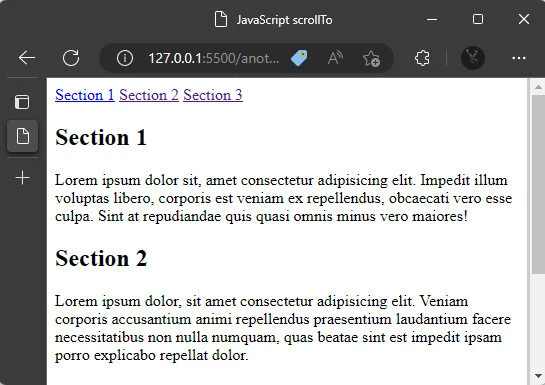
You get a smooth scroll effect when you click on any of the section links.
Another use case for scrollTo() is to create a back-to-top button that
smoothly scrolls the page back to the top when clicked. To do this, you
would first create a reference to the button using
document.querySelector(), and then use addEventListener() to detect
when the button is clicked. You would then pass 0 and 0 to the
scrollTo() method to scroll the page to the top.
// Get the button element
const button = document.querySelector(".back-to-top");

// Add an event listener to detect when the button is clicked
button.addEventListener("click", () => {
    // Scroll to the top of the page
    window.scrollTo({
        top: 0,
        left: 0,
        behavior: "smooth",
    });
});
You can add the above JavaScript code to the earlier code snippet, and
it will activate the back to top feature. With this, easy scrolling
effect is added.
It’s worth noting that scrollTo method has been around for a while and
it’s supported by most modern browsers, however, the
behavior: 'smooth' is considered as an experimental feature, therefore
it may not work in some older browsers.
Example-1: Scrolling to top of the page
In this example, we use scrollTo() on the window object to scroll
the viewport to the top left corner of the page (coordinates 0,0).
window.scrollTo(0,0);
Example 2: Scrolling to a Specific Element
In this example, we use scrollIntoView() method to scroll to a
specific element on the page. We first get the element by its ID using
getElementById() and then call scrollIntoView() method on the
element to scroll the viewport until the element is fully visible.
<div id="element-to-scroll-to"></div>

<script>
var element = document.getElementById("element-to-scroll-to");
element.scrollIntoView();
</script>
Example-3: Scrolling with Animation
In this example, we create a smooth animated scroll effect by using
setTimeout() to repeatedly update the scrollY position of the
viewport until it reaches the target element. First, we get the current
scroll position using window.scrollY and the target element’s position
using getBoundingClientRect().top. Then, we set a scroll target
position, which is slightly above the element, so that it has a little
padding above it. Next, we set a speed at which we want the scrolling to
happen, in this case it is 25. Then we create a function
scrollToTarget which uses setTimeout to repeatedly update the
scrollY position of the viewport until it reaches the target element.
Finally, we call this function to initiate the scrolling animation.
<div id="element-to-scroll-to"></div>

<script>
var element = document.getElementById("element-to-scroll-to");
var currentY = window.scrollY;
var targetY = element.getBoundingClientRect().top + currentY;
var scrollY = currentY;
var scrollTargetY = targetY - 50;
var speed = 25;

function scrollToTarget() {
  var distance = scrollTargetY - scrollY;
  if(distance < 0) {
    return;
  }
  scrollY = scrollY + distance/speed;
  window.scrollTo(0, scrollY);
  setTimeout(scrollToTarget, 1);
}

scrollToTarget();
</script>
Example-4: Using CSS Animation to add scrolling affect
In this example, I have added a CSS keyframe animation that changes the
background color of an element from yellow to white over a 2-second
duration. Then, I have applied this animation to the three target
elements using the animation-name and animation-duration properties.
You can adjust the animation properties such as animation-duration, keyframe properties like the starting and ending properties, animation-iteration-count, animation-timing-function, etc. as per your requirement.
Also, you can use different animation techniques like transition, transform, etc to achieve the desired effect.
<div id="container" style="position: relative;">
  <div id="element1" style="height: 300px;"></div>
  <div id="element2" style="height: 500px;"></div>
  <div id="element3" style="height: 200px;"></div>

  <button id="scroll-button1" style="position: absolute; top: 0;">Scroll to Element 1</button>
  <button id="scroll-button2" style="position: absolute; top: 350px;">Scroll to Element 2</button>
  <button id="scroll-button3" style="position: absolute; top: 900px;">Scroll to Element 3</button>
</div>

<style>
    /* Add CSS keyframe animation */
    @keyframes example {
        from {background-color: yellow;}
        to {background-color: white;}
    }

    /* Add animation to the target element */
    #element1, #element2, #element3 {
        animation-name: example;
        animation-duration: 2s;
    }
</style>
<script>
    var element1 = document.getElementById("element1");
    var element2 = document.getElementById("element2");
    var element3 = document.getElementById("element3");
    var button1 = document.getElementById("scroll-button1");
    var button2 = document.getElementById("scroll-button2");
    var button3 = document.getElementById("scroll-button3");

    button1.addEventListener("click", function() {
        window.scrollTo({
          top: element1.offsetTop,
          behavior: "smooth"
        });
        console.log("Scrolled to element 1!");
    });
    button2.addEventListener("click", function() {
        window.scrollTo({
          top: element2.offsetTop,
          behavior: "smooth"
        });
        console.log("Scrolled to element 2!");
    });
    button3.addEventListener("click", function() {
        window.scrollTo({
          top: element3.offsetTop,
          behavior: "smooth"
        });
        console.log("Scrolled to element 3!");
    });
</script>
Summary
The scrollTo() method is a useful JavaScript method that allows
developers to smoothly scroll an HTML element to a specified position on
a web page. It can be used to create a smooth scroll effect when
clicking on a link, or to create a back-to-top button that smoothly
scrolls the page back to the top when clicked. It’s supported by most
modern browsers, but the smooth scroll feature may not work in some
older browsers.
References
- Web APIs | MDN (mozilla.org)
