
![How to get width of element in JavaScript? [SOLVED]](/javascript-get-width-of-element/javascript-get-width-of-element.jpg)
Introduction
In web development, JavaScript is the go-to language to interact, manipulate or work with HTML elements or more broadly, the Document Object Model (DOM) that determines how things are displayed on the web.
Built-in functions can achieve different actions for DOM; from updating DOM properties to deleting them. In this article, we will discuss how to get the width of an element in JavaScript using JavaScript method properties.
Method-1: Use offsetWidth property
We can get the width of an element in JavaScript by using the
offsetWidth property. This property returns the width of an element,
including padding and borders, in pixels.
Let’s illustrate how to obtain this property value based on the HTML code below
<!DOCTYPE html>
<html lang="en">
    <head>
        <meta charset="UTF-8" />
        <meta http-equiv="X-UA-Compatible" content="IE=edge" />
        <meta name="viewport" content="width=device-width, initial-scale=1.0" />
        <title>Document</title>
        <style>
            /* CSS Styling */
            #para {
                width: 50px;
                padding: 10px;
                border: 5px solid black;
                margin: 20px;
                display: inline-block;
            }
        </style>
    </head>
    <body>
        <div class="main">
            <p id="para">This is a paragraph</p>
        </div>
    </body>
    <script>
        // JavaScript Code to get width of element
        const element = document.getElementById("para");
        let width = element.offsetWidth;

        alert(`The width of the paragraph element is ${width}`);
    </script>
</html>
Output
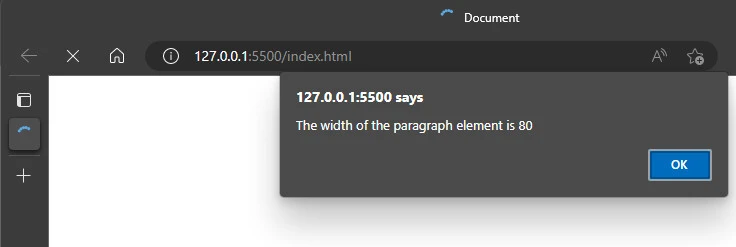
This value contains the width of the element, including the padding and
border value where the width is 50px, the padding is 20px (10px
right + 10px left), and the border is 10px (5px right + 5px left).
Method-2: Use clientWidth property
Another property we can make use of is the clientWidth property. This
property returns the width of an element including padding but excluding
borders, margins, and scroll values.
Let’s use it on the same HTML code as in the section above.
<!DOCTYPE html>
<html lang="en">
    <head>
        <meta charset="UTF-8" />
        <meta http-equiv="X-UA-Compatible" content="IE=edge" />
        <meta name="viewport" content="width=device-width, initial-scale=1.0" />
        <title>Document</title>
        <style>
            /* CSS Styling */
            #para {
                width: 50px;
                padding: 10px;
                border: 5px solid black;
                margin: 20px;
                display: inline-block;
            }
        </style>
    </head>
    <body>
        <div class="main">
            <p id="para">This is a paragraph</p>
        </div>
    </body>
    <script>
        // JavaScript Code to get width of element
        const element = document.getElementById("para");
        let width = element.clientWidth;

        alert(`The width of the paragraph element is ${width}`);
    </script>
</html>
Output
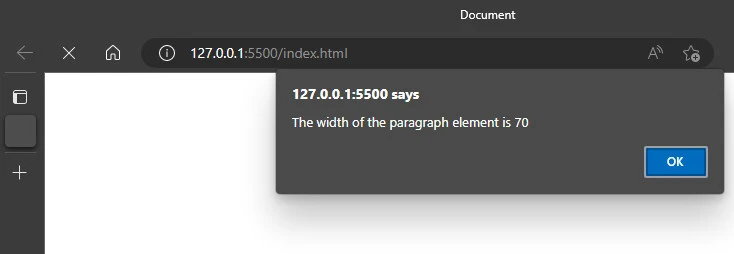
This value contains the width of the element and the padding value where
the width is 50px and the padding is 20px (10px right + 10px left).
Method-3: Use getComputedStyle() method
We could use a global JavaScript method to obtain the value of all CSS
properties of an element. This method is called the getComputedStyle()
method, where we can access the width property to get the element’s
width. It returns the value in pixels and with the px string, which
means it’s a string. We can get the integer value by parsing the value
to the parseInt() method.
<!DOCTYPE html>
<html lang="en">
    <head>
        <meta charset="UTF-8" />
        <meta http-equiv="X-UA-Compatible" content="IE=edge" />
        <meta name="viewport" content="width=device-width, initial-scale=1.0" />
        <title>Document</title>
        <style>
            /* CSS Styling */
            #para {
                width: 50px;
                padding: 10px;
                border: 5px;
                margin: 20px;
                display: inline-block;
            }
        </style>
    </head>
    <body>
        <div class="main">
            <p id="para">This is a paragraph</p>
        </div>
    </body>
    <script>
        // JavaScript Code to get width of element
        const element = document.getElementById("para");
        let width = window.getComputedStyle(element).width;

        let parsedWidth = parseInt(width);

        alert(
            `The width of the paragraph element is ${width} and ${parsedWidth}`
        );
    </script>
</html>
Output
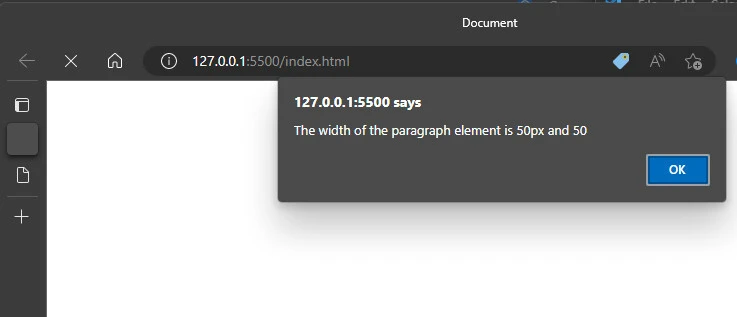
This value contains only the width of the element.
Method-4: Use getBoundingClientRect method
The getBoundingClientRect method returns a DOMRect object which
includes values and information about the element’s size and relative
position to the viewport. The width of the element can be obtained using
the width property which includes the padding and border value.
<!DOCTYPE html>
<html lang="en">
    <head>
        <meta charset="UTF-8" />
        <meta http-equiv="X-UA-Compatible" content="IE=edge" />
        <meta name="viewport" content="width=device-width, initial-scale=1.0" />
        <title>Document</title>
        <style>
            /* CSS Styling */
            #para {
                width: 50px;
                padding: 10px;
                border: 5px;
                margin: 20px;
                display: inline-block;
            }
        </style>
    </head>
    <body>
        <div class="main">
            <p id="para">This is a paragraph</p>
        </div>
    </body>
    <script>
        // JavaScript Code to get width of element
        const element = document.getElementById("para");
        let width = element.getBoundingClientRect().width;

        alert(`The width of the paragraph element is ${width}`);
    </script>
</html>
Output
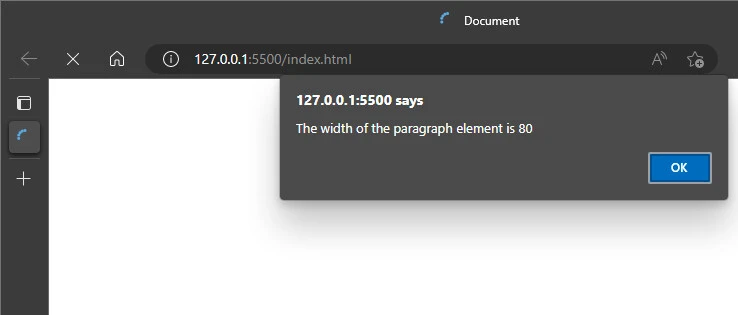
This value contains the width of the element, including the padding and
border value where the width is 50px, the padding is 20px (10px
right + 10px left), and the border is 10px (5px right + 5px left).
Summary
To obtain the width of an element in JavaScript, you can make use of
different built-in methods and properties, from the getComputedStyle
method to the offsetWidth property. All return different width values
depending on what the methods or properties include to determine the
elements’ width. You can check out more information in the references
section.
References
HTMLElement.offsetWidth - Web
APIs | MDN (mozilla.org)
Element.clientWidth -
Web APIs | MDN (mozilla.org)
Window.getComputedStyle() - Web
APIs | MDN (mozilla.org)
Element.getBoundingClientRect() -
Web APIs | MDN (mozilla.org)
