
![JavaScript DOM Selector Methods [In-Depth Tutorial]](/javascript-dom-selector/javascript-dom-selector.jpg)
JavaScript is a client-side scripting language used to add interactivity to web pages. One of the most important concepts in JavaScript is the Document Object Model (DOM), which is a hierarchical tree structure of all the HTML elements on a web page. The DOM can be manipulated using JavaScript to change the contents, styles, and behavior of web pages.
In order to select nodes or elements within the DOM, we need DOM selectors, and in this article, we will discuss the DOM selector methods available in JavaScript.
Different DOM Selector Methods
The DOM can be visualized as a tree-like structure where each HTML element is a node in the tree. The root of the tree is the HTML document and the child elements are branches. To access and manipulate the elements in the DOM, you need to select them using DOM selector methods.
We can select DOM elements and nodes using their properties. These
properties can range from id, class name, CSS style,
textContent, innerText and innerHTML. Using these properties, we
can make use of the built-in JavaScript methods to get or retrieve DOM
elements.
There are several DOM selector methods available in JavaScript, each with a different use case. Some of the most commonly used methods are:
getElementsByTagName()getElementsByClassName()getElementById()querySelector()querySelectorAll()
Method-1: Using getElementsByTagName() to select DOM objects
The getElementsByTagName() method is used to select all elements with a specified HTML tag. The method returns an HTMLCollection, which is an array-like object that can be accessed like an array.
The syntax for using the getElementsByTagName() method can be seen
below
document.getElementsByTagName(tagname);
A simple example of how to use the getElementsByTagName() method is
shown in the code snippet below.
let section = document.getElementsByTagName("div");
console.log(section.length);
In the above, we retrieve the div tag and its content and obtain the
length of the content present within the div tag.
Now, let’s use this with an HTML page to have some output. To achieve
this, we will access the first div contents using the
getElementsByTagName() method. Then, select the first div out of the
bunch, and log its innerHTML content.
Let’s first start with the HTML file
<!DOCTYPE html>
<html lang="en">
    <head>
        <meta charset="UTF-8" />
        <meta http-equiv="X-UA-Compatible" content="IE=edge" />
        <meta name="viewport" content="width=device-width, initial-scale=1.0" />
        <title>DOM Selector</title>
    </head>
    <body>
        <h1 class="special">JavaScript DOM Selector</h1>
        <p class="special">
            These are built-in methods that are provided within JavaScript
        </p>
        <div id="first">
            <p>
                Lorem ipsum dolor sit amet consectetur adipisicing elit. Optio,
                laudantium corporis possimus eveniet a pariatur! Fugiat,
                laudantium cupiditate deleniti nisi beatae repellat ad porro
                debitis aliquam suscipit rem optio odio!
            </p>
        </div>
        <div id="second">Another Lorem Ipsum, wow</div>
    </body>
    <script src="script.js"></script>
</html>
Then, the script.js file
let lorem = document.getElementsByTagName("div");
let content = lorem[0].innerHTML;
console.log(content);
Output
<p>
                Lorem ipsum dolor sit amet consectetur adipisicing elit. Optio,
                laudantium corporis possimus eveniet a pariatur! Fugiat,
                laudantium cupiditate deleniti nisi beatae repellat ad porro
                debitis aliquam suscipit rem optio odio!
            </p>
The getElementsByTagName() method returns a HTML collection which is
dynamic and update as the DOM changes. The lorem variable is a
HTMLCollection of the <HTMLDivElement>, and will contain two of such
collections in a somewhat array-like object structure.
Therefore, for us to access the first div, we will make use of the
bracket notation [] - [0]. In addition, we use the innerHTML
property is to access the text content of the div element.
Method-2: Using getElementById() to select DOM objects
Unlike the getElementsByTagName() method, the getElementById()
method is used to select a single element with a specified id. It
returns a reference to the element and can be used to manipulate the
element directly.
The syntax goes thus;
document.getElementById(id);
So, with that, we can showcase a simple way to use the
getElementById()
let header = document.getElementById("header");
console.log(header.innerHTML);
The above code will select the element with the identifier - header -
and log the innerHTML property.
Let’s illustrate getElementById() DOM selector method behaviour using
the same HTML as in the previous section. Here, we will access the
element with the second identifier named second and access the
innerText property.
let secondDiv = document.getElementById("second");
let secondDivElem = secondDiv.innerText;

console.log(secondDivElem);
Output
Another Lorem Ipsum, wow
Unlike the getElementsByTagName() method which returns a
HTMLCollection, the getElementById() method returns a HTMLElement,
which gives us access to singular properties such as innerHTML or
innerText. As in the code, we access the innerText property.
Method-3: Using getElementsByClassName() to select DOM objects
The getElementsByClassName() method is used to select all elements
with a specified class name. Like getElementsByTagName(), it returns
an HTMLCollection. This allows to select multiple elements and apply
certain JavaScript
Before we go into how we make use of the getElementsByClassName()
method, here is the syntax:
document.getElementsByClassName(classname);
Here is a simple example of how we use the getElementsByClassName()
method
let sections = document.getElementsByClassName("section");
console.log(sections.length);
The above code returns the length (or the number) of the
HTMLCollection contain the elements that have the section class.
Now, let’s make use of the method to log the second element content with
the special class from the HTML file in the first section. Also, we
will change the color of the first element.
let special = document.getElementsByClassName("special");
let secondElem = special[1].innerText;

console.log(secondElem);

special[0].style.color = "red";
Output
These are built-in methods that are provided within JavaScript
And in terms of the color change, the below is the result
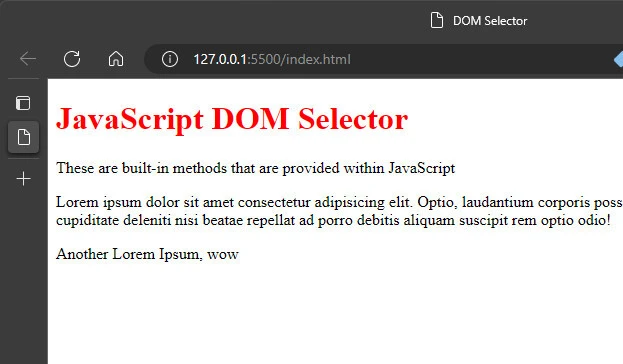
Using the getElementsByClassName() method, we can select multiple
elements and iterate over the HTMLCollection and apply properties based
on whatever condition we have.
Method-4: Using querySelector() to select DOM objects
The querySelector() method is used to select the first element that
matches a specified CSS selector. It returns a reference to the element
and can be used to manipulate the element directly. We can make use of
the querySelector() method to select tags, identifiers, and classes.
Before we go on, here is the syntax for this method
document.querySelector(selector);
To give an intro to querySelector() method, we can give a simple code
snippet that show how we can select the p tag and obtain its innerHTML
property.
let firstParagraph = document.querySelector("p");
console.log(firstParagraph.innerHTML);
To show more extensively what we can do with querySelector(), we will
select a couple of elements from the HTML file as in the first section.
Let’s select the first paragraph element, the first element with the
.special class, the element with the first identifier, and the first
paragraph nested within a div element.
let paragraph = document.querySelector("p");
let special = document.querySelector(".special");
let firstID = document.querySelector("#first");
let divP = document.querySelector("div p");

console.log(paragraph.innerText);
console.log(special.innerText);
console.log(firstID.innerText);
console.log(divP.innerText);
Output
These are built-in methods that are provided within JavaScript
JavaScript DOM Selector
Lorem ipsum dolor sit amet consectetur adipisicing elit. Optio, laudantium corporis possimus eveniet a pariatur! Fugiat, laudantium cupiditate deleniti nisi beatae repellat ad porro debitis aliquam suscipit rem optio odio!
Lorem ipsum dolor sit amet consectetur adipisicing elit. Optio, laudantium corporis possimus eveniet a pariatur! Fugiat, laudantium cupiditate deleniti nisi beatae repellat ad porro debitis aliquam suscipit rem optio odio!
To select descendant or children element, we can simply list the parent
element first and the second element second as in the code snippet -
"div p" - where selected the p child of the div element. To select
class or identifiers, we make use of dot (.) and hashtag (#)
respectively.
Method-5: Using querySelectorAll() to select DOM objects
In the previous section, we select the first element that matches a
specified CSS selector. Here, the querySelectorAll() method is used to
select all elements that match a specified CSS selector. It returns a
NodeList, which is an array-like object that can be accessed like an
array.
With these, we can apply properties across all the elements selected using the method by iterating across the NodeList. Before, we go on, here is the syntax for the DOM selector method.
document.querySelectorAll(selector);
Using the same example as in the last section, let’s select all the elements that have a certain selector and give them new properties. In addition, we will make visual changes to one of the element we select.
let paragraph = document.querySelectorAll("p");
let special = document.querySelectorAll(".special");
let firstID = document.querySelectorAll("#first");
let divP = document.querySelectorAll("div p");

console.log(paragraph.length);
console.log(special.length);
console.log(firstID.length);
console.log(divP.length);

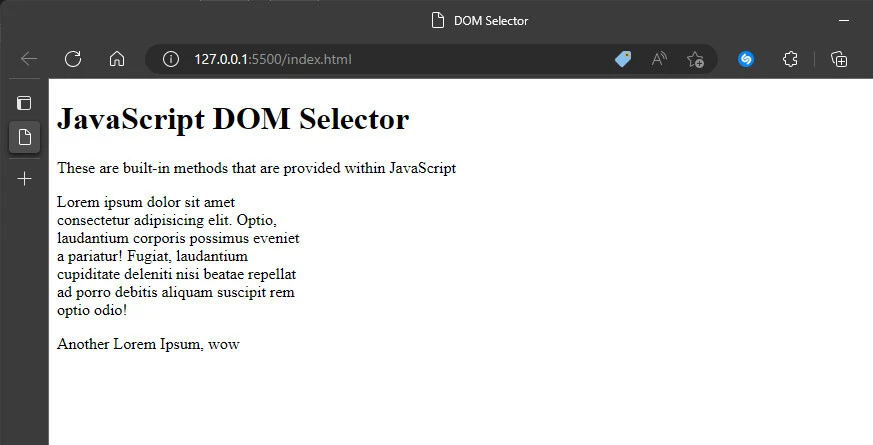
paragraph[1].style.width = "250px";
Output
2
2
1
1
Within the NodeList for paragraph and special, there are two
HTMLElements and for firstID and div p, there are just one
HTMLElement for each. The last statement in the code snippet applies a
250px width to the second paragraph as seen in the output below.
Summary
The DOM selector methods in JavaScript provide a way to select and
manipulate the elements in a web page. Some of the most commonly used
methods include getElementsByTagName(), getElementsByClassName(),
getElementById(), querySelector(), and querySelectorAll().
Understanding these methods and knowing when to use each one is an
important part of working with the DOM in JavaScript.
When selecting multiple elements, it’s important to know the difference
between the HTMLCollection returned by getElementsByTagName() and
getElementsByClassName() and the NodeList returned by
querySelectorAll(). HTMLCollections are dynamic and update as the DOM
changes, while NodeLists are static and do not update when the DOM
changes.
In summary, the DOM selector methods in JavaScript are a powerful tool
for adding interactivity to web pages and improving user experience.
Whether you’re selecting single elements with getElementById() or
multiple elements with getElementsByTagName() or querySelectorAll(),
understanding the different selector methods and their use cases is
essential for working with the DOM in JavaScript.
References
Element.getElementsByTagName() -
Web APIs | MDN (mozilla.org)
Element.getElementsByClassName()
