![How to install Notepad++ in Linux? [SOLVED]](/install-notepad-in-linux/install-notepad.jpg)
What is Notepad++?
Notepad++ is an open source source code editor for the Windows operating system, developed in C++ and distributed under the GPL. Developed on the basis of the Scintilla editor. Notepad++ can display and colorize code for many programming languages. It has an interface that supports many spoken languages.
In this article, we will explain how to install Notepad++ on the Linux operating system.
Although Notepad++ is a Windows application(Supported OS table), it can be installed on Linux distributions in 2 different ways. We will tell you how to install Notepad++ on both Debian-based and Redhat-based distributions.
Method-1: Install Notepad++ from Snap Store
Snap Store can be activated on many Linux distributions. In this step, we will install Notepad++ from Snap store on Centos 8.
First, the EPEL repository is added to the system:
[foc@centos8 ~]$ sudo dnf install epel-release -y
The system is upgraded:
[foc@centos8 ~]$ sudo dnf upgrade -y
Then the snapd package is installed:
[foc@centos8 ~]$ sudo dnf install snapd
The snapd service is enabled and started at startup:
[foc@centos8 ~]$ sudo systemctl enable --now snapd
Created symlink /etc/systemd/system/multi-user.target.wants/snapd.service → /usr/lib/systemd/system/snapd.service.
To enable classic snap support, a symbolic link is created between:
[foc@centos8 ~]$ sudo ln -s /var/lib/snapd/snap /snap
Notepad versions in Snap store are as follows:
[foc@centos8 ~]$ sudo snap search notepad
Name                     Version           Publisher                 Notes  Summary
notepad-plus-plus        8.4.9             mmtrt                     -      notepad-plus-plus is a free source code editor.
notepadqq                1.4.8             danieleds                 -      A Notepad++-like editor for Linux.
notepad3                 5.21.905.1        mmtrt                     -      Notepad3 is a fast and light-weight text editor.
notepad-plus-plusminple  7.6               minple                    -      notepad-plus-plus is a free source code editor.
...
The notepad-plus-plus package is installed from the snap store:
[foc@centos8 ~]$ sudo snap install notepad-plus-plus
2023-02-14T14:39:37-05:00 INFO Waiting for automatic snapd restart...
Download snap "wine-platform-7-devel-core20" (24) from channel "stable"        Download snap "wine-platform-7-devel-core20" (24) from cha…   1% Do
....
notepad-plus-plus 8.4.9 from Taqi Raza (mmtrt) installed
Many dependencies such as wine are automatically installed during installation. After the installation is complete, open the application by typing “notepad-plus-plus” in the terminal:
[foc@centos8 ~]$ notepad-plus-plus
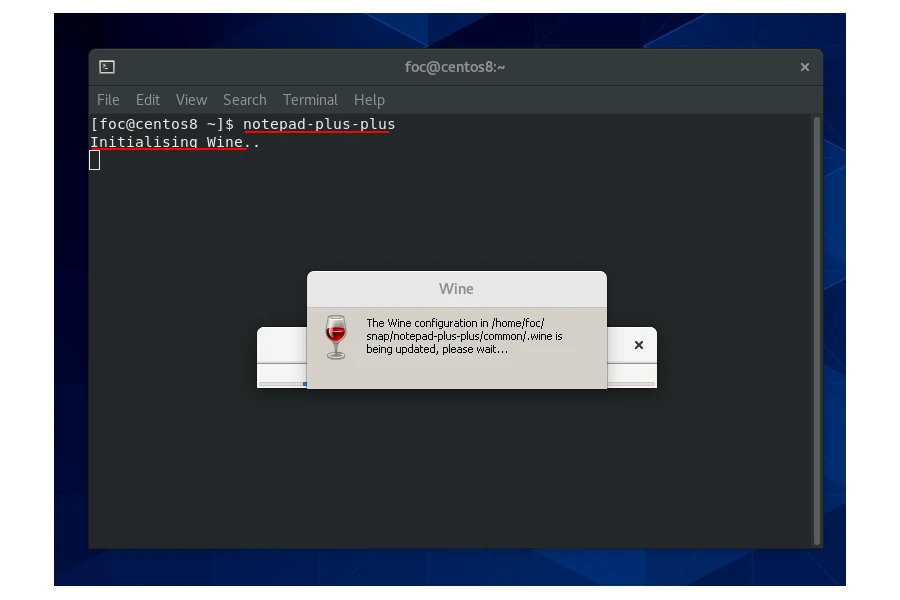
Notepad++ installation completed successfully.
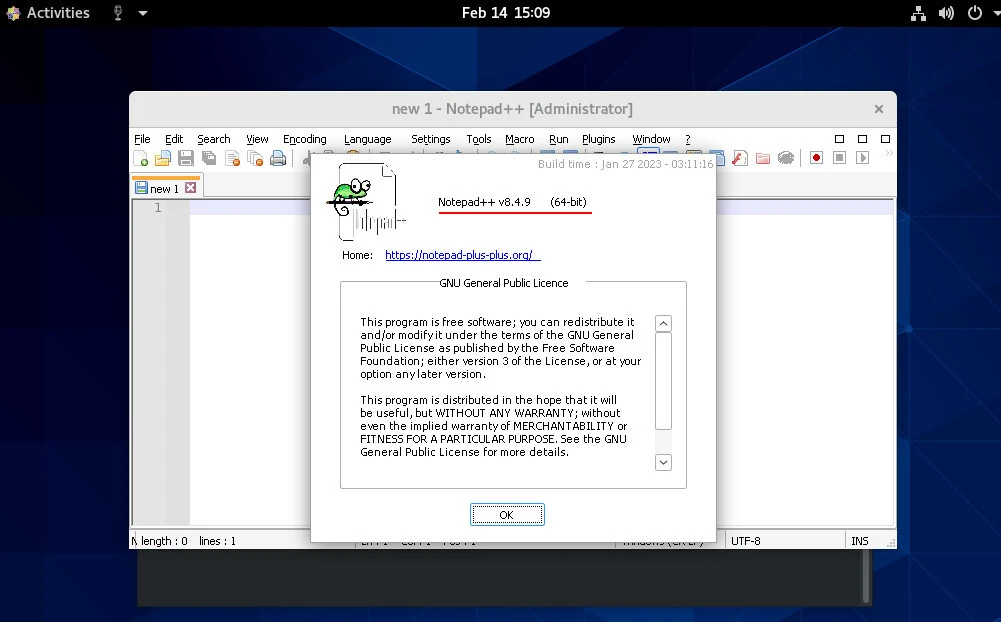
Then just run the following command to update Notepad++:
[foc@centos8 ~]$ sudo snap refresh notepad-plus-plus
snap "notepad-plus-plus" has no updates available
Method-2: Install Notepad++ with Wine
Wine is an emulator for installing Windows applications. In this step, we will install Notepad on Ubuntu, a Debian-based operating system.
First update the package list:
foc@ubuntu22desktop:~$ sudo apt update -y
Then install the wine-stable package:
foc@ubuntu22desktop:~$ sudo apt install wine-stable -y
We will install a 32-bit notepad, download the 32-bit version of notepad with wget:
foc@ubuntu22desktop:~$ wget https://github.com/notepad-plus-plus/notepad-plus-plus/releases/download/v8.4.9/npp.8.4.9.Installer.exe
--2023-02-13 21:45:00--  https://github.com/notepad-plus-plus/notepad-plus-plus/releases/download/v8.4.9/npp.8.4.9.Installer.exe
Resolving github.com (github.com)... 140.82.121.3
Connecting to github.com (github.com)|140.82.121.3|:443... connected.
HTTP request sent, awaiting response... 302 Found
Location: https://objects.githubusercontent.com/github-production-release-asset-2e65be/33014811/c98a8358-d287-4034-8792-37a0ebaa74ca?X-Amz-Algorithm=AWS4-HMAC-SHA256&X-Amz-Credential=AKIAIWNJYAX4CSVEH53A%2F20230213%2Fus-east-1%2Fs3%2Faws4_request&X-Amz-Date=20230213T184323Z&X-Amz-Expires=300&X-Amz-Signature=8e9bb717a1ce48a38c95855c34e87b3754ab0bebf7228920494db7330e69e6ae&X-Amz-SignedHeaders=host&actor_id=0&key_id=0&repo_id=33014811&response-content-disposition=attachment%3B%20filename%3Dnpp.8.4.9.Installer.exe&response-content-type=application%2Foctet-stream [following]
--2023-02-13 21:45:00--  https://objects.githubusercontent.com/github-production-release-asset-2e65be/33014811/c98a8358-d287-4034-8792-37a0ebaa74ca?X-Amz-Algorithm=AWS4-HMAC-SHA256&X-Amz-Credential=AKIAIWNJYAX4CSVEH53A%2F20230213%2Fus-east-1%2Fs3%2Faws4_request&X-Amz-Date=20230213T184323Z&X-Amz-Expires=300&X-Amz-Signature=8e9bb717a1ce48a38c95855c34e87b3754ab0bebf7228920494db7330e69e6ae&X-Amz-SignedHeaders=host&actor_id=0&key_id=0&repo_id=33014811&response-content-disposition=attachment%3B%20filename%3Dnpp.8.4.9.Installer.exe&response-content-type=application%2Foctet-stream
Resolving objects.githubusercontent.com (objects.githubusercontent.com)... 185.199.111.133, 185.199.110.133, 185.199.108.133, ...
Connecting to objects.githubusercontent.com (objects.githubusercontent.com)|185.199.111.133|:443... connected.
HTTP request sent, awaiting response... 200 OK
Length: 4404952 (4.2M) [application/octet-stream]
Saving to: ‘npp.8.4.9.Installer.exe’

npp.8.4.9.Install 100%[=============>]   4.20M   148KB/s    in 25s

2023-02-13 21:45:26 (170 KB/s) - ‘npp.8.4.9.Installer.exe’ saved [4404952/4404952]
Type the notebook file after the wine command in the terminal, press enter:
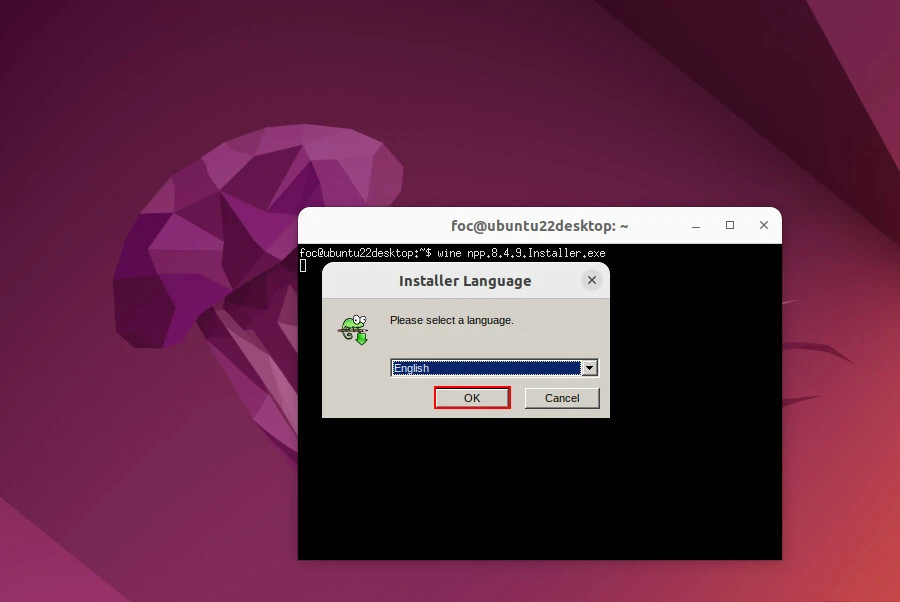
foc@ubuntu22desktop:~$ wine npp.8.4.9.Installer.exe
Select the installation language:
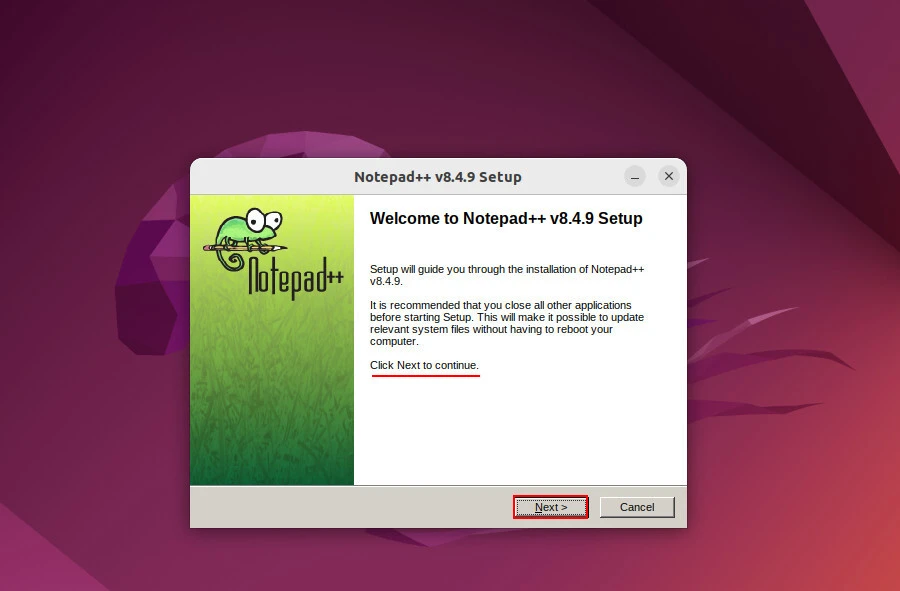
Start installation(Next)
License Agreement → I Agree
Choose Install Location →Next
Choose Components → Next → Install
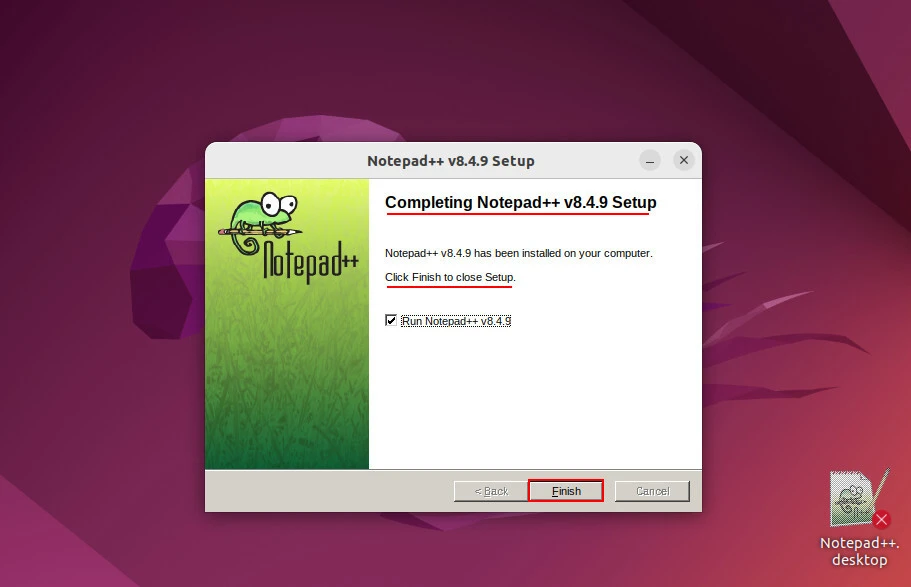
Installation completed successfully.
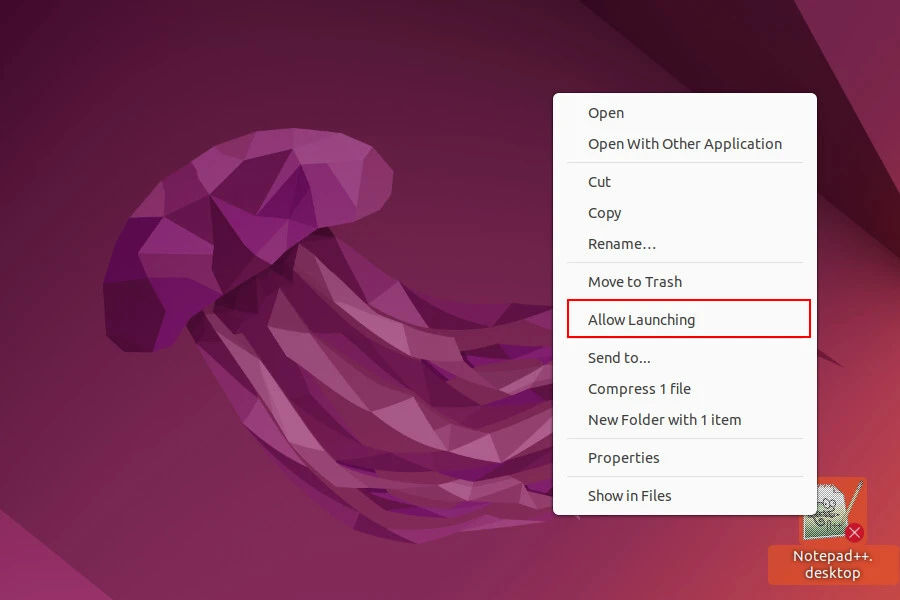
Notepad’s shortcut has been created on the desktop. Right click, click Allow Launching.
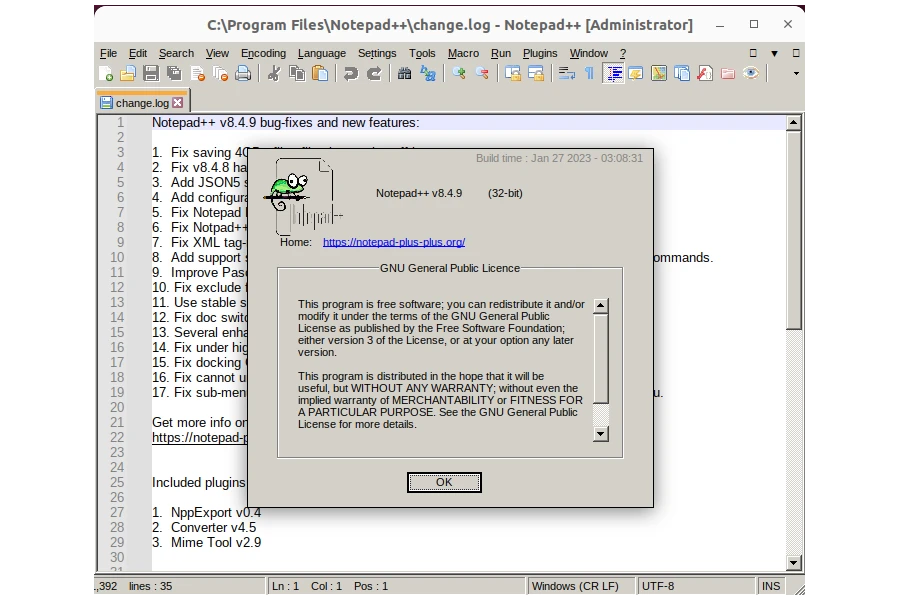
Now you can start using notepad from both the menu and the shortcut on the desktop.
Summary
In this article, we installed Notepad++ with 2 different methods on Centos 8 and Ubuntu 22. There are advantages to both methods. A stable and updatable Notepad++ can be installed from the Snap repository. But with wine you can access the latest Notepad++ version.
The choice is yours.
References
snapcraft.io -Install Notepad++ (WINE) on Fedora
community.notepad-plus-plus.org - Notepad++ as a linux snap app