![How to install Google Drive Ubuntu? [SOLVED]](/install-google-drive-ubuntu/ubuntu-install-google-drive.jpg)
Google Drive is a file storage and synchronization service created and managed by Google. Users who log in with their Google account benefit from these services.
Many users access Google Drive with the help of a web browser (Chrome, Firefox etc). Although it is a fast and simple method, the features of the browser can prevent the actions you will take. It is also possible to access the documents in Google Drive with an application installed on your computer.
In this article, we will talk about a few applications that you can use to access Google Drive through the Ubuntu operating system.
Sync settings with Google Drive are possible in Ubuntu Gnome GUI. You can also access the documents by installing the gdfuse and insync applications used for this job. Now let’s explain in order.
Step-1: Add GNOME Online Account
First, update the Ubuntu package list:
foc@ubuntu22desktop:~$ sudo apt update -y
Then install the gnome-online-accounts package:
foc@ubuntu22desktop:~$ sudo apt install gnome-online-accounts -y
Go to Settings > Online Accounts > Google. Sign in with your Google account information.
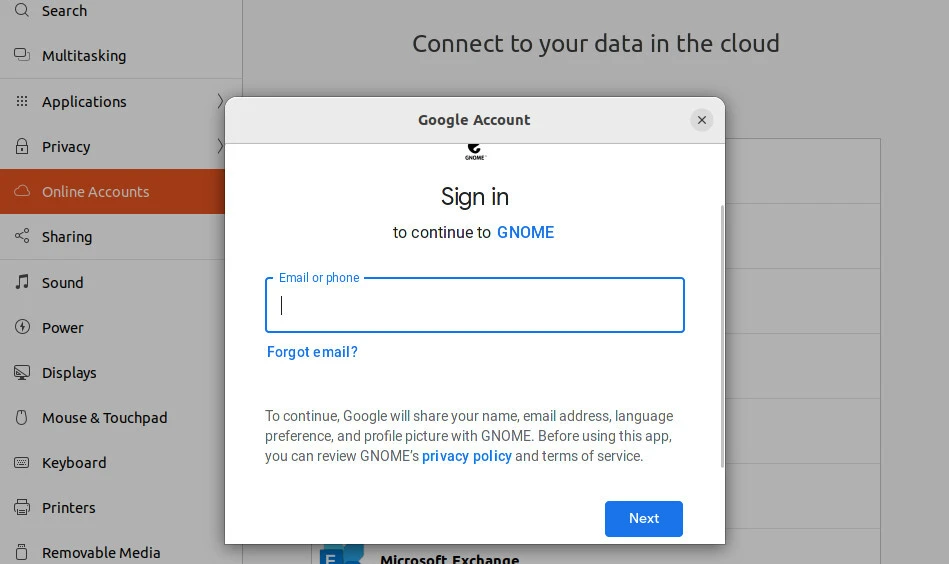
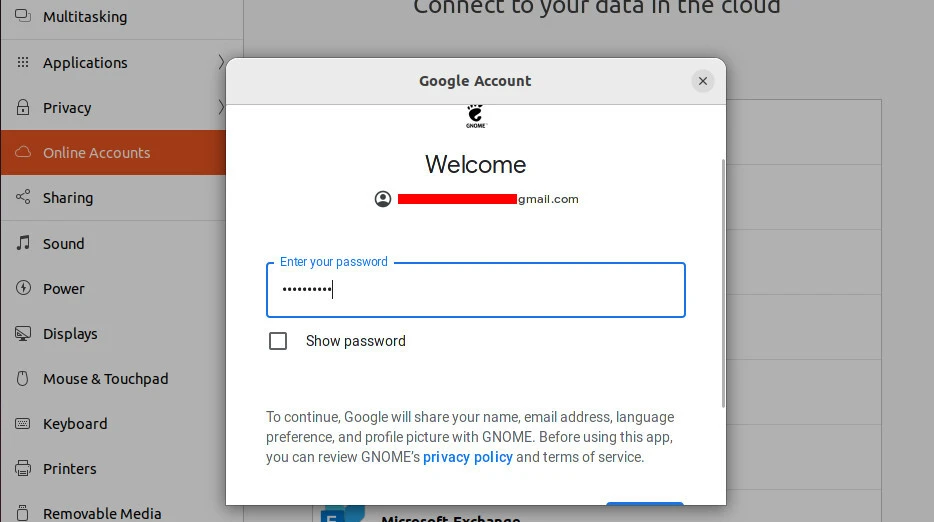
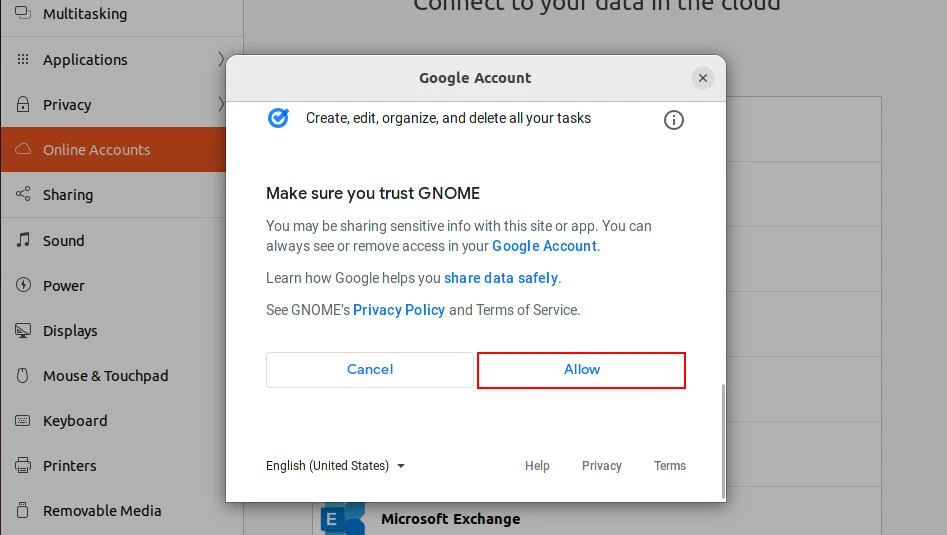
Allow access:
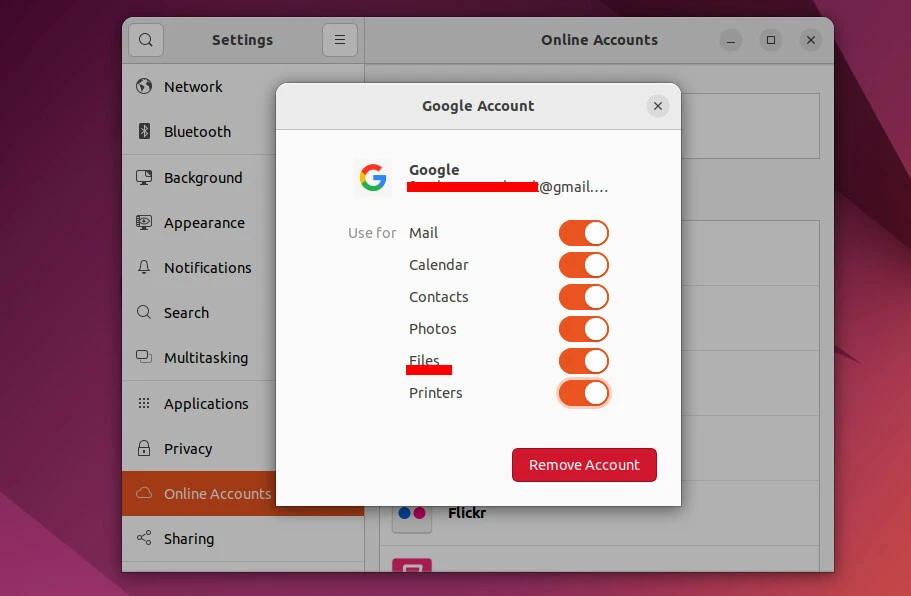
Choose what to sync with Google:
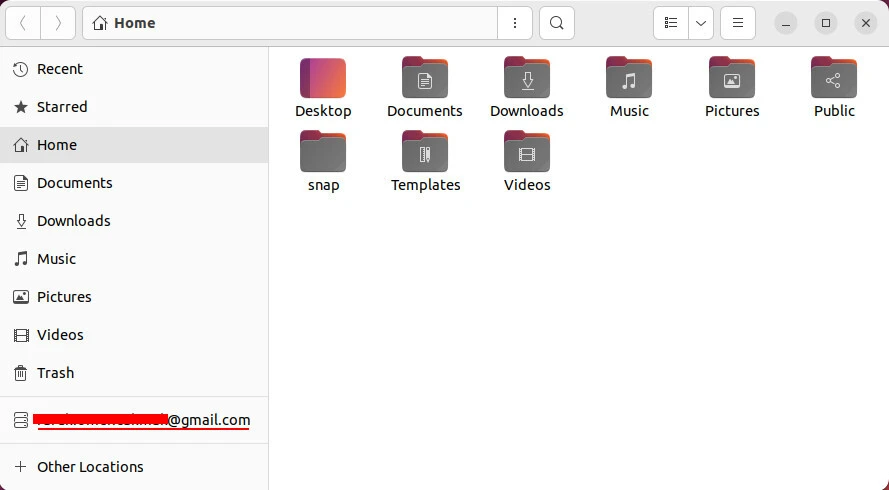
Open the Files app, at the bottom left you will see a link with the gmail address you are logged into.
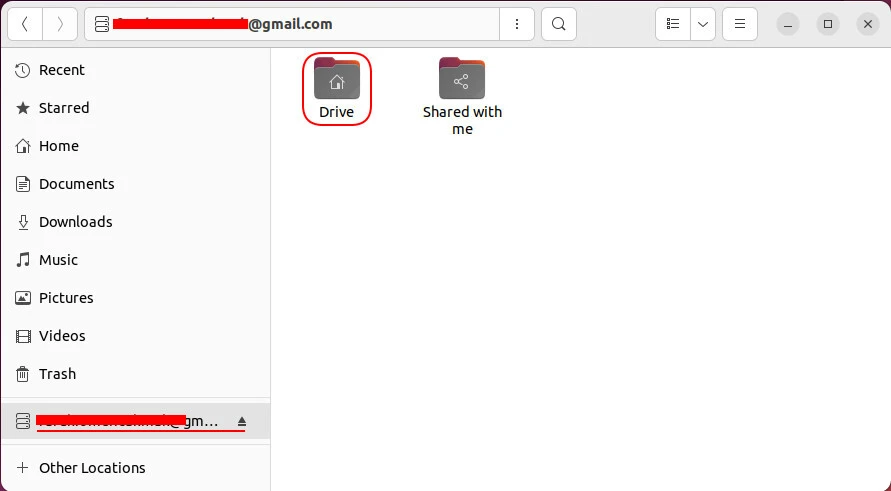
Finally, go to the Drive directory. You can see the files located in Google Drive.
Step-2: Install google-drive-ocamlfuse
For the google-drive-ocamlfuse package, the repository must first be
added to Ubuntu:
foc@ubuntu22desktop:~$ sudo add-apt-repository ppa:alessandro-strada/ppa
Repository: 'deb https://ppa.launchpadcontent.net/alessandro-strada/ppa/ubuntu/ jammy main'
Description:
Mount Google Drive on Ubuntu (via FUSE)
More info: https://launchpad.net/~alessandro-strada/+archive/ubuntu/ppa
Adding repository.
Press [ENTER] to continue or Ctrl-c to cancel.
Then update the package list and install the package:
foc@ubuntu22desktop:~$ sudo apt update && sudo apt install google-drive-ocamlfuse
After installation, open the package from terminal:
foc@ubuntu22desktop:~$ google-drive-ocamlfuse
It will redirect you to the login page with the web browser.
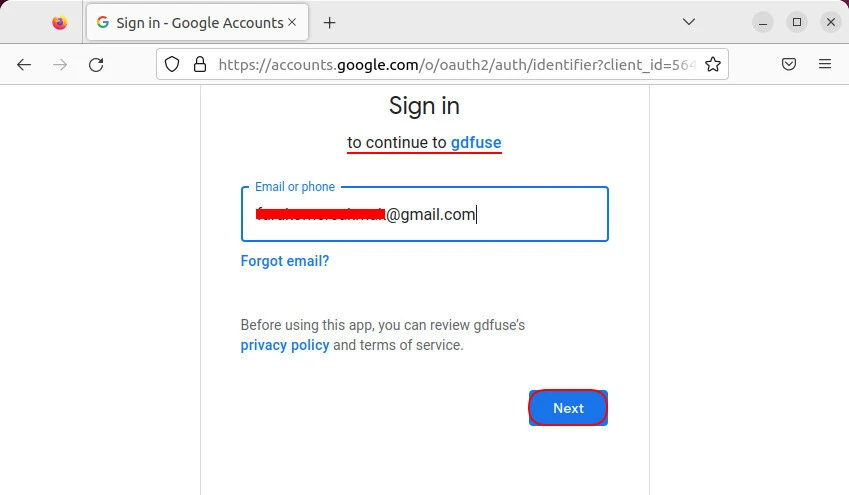
Sign in with Google account information.
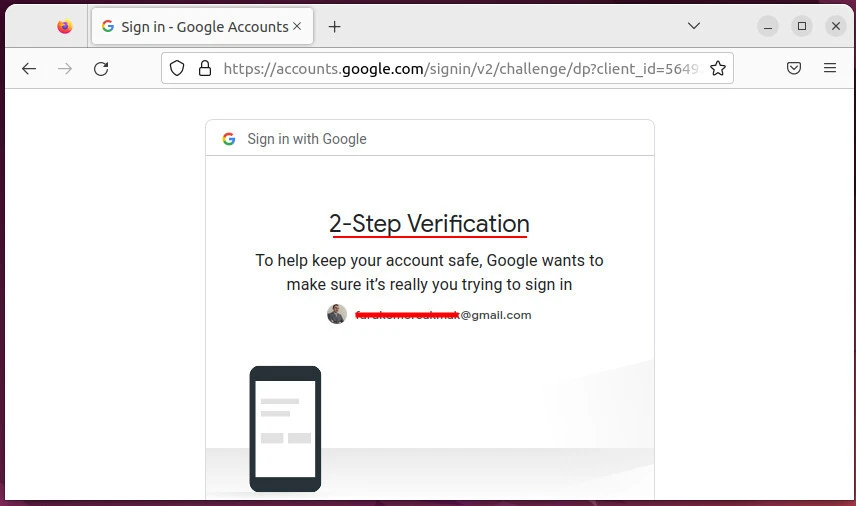
Grant access permissions:
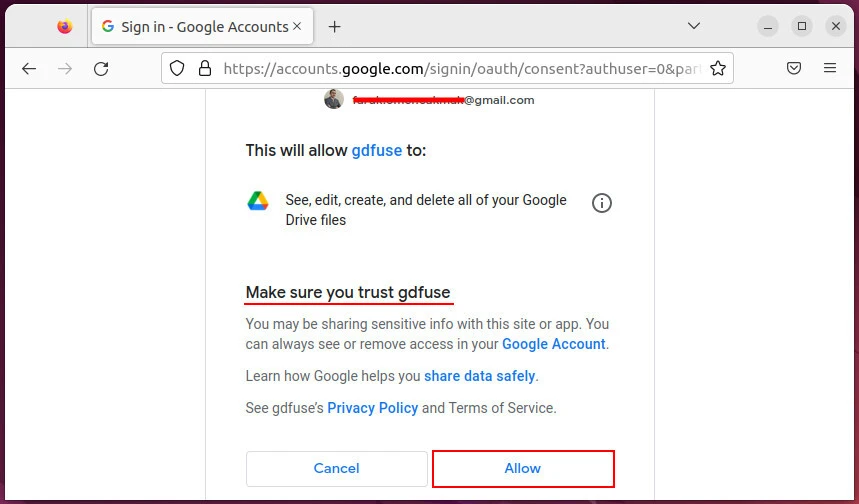
Confirm the access of the application:
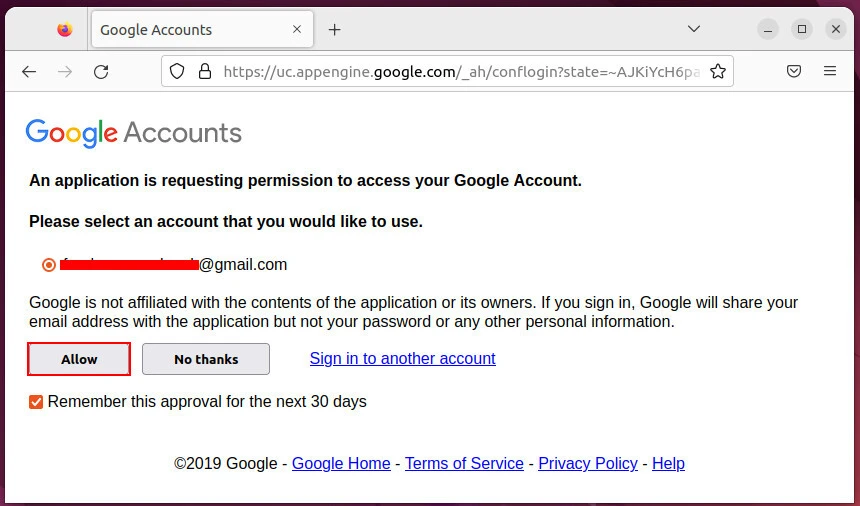
Access permissions granted.
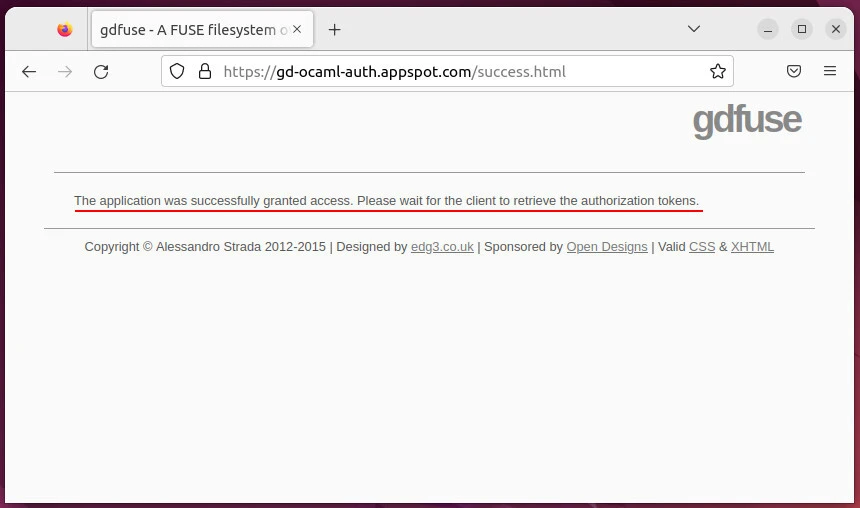
By creating a directory, we will connect Google Drive:
foc@ubuntu22desktop:~$ mkdir ~/foc-google-drive
Let google-drive-ocamlfuse use the created directory:
foc@ubuntu22desktop:~$ google-drive-ocamlfuse ~/foc-google-drive
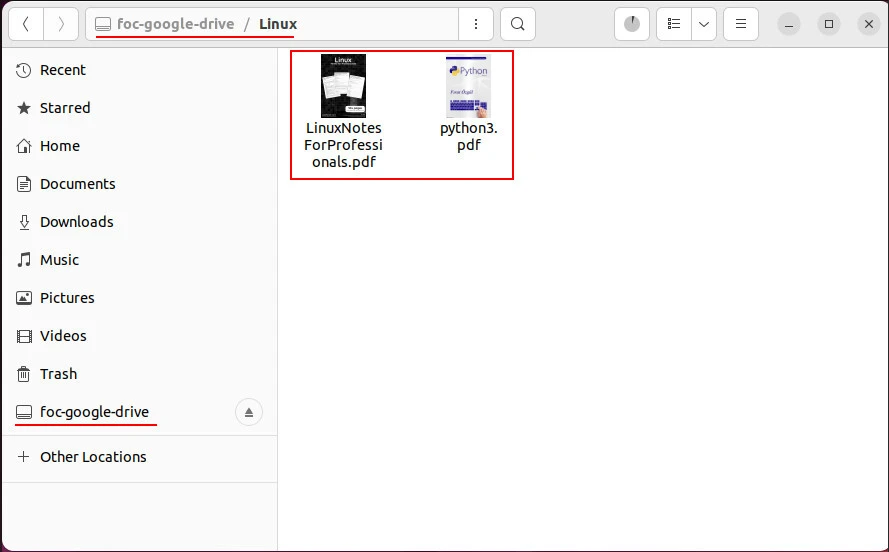
You can see the directory is mounted on the system:
foc@ubuntu22desktop:~$ df -h
Filesystem              Size  Used Avail Use% Mounted on
/dev/vda3                24G   12G   12G  50% /
/dev/vda2               512M  5,3M  507M   2% /boot/efi
google-drive-ocamlfuse   15G  5,6G  9,5G  38% /home/foc/foc-google-drive
When you open the Files application, you can see the link at the bottom left. Click and access your files:
Step-3: Install Insync Application
We will install this application by downloading the “.deb” package. Download the “.deb” package by going to the official download address:
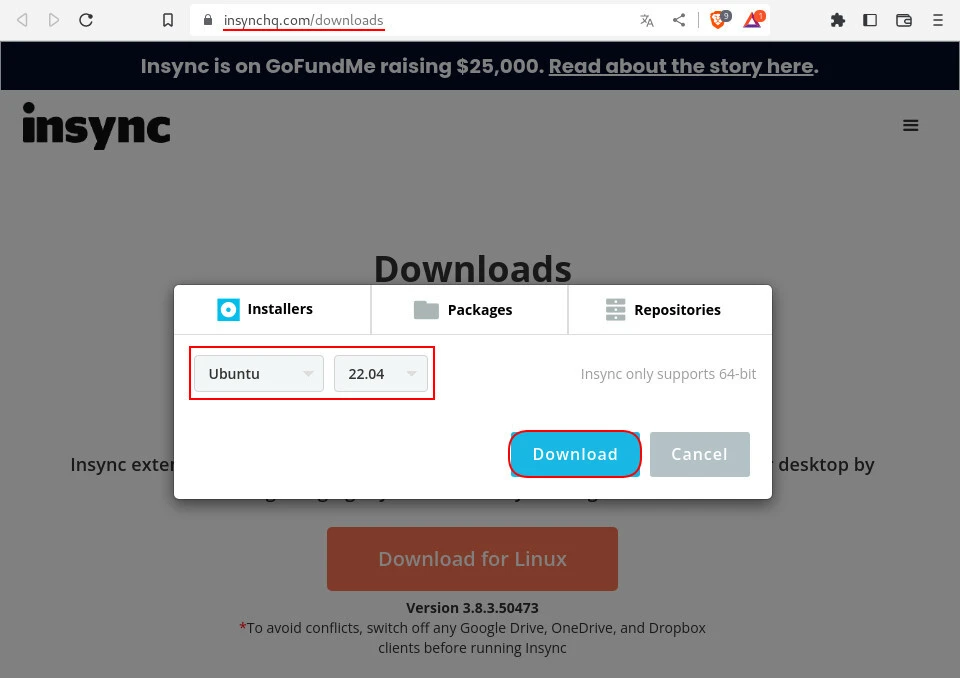
Go to the downloads directory:
foc@ubuntu22desktop:~$ cd ~/Downloads/
Install the package:
foc@ubuntu22desktop:~/Downloads$ sudo apt install ./insync_3.8.3.50473-jammy_amd64.deb
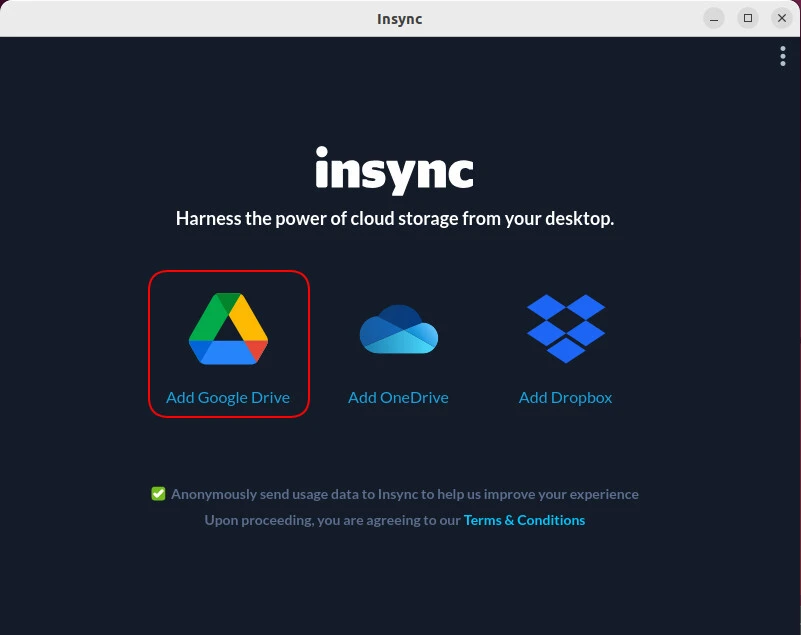
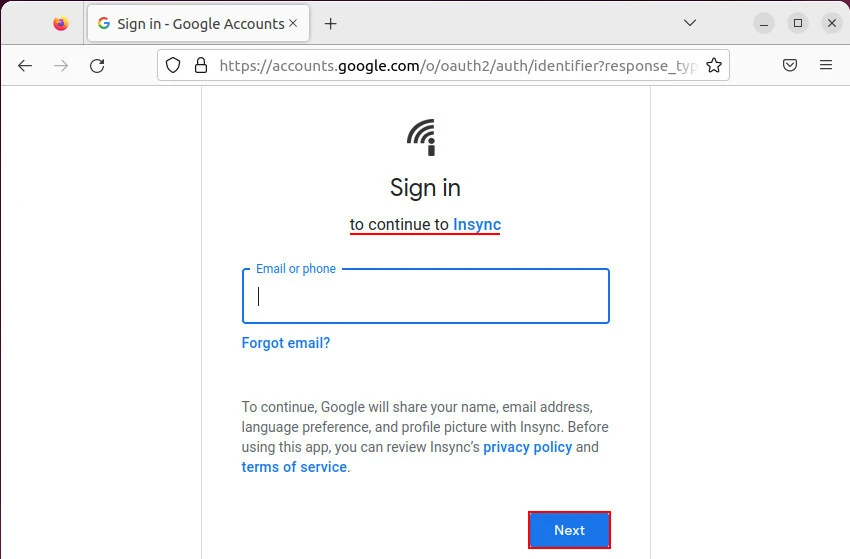
Sign in with Google account information:
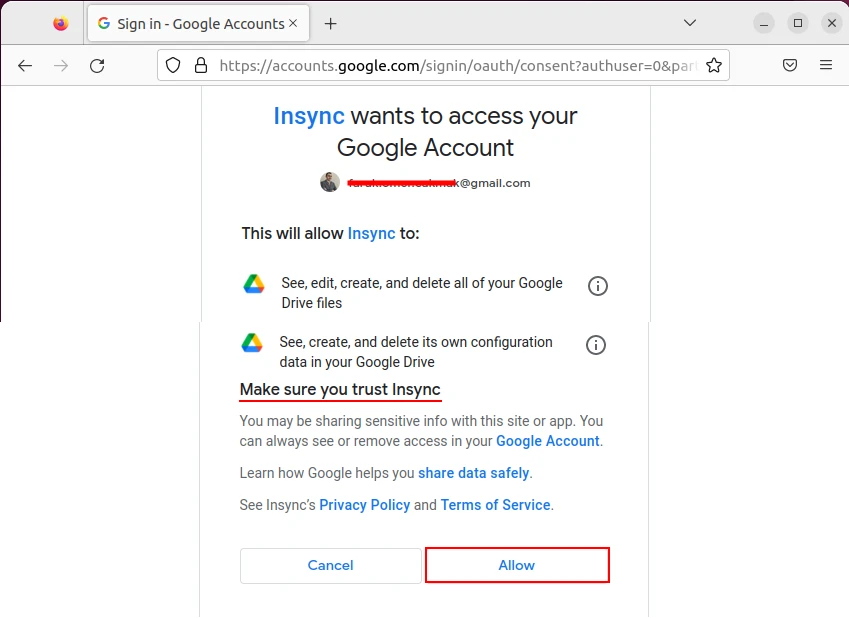
Grant access permissions:
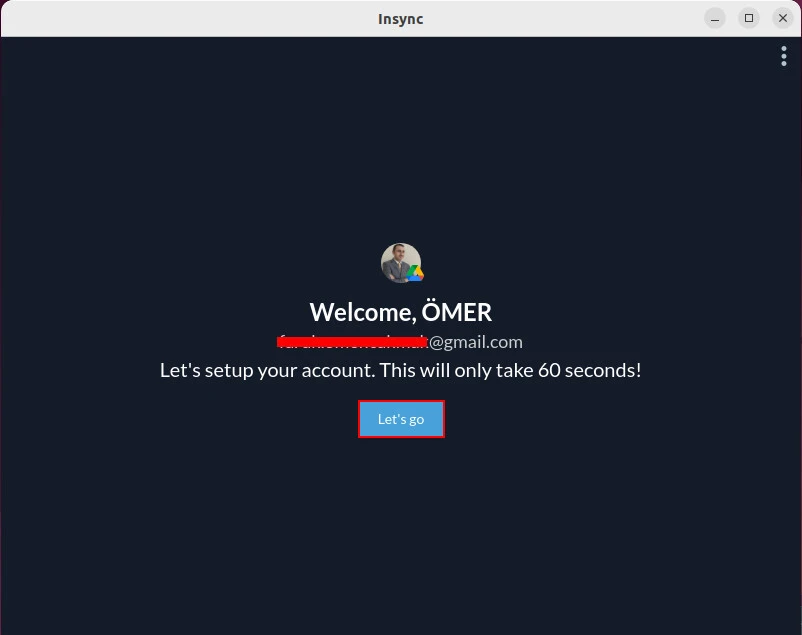
Insync application opened.
In this application, you can select the directories and files you want to synchronize separately.
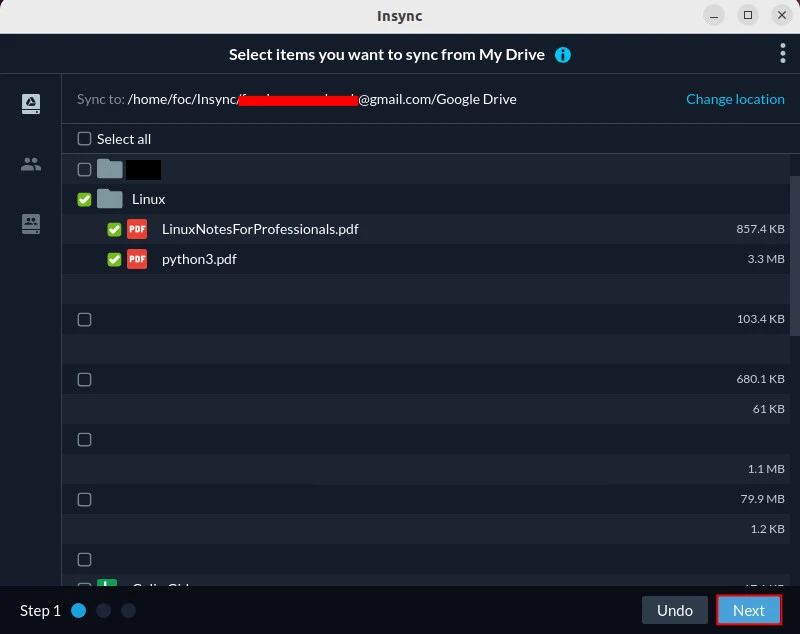
Continuing with Next, the synchronization is completed.
Summary
We explained the Google Drive installation steps with 3 different applications. The choice is yours. Our recommendation is to use the possibilities offered by the Gnome interface instead of a 3rd party application.
References
askubuntu.com - Can Google Drive desktop be used on Ubuntu?