![How to install Dropbox on Ubuntu [6 Methods]](/install-dropbox-ubuntu/ubuntu-install-dropbox.jpg)
Dropbox is the name of a file hosting service and networking application. It provides client services such as cloud storage, file hosting service, file synchronization. It provides up to 2GB of data storage to each user for free. It gives the opportunity to share files, but does not spread the shares such as torrents everywhere without the permission of the user. Allows folder contents to be shared only between users authorized by the user under a user privacy protection agreement.
In this tutorial we will explore 6 different methods to install Dropbox in Ubuntu.
Method-1: Installing Dropbox via Ubuntu Software Center
Open the “Activities” overview by clicking on “Activities” or pressing the “Super” key. Type “Ubuntu Software” and open the app.
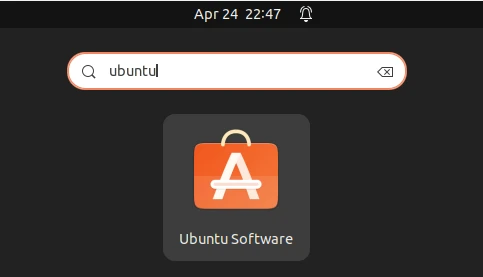
Use the search bar to find “Dropbox”.
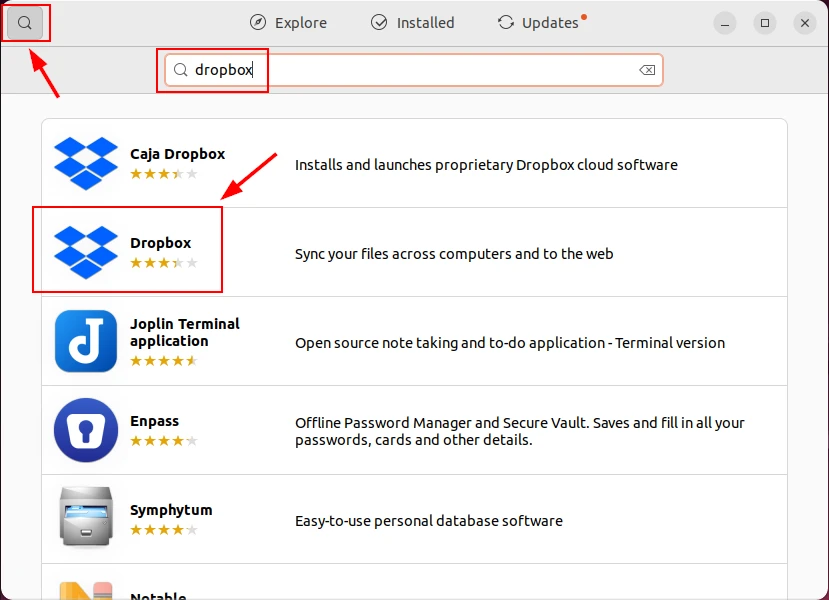
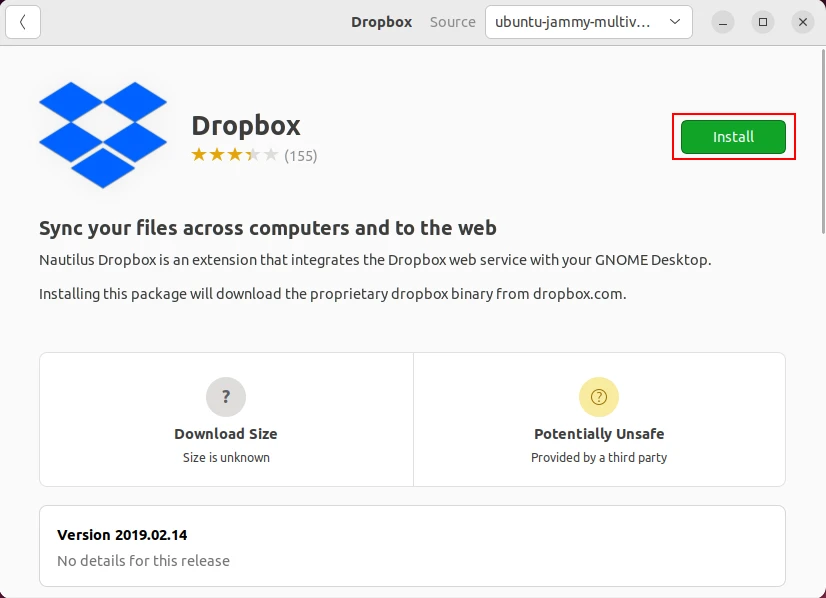
Select Dropbox from the search results and click “Install”. You may need to authenticate with your password to proceed with the installation.
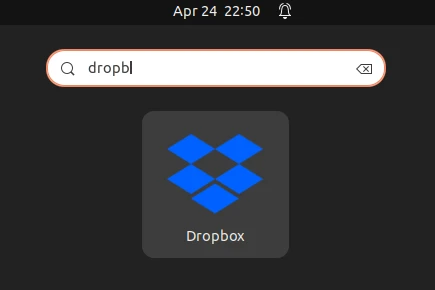
Once installed, you can find Dropbox in your applications menu.
Method-2: Installing Dropbox via Command Line using the Package from Official Repositories
Open Terminal (Ctrl+Alt+T) and update your package list using apt package manager.
sudo apt update
Install nautilus-dropbox which is applicable for GNOME, XFCE, or MATE
environments. This command will download and install Dropbox and any
necessary dependencies.
sudo apt install nautilus-dropbox
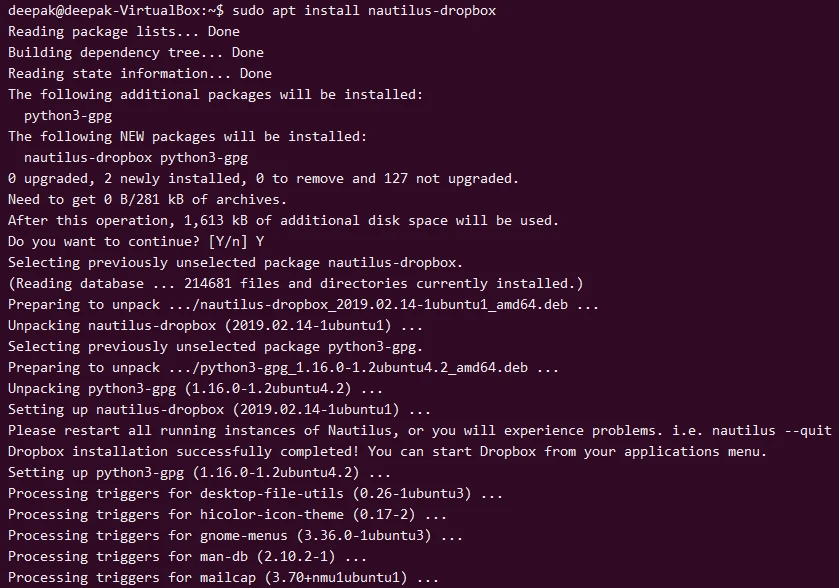
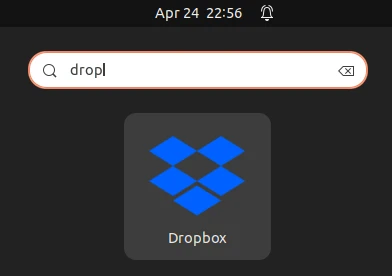
Once installed, you can find Dropbox in your applications menu.
Method-3: Downloading and Installing the Official .deb Package
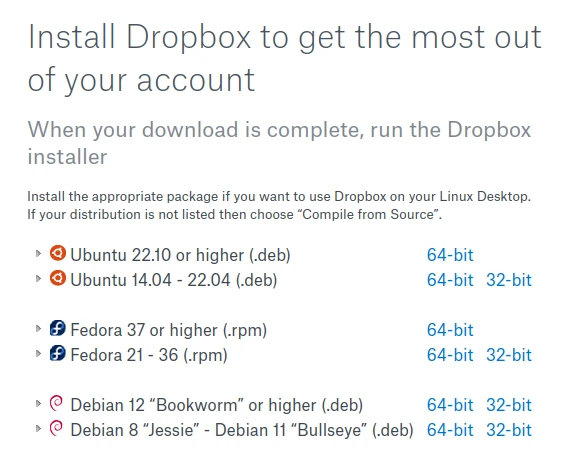
Visit the
Dropbox Linux Download Page and download
the appropriate .deb file for your architecture.
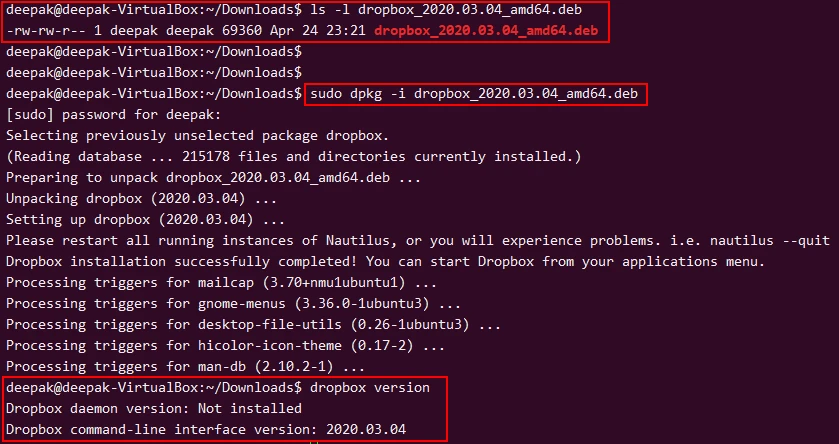
Open Terminal and navigate to your download directory, usually
cd ~/Downloads.
Install the package: sudo dpkg -i dropbox_<version>_amd64.deb (replace
<version> with the version number of the downloaded file).
sudo dpkg -i dropbox_2024.01.22_amd64.deb
Method-4: Installing Dropbox via Flatpak
For users who prefer using Flatpak, an alternative package management system. First, ensure Flatpak is installed:
sudo apt install flatpak
Add the Flathub repository, where the Dropbox Flatpak is available:
sudo flatpak remote-add --if-not-exists flathub https://flathub.org/repo/flathub.flatpakrepo
Install Dropbox:
sudo flatpak install flathub com.dropbox.Client
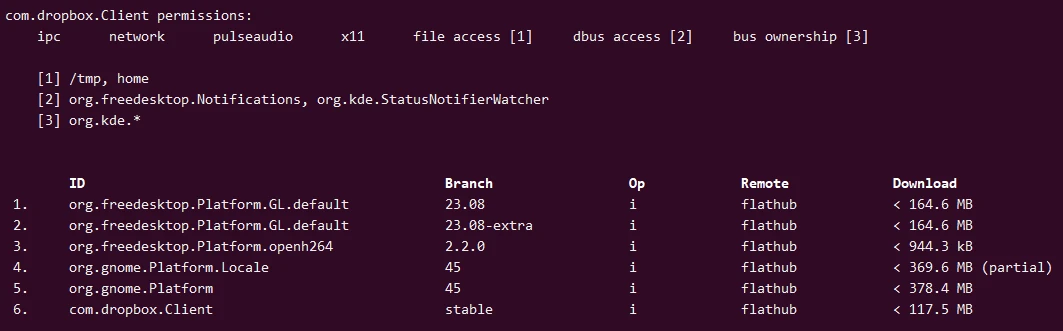
Please NOTE that Flatpak installations are sandboxed and might operate differently from native packages.
If you wish to uninstall dropbox installed via Flatpak then you can execute:
flatpak uninstall com.dropbox.Client
Method-5: Install Dropbox Headless via Command Line
You can directly install the latest available dropbox based on your CPU architecture:
cd ~ && wget -O - "https://www.dropbox.com/download?plat=lnx.x86_64" | tar xzf -
Next, run the Dropbox daemon from the newly
created.dropbox-distfolder.
~/.dropbox-dist/dropboxd
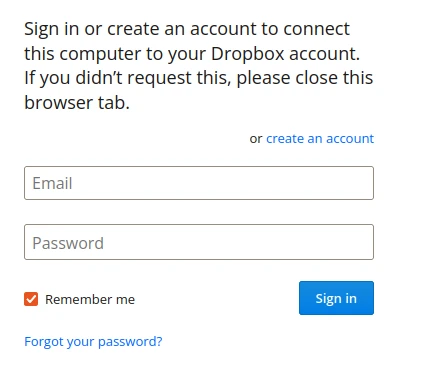
You can also connect to your Dropbox account using the Sign In option as shown below:
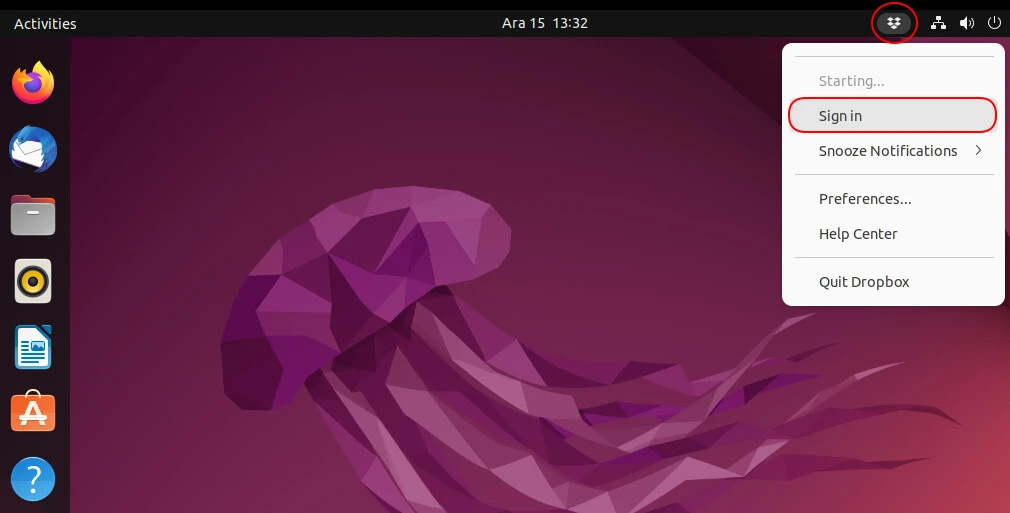
Enter your Dropbox account information and sign in:
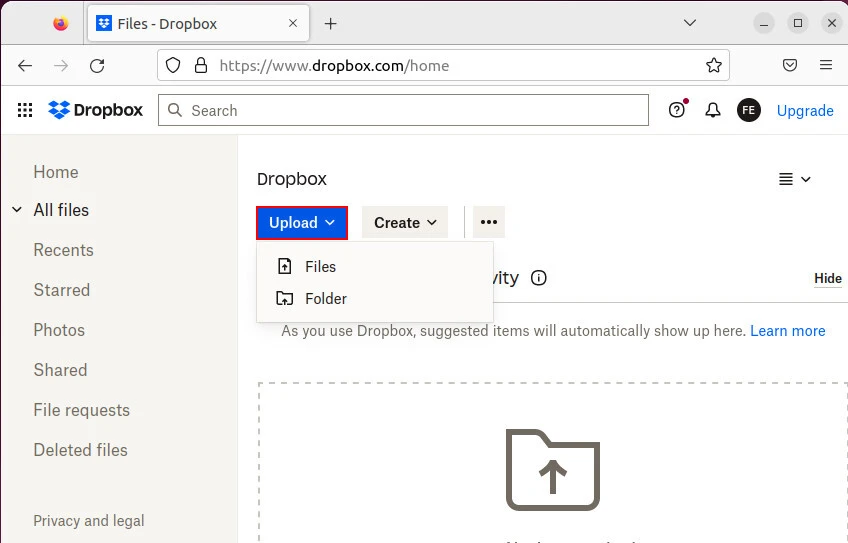
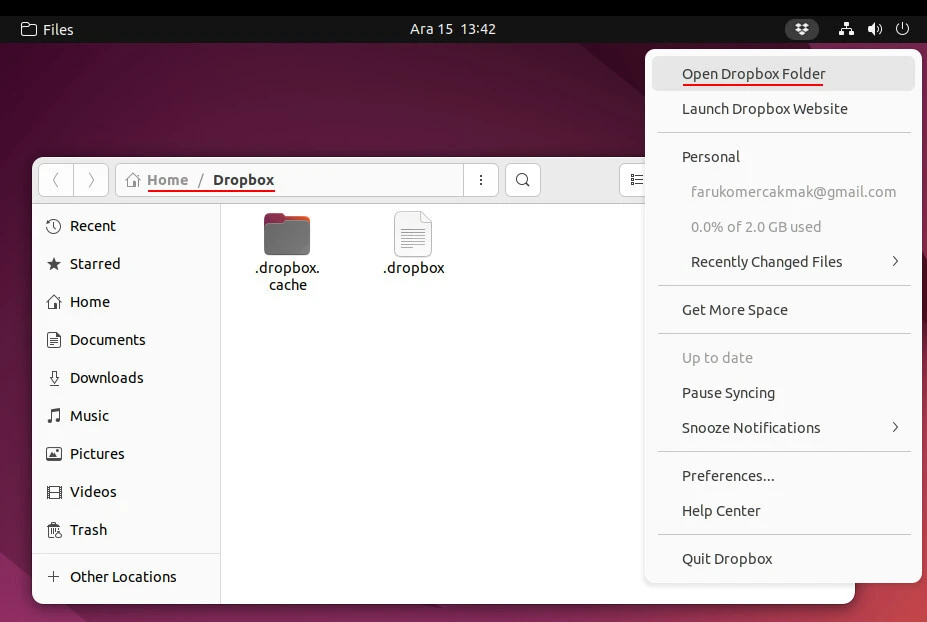
With Open Dropbox Folder, you can access the files you access from the web browser with the Files application.
Method-6: Installing Dropbox Using Third-Party Repository
In this step the official Dropbox repository is added to the system.
Open a terminal and execute the following command to receive the key:
sudo gpg --keyserver keyserver.ubuntu.com --recv-keys FC918B335044912E
Once the key is imported, export it to a .gpg file within the trusted
directory inside /etc/apt/trusted.gpg.d/:
sudo gpg --export FC918B335044912E | sudo tee /etc/apt/trusted.gpg.d/dropbox.gpg > /dev/null
Create a file under the sources.list.d directory and type the
repository address:
echo "deb [arch=amd64 signed-by=/etc/apt/trusted.gpg.d/dropbox.gpg] http://linux.dropbox.com/ubuntu $(lsb_release -cs) main" | sudo tee /etc/apt/sources.list.d/dropbox.list
Update the packages list:
sudo apt update
Then install the Dropbox package:
sudo apt install dropbox -y
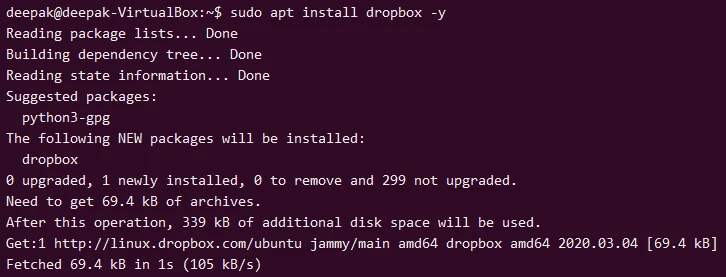
Installation is complete.
You should be careful while sharing your files and information with applications. Take care to download the packages you use from their official websites.
We set up Dropbox in 3 different ways. Of course, installation from Ubuntu repositories is recommended for both stability and reliability.
You can read more at Install Dropbox