![How to install 32bit application with Wine? [SOLVED]](/install-32bit-application-with-wine/install-32-bit-app-wine.jpg)
Wine is a free application that enables Windows software to run on POSIX-compliant operating systems such as Linux and Mac OS X. Wine stands for “Wine Is Not an Emulator”.
Instead of virtual machine or emulator in built-in Windows logic; Wine instantly converts Windows API calls to POSIX calls, avoiding the performance and memory losses that other methods suffer from. It allows you to integrate Windows applications cleanly into your desktop.
32 and 64 bit applications can be installed with Wine. In any Linux distribution, the packages that need to be installed vary according to the architecture you want to install.
In this article, we will explain the steps required to install applications with 32-bit architecture on the Ubuntu distribution.
To run a 32-bit exe application on any Linux distribution, the best method is to use wine. You can install wine or install with the PlayOnlinux wine emulator.
Method-1: Install 32 Bit Application with Wine
Install wine32 package
Update the package repository before package installation:
foc@ubuntu22desktop:~$ sudo apt update -y
Then install the wine32 package:
foc@ubuntu22desktop:~$ sudo apt install wine32 -y
Installed wine32 package version:
foc@ubuntu22desktop:~$ wine --version
wine-6.0.3 (Ubuntu 6.0.3~repack-1)
We have a 32-bit application:
foc@ubuntu22desktop:~/Downloads$ ls
winrar-x32-620tr.exe
Now type the 32-bit application name after the wine command in the terminal:
foc@ubuntu22desktop:~/Downloads$ wine winrar-x32-620.exe
Then the installation of the application starts with the graphical interface:
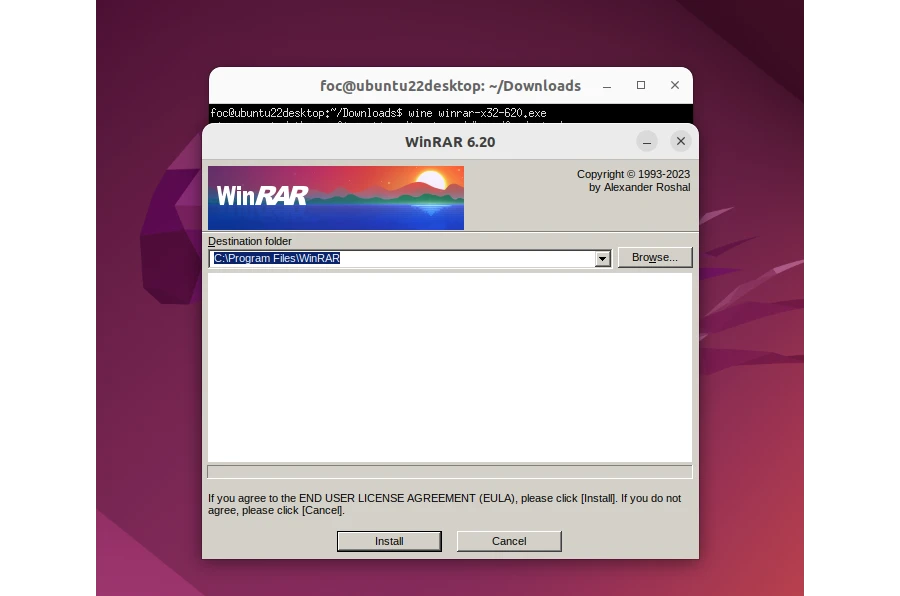
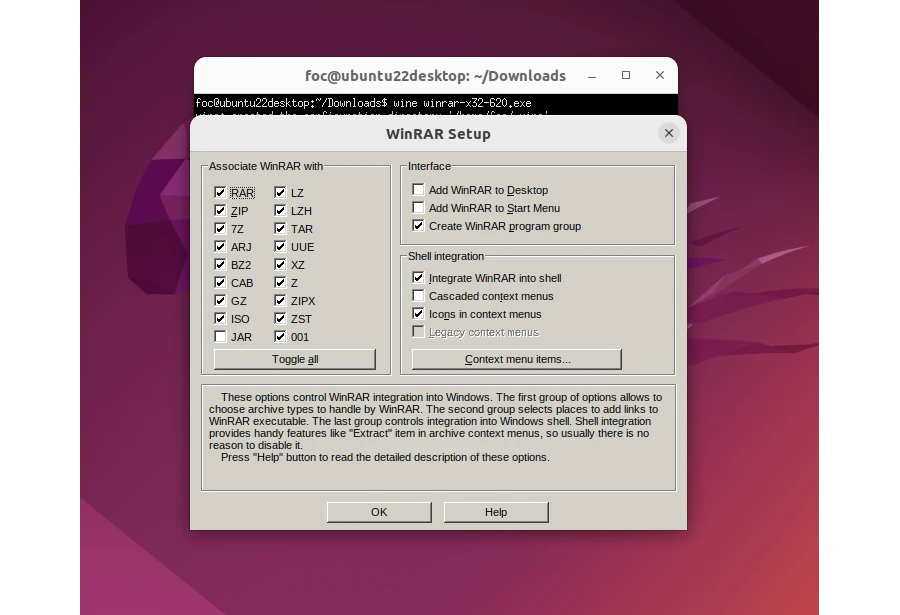
When the installation of the application is complete, you can now access it from the menu:
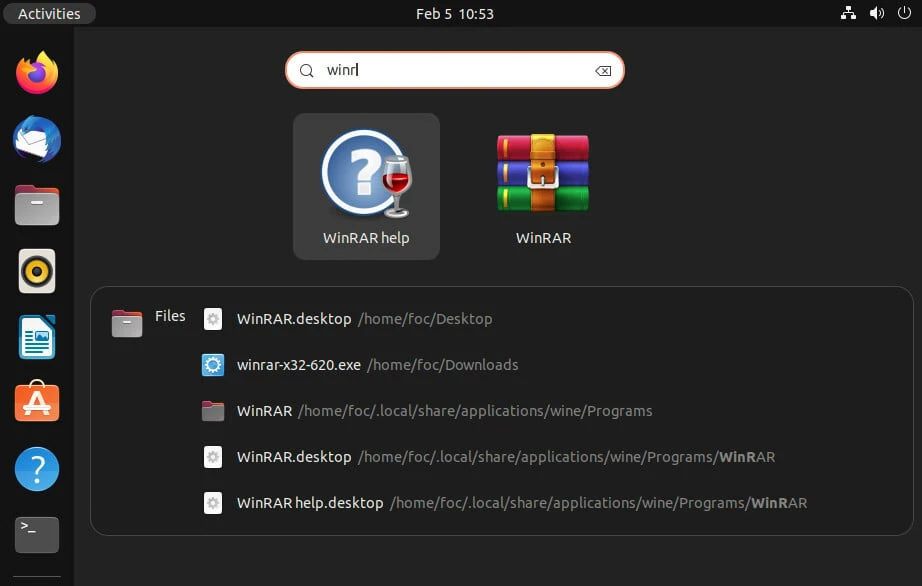
Many 32-bit applications can be installed using this method. The point here is that the wine32 bit package is installed on the system, giving you an environment to install 32 bit applications.
Change Default WINEPREFIX
In wine installation the WINEPREFIX value is “$HOME/.wine”. When you go to this directory from the GUI, you can see it:
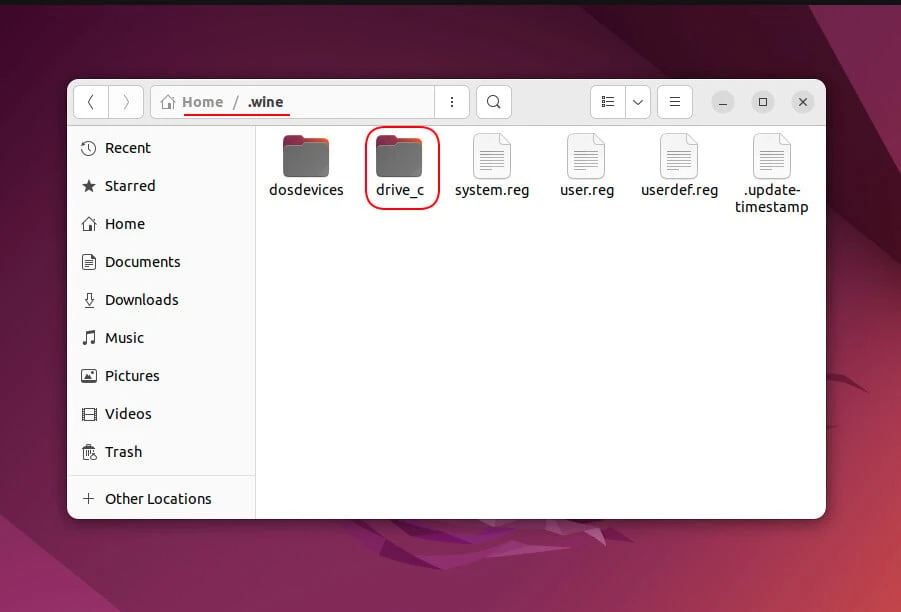
Delete the old .wine directory:
foc@ubuntu22desktop:~$ rm -rf ~/.wine
Then create the new WINEPREFIX directory:
foc@ubuntu22desktop:~$ mkdir ~/.MyWine
For installation, type the command like this:
foc@ubuntu22desktop:~$ WINEARCH=win32 WINEPREFIX=~/.MyWine wine winrar-x32-620.exe
The installation was successfully done to the specified directory.
foc@ubuntu22desktop:~$ ls ~/.MyWine/drive_c/Program\ Files/WinRAR
7zxa.dll      Order.htm   RarExt64.dll  Uninstall.exe  WinRAR.chm  zipnew.dat
Default.SFX   Rar.exe     RarFiles.lst  Uninstall.lst  WinRAR.exe
Descript.ion  Rar.txt     ReadMe.txt    WhatsNew.txt   Zip.SFX
License.txt   RarExt.dll  UnRAR.exe     WinCon.SFX     rarnew.dat
Method-2: Install 32 Bit Application with PlayOnLinux
In the previous step, we installed an application with wine32 in the terminal. PlayOnlinux is used to use Wine with GUI.
Start by updating the package repository:
foc@ubuntu22desktop:~$ apt update -y
Then install the playonlinux package:
foc@ubuntu22desktop:~$ sudo apt install playonlinux -y
Now open PlayOnLinux from the menu and start the application installation:
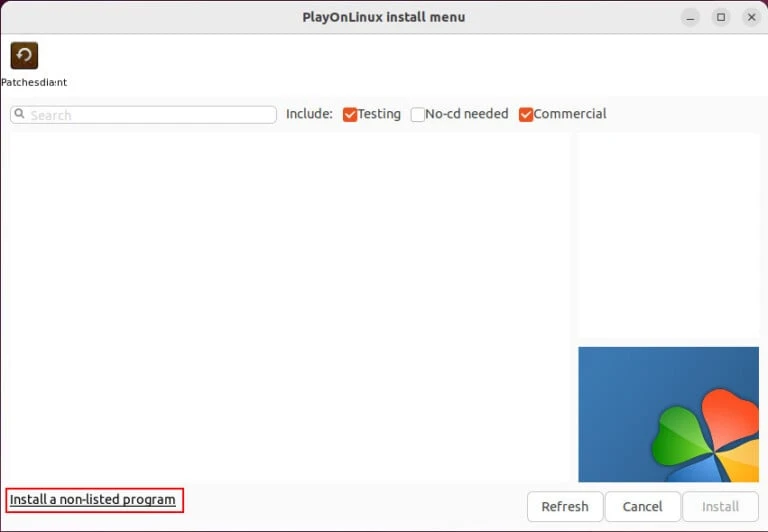
- During a PlayOnLinux installation > Next
- PlayOnLinux is not related to WineHQ > Next
- Welcome to PlayOnLinux manual installation wizard > Next
- What would you like to do? > Install a program in a new virtual drive > Next
- Give the virtual drive a name > Winrar
You can configure it before installation if you want, but if you are installing for the first time, continue with Next.
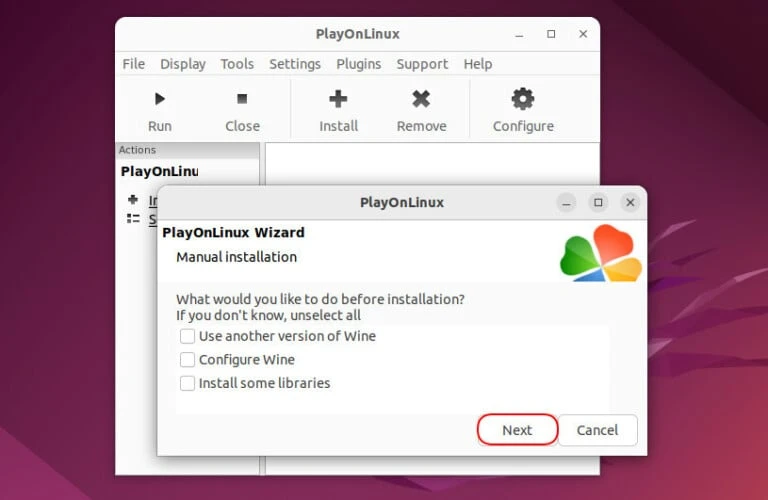
- 32 bits windows installation > Next
- Browse > Select your .exe file. > Next
Enter a name without spaces:
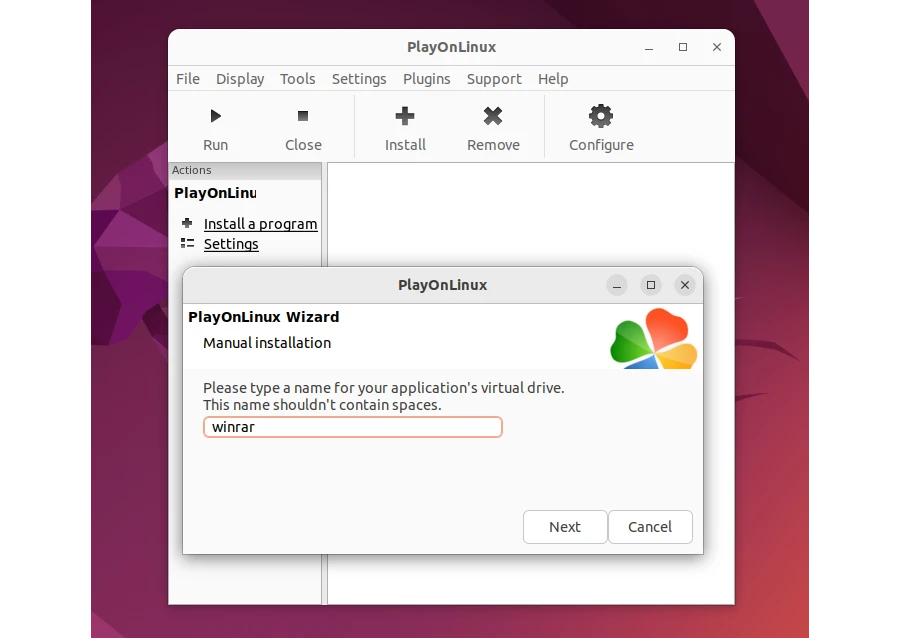
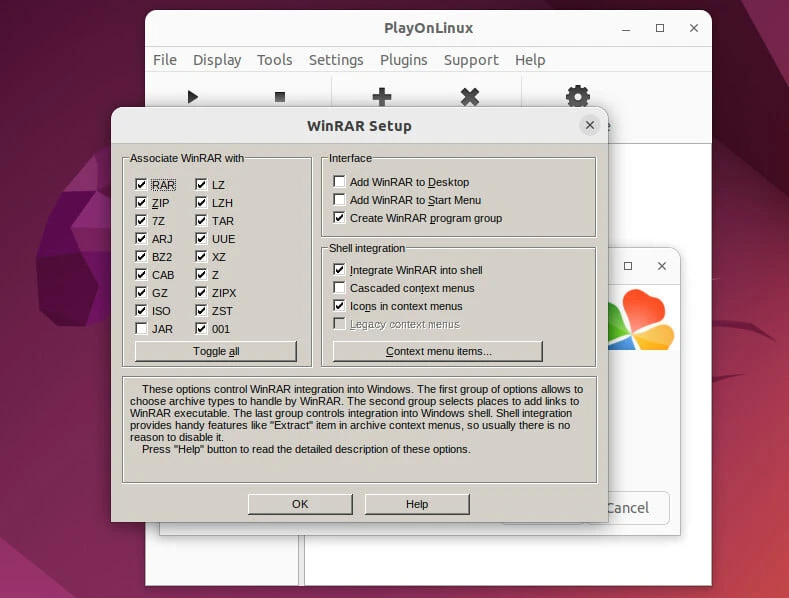
After this step, the installation of the application you choose to install starts:
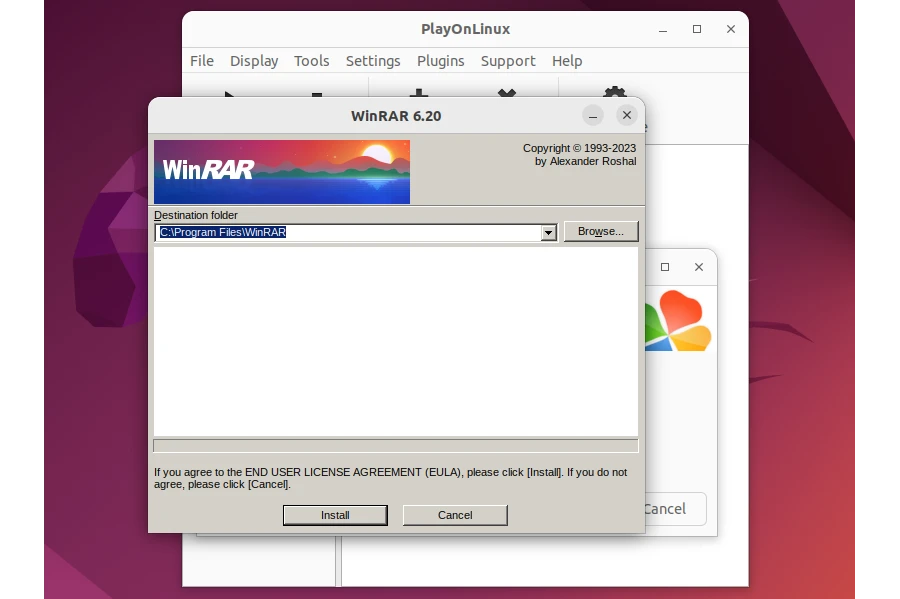
The installation of the application is completed:
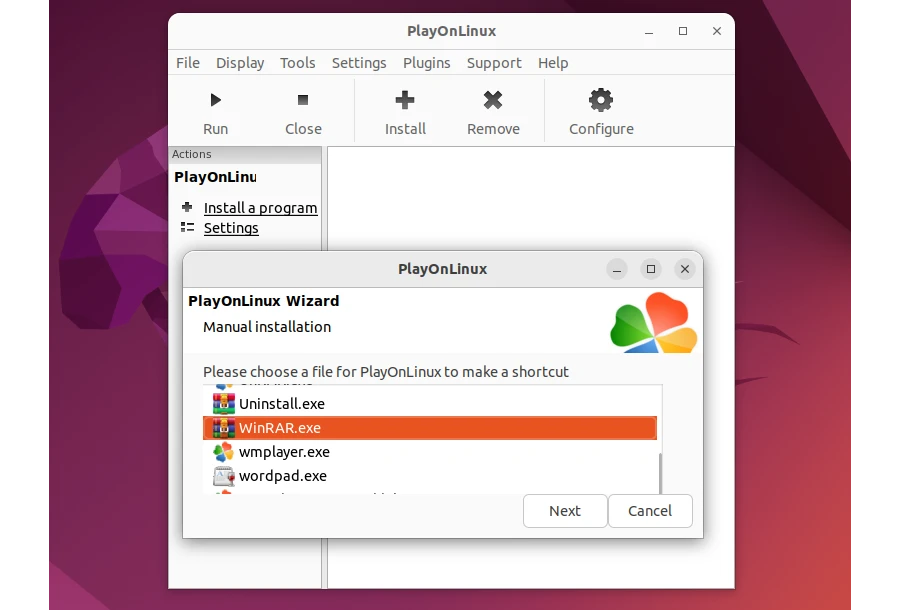
Create a shortcut in PlayOnlinux:
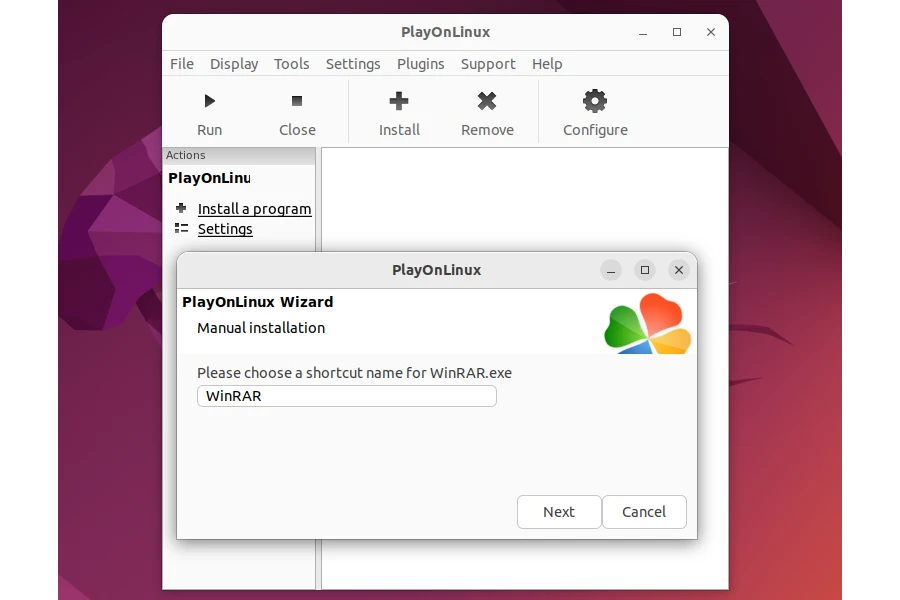
Name the shortcut:
Continue without creating any other shortcuts:
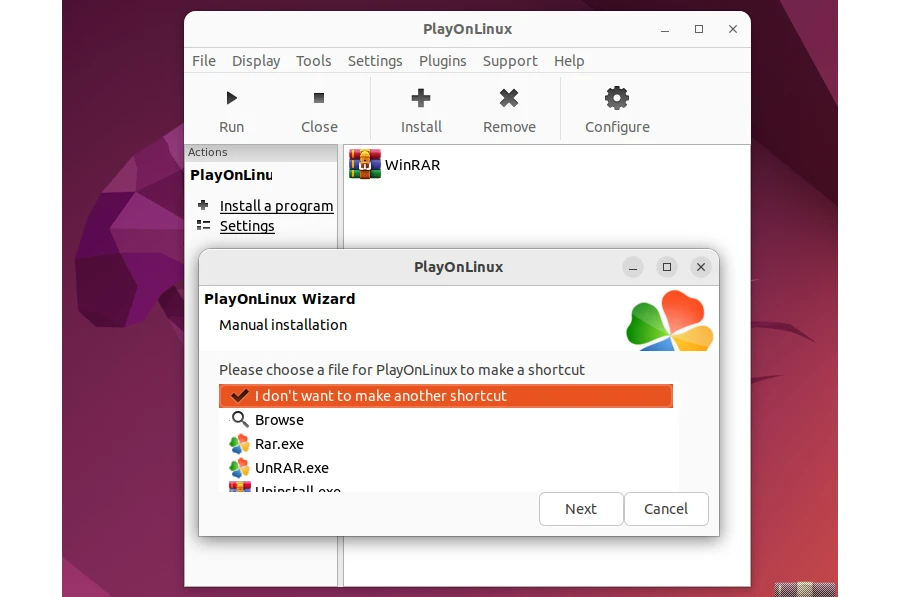
The installation is complete, you can start the application with the shortcut in PlayOnlinux:
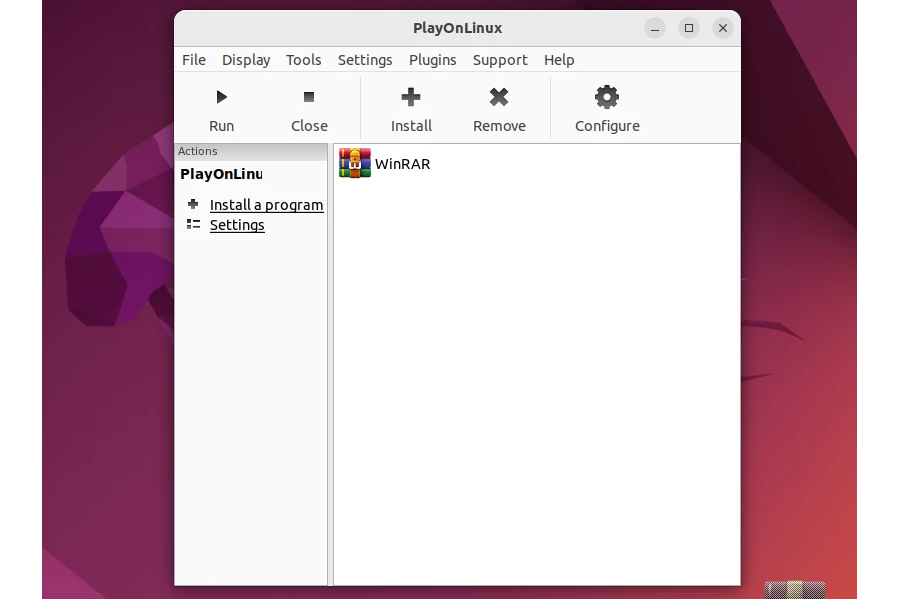
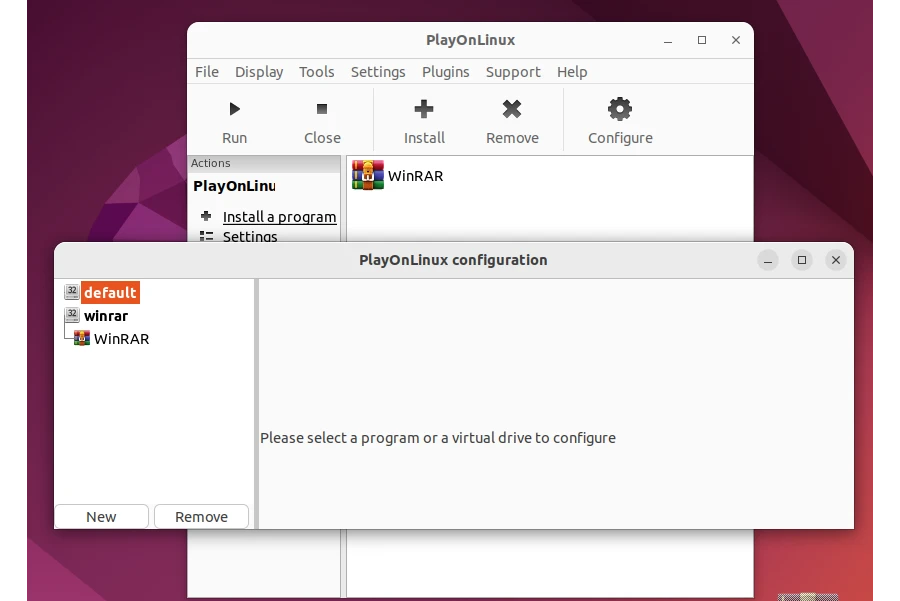
In PlayOnlinux you can see that wine is installed as 32-bit:
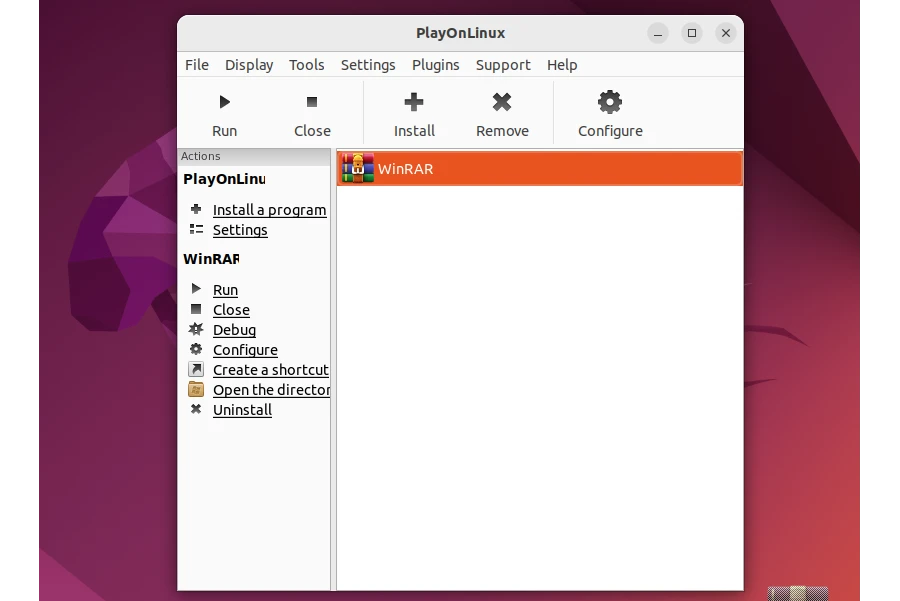
You can start the application with the top menu or “Run” from the right of the screen:
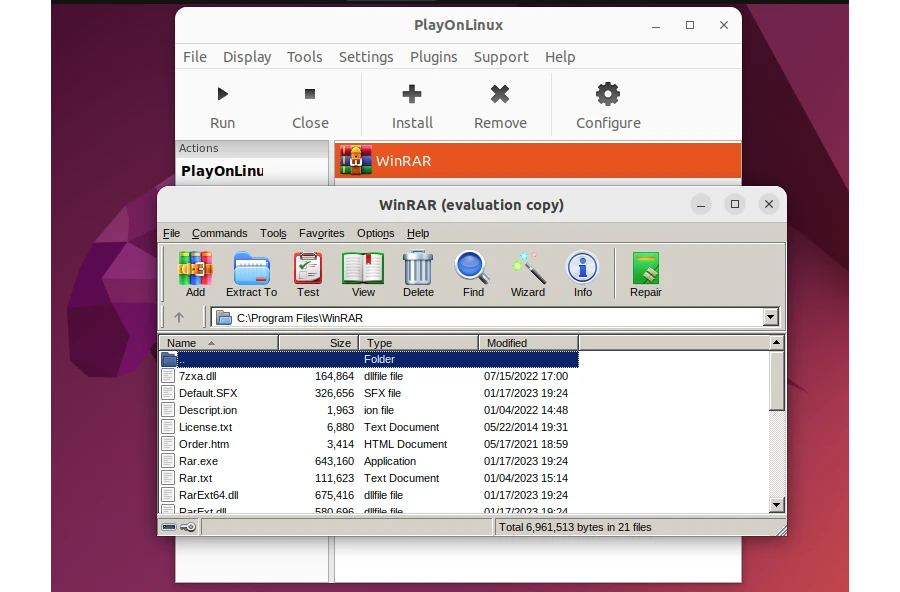
The application shortcut cerate on the screen. Give permission to run with “Allow Launching”.
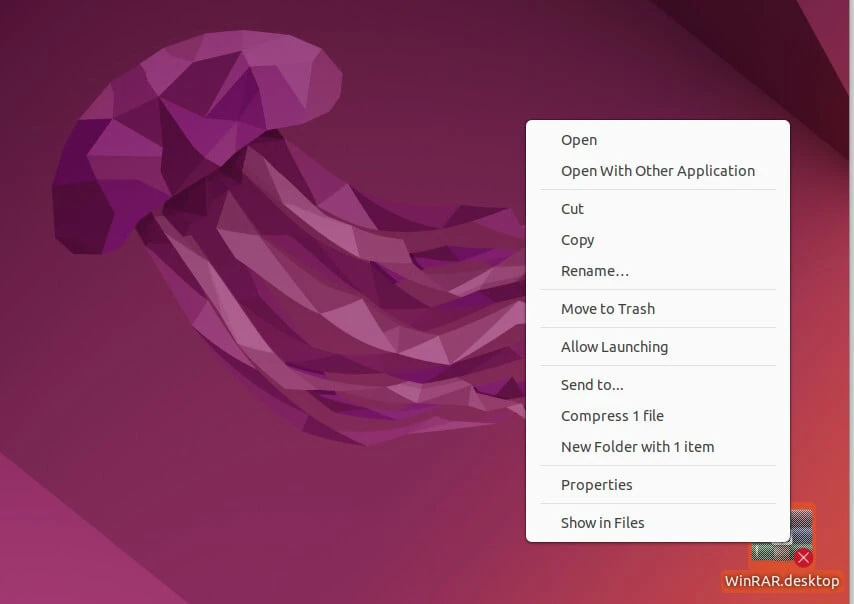
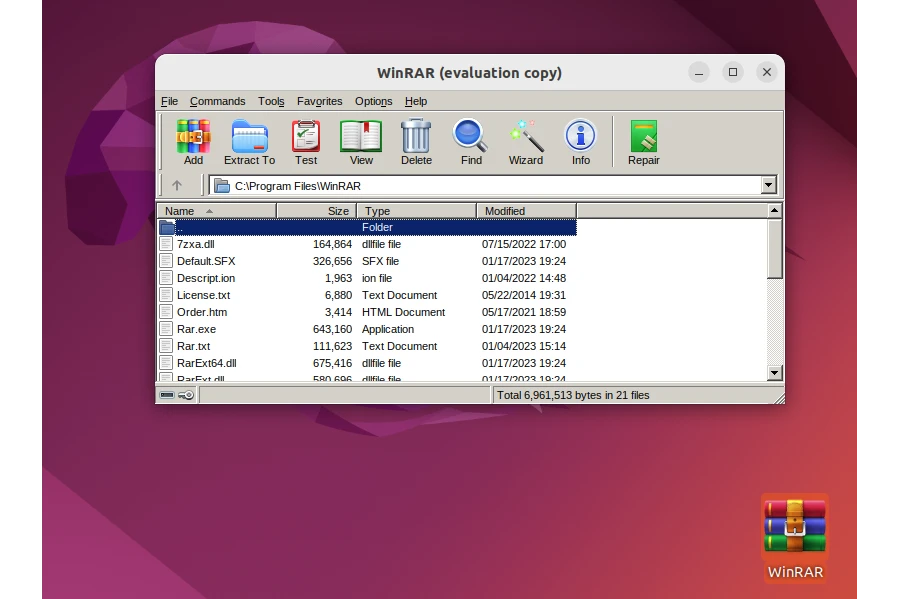
You can access your application from both the shortcut on the desktop and PlayOnlinux.
In wine installation and application installation with PlayOnLinux, the WINEPREFIX value is created in the “~/.PlayOnLinux/wineprefix/winrar/” directory.
foc@ubuntu22desktop:~$ ls .PlayOnLinux/wineprefix/winrar/
dosdevices playonlinux.cfg system.reg userdef.reg
drive_c
From the GUI it looks like this:
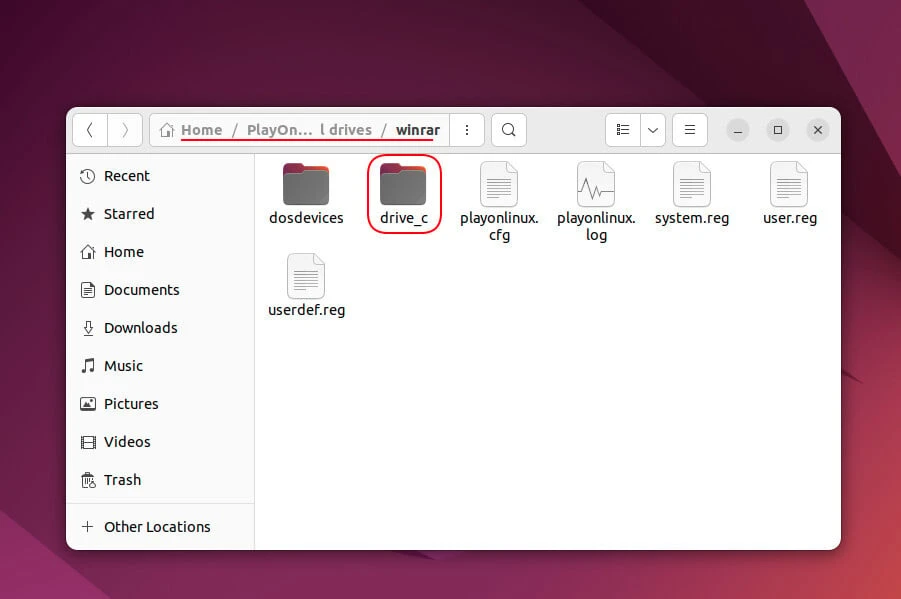
Modification is not recommended as it will break all its shortcuts.
Summary
We installed windows applications with 32-bit architecture with both wine and PlayOnLinux. We gave an example of replacing WINEPREFIX. Although you can change it, it is recommended that you follow the system’s standards.
References
wine.htmlvalidator.com - How to Install Wine on Ubuntu
20.04 LTS
forum.winehq.org
-Make 32-bit
WINEPREFIX on 64-bit System
askubuntu.com -How to install wine32 on ubuntu
18.04 64bit?