
![How to upgrade CentOS 7 to 8 PROPERLY [100% Working]](/how-to-upgrade-centos-7-to-8-properly/upgrade-centos-7-to-8.jpg)
The process of upgrading from CentOS 7 to CentOS 8 is not straightforward. There are significant differences between the two versions, including the underlying package management system and system libraries. For example, CentOS 8 uses dnf as the default package manager while CentOS 7 uses yum.
However, many users still prefer in-place upgrades for various reasons. This guide provides step-by-step instructions on how to upgrade from CentOS 7 to CentOS 8 while ensuring system stability and minimizing potential issues.
Steps to upgrade CentOS 7 to 8 Linux
Step 1. Pre-Upgrade Preparation
You have to make sure your CentOS system is connected to Internet or else you will not be able to follow this tutorial. You may try configuring offline repositories and using them for upgrade but I am not used them so can’t comment if they would work.
Currently I am running on CentOS 7.6.1810 and I plan to upgrade to CentOS 8.5.2111.

First things first: ensure that all packages are up-to-date using yum which is the default package manager in CentOS 7:
yum update -y
Once this operation completes, reboot the system to activate the new changes.
reboot
Once completed install epel-release and yum-utils:
yum install epel-release -y
yum install yum-utils -y
Here, epel-release provides additional packages for Enterprise Linux,
while yum-utils offers utilities that extend yum’s functionality.
Use rpmconf to identify and resolve configuration file conflicts, and
remove
obsolete packages.
yum install rpmconf -y
rpmconf -a
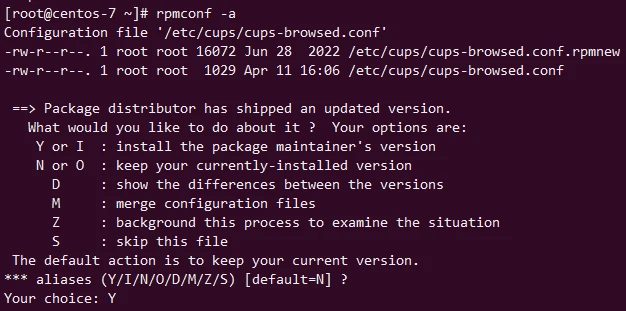
When prompted whether you want to keep current configuration files or replace them with new ones. You will be presented with options like: “install new”, “always keep”, etc. Select the most appropriate option for each file by pressing the corresponding letter key and then Enter. This step helps in identifying and addressing potential configuration file conflicts before the upgrade.
Step 2. Initiating the Upgrade to CentOS 8
CentOS 8 uses dnf as its package manager. Installing dnf prepares
the system for the upgrade process.
yum install dnf -y

DNF is designed to be backward compatible with YUM but offers improved performance and additional features.
To avoid conflicts between package managers, remove yum and its
associated metadata.
dnf -y remove yum yum-metadata-parser
rm -Rf /etc/yum
This step ensures that the old package manager does not interfere with the upgrade process.
Perform an initial system upgrade using dnf to ensure all current
packages are up-to-date.
dnf upgrade -y
Step 3. Configuring CentOS 8 Repositories
To access CentOS 8 packages, update the repository configuration to point to CentOS 8 repositories. We will be upgrading to CentOS 8.5.2111 hence we are using it’s repositories.
dnf install http://vault.centos.org/8.5.2111/BaseOS/x86_64/os/Packages/{centos-linux-repos-8-3.el8.noarch.rpm,centos-linux-release-8.5-1.2111.el8.noarch.rpm,centos-gpg-keys-8-3.el8.noarch.rpm}
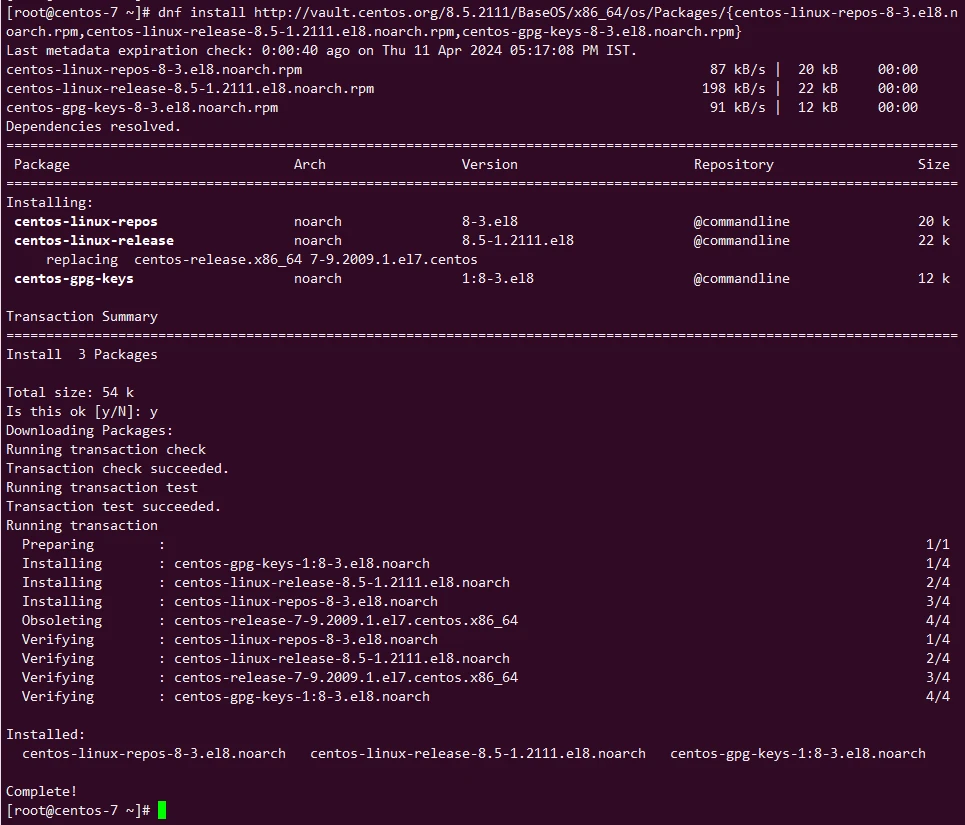
Installing these packages updates the system’s repository configurations to CentOS 8, ensuring access to the new package base.
The Extra Packages for Enterprise Linux (EPEL) repository must also be upgraded to its CentOS 8 version.
dnf -y upgrade https://dl.fedoraproject.org/pub/epel/epel-release-latest-8.noarch.rpm --best --allowerasing
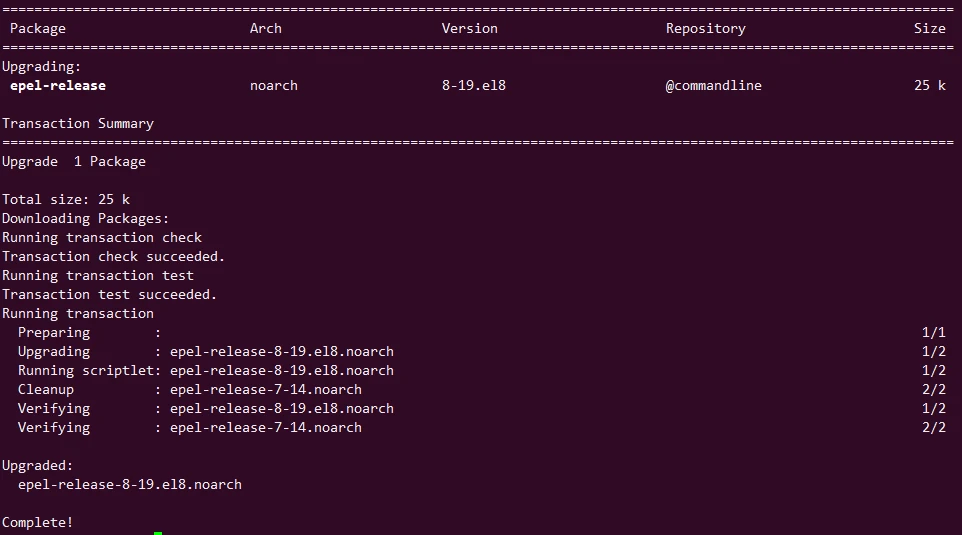
Manually update the BaseOS and AppStream repository URLs to
ensure they point to the CentOS 8 vault. This is required as the default
mirrorlist and baseurl are not available any more and you may get
below error while trying to use them:
Failed to synchronize cache for repo 'baseos', ignoring this repo.
Failed to synchronize cache for repo 'appstream', ignoring this repo.
Comment out mirrorlist and replace baseurl as highlighted below for
/etc/yum.repos.d/CentOS-Linux-BaseOS.repo:
[baseos]
name=CentOS Linux $releasever - BaseOS
#mirrorlist=http://mirrorlist.centos.org/?release=$releasever&arch=$basearch&repo=BaseOS&infra=$infra
#baseurl=http://mirror.centos.org/$contentdir/$releasever/BaseOS/$basearch/os/
baseurl=http://vault.centos.org/centos/8/BaseOS/$basearch/os/
gpgcheck=1
enabled=1
gpgkey=file:///etc/pki/rpm-gpg/RPM-GPG-KEY-centosofficial
Similarly comment out mirrorlist and replace baseurl as highlighted
below for /etc/yum.repos.d/CentOS-Linux-AppStream.repo:
[appstream]
name=CentOS Linux $releasever - AppStream
#mirrorlist=http://mirrorlist.centos.org/?release=$releasever&arch=$basearch&repo=AppStream&infra=$infra
#baseurl=http://mirror.centos.org/$contentdir/$releasever/AppStream/$basearch/os/
baseurl=http://vault.centos.org/centos/8/AppStream/$basearch/os/
gpgcheck=1
enabled=1
gpgkey=file:///etc/pki/rpm-gpg/RPM-GPG-KEY-centosofficial
Clear the DNF cache to remove any stale metadata.
dnf clean all
Validate the repo content:
dnf repolist
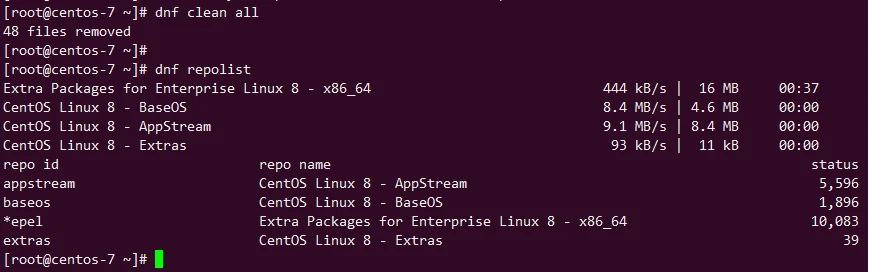
So it looks like our repository list has successfully fetched packages
from the provided baseurl.
Step 4. Finalizing the Upgrade
To prevent potential boot issues, remove the CentOS 7 kernel. This step might involve manual intervention to address dependencies.
rpm -e `rpm -q kernel`
In my case I got a long list of dependency warning. Now here is a tricky part and one answer may not suit for all.
You will have to go through the dependency list and try to remove them
using yum remove <package>. If the packages marked as dependency are
protected by system then yum remove command will return error such as
Error: Trying to remove "systemd", which is protected. So in such case
you will have to continue to remove the kernel using --nodeps.
In my case I tried to remove the packages which were causing dependency
for kernel removal. It is IMPORTANT that you don’t use -y here
with dnf command.
Once you execute this command, you will be presented with the list of dependent
packages which will be removed, you must go through the list
thoroughly and take a decision if you still want to continue with
removal or skip the same and use --nodeps.
dnf itself
will fail even if you choose to continue with removal.
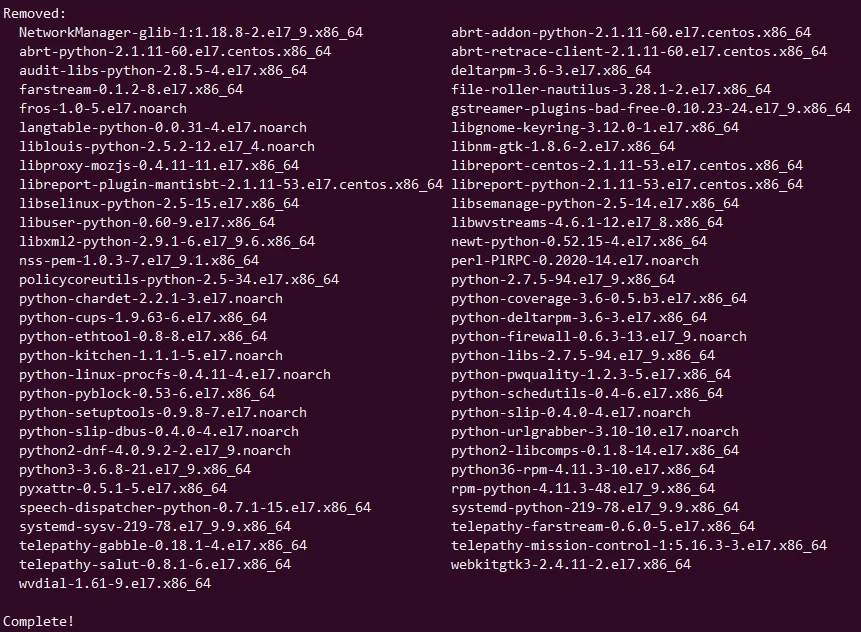
dnf remove kmod-kvdo hypervkvpd hypervfcopyd hypervvssd
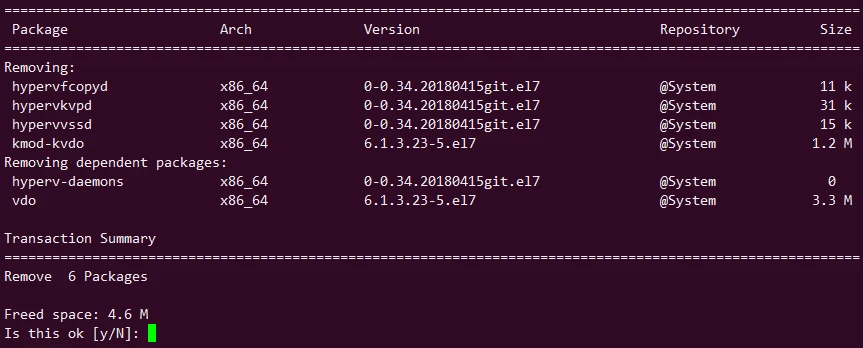
The above package list doesn’t look mission critical to me so I choose to remove them after which I was able to successfully remove kernel.
rpm -e `rpm -q kernel`

Remove packages that could cause conflicts during the final synchronization.
rpm -e --nodeps sysvinit-tools
Perform a distribution synchronization to align your system completely with CentOS 8.
dnf -y --releasever=8 --allowerasing --setopt=deltarpm=false distro-sync
The above command failed with below error during transaction check:
Running transaction check
Error: transaction check vs depsolve:
(NetworkManager >= 1.20 or dhclient) is needed by dracut-network-049-191.git20210920.el8.x86_64
rpmlib(RichDependencies) <= 4.12.0-1 is needed by dracut-network-049-191.git20210920.el8.x86_64
(flatpak-selinux = 1.8.5-5.el8_5 if selinux-policy-targeted) is needed by flatpak-1.8.5-5.el8_5.x86_64
rpmlib(RichDependencies) <= 4.12.0-1 is needed by flatpak-1.8.5-5.el8_5.x86_64
To diagnose the problem, try running: 'rpm -Va --nofiles --nodigest'.
You probably have corrupted RPMDB, running 'rpm --rebuilddb' might fix the issue.
The downloaded packages were saved in cache until the next successful transaction.
You can remove cached packages by executing 'dnf clean packages'.
So looks like I have to try and remove some more packages which are causing conflicts with the CentOS 7 to 8 upgrade.
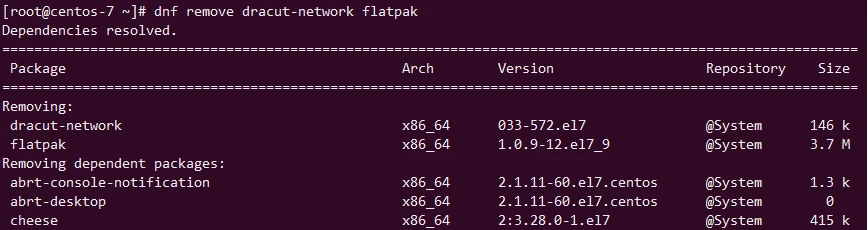
Once this completes, it is a good idea to execute below command to look out for any more packages which could act as potential conflicts:
rpm -Va --nofiles --nodigest
I got the below list:
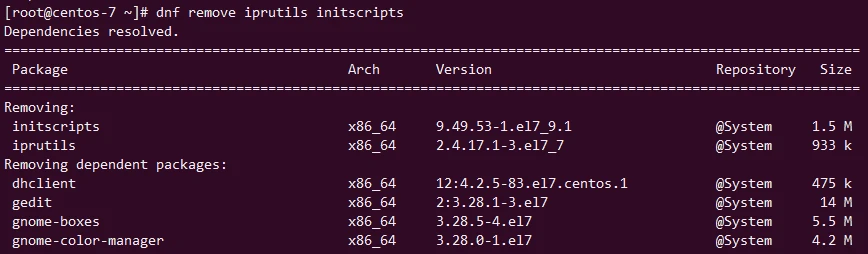
Unsatisfied dependencies for iprutils-2.4.17.1-3.el7_7.x86_64:
    /sbin/pidof is needed by (installed) iprutils-2.4.17.1-3.el7_7.x86_64
Unsatisfied dependencies for initscripts-9.49.53-1.el7_9.1.x86_64:
    sysvinit-tools >= 2.87-5 is needed by (installed) initscripts-9.49.53-1.el7_9.1.x86_64
So I try to remove them as will which gives me a another big set of dependent packages but fortunately nothing protected by system and the uninstall is successful.
Next I will re-trigger the distro synchronization:
dnf -y --releasever=8 --allowerasing --setopt=deltarpm=false distro-sync
This time the run fails with below error (It seems like this is a never ending road!):
Running transaction check
Transaction check succeeded.
Running transaction test
The downloaded packages were saved in cache until the next successful transaction.
You can remove cached packages by executing 'dnf clean packages'.
Error: Transaction check error:
  file /usr/lib/python3.6/site-packages/rpmconf/__pycache__/rpmconf.cpython-36.opt-1.pyc from install of python3-rpmconf-1.1.7-2.el8.1.noarch conflicts with file from package python36-rpmconf-1.1.7-1.el7.1.noarch
  file /usr/lib/python3.6/site-packages/rpmconf/__pycache__/rpmconf.cpython-36.pyc from install of python3-rpmconf-1.1.7-2.el8.1.noarch conflicts with file from package python36-rpmconf-1.1.7-1.el7.1.noarch
  file /usr/share/man/man3/rpmconf.3.gz from install of python3-rpmconf-1.1.7-2.el8.1.noarch conflicts with file from package python36-rpmconf-1.1.7-1.el7.1.noarch
  file /usr/bin/pyinotify from install of python3-inotify-0.9.6-13.el8.noarch conflicts with file from package python-inotify-0.9.4-4.el7.noarch
  file /usr/lib64/python2.7/site-packages/cairo/__init__.py from install of python2-cairo-1.16.3-6.module_el8.0.0+36+bb6a76a2.x86_64 conflicts with file from package pycairo-1.8.10-8.el7.x86_64
  file /usr/lib64/python2.7/site-packages/cairo/__init__.pyc from install of python2-cairo-1.16.3-6.module_el8.0.0+36+bb6a76a2.x86_64 conflicts with file from package pycairo-1.8.10-8.el7.x86_64
  file /usr/lib64/python2.7/site-packages/cairo/__init__.pyo from install of python2-cairo-1.16.3-6.module_el8.0.0+36+bb6a76a2.x86_64 conflicts with file from package pycairo-1.8.10-8.el7.x86_64
  file /usr/lib64/python2.7/site-packages/cairo/_cairo.so from install of python2-cairo-1.16.3-6.module_el8.0.0+36+bb6a76a2.x86_64 conflicts with file from package pycairo-1.8.10-8.el7.x86_64
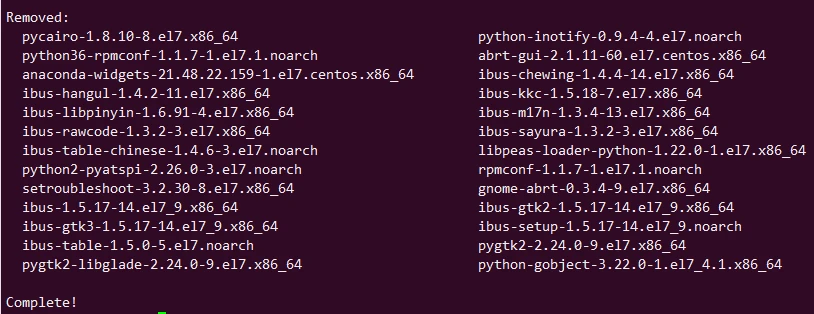
Next I again try to remove the conflicting packages:
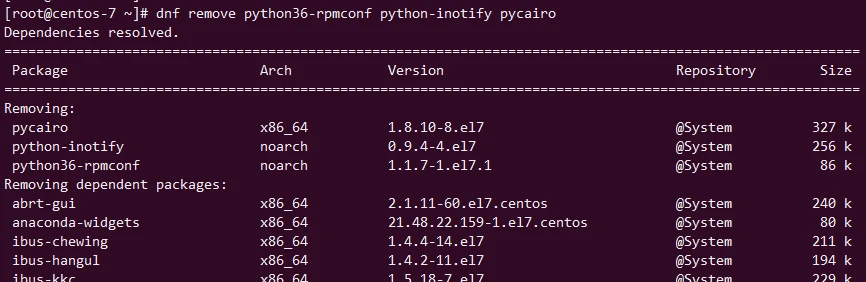
and fortunately this one also goes through (Pheeww!)
Let me retry the distro synchronization to finalize by CentOS 8 upgrade. So this time finally we have crossed the hurdle of conflicting packages and our synchronization update has started successfully:
dnf -y --releasever=8 --allowerasing --setopt=deltarpm=false distro-sync
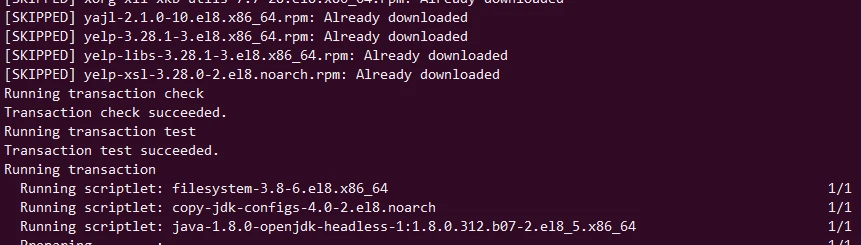
After waiting for few minutes the distro synchronization step was completed successfully.
But just to inform you, in one of my trial runs for testing the upgrade this command completed successfully but I received Segmentation Fault error at the end of the execution.
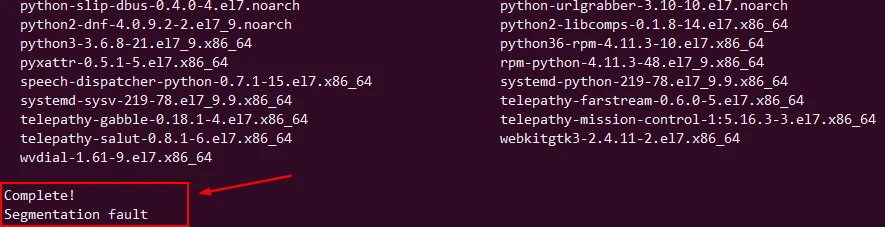
And all other commands were also returning the same error.
[root@centos-7 ~]# dnf repolist
Segmentation fault
So out of no choice I chose to reboot the system and to my surprise the system came back up healthy.
[root@centos-7 ~]# rpm -qa | grep kernel
abrt-addon-kerneloops-2.10.9-21.el8.x86_64
kernel-tools-4.18.0-348.7.1.el8_5.x86_64
kernel-core-4.18.0-348.7.1.el8_5.x86_64
kernel-headers-4.18.0-348.7.1.el8_5.x86_64
kernel-tools-libs-4.18.0-348.7.1.el8_5.x86_64
Well this was about one of my trial runs, but in the current run our
distro sync was 100% successful so next let’s check if kernel-core is
installed or if we need to install it manually:
rpm -qa | grep kernel
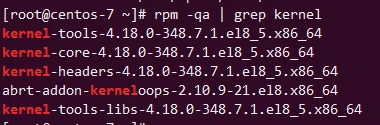
It looks like
kernel-core
has got installed as part of some dependent packages. In your case if it
is not installed automatically then you can install the same using
dnf -y install kernel-core.
Well currently the system still shows loaded with CentOS 7 kernel, so let’s cross our fingers and reboot the system;
reboot
Once the system is UP, verify the running kernel and OS release:
cat /etc/redhat-release
uname -r
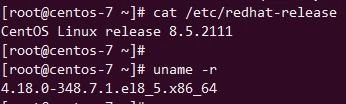
So we have successfully upgraded our CentOS 7 to 8 version.
Now you can go ahead and install any other package required as per your requirement and perform required post checks for your application. It is possible you might had to uninstall some packages due to conflicts so you can go ahead and install them manually using dnf package manager.
After the CentOS 7 to 8 upgrade, you should think about migrating to Rocky Linux, AlmaLinux, or another similar distribution. I am suggesting this because CentOS 8 will reach its end of life (EOL) on December 31, 2021. Afterwards no more updates or security patches are provided by the project. This means that systems running on it can be exposed to risks and become outdated in terms of software.
Conclusion
Transitioning from CentOS 7 to CentOS 8 is a complex process that requires careful and strategic planning. This guide offers a comprehensive approach to upgrading your system, using the power of DNF for a smoother transition. Since system upgrades are complicated and can potentially go wrong, you need backups as well as a recovery plan too just in case things go south. By following this guide, you should be able to use the latest features and improvements in CentOS 8 which will help with enhancing your system’s security and overall performance. It’s always recommended to test out the upgrade process in an environment separate from your main system first before taking any action on it in order to make sure everything is compatible, reducing any damages caused by malfunctions or other disruptions
