![git revert to previous commit [Practical Examples]](/git-revert-to-previous-commit/git_revert-1.jpg)
Introduction - git revert to previous commit
git revert to previous commit is a safe way to undo code changes. The
simplest way to start using it is to understand its significance in
git workflow
and syntax by going through various examples, as you will see in this
article.
3 Commands to enable git revert to previous commit
Git works by tracking changes made to the code. The centralized workflow
enables developer collaborations and code documentation. You can add
and commit Changes to local or remote git repositories, such as
Github, Gitlab, and Bitbucket.
Besides git checkout, the two primary paths you can take to undo commits are git reset and git revert. Your choice of either method depends on your work environment (local or remote git repository) or the level of undoing permanency you seek.
git reset vs git revert explained
Before we go ahead with git revert to previous commit, you must understand the difference between git reset and git revert. At the end of this article, you will have to decide to use either to revert to the previous commit.
git reset only undoes changes made locally. git revert, on the other
hand, undoes changes both local and remote changes on the repo. That
prevents a commit CONFLICT error that often results when you do
--hard reset.
Unlike git reset, which focuses on the most recent code changes,
git revert undoes changes in any commit. Instead of deleting changes
from the history, it undoes the changes and makes a new commit by asking
for a commit message.
The ability to ease file tracking and prevent CONFLICT issues makes
git revert an essential tool for every developer to undo changes in
the remote repo.
Assume we have 3 commits:
3
2
1
- git revert 2, will create a new commit that will undo the changes from 2.
- git revert 1, will create a new commit that will undo the changes in 1 but will not touch changes in 2. Note that if the changes in 2 are dependent on changes in 1, the revert of 1 is not possible.
- git reset –soft 1, will change the commit history and repository; staging and working directory will still be at state 3.
- git reset –mixed 1, will change the commit history, repository, and staging; working directory will still be at the state of 3.
- git reset –hard 1, will change the commit history, repository, staging, and working directory; you will go back to the state of 1 completely.
Git Workflow to perform git revert to previous commit
There are a couple of methods you can choose to revert to previous commit, I will try to cover them based on different scenarios:
## Switch to your branch where you wish to perform revert
git checkout <branch>

## List the commit history
git log --oneline
Scenario-1: Temporarily achieve git revert to previous commit
If you wish to do some hit and trial with the previous commits without disturbing other commits then you should use git checkout
git checkout <commit-id>
If you want to create a new branch starting from a certain commit id then you can use:
git checkout -b <new-branch> <commit-id>
Scenario-2: git revert to previous commit by deleting all un-pushed commits
If you want to revert to the previous commit and delete all commits in between, you can use git reset. But this is assuming that you have not pushed your changes to the remote repo.
## Save your uncommitted work
git stash

## Reset your local branch to a certain commit-id
## This will destroy all commits done till this stage
git reset --hard <commit-id>

## Restore your un-committed changes
git stash pop
Scenario-3: Revert previous commits with new commits
You made some mistake in one of your commits, and you want to fix it with a new commit. So you can use git revert in such a scenario.
git revert --no-commit <commit-id>..HEAD
This will revert everything from the HEAD back to the commit hash,
meaning it will recreate that commit state in the working tree as if
every commit after <commit-id> had been walked back.
Set up Lab Environment
Before using git revert to previous commit, it is essential to have an
environment to simulate the scenarios as we covered above. Here, we will
build a history of three commits.
I am using GitHub to create a new repo, my-code, to demonstrate the steps to perform git revert to previous commit.

I will clone this newly created repo into my Windows laptop.

You can achieve a similar result by running.
git clone <remote repo address>
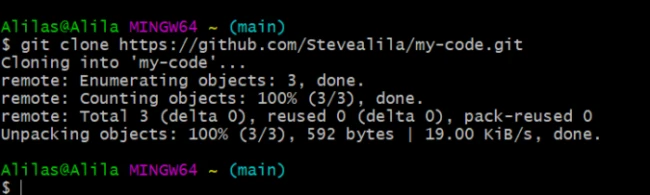
cd into the cloned folder, and create two files (index.html,
style.css).
touch index.html style.css
Check the untracked files using the commands.
git status
We see two untracked (red) files, as shown in the following screenshot.
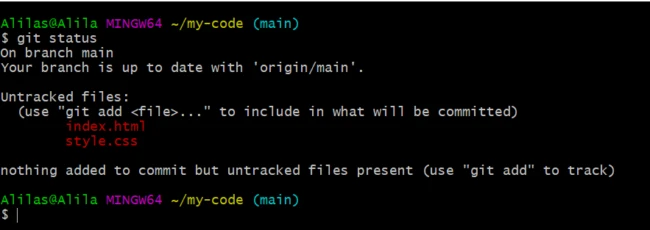
Let’s git add . and git commit the changes with the message
-m "add html and css".
Recheck git status, followed by git log --oneline. Here is what you
see.
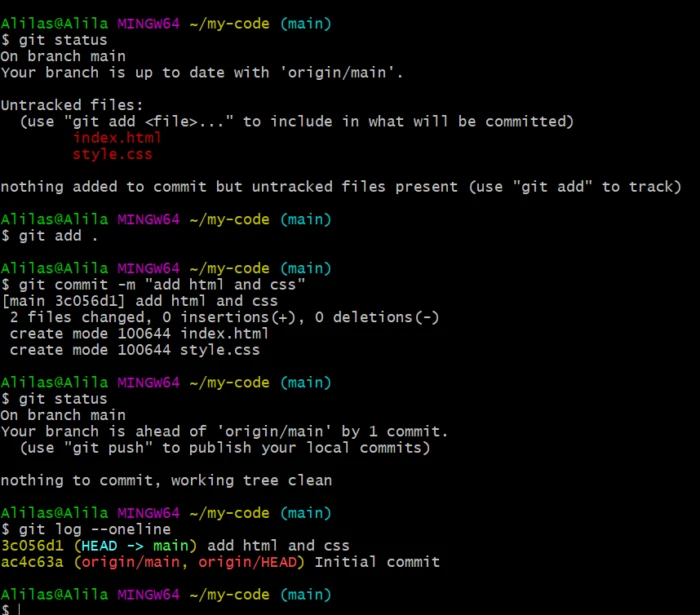
Let’s continue building the history of changes to enable git revert to previous commit.
Add more code lines in the html file, such as:
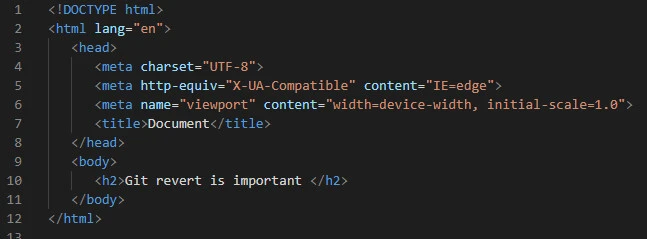
Let’s recheck the status of the repo.
git status
We see that we have modified index.html but it is not tracked.
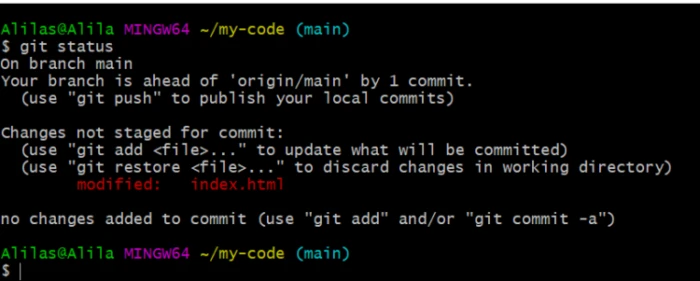
Let’s add, commit and push the changes to the remote repo.
We should see the changes on the remote repo, as shown below:
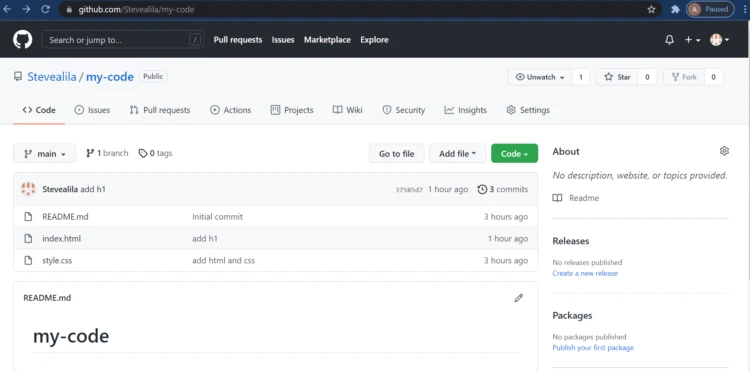
git log --oneline shows we have three commits in the history.
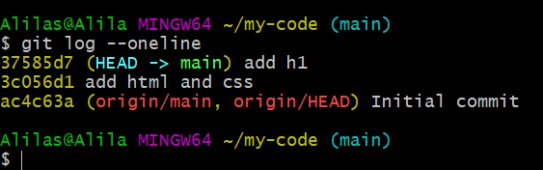
The seven-digit numbers, 37585d7, 3c056d1, and ac4c63a, help track
the commit history. We can use the ids to achieve git revert to previous
commits.
They are short forms of the entire history. Enter git log on the
terminal instead of git log to see the whole hash.
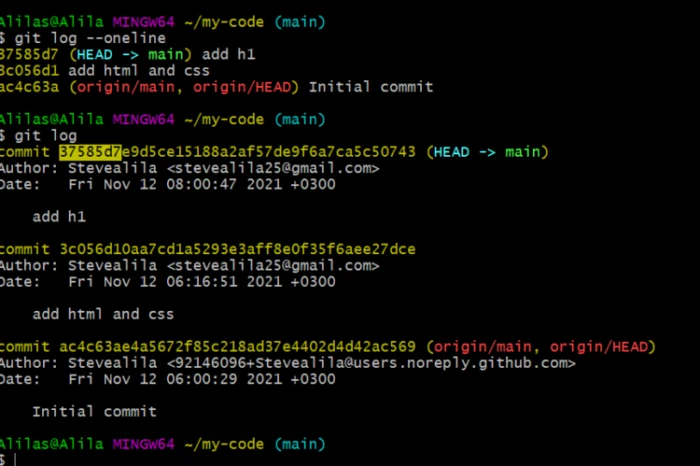
Now is the time to do some git revert to previous commit by running
the three typical commands (checkout, reset and revert).
Example-1: Temporarily revert to previous commit using git checkout
git checkout helps us discard changes in the working tree. For
instance, we can dump all the latest changes made to index.html.
git checkout index.html
or discard all changes in the working area using a period (.), as follows:
git checkout .
Likewise, we can use the commit id
git checkout 37585d7
or create a new branch starting from a specific commit id then you can use:
git checkout -b test 37585d7
Example-2: Use git reset to revert to previous commit
We want to revert to the previous commit and delete all commits from the
history. We can use git reset depending on the stage of change.
git reset --mixed HEAD~1removes the latest commit in the history, keeping all files added before the reset in the working area.git reset --soft HEAD~1keeps all the changes in the staging area.
After the reset, git status shows that the index.html file got
modified.
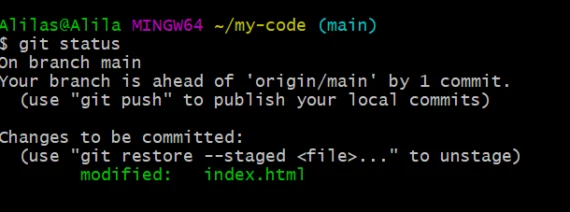
git reset --hard HEAD~1 discards all the working tree and working area
changes. You should use the command to revert changes not pushed to the
remote repo. Otherwise, you will not recover the commits and get a
CONFLICT error resulting from a code difference between remote and
local repos.
Recheck the log history by running the commands:
git log --oneline
This time around, we discarded one commit history, and the head is at the add html and css commit instead of add h1 commit.
Example-3: Safely revert to previous commit using git revert
Assume we want to undo the changes we made to the HTML file. According
to the above history, our focus is on id 3c056d1. Enter
git revert 3c056d1. Git prompts us to enter a commit message via the
code editor.
We can go with the default commit message, Revert "add html and css ".
Did you notice what happened? The contents of our HTML file got cleared,
and a message like this remained on the terminal:
1 file changed, 12 deletions(-)
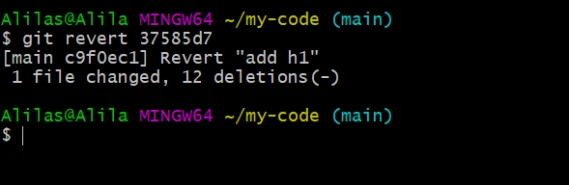
If you git log --oneline, you realize that git revert has not
affected the history. Instead, it has undone the changes and made a new
commit to accommodate the reverts.
--no-commit here to avoid creating a new commit while
performing the revert operation.
Here is another git revert to previous commit example.
Assume we want to undo every change made after we cloned the repo.
Head over to the terminal. git log --oneline to see all commit ids.
Type git revert [initial commit id]. In my case, I’ll enter
git revert ac4c63a.
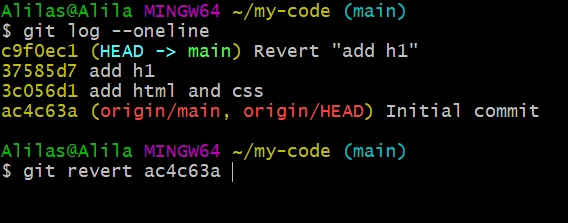
And voila, we are back to the initial stage!
Conclusion
git revert to previous commit is one of the most crucial practices
that every software developer should understand. It enables you to undo
changes in code without affecting the commit history. The simplest way
to start using it is to understand situations when it outperforms
git reset then play with it from local and remote repositories.