![Git remove untracked files simplified [Do's & Don'ts]](/git-remove-untracked-files/git_remove_untracked_files.jpg)
Knowing how to do git remove untracked files using various commands can save you a ton of development and build time.
To remove untracked files from git, run:
git clean -f
or
git clean -fd
to remove both untracked files and directories from git.
Set up a lab environment
We will build everything from scratch to make this tutorial as friendly as possible.
I am creating a remote repo called git_remove_untracked on Github.
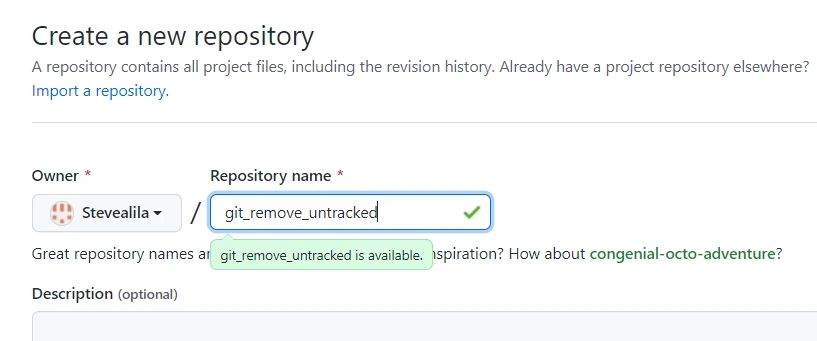
Grab the clone URL
![Git remove untracked files simplified [Do's & Don'ts]](/git-remove-untracked-files/git-clone-URL-e1637555564809.webp)
Then clone it into a local directory called golinux.
![Git remove untracked files simplified [Do's & Don'ts]](/git-remove-untracked-files/terminally-cloned-repo-2-e1637555646185.webp)
It would help to understand some common terms used during git remove untracked files to ease discarding the target files. These are untracked vs tracked and unignored vs ignored files.
Key terms to understand before attempting git remove untracked files
1. untracked vs tracked files
Git does not document untracked file changes despite running git init
in the files’ directory. Once you git add untracked files to the
staging area, they become tracked files.
Here is an example.
cd into the new directory and create file1.txt by running the
command
touch file1.txt
![Git remove untracked files simplified [Do's & Don'ts]](/git-remove-untracked-files/file1-created-e1637555855788.webp)
At this point, we have not authorized git to track our files. Let us do that.
Run
git init
to start tracking files in the git_remove_untracked directory.
Running
git status
reveals that file1.txt is untracked.
![Git remove untracked files simplified [Do's & Don'ts]](/git-remove-untracked-files/file1-untracked-e1637555913481.webp)
2. Ignored vs unignored files
Ignored files appear in the .gitinore file. Contents of the
.gitignore file are
mainly sensitive documents.
Think about the sensitive JWT or .env files.
You don’t want git to track such files, and neither do you want to publicly expose them when you push your files to a remote repo. You can also ignore massive directories like node_modules making your app heavy if pushed to production.
Let us create a .gitignore file to demonstrate the concept of ignored
vs unignored files.
touch .gitignore
![Git remove untracked files simplified [Do's & Don'ts]](/git-remove-untracked-files/create-gitignore-file-e1637555956261.webp)
Currently, running
ls
shows only file1.txt.
![Git remove untracked files simplified [Do's & Don'ts]](/git-remove-untracked-files/ls-shows-only-file1-e1637555986169.webp)
We can run
ls -la
to see even hidden directories and files.
create file2.txt and reference it in the .gitignore file.
touch file2.txt echo file2.txt >> .gitignore
file1.txt is unignored whereas file2.txt is ignored. Ignored files
are untracked by default.
Run
git status
to confirm git does not list file2.txt under untracked files despite
having created it.
![Git remove untracked files simplified [Do's & Don'ts]](/git-remove-untracked-files/ignored-file-file2.txt-is-untracked-e1637556037442.webp)
Understanding tracked, untracked, ignored, and unignored files let you understand the impact of doing git remove untracked files on your repo, as you are about to see in the following sections of the article.
How to properly git remove untracked files (step-by-step)
We have built a bunch of untracked files. Return to the main directory,
git_remove_untracked and run
git status
to view all the untracked files.
Without conducting git remove untracked files, you can use the
rm <file>
command to remove a single untracked file from git.
Let us do exactly that on file1.txt.
rm file1.txt
running ls shows file1.txt is deleted.
Although we have accomplished the primary mission of removing untracked
files, imagine the tediousness we would undergo if we were to discard a
thousand files, removing a file at a time. You are probably thinking,
“but I can
use rm -rf to clear a giant file
promptly.”
Although you can chop off unwanted directories quickly using the
rm -rf <directory>
command, the method is unreliable in a typical software development environment due to files dependability. Completely deleting a directory can result in your app crashing.
That is where git clean comes in. It saves us time while avoiding
errors frequently encountered during untracked files removal.
Let us see the power of git clean by analyzing various circumstances
to apply it.
Example-1: git remove untracked files after git reset
Let us (re) introduce the deleted file1.txt and an HTML file to the
list of our untracked files.
touch file1.txt index.html
Running
git status
shows our files are untracked.
![Git remove untracked files simplified [Do's & Don'ts]](/git-remove-untracked-files/three-untracked-files-e1637556088993.webp)
git add index.html and git commit it with the message
-m "tracking html file".
Create another file, add and commit it as follows:
touch file3.txt git add file3.txtgit commit -m "tracking file3"
git log or git log --oneline shows we have two commits in history.
![Git remove untracked files simplified [Do's & Don'ts]](/git-remove-untracked-files/two-commits-e1637556148266.webp)
Let’s git reset the head to the initial commit by running
git reset --hard 199f24d
git log history again. What did you notice?
![Git remove untracked files simplified [Do's & Don'ts]](/git-remove-untracked-files/only-one-commit-shown-e1637556189259.webp)
One commit got discarded from history!
However, the git reset command did not tamper with our untracked
files.
![Git remove untracked files simplified [Do's & Don'ts]](/git-remove-untracked-files/git-revert-did-not-affect-untracked-files-e1637555799997.webp)
Having several untracked files leads to an untidy repo. The development
and deployment processes become error-prone, especially at the build or
git push stages.
We can do git remove untracked files to clear the untracked files from the working area by following these steps.
Run
git clean -n
to see all untracked files to be deleted.
or
git clean -n -d
to see all (untracked) directories to be deleted.
![Git remove untracked files simplified [Do's & Don'ts]](/git-remove-untracked-files/list-untracked-files-to-remove-e1637555790252.webp)
We can initiate git remove untracked files by running
git clean -f
to remove an untracked git file
or
git clean -fd
to remove untracked git directories and associated files.
![Git remove untracked files simplified [Do's & Don'ts]](/git-remove-untracked-files/command-to-git-clean-untracked-files-e1637555773783.webp)
The long form of the command is
git clean -f -d
Here is what we see after doing git clean on the repo
![Git remove untracked files simplified [Do's & Don'ts]](/git-remove-untracked-files/file2-untracked-e1637555731882.webp)
file1.txt and .gitignore files got removed.
Although we did not expect any untracked file leftovers, file2.txt got
returned despite cleaning git untracked files. That happens because it
was initially untracked since it was an unignored file.
Now that its shield (.gitignore file) got removed, it resurfaces
because git reset did not delete it. Additionally, the clean -f
command does not affect ignored files directly (check example 3 for
solution).
Points to note:
git clean -fremoves untracked files in the directory where you call it only.- To remove other untracked files within the root directory, use
git clean -f:/ - Run the
git clean -fcommand twice if a different repo manages the untracked directory whose files you want to remove from git.
Now that we do not have untracked files, we can push the changes to our remote repo by running
git push
the command line.
Example-2: Perform git remove untracked files interactively
Another way to remove untracked files from git is to run the git clean command with the interactive flag.
Run
git clean -i
to include or exclude files to be affected.
The command line prompts us to pick an appropriate command. If we choose
1, clean, the files get removed, as shown in this screenshot.
![Git remove untracked files simplified [Do's & Don'ts]](/git-remove-untracked-files/remove-untracked-file2-using-interactive-flag-e1637555765367.webp)
Example-3: Perform git remove untracked files on ignored directories and files
Running
git status
shows we have removed all untracked files.
Let us introduce the .gitignore and file4.txt files to use for
practice.
touch .gitignore file4.txt
Make file4.txt an ignored file by referencing it in the .gitignore
file.
echo file4.txt >> .gitignore
git status shows the .gitignore file is untracked.
Since running
git clean -f
does not remove the ignored untracked files in one step, we need to run
git clean -fX
to remove the files. Remember to capitalize the X. Let us do that
right away.
![Git remove untracked files simplified [Do's & Don'ts]](/git-remove-untracked-files/untracked-ignore-file-removed-e1637555755653.webp)
Use
git clean -fx
to remove ignored and unignored files. Here, x should be in small
letters.
Summary
Using git clean with various flags lets you simplify your git remove
untracked files missions. This article gave you three standard ways to
perform git remove untracked files with examples. It is your turn to
practice what you have learned in this article.