
Sometimes Git does something either mysterious or magical and causes one to wonder what just happened.Sometimes you simply want an answer to the question, “Wait, where was I? What just happened?” Other times, you do some operation and realize “Uh-oh, I shouldn’t have done that!” But it is too late, and you have already lost the top commit with a week’s worth of awesome development.
Not to worry! Git’s reflog has you covered in either case! By using the reflog, you can gain the assurance that operations happened as you expected on the branches you intended and that you have the ability to recover lost commits just in case something goes astray.
What is Git Reflog? Why do we use it?
Git Reflog, short for “reference logs,” is a mechanism in Git that
records changes to the tips of branches and other references within a
repository. It keeps a detailed history of all movements and changes
made to these references, allowing users to track and recover lost
commits or branches. Every time an update is made to any ref,
includingHEAD, the reflog is updated to record how that ref has
changed. Think of the reflog as a trail of breadcrumbs showing where you
and your refs have been. With that analogy, you can also use the reflog
to follow your trail of crumbs and trace back through your branch
manipulations.
Some of the basic operations that record reflog updates include:
- Cloning
- Pushing
- Making new commits
- Changing or creating branches
- Rebase operations
- Reset operations
Fundamentally, any Git operation that modifies a ref or changes the tip of a branch is recorded.
Reflog Configuration in Git
By default, the reflog is enabled in nonbare repositories
anddisabled in bare repositories.
Specifically, the reflog is controlled by the Boolean configuration
optioncore.logAllRefUpdates.It can be enabled using the
commandgit``configcore.logAllRefUpdates``trueand disabled
withfalseas desired on a per-repository basis.
A bare repository is a repository that does not have a working
directory. It contains only the .git directory with all the version
control information. Bare repositories are typically used as central
repositories that multiple developers can push to and pull from.
A non-bare repository is a standard repository that includes both
the .git directory and the working directory containing the actual
files. Developers use non-bare repositories for their local development
work.
Why Reflog is Disabled in Bare Repositories
Reflog is disabled by default in bare repositories because bare repositories are typically used as central or remote repositories, where there is no need to track local reference updates like commits, checkouts, and resets. These operations are relevant in a working directory context, which bare repositories do not have.
Enabling reflog in bare repositories can be done, but it is generally unnecessary and can lead to additional storage overhead without much benefit.
Differences Between Git Reflog and Git Log
While both Git Reflog and Git Log provide historical records of repository activities, they serve different purposes and have distinct characteristics:
Git Log:
- Displays the commit history of a branch or the entire repository.
- Shows commit hashes, authors, timestamps, commit messages, and the parent-child relationships between commits.
- Publicly accessible as part of the repository, including pushes, fetches, and clones.
Git Reflog:
- Records changes to the tips of branches and other references, including commits, checkouts, resets, and merges.
- Includes actions not reflected in the commit history, such as resets and branch switches.
- Private to the local repository; not shared with others through push or fetch operations.
- More detailed and granular, capturing every change to the repository’s references.
Subcommands and Options for Git Reflog
You can use a number of options along with git reflog to further
optimize the outcome. Lt’s go through some of these options:
1. show: Displays the reflog.
git reflog show
By default, git reflog and git reflog show are equivalent. They
display the history of changes to the references in the repository.
2. expire: Prunes old entries from the reflog.
git reflog expire --expire=now --all
This command is used to clean up old reflog entries, which can help
maintain repository performance by reducing the size of the reflog
files. The --expire option can take various time formats, such as
now, 1.month.ago, 2.weeks.ago, etc. The --all flag indicates
that this operation should apply to all references.
3. delete: Deletes specific entries from the reflog.
git reflog delete HEAD@{1}
This command removes specific entries from the reflog. In the example above, it deletes the second most recent entry (since indexing starts at 0).
Git Reflog Garbage Collection
One more concern to address:if Git is maintaining a transaction history of every operation performed on every ref in the repository, doesn’t the reflog eventually become huge?
Luckily, no. Git automatically runs a garbage collection process occasionally. During this process, some of the older reflog entries are expired and dropped. Normally, a commit that is otherwise not referenced or reachable from some branch or ref will expire after a default of 30 days, and commits that are reachable expire after a default of 90 days. Take a look at below figure:
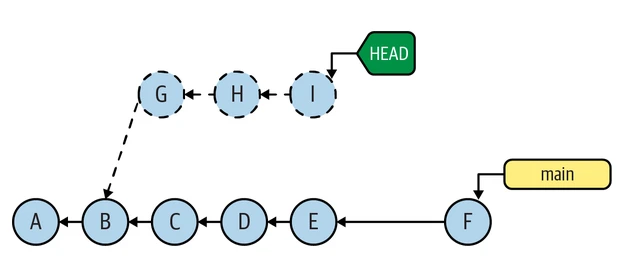
In the above image, commitsG,H, andIare unreachable commits.
CommitsAthroughFare reachable commits. The key here is where
theHEADis pointing to. You can see that for commitsG,H,
andI,HEADis in a detachedHEADmode, and those commits are not
associated with a branch name. This is a result of directly checking out
to commitB, followed by adding new commits from that point on.
If the default garbage collection schedule isn’t ideal, you can configure different configuration options as explained below:
- gc.auto: This setting controls whether automatic garbage collection is enabled. If set to 0, automatic garbage collection is disabled.
- gc.reflogExpire: This setting specifies how long reflog entries should be kept before they are pruned. The default is 90 days.
- gc.reflogExpireUnreachable: This setting specifies how long unreachable reflog entries should be kept. The default is 30 days.
- gc.autoDetach: This setting determines whether Git should run garbage collection in the background. The default is true.
You can modify these values using:
git config --global gc.auto 0
git config --global gc.reflogExpire "30 days"
git config --global gc.reflogExpireUnreachable "15 days"
git config --global gc.autoDetach true
To check the configuration:
git config --global --get gc.reflogExpire
git config --global --get gc.reflogExpireUnreachable
git config --global --get gc.autoDetach
To schedule regular garbage collection to keep the repository optimized.
Use the --aggressive option for a more thorough cleanup.
git gc --aggressive
Example 1 - Restore Commits After the Amend Operation
In this example, we’ll use git reflog to recover the original commit
after an amend operation. When you amend a commit, Git creates a new
commit with a new hash, effectively replacing the
previous
commit.
Assuming you have accidentally amended a commit and now want to restore the original commit.
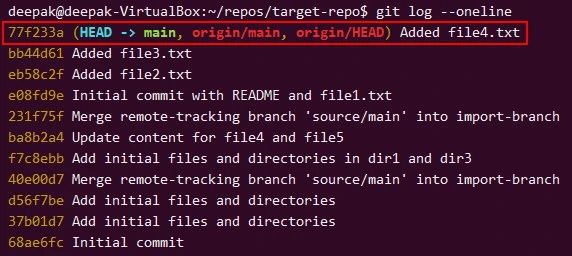
Here is a sample of my current commit history:
Now I will perform some amend operation:
echo "Amend file" > file5.txt
git add file5.txt
git commit --amend -m "Amended commit"
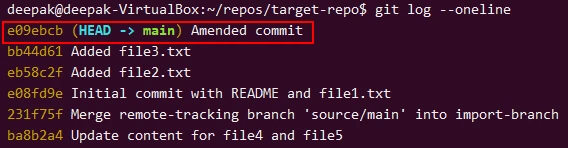
So I have lost the commit hash 77f233a after the amend operation which
is now e09ebcb:
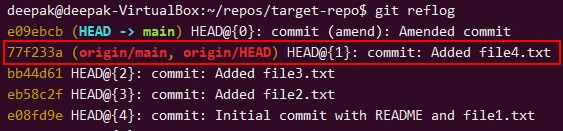
The git reflog command lists all the changes to the HEAD reference
along with the original commit hash before the amend was 77f233a. In
this case, we see that HEAD@{1} corresponds to the state just before
the amend operation, showing the original commit hash 77f233a.
So we can now reset to the original commit hash:
git reset --hard 77f233a
Check the log to ensure the original commit has been restored:

In this example, git reflog is crucial because it allows you to find
the hash of the original commit before the amend operation, which you
then use to reset the repository back to that state.
Assuming you amended a commit but realized you need to keep both the amended and the original versions.
I will re-perform some amend and check the reflog:
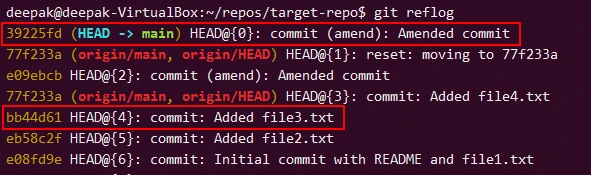
Identify the original commit:
bb44d61 HEAD@{2}: commit: Added file3.txt
Create a new branch at the original commit:
git checkout -b restored-commit bb44d61
Merge the restored commit back into the main branch if needed:
git checkout main
git merge restored-commit
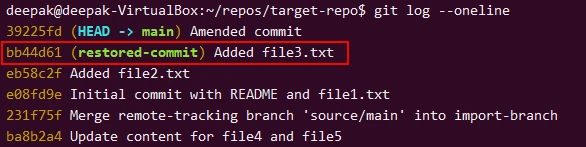
Example 2 - Restore Changes Lost After git reset
Here I am some commits, where I have intentionally done reset to one of
my commits and now I want to restore the content but I can’t see the
commit hash as it will not be visible with git log command:
As you can see I added something to file3.txt with commit hash
58da76d
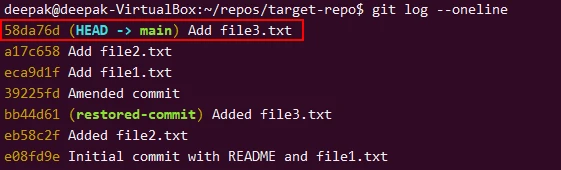
Then I did a reset to commit before that step:
git reset --hard HEAD~2
Check the commit history again and we won’t find 58da76d. At this
point, we have lost the commits that added file2.txt and file3.txt.
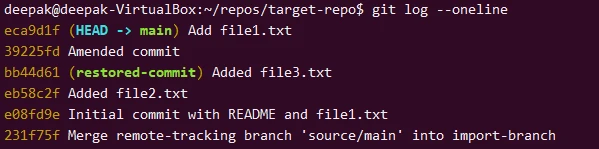
Even though the commits are not in the branch history anymore, they
still exist in the reflog. We can use git reflog to find and restore
them.
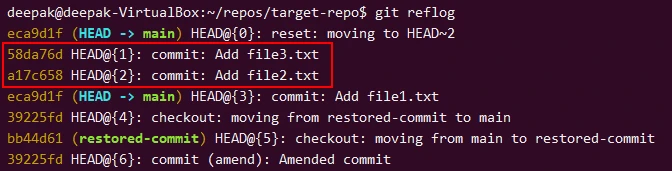
To restore the most recent lost commit (58da76d), we can use
git reset or git checkout:
git reset --hard 58da76d
This will move the HEAD back to the commit 58da76d, restoring the
state to include the changes made by that commit.
After running the reset command, check the commit history again:
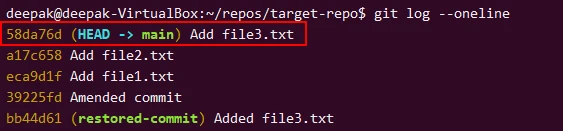
If you need to also restore the commit a17c658 (Add file2.txt), repeat
the process:
So we have successfully used reflog to recover any accidentally steps performed using a soft reset and want to move back to the previous state.
Conclusion
Git reflog is crucial in restoring lost resources after committing them. For instance, we used it to restore lost files, commits and messages, and branches in this tutorial.
Likewise, you can apply it to restore your changes lost during branching, merging, rebasing, resetting, and amending messages. However, it would help to first understand the commands that lead to commit losses.