
![git push explained with practical examples [Beginners]](/git-push-examples/git_push.jpg)
git push - Introduction
Git push is the act of linking a local branch to the respective remote
repository in a git environment. That implies that all the content in
your local repo gets to be uploaded to its remote counterpart. Git uses
the git push command to effect this process. Understand that
git push command overwrites any other changes and therefore you will
have to take a lot of precautions when using it. Git push works
similarly to git fetch command. The only difference is that git push
transfers branch contents remotely while git fetch does the same but
locally. To configure remote repositories git uses the git remote
command.
In this tutorial about git push, we will demonstrate how to work with
git push, git push command options and examples of git push in Github.
git push syntax
Following is the basic syntax of git push. To get the list of all supported options you can refer official git documentation:
$ git push [options] <remote-branch> <local-brach>
Understanding git push workflow
Whenever you push commits to a remote branch, git stores the same changes and history. It’s essential to specify the destination remote branch for your local copy before pushing it. Without being specific git will push commits to the main branch by default. That will make your work with other developers easier and avoid conflicts. Also, you can freely run new changes to your specific codebase. Upon testing and confirming your clean codes you can push them into the main projects as part of your contribution.
![git push explained with practical examples [Beginners]](/git-push-examples/git-push.webp)
Git pull is the opposite of git push as it will pull remote changes
to the local project as illustrated above.
Setting up the lab environment
To work and commit changes to the remote repo, first set a local
workstation where you will run your codes before you push any changes to
the remote repository.I will create a remote project new-git-test ,
clone it to my local working station windows 10 pro using the git clone
command.
Completing the process successful means that we now have our local
environment new-git-test set up and can practice working with
git push command.
$ git clone https://github.com/git-testing/new-git-test.git
Sample output
![git push explained with practical examples [Beginners]](/git-push-examples/gitlab-50.webp)
Let’s proceed to the next section where we will learn about various
git push options and practice git push using examples.
Important git push options
Here we have covered some of the most used arguments with git push command:
## Push the master branch to the remote named <i class="calibre6">origin.
git push origin master

## Create a remote-tracking branch to new_branch on the remote named origin.
git push --set-upstream origin new_branch

## Remove the branch named remotebranch from the remote named origin
git push origin :remotebranch

## Push the tag named TAGNAME to the remote named origin.
git push origin TAGNAME

## Push all tags to the default remote.
git push --tags

## Delete the tag named TAGNAME on the remote named origin.
git push origin :TAGNAME

## Mirrors the local repository to the remote one.
git push --mirror

## facilitates a push of all local tags
git push --dry-run

## Remove remote branches that don’t have a local counterpart
git push --prune

## Eliminates remote branches without local copies
git push <remote_name> --delete <branch_name>
Note: It is recommended to use the git push –u <remote> command in
instances where you are pushing a branch to remote for the first time.
That’s because it develops a tracking of the repository upstream once
the connection is established.
git push examples
Example -1: Git push origin main/master
Using git push origin main command implies that the associated repo
and its contents will be pushed to the main/master branch which is the
default branch. origin defines the name of the remote project while
main or master is the default remote branch.
Syntax :
$ git push origin master
Lets us now use an example to demonstrate how the
git push origin master command works in git environment.
We will also create and add a few files using git add command to later
push the changes to the master/main branch. Now we will add some files;
text-1.txt and test-A.txt in our branch, commit them before we push
the changes into the origin master
Sample output
$ git commit -m "added new file"
[jira 4da15f2] added new file
 2 files changed, 0 insertions(+), 0 deletions(-)
 create mode 100644 test-1.txt
 create mode 100644 test-A.txt
Lastly, we will use the git push origin master command to push the local
jira branch to the remote origin master as follows;
$git push origin master
Sample output:
![git push explained with practical examples [Beginners]](/git-push-examples/gitlab-51.webp)
The push was a success as shown in the output. All changes committed in our local repo has been added to the original remote project master branch.
Example -2: git force push
Assuming two users, deepak and alisha are working on new-feature
branch. Now both of them have cloned the branch and are working on the
project.
alisha@ubuntu:~/git_examples/templates$ git branch
  main
* new-feature

deepak@ubuntu:~/git_examples/templates$ git branch
  main
* new-feature
Now it is always a good idea that in such cases user performs a rebase
before pushing any changes to the remote repository to avoid any
conflicts. We will do some changes and push to remote repo using
alisha user:
alisha@ubuntu:~/git_examples/templates$ git commit -m "commit-1" -a
[new-feature f96aa4b] commit-1
 1 file changed, 1 insertion(+)

alisha@ubuntu:~/git_examples/templates$ git push origin new-feature
...
To gitlab.com:golinuxcloud/git_examples.git
   681a969..f96aa4b  new-feature -> new-feature
But user deepak also tries to push some commits without performing a
fresh pull:
$ git push origin new-feature
Sample output:
![git push explained with practical examples [Beginners]](/git-push-examples/gitlab-53.webp)
As expected the push was rejected because there are pending changes
from alisha which must be pulled from the remote repository before
pushing the new changes. But user deepak decides to ignore this
warning message and performs a force push:
$ git push origin new-feature --force
Sample Output:
![git push explained with practical examples [Beginners]](/git-push-examples/gitlab-54.webp)
So the push was successful but now with this the changes from alisha
are overwritten on the remote branch.
Following are the commit logs from user deepak's session:
deepak@ubuntu:~/git_examples/templates$ git log --oneline
681a969 (HEAD -> new-feature, origin/new-feature) added hello world to index file
b9930ae Added file2
006ef31 Added file1
20412c0 (origin/main, origin/HEAD) Added index.html template
...
While following are the commit logs from alisha's session:
alisha@ubuntu:~/git_examples/templates$ git log --oneline
f96aa4b (HEAD -> new-feature) commit-1
681a969 (origin/new-feature) added hello world to index file
b9930ae Added file2
006ef31 Added file1
...
Now let us perform a rebase on alisha's workstation, you can notice
the output which says there was a forced update where commit f96aa4b
was overwritten by 681a969 commit id:
alisha@ubuntu:~/git_examples/templates$ git pull --rebase
...
 + f96aa4b...681a969 new-feature -> origin/new-feature  (forced update)
Successfully rebased and updated refs/heads/new-feature.
Verify the commit logs, as you case see the commit ID f96aa4b has been
deleted due to the force push:
alisha@ubuntu:~/git_examples/templates$ git log --oneline
681a969 (HEAD ->  new-feature, origin/new-feature) added hello world to index file
b9930ae Added file2
006ef31 Added file1
...
Example-3: Git force push with lease
Let us continue our previous example to also understand
git push --force-with-lease option.We have again made some changes
using alisha user and pushed to remote repository of new-feature
branch:
alisha@ubuntu:~/git_examples/templates$ git commit -m "Added hello in file1" -a
[new-feature 4b2d3c3] Added hello in file1
 1 file changed, 1 insertion(+)

alisha@ubuntu:~/git_examples/templates$ git push origin new-feature
...
To gitlab.com:golinuxcloud/git_examples.git
   f844ef0..4b2d3c3  new-feature -> new-feature
Now deepak will not pull these recent changes and continue to push
some more changes for the same new-feature branch using
--force-with-lease:
deepak@ubuntu:~/git_examples/templates$ git push origin new-feature --force-with-lease
To gitlab.com:golinuxcloud/git_examples.git
 ! [rejected]        new-feature -> new-feature (stale info)
error: failed to push some refs to 'gitlab.com:golinuxcloud/git_examples.git'
As you can see even though the push was rejected but now the output is
different compared to --force. Here now git is not complaining to
perform a git pull.
Now we can trick the git to assume that we have pulled the changes
by using git fetch which will only fetch the remote refs and tags
without merging the latest changes from alisha user available on
remote repo.
deepak@ubuntu:~/git_examples/templates$ git fetch
remote: Enumerating objects: 7, done.
remote: Counting objects: 100% (7/7), done.
remote: Compressing objects: 100% (3/3), done.
remote: Total 4 (delta 1), reused 0 (delta 0), pack-reused 0
Unpacking objects: 100% (4/4), 344 bytes | 344.00 KiB/s, done.
From gitlab.com:golinuxcloud/git_examples
   f844ef0..4b2d3c3  new-feature -> origin/new-feature
So the git fetch has successfully fetched all the refs and tags from the
repositories for new-feature branch. Now let’s re-try git push using
--force-with-lease option:
deepak@ubuntu:~/git_examples/templates$ git push origin new-feature --force-with-lease
...
To gitlab.com:golinuxcloud/git_examples.git
 + 4b2d3c3...cbbd301 new-feature -> new-feature (forced update)
So our git push was successful even without rebasing our local workstation branch with the remote repository.
Example-4: Git push remote tag
Git tags help to point out important events of the repository such as
release points. Git uses the git tag <tag name> –a command to create
tags. –a stands for annotation. This type of git tag with an –a is
called the annotated tag. On the other hand git tag <tag name >
command without –a is known as the lightweight tag. Annotated tags
in git are recognized as full objects and are kept in the database
whereas the lightweight tags act as pointers to identified commits in a
repo.
In this section, we are going to demonstrate how to create lightweight tags and then push them to the origin master.
First, let’s create some tags:
$ git tag <tag name>
For example:
$ git tag v2.0
Next, run the git tag command to view all the tags as follows;
$ git tag
v2.0
v2.1
From the output, we created our first tag v2.0. Running the git tag
command displays all the tags in our active branch.
Next, we will push our tags to the remote origin master as follows;
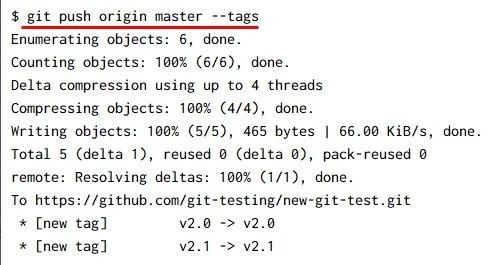
We now have the tags pushed to remote as you can see from the output.
Example-5: Git push delete remote tag
In this section, we will demonstrate how to delete a remote tag using
git push.
Let’s start with deleting the tag v2.0 in our local branch jira
using the git tag –d <tag name> command:
$ git tag -d v2.0
Deleted tag 'v2.0' (was b3e293a)
Understand that deleting a tag from a local repo doesn’t erase the same tag from the remote repo.
The process has to take place separately and below is a demonstration of
how to delete the same tag v2.0 from the remote repository.
git push <remote> :refs/tags/<tagname>
Sample output:
$  git push origin :refs/tags/v2.0
remote: warning: Deleting a non-existent ref.
To https://github.com/git-testing/new-git-test.git
 - [deleted]         v2.0
Note that there’s a warning for deleting the tag without a reference. The reason is that we deleted a lightweight tag thus unreferenced in the database. If we had an annotated tag with an –a, it would be referenced.
Example-6: Git push to delete a remote branch
It is possible to use git push command to delete a remote branch.
Let’s illustrated that using an example as shown below:
Let’s delete our feature branch in our local repository new-git-test as follows;
$ git push origin –delete <remote-branch>
Sample output
$ git push origin --delete feature
To https://github.com/git-testing/new-git-test.git
 - [deleted]         feature
We have now deleted the remote feature branch as shown in the output
Summary
We have covered the following important aspects for working with git push:
- Using git push
- Important git push options
- Examples of git push to perform different actions such as push local changes to remote branch, push tags, delete remote branch etc
