
git cheat sheet to delete file or directory
It is easy to delete a file or directory if you know the appropriate command per situation. For instance,
1. git delete file or directory from filesystem
normally with the rm command
# No. 1

git rm <file>
OR
recursively using the -r option
# No. 2

git rm -r <file>
OR
git delete a file or directory by running the clean command with
various options. For example, use the -f option to delete a file only.
# No. 3

git clean -f
OR
Use the -i option
# No. 4

git clean -i
to delete the file interactively
OR
combine -f and -d options to delete files and directories.
# No. 5

git clean -fd
Sometimes you need to git delete file or directory depending on whether
it is ignored or not. To delete ignored files only, use capital -X
# No. 6

git clean -fX
For both ignored and unignored files, use small -x.
# No. 7

git clean -fx
Apart from the git commands, you can use Unix commands such as
rm <file>
OR
rm -rf <folder or file>
to delete a file or folder from any level of the git workflow.
2. git delete file or directory from a repository
# No. 8

git rm --cached <file>
3. git delete file or directory from the history
You can delete a committed file by doing a hard reset on the commit’s HEAD or commit id.
# No. 9

git reset --hard <commit>
Better yet, you can use the filter-branch command to delete the file with all its commits.
# No. 10

git filter-branch --force --index-filter 'git rm -r --cached --ignore-unmatch <file>' --prune-empty --tag-name-filter cat -- --all
What we mean by filesystem and repository
Technically, a filesystem and a repository mean the same thing. However, git users refer to different things when using the terms.
For instance, it is a convention amongst git users to collectively refer to untracked or tracked files and folders as a filesystem.
The difference between filesystem and directory arises upon staging a file. Then, the staged files or folders become a snapshot of the entity (filesystem).
Simply put, the repository references staged files, whereas the filesystem is the entire body containing the directories and files: tracked and untracked.
The files resume a riskier level within the workflow on git delete file or directory from the filesystem or repository.
For instance, a committed file will likely end up in the index, working tree or disappear from the workflow. Also, most indexed files end up in the working directory when you git delete file or directory.
Let us set up a lab and practically see how to git delete file or directory works.
Lab set up to explore git delete file or directory
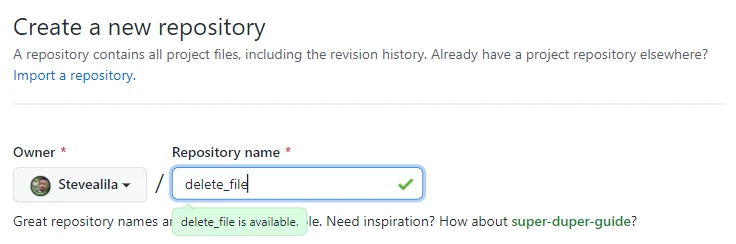
I am creating a repository on GitHub called delete_file with a
README.md file then copying its URL
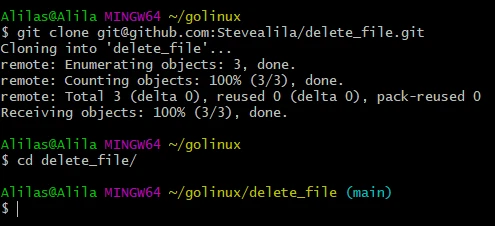
Clone and cd into it.
Next, let us create three files and two directories with two files each.
touch file1 file2

mkdir dir1 dir2

cd dir1

touch dir1_file.txt dir1_file.sh

cd ..

cd dir2

touch dir2_file.txt dir2_file.sh

cd ..
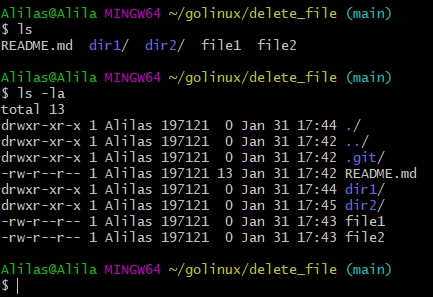
Check all files and folders, hidden and unhidden.
ls

ls -la
Example~1: Delete file or directory using git rm command only
Git rm command deletes a tracked file or folder from the filesystem.
Let us stage and commit all files before applying git rm on them.
git add .

git commit -m "Second commit"
We can now delete file1 as follows
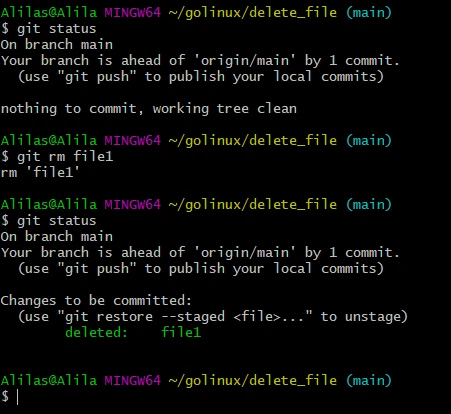
First, check the status.
git status
Then delete the file.
git rm file1
And recheck the status.
git status
Git tells us file1 got removed from the filesystem and deleted from
the repository.
Let us record the deletion in the history before proceeding with another command.
git commit -m "Delete file1 using git rm"
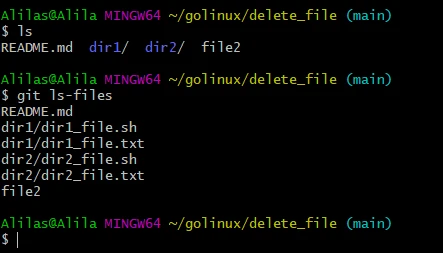
And check the status. The file no longer exists among the listed ones.
ls

git ls-files
Example~2: Recursively delete file or directory using git rm command
Adding the recursive option deletes a file similarly to the rm command
without an option. The difference between the recursive option and the
former command is that we can use the recursive option to delete a
directory.
Let us use it to delete file2, repeating the procedures of example~1
above.
git status

git rm -r file2

git status
Then submit the message to the history
git commit -m "Recursively delete file2"
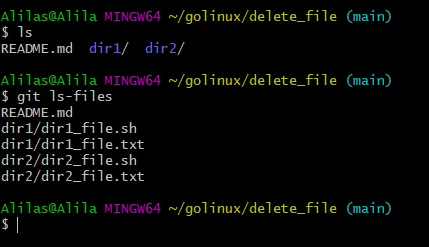
And check tracked files.
ls

git ls-files
Example~3: Delete file or directory using git rm with cached option
The cached option deletes a file from the index.
Let us use it to untrack dir1_file.txt file.
First, check the status.
git status
Then apply the command
git rm --cached dir1/dir1_file.txt
And recheck the status.
git status
The file is unavailable!
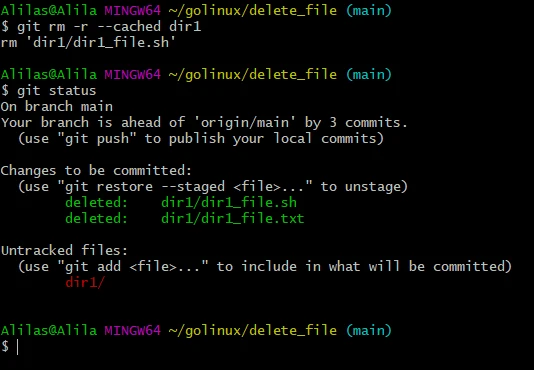
We can also recursively delete an entire directory from the index.
git rm -r --cached dir1
Rechecking the status
git status
confirms that the entire dir1 got deleted from the index. But we can
trace its remnants in the working directory.
Lastly, let us record the deletions in history.
git commit -m "Delete files in dir1"
Example~4: Delete file or directory with the git clean and -f option
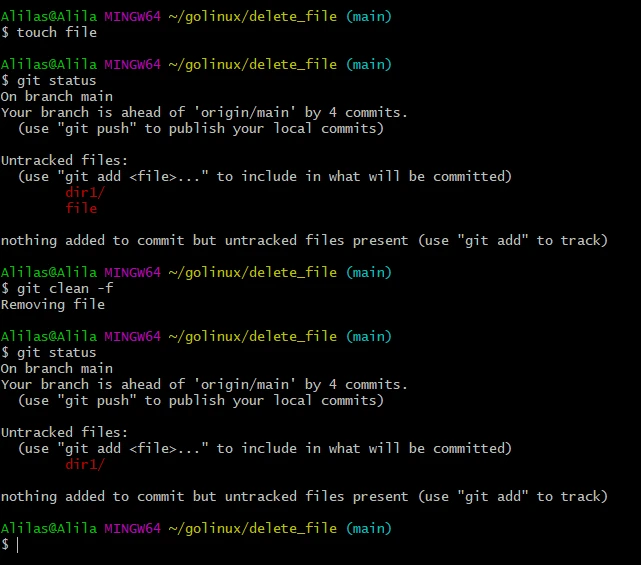
Git clean with the -f option comes into play when deleting an
untracked file after unstaging the directories with git rm with the
cached command.
Let us apply it as follows.
# Create a file
touch file

# check the status
git status

# apply the clean command
git clean -f

# Recheck the status
git status
Example~5: Interactively delete a file
Similarly, we can interactively delete unstaged files using the -i
flag as follows.
git clean -i
Example~6: Delete untracked file or directory using the clean command
Git clean with the -f and -d options delete an untracked directory.
We can apply it as follows.
git status

git clean -fd

git status
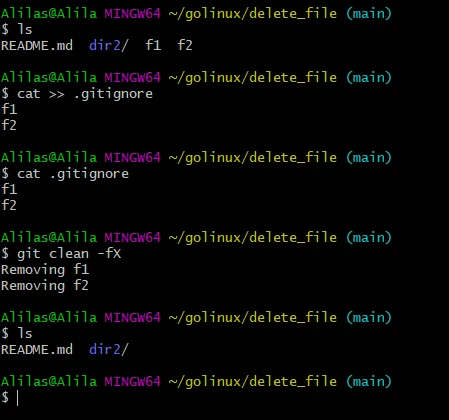
Example~7: Delete ignored files using git clean command with -fX options
git clean with -f and -X options delete ignored files. Let us test
it by creating a .gitinore file with two more files.
touch .gitignore f1 f2
Reference the two files in the .gitinore file.
cat >> .gitinore

f1

f2
Press Ctrl + d to exit the command, then cat the file.
cat .gitinore
Our two files are referenced in .gitignore. We can delete the ignored
files as follows.
git clean -fX
Example~8: Delete ignored and unignored files using git clean command with -fx options
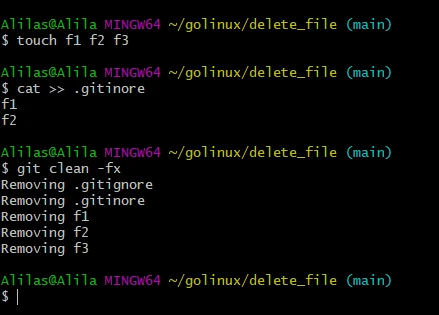
We can delete both ignored and unignored files by following these steps.
Return the files we deleted in example~7and an extra one.
touch f1 f2 f3

cat >> .gitinore

f1

f2
Then delete all the new files.
git clean -fx
Example~9: git delete file or directory through a hard reset
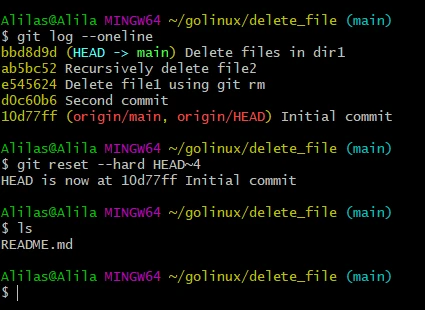
Doing a hard reset on a commit deletes the commit and the affected file.
Let us delete all the files introduced after the initial commit. First, log the history to know the number of commits after the target one.
git log --oneline
Let us hard reset the four commits from the HEAD.
git reset --hard HEAD~4
Check the files and folders.
ls
They are all gone, except the README.md file
Example~10: git delete file or directory using the filter-branch command
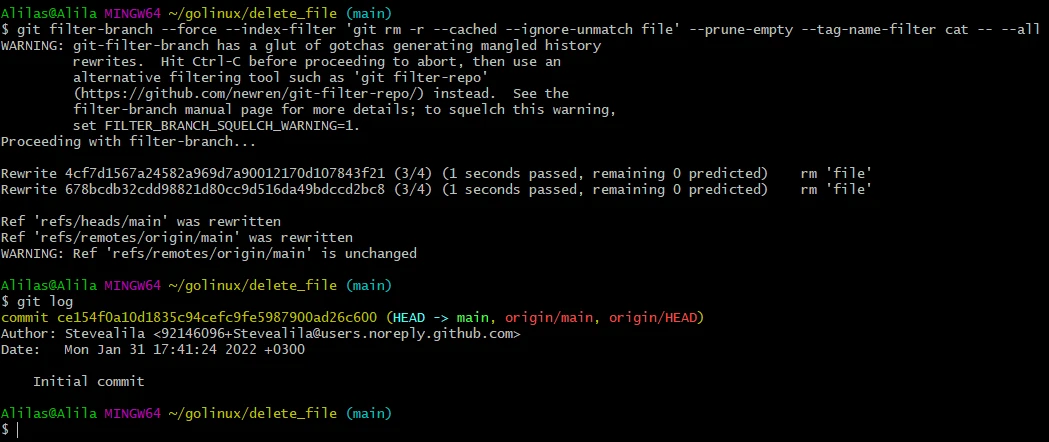
Unlike git rm and git reset hard that leave file traces in the branch, tag or reflog, git filter-branch enables us to git delete file or directory without leaving any history behind.
Let us create a file, stage, and commit it before applying the git filter-branch command.
touch file

git stage file

git commit -m "Git delete file using filter-branch command"
Delete the file and its history as follows.
git filter-branch --force --index-filter 'git rm -r --cached --ignore-unmatch file' --prune-empty --tag-name-filter cat -- --all
Conclusion
Git delete file or directory can be comfortable when you apply a suitable command in the working directory, index, history. Now that you know the best command per situation, go ahead and enjoy your version tracking with git.