
![25+ most used find commands in Linux [Cheat Sheet]](/find-command-in-linux/find_command.jpg)
find command is one of the popular and commonly used tools in Unix-based operating systems. As its name suggests, it finds the files and directories in a directory hierarchy. You can pass different parameters and search files by their name, extension, type, size, permissions, modification time, owner, groups, and more. It performs a recursive search on the specified directory which means it searches in all sub-directories too.
Syntax to use find command
The syntax to use the find command is:
$ find [options] [path] [expression]
options: It includes the options that must appear before the first path name:-H,-L,-P,-D, and-O.path: It indicates the directory path where you want to search the files.expression: It defines search options, patterns to match, and actions to perform on the files.
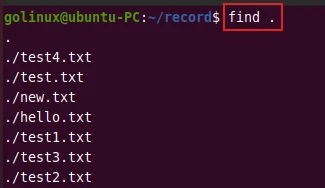
The default path is the current working directory. When the find command is used without any parameters, it lists all files and folders in the current directory and its sub-directories.
1. Find all files and directories in the current directory
Use find command followed by . symbol to search for all files and
directories in the current working directory.
$ find .
Sample Output:
2. Find files in the specific directory
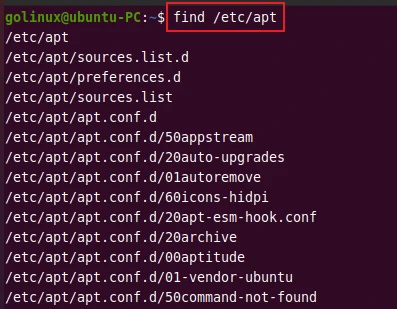
To find files in the specific directory, use the following syntax.
$ find dir_path
The following example searches for all files and directories present in
the /etc/apt directory.
Sample Output:
3. Find only directories with find command
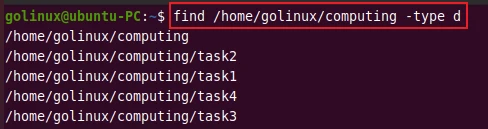
The -type option followed by d searches for directories only. The
following example finds all directories in the home/golinux/computing
directory.
$ find /home/golinux/computing -type d
Sample Output:
4. Find only files with find command
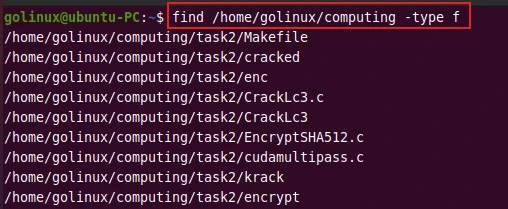
The -type f is used for regular files. It lists all files present in
the specified directory.
$ find /home/golinux/computing -type f
Sample Output:
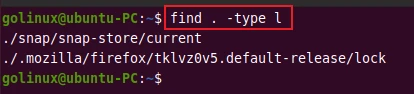
5. Find symbolic link files only
The -type l will search for symbolic links only.
$ find . -type l
Sample Output:
6. Find files by name
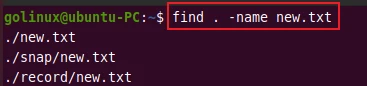
You can find files by name using the -name option. It is
case-sensitive. It is useful for checking whether the file is present in
the specified directory hierarchy.
Run this command to locate new.txt files in the current working
directory.
$ find . -name new.txt
Sample Output:
7. Find directories by names
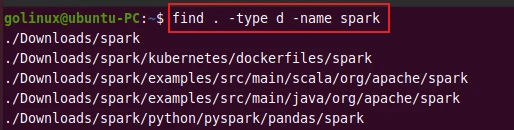
Similarly, you can search for directories by name with the following
command. It finds all directories having a name spark in the current
working directory.
$ find . -type d -name spark
Sample Output:
8. Find files by case insensitive name
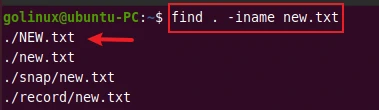
You can use -iname option to search for files by name where the match
is case insensitive.
$ find . -iname new.txt
Sample Output:
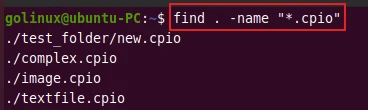
9. Find specific files by extension
With this method, you can find all files in the directory which has the
same extension. For instance, to locate all .cpio files, use the
command below.
$ find . -name "*.cpio"
Sample Output:
10. Find files having specific patterns
You can use find command to search files by specific patterns, like
files whose name begins with prep. The following command locates files
whose name starts with prep in the /tmp directory.
$ find /home/golinux/record -name "tes*"
Sample Output:
# find /tmp/ -type f -name "prep*"
/tmp/prepTspInstall18457.log
/tmp/prepTspInstall2897.log
/tmp/prepTspInstall11221.log
/tmp/prepTspInstall15505.log
/tmp/prepTspInstall13806.log
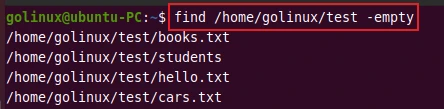
11. Find empty files and directories
The -empty option searches for the empty files and directories only.
$ find /home/golinux/test -empty
Sample Output:
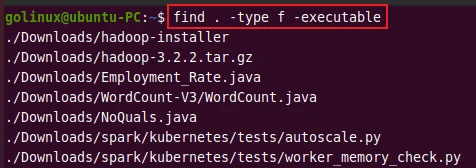
12. Find files with executable permission
The -executable flag matches files that are executable and directories
that are searchable. To search executable files only in the current
directory, you can run the following command.
$ find . -type -f -executable
Sample Output:
13. Find files based on size
You can find files by size using the -size option. The following
suffixes are used with -size.
b: 512 byte blocks (default, if no suffix is used)c: bytesw: two-byte wordsk: Kilobytes (1024 bytes)M: MegabytesG: Gigabytes
The following command finds all files that are exactly 960 bytes in the specified directory.
$ find /home/golinux/record -type f -size 960c
Sample Output:

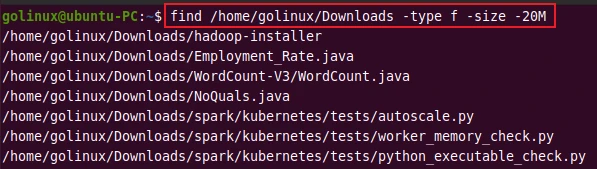
To find files that are greater or smaller than the specified size, use
the + or - operator respectively.
This command finds files that are greater than 20MB in the Downloads
directory.
$ find /home/golinux/Downloads -type f -size +20MB

The following command finds files that are smaller than 20MB in the
Downloads directory.
$ find /home/golinux/Downloads -type f -size -20MB
14. Find files by size range
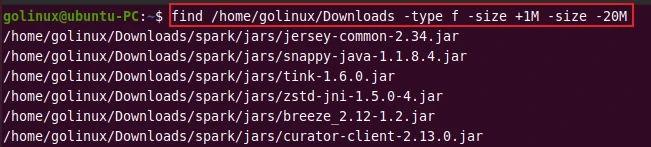
You can also search files in a specific size range. For example, this command searches for files having sizes between 1 and 20 MB.
$ find /home/golinux/Downloads -type f -size +1M -size -20M
Sample Output:
15. Find files by permission
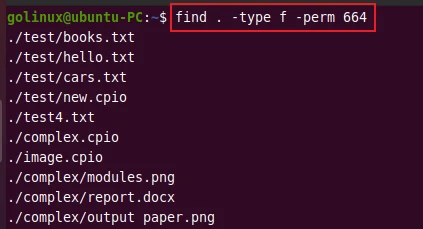
You can use -perm option to search for files on the basis of
permissions. The following command finds all files which have read and
write permission for their owner and group but are only readable by
other users.
$ find . -type f -perm 664
Sample Output:
Similarly, to search for files that have full access (read/write/execute) to anyone, you can use:
$ find . -type f -perm 777
16. Find files by modification time
The -mtime option finds files that were last modified n*24 hours
ago. The following command will search for all files that are modified
15 days ago.
$ find /home/golinux/test -mtime 15
Sample Output:

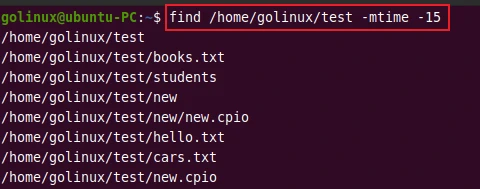
You can also use + or - operator for specifying the greater or
smaller than n value. For example, this command will search files that
are modified less than 15 days ago.
$ find /home/golinux/test -mtime -15
Sample Output:
17. Find files by last accessed time
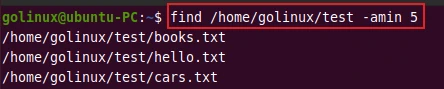
The -amin option finds files that were last accessed n minutes ago.
You can use the following command to search for files that were last
accessed 5 minutes ago.
$ find /home/golinux/test -amin 5
Sample Output:
The -atime option finds files that were last accessed n*24 hours
ago. This command will search files that were last accessed 5 days ago.
$ find /home/golinux/test -atime 5
18. Find files by changed time
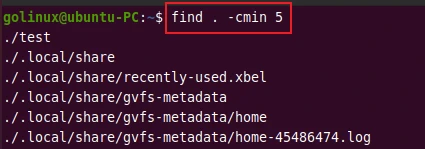
The -cmin option allows you to search files that are changed n
minutes ago. You can run the following command to find all files that
are changed 5 minutes ago.
$ find . -cmin 5
Sample Output:
To find files that are changed n days ago, you have to use the
-ctime option. The following command searches for all files that are
changed 5 days ago.
$ find . -ctime 5
19. Find all files owned by specific user
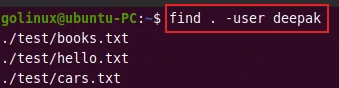
You can use -user option to find files that are owned by the specified
user. For example, this command will search all files that are owned by
the user deepak.
$ find . -user deepak
Sample Output:
20. Find all files owned by specific group name
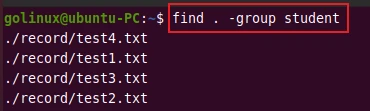
The -group option allows you to search files based on the group name.
The following command finds all files in the current directory that
belong to the group student.
$ find . -group student
Sample Output:
21. Find and delete files
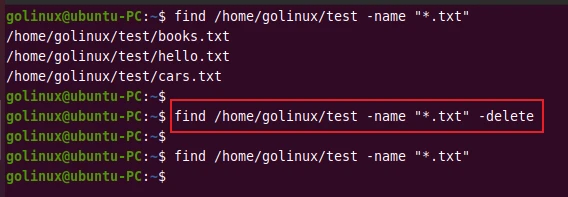
You can use -delete flag at the end of a command to delete files if
found in the specified location. For example, the following command will
remove all .txt files from the directory /home/golinux/test.
$ find /home/golinux/test -name "*.txt" -delete
Sample Output:
It is always the best choice to check files before deleting them.
22. Find text in files
The -exec flag runs the specified command on the files. The following
command finds the text book in all .txt files in the current working
directory.
$ find . -name "*.txt" -exec grep 'book' {} \;
Here, the -exec executes the grep command with a pattern book to
match. The brackets {} are replaced by the filename found by the find
command. The semicolon ; denotes the end of a command argument.
Sample Output:

23. Find text files and view their content
Similarly, you can run the cat command with the -exec option to view
the content of all text files.
$ find /home/golinux/test -name "*.txt" cat {} \;
Sample Output:

24. Find the bash script file and execute it
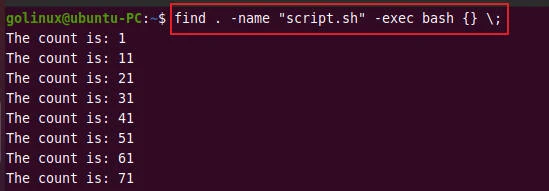
The following command finds a bash script file script.sh in the
current working directory and runs the script.
$ find . -name "script.sh" -exec bash {} \;
Sample Output:
25. Find files by limiting the directory depth to search
You can limit the recursion of the depth using the -maxdepth or
-mindepth flag.
-maxdepth: Maximum recursion depth-mindepth: Minimum recursion depth
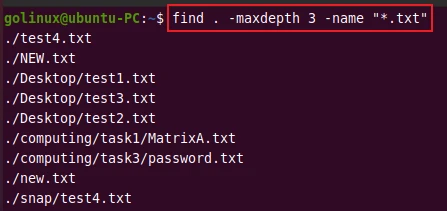
The following command searches for all .txt files in the directories
that are not more than 3 levels deeper than the current working
directory.
$ find . -maxdepth 3 -name "*.txt"
Sample Output:
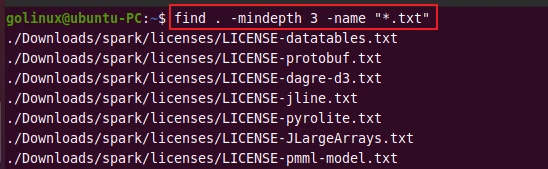
The following example includes only the directories that are at least 3 levels deeper than the current working directory.
$ find . -maxdepth 3 -name "*.txt"
Sample Output:
To search for all .txt files in the directories that are at least 2
levels and not more than 4 levels deeper than the current working
directory, you can use this command.
$ find . -mindepth -2 -maxdepth 4 -name "*.txt"
26. Find and print files that do not match the pattern
You can use the -not or ! option to search files that do not match
the search pattern. For example, to find all files that are not owned by
user deepak in the directory /home/golinux/test, you can use the
command below.
$ find /home/golinux/test -type f -not -user deepak
OR
$ find /home/golinux/test -type f ! -user deepak
Sample Output:

Conclusion
You have learned various examples of the find command to search files and directories based on different conditions. We have also shown you how to find files and perform operations on them using the find command. find is one of the most powerful commands and very useful for searching files and directories. Now you should know how to use find command in Linux. If you have any questions, please let us know in the comment section.
What’s Next
Linux find File using the command-line [8 Different
Ways]
How to find and remove duplicate files using shell script in
Linux
