![/etc/network/interfaces missing in Ubuntu [SOLVED]](/etc-network-interfaces-missing-ubuntu/ubuntu-missing-interface.jpg)
If you are using Ubuntu, you must have encountered the
“/etc/network/interfaces missing” error. Because Ubuntu 18.04 and
above uses netplan to configure your network. The
/etc/network/interfaces file is no longer available in newer versions.
Netplan is used instead, the configuration file is in the
/etc/netplan/ directory.
For example, let’s look under /etc/network on Ubuntu 22.04:
foc@ubuntu22:~$ ls /etc/network/
if-pre-up.d  if-up.d

foc@ubuntu22:~$ cat /etc/network/interfaces
cat: /etc/network/interfaces: No such file or directory
As you can see, there are no interfaces files. Let’s have a look under netplan:
foc@ubuntu22:~$ ls /etc/netplan
00-installer-config.yaml

foc@ubuntu22:~$ cat /etc/netplan/00-installer-config.yaml
# This is the network config written by 'subiquity'
network:
  ethernets:
    enp1s0:
      dhcp4: true
  version: 2
Network configuration is in yaml file. So what should we do if we want
to go back to the past? Can we use the /etc/network/interfaces file?
Let’s see what we can do.
Network definition steps with /etc/network/interfaces
The following steps will now take you back to the past, Ubuntu only allows you to define networks in the old way.
Package Installation
In Ubuntu, two packages must be installed to configure the network settings in the interfaces file. Update the package list first:
foc@ubuntu22:~$ sudo apt update -y
Then install the packages:
foc@ubuntu22:~$ sudo apt install ifupdown net-tools
So what do these packages do?
- **ifupDown Package:**It is used with the
ifupandifdowncommands to configure (or deconfigure respectively) network interfaces based on the interface definitions in the/etc/network/interfacesfile. - **net-tools Package:**It needs this package to form the base set of the NET-3 network distribution for Linux operating systems.
Configuring Grub
Network configuration should be translated to eth0 as in
/etc/network/interfaces configurations.
In the /etc/default/grub file, the following lines are changed:
foc@ubuntu22:~$ sudo sed -i -e 's/GRUB_CMDLINE_LINUX=\"\"/GRUB_CMDLINE_LINUX=\"net.ifnames=0 biosdevname=0\"/g' /etc/default/grub
Before:
GRUB_CMDLINE_LINUX=""
After:
GRUB_CMDLINE_LINUX="net.ifnames=0 biosdevname=0"
Note: You can edit the /etc/default/grub file manually as above by
opening it with a text editor (nano, vim etc).
Then update grub:
foc@ubuntu22:~$ sudo update-grub
Sourcing file `/etc/default/grub'
Sourcing file `/etc/default/grub.d/init-select.cfg'
Generating grub configuration file ...
Found linux image: /boot/vmlinuz-5.15.0-53-generic
Found initrd image: /boot/initrd.img-5.15.0-53-generic
Found linux image: /boot/vmlinuz-5.15.0-46-generic
Found initrd image: /boot/initrd.img-5.15.0-46-generic
Found memtest86+ image: /memtest86+.elf
Found memtest86+ image: /memtest86+.bin
Warning: os-prober will not be executed to detect other bootable partitions.
Systems on them will not be added to the GRUB boot configuration.
Check GRUB_DISABLE_OS_PROBER documentation entry.
done
Finally, reboot the operating system:
foc@ubuntu22:~$ sudo reboot
Output of “ip a” command when network is managed with netplan:
foc@ubuntu22:~$ ip ad
1: lo: <LOOPBACK,UP,LOWER_UP> mtu 65536 qdisc noqueue state UNKNOWN group default qlen 1000
    link/loopback 00:00:00:00:00:00 brd 00:00:00:00:00:00
    inet 127.0.0.1/8 scope host lo
       valid_lft forever preferred_lft forever
    inet6 ::1/128 scope host
       valid_lft forever preferred_lft forever
2: enp1s0: <BROADCAST,MULTICAST,UP,LOWER_UP> mtu 1500 qdisc fq_codel state UP group default qlen 1000
    link/ether 52:54:00:c4:72:46 brd ff:ff:ff:ff:ff:ff
    inet 192.168.122.34/24 metric 100 brd 192.168.122.255 scope global dynamic enp1s0
       valid_lft 2416sec preferred_lft 2416sec
    inet6 fe80::5054:ff:fec4:7246/64 scope link
       valid_lft forever preferred_lft forever
Output of “ip a” command when managed with interfaces file:
foc@ubuntu22:~$ ip a
1: lo: <LOOPBACK,UP,LOWER_UP> mtu 65536 qdisc noqueue state UNKNOWN group default qlen 1000
    link/loopback 00:00:00:00:00:00 brd 00:00:00:00:00:00
    inet 127.0.0.1/8 scope host lo
       valid_lft forever preferred_lft forever
    inet6 ::1/128 scope host
       valid_lft forever preferred_lft forever
2: eth0: <BROADCAST,MULTICAST,UP,LOWER_UP> mtu 1500 qdisc fq_codel state UP group default qlen 1000
    link/ether 52:54:00:c4:72:46 brd ff:ff:ff:ff:ff:ff
    altname enp1s0
    inet 192.168.122.34/24 metric 100 brd 192.168.122.255 scope global dynamic eth0
       valid_lft 3517sec preferred_lft 3517sec
    inet6 fe80::5054:ff:fec4:7246/64 scope link
       valid_lft forever preferred_lft forever
You can see that the “enp1s0” interfaces name has changed to
“eth0”. Now let’s view the /etc/network/interfaces file:
foc@ubuntu22:~$ cat /etc/network/interfaces
# interfaces(5) file used by ifup(8) and ifdown(8)
# Include files from /etc/network/interfaces.d:
source /etc/network/interfaces.d/*
Now the interfaces file is available in the system.
Create New Network Interface
Of course, the interfaces file should be defined when switching to the old system. Define the following lines in the interfaces file to get ip from DHCP:
foc@ubuntu22:~$ sudo vi /etc/network/interfaces

auto eth0
allow-hotplug eth0
iface eth0 inet dhcp
First, the defined interface is down:
foc@ubuntu22:~$ sudo ifdown --force eth0
/etc/network/if-down.d/resolved: 12: mystatedir: not found
Internet Systems Consortium DHCP Client 4.4.1
Copyright 2004-2018 Internet Systems Consortium.
All rights reserved.
For info, please visit https://www.isc.org/software/dhcp/

Listening on LPF/eth0/52:54:00:c4:72:46
Sending on   LPF/eth0/52:54:00:c4:72:46
Sending on   Socket/fallback
Created duid "\000\001\000\001+\033\306(RT\000\304rF".
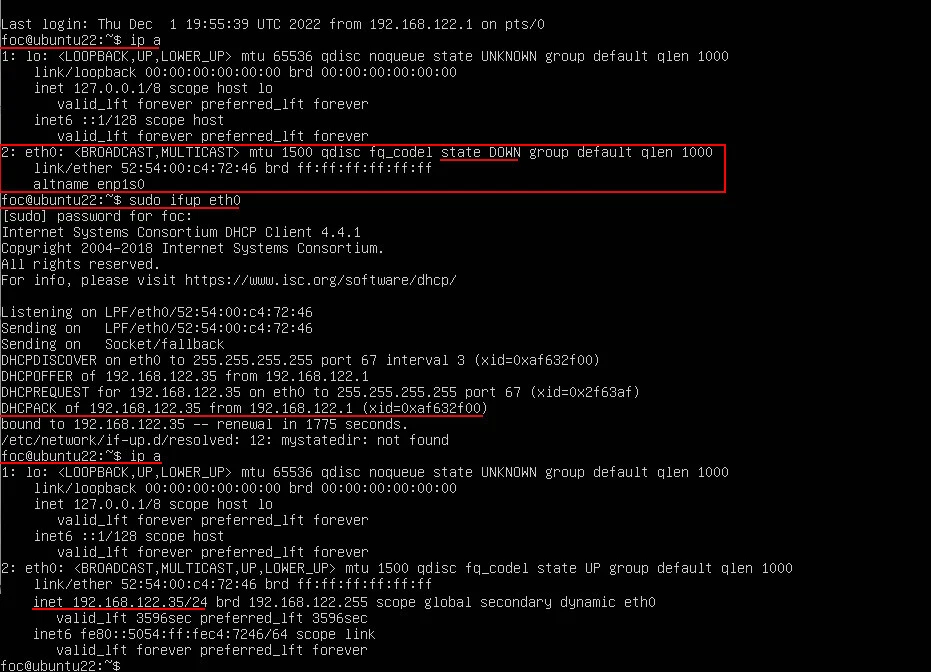
Then turn the interface up:
foc@ubuntu22:~$ sudo ifup eth0
As you can see in the picture above, the new interface has received an IP address.
Summary
In this article, we explained the steps to define the network with the interfaces file removed in Ubuntu 18.04 and later versions. Although the steps in the article provide you with this opportunity, the methods brought by the operating system will be more stable.
In a possible update and package conflict, the first settings to be changed will be those that the operating system does not support. Therefore, it will be useful to get used to netplan.
References
askubuntu.com - Looking for /etc/network/interfaces is missing?