

In this article I will share step by step instructions to overcome “OA: Device in bay #X power delayed until VC profile is applied.” issue seen on HPE Proliant Blades when the blades fail to power on after reboot.
Error: OA: Device in bay #X power delayed until VC profile is applied.
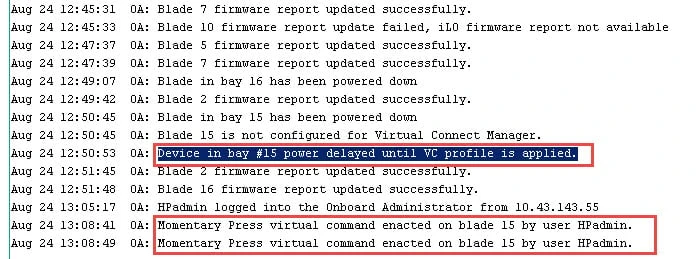
The other day while performing firmware upgrade of my HPE Proliant Blades, one of my blades never came up after reboot. When I checked the OA system log on Onboard Administrator → Enclosure Information → Active Onboard Administrator → System Log
I could see the below message
OA: Device in bay #2 power delayed until VC profile is applied.
Attached is the screenshot reference from my Onboard Administrator
OA System Log
As you can also see, I tried to use “Momentary Press” to Power On the server twice but the blade still failed to Power On.
Root Cause
This is common problem with HPE Proliant Blades seen mostly after Firmware Upgrades and can also be seen runtime after reboot. In this case the blade will fail to power on after reboot of the server.
This issue is also mentioned in multiple Virtual Connect Release Notes under “List of Known Issues”
If the profile assigned to a bare metal server is modified in its POWER ON state, and then if the server is rebooted, the
server will not be powered on. The OA device bay status page displays “Device power delayed until VC profile is applied”
message.
You can also find an advisory on this issue from HPE
Advisory:
(Revision) HPE c-Class BladeSystem -Server Blade Power On Will Be
Delayed in Enclosures with Onboard Administrator (OA) Firmware Version
4.60 and Managed by HPE OneView When the OA Module Is Reset Until
OneView Refreshes the Servers
Currently I could not get a proper root cause from HPE and this continues to be as known issue (at the time of writing this article).
Solution
Now how to get over this situation when the blade shows
“OA: Device in bay #X power delayed until VC profile is applied” and
fails to come up. In such case you must un-assign the server profile
from the impacted blade and then re-assign.
Below are the detailed step-by-step instructions:
Login to your Onboard Administrator using Administrator or user which has admin privilege.
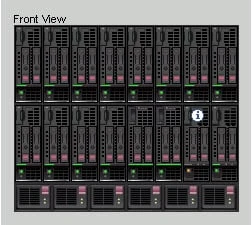
You can check the blade number of the impacted blade. This information
will be in the message
“OA: Device in bay #15 power delayed until VC profile is applied”. In
my case blade 15 is the one which is impacted
Enclosure View
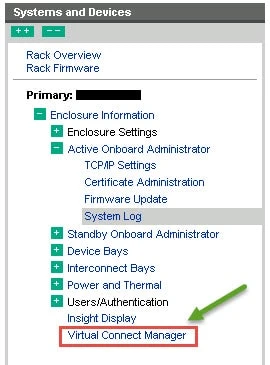
Click on Virtual Connect Manager from the left TAB
Open Virtual Connect Manager
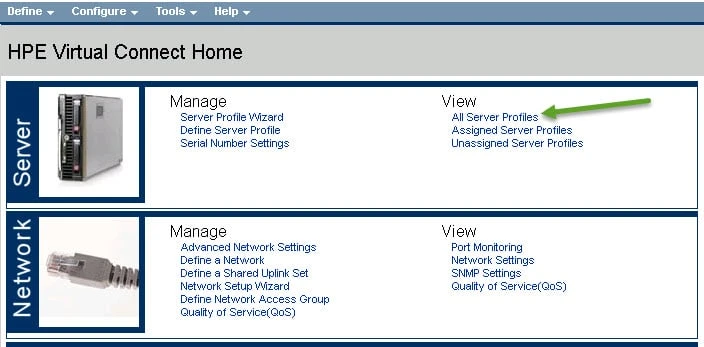
This will open a new TAB with the link towards active HPE Virtual Connect Login with a user having administrator privilege. On the homepage you will have an option to list “All Server profiles”
View Server Profiles
Here you can see your blade which is in powered off state. Click on “Edit” to edit the profile of the respective blade.
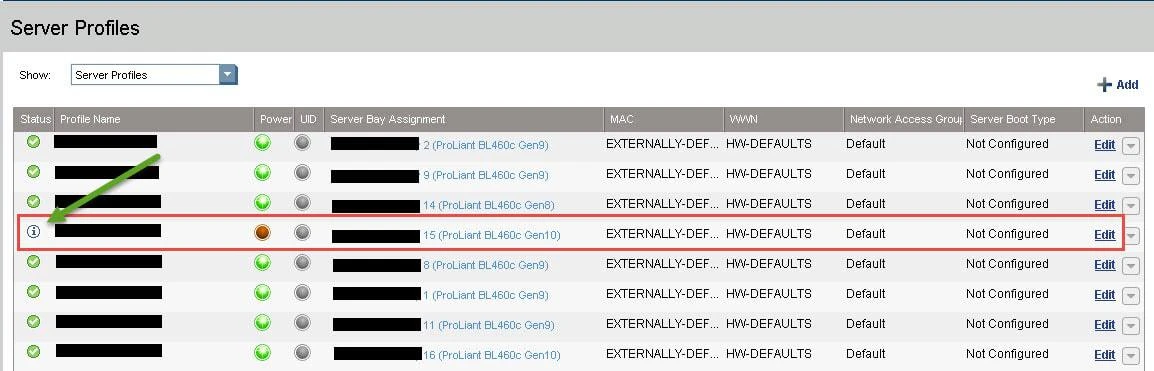
Un-assign server profile
Scroll down to the bottom of the page near “Assign Profile to Server Bay” section and from the drop down menu select “Unassigned”. Once done click on “Apply & Close”
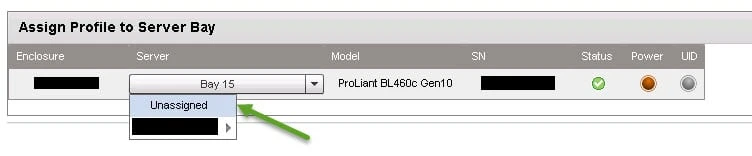
Un-assign server profile
This will automatically power on Blade 15. But since the server
profile in un unassigned state, we must first
re-assign the server
profile. So power off the blade using OA CLI. Login to OA CLI
using any user with admin privilege and enter
“poweroff server XX force”
server-01-01> poweroff server 15 force

Blade 15 is powering down.
Once the blade is powered off, under the same server profile on Virtual Connect, select Bay 15 to assign the server profile and click on “Apply & Close”
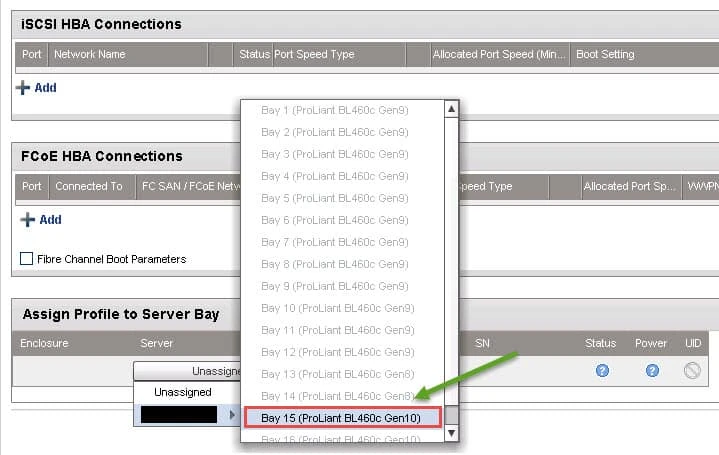
Re-assign server profile
Next power on the server using OA CLI (or you can use the OA GUI)
server-01-01> poweron server 15

Powering on blade 15.
Now the blade should come up properly.
DOWN” in such
case you can do an EFUSE RESET of the server. Login to OA CLI as any
admin user and execute reset server to perform EFUSE reset
of the respective blade. This is similar to pulling off the blade from
the enclosure and putting it back in, this will power off the server and
then power it back on.
Conclusion
In this tutorial I shared the steps to overcome
“OA: Device in bay #X power delayed until VC profile is applied” error
by re-assigning Virtual Connect server profile. This is definitely not a
solution but a work around to get over the situation where we are unable
to power on the blades.
