
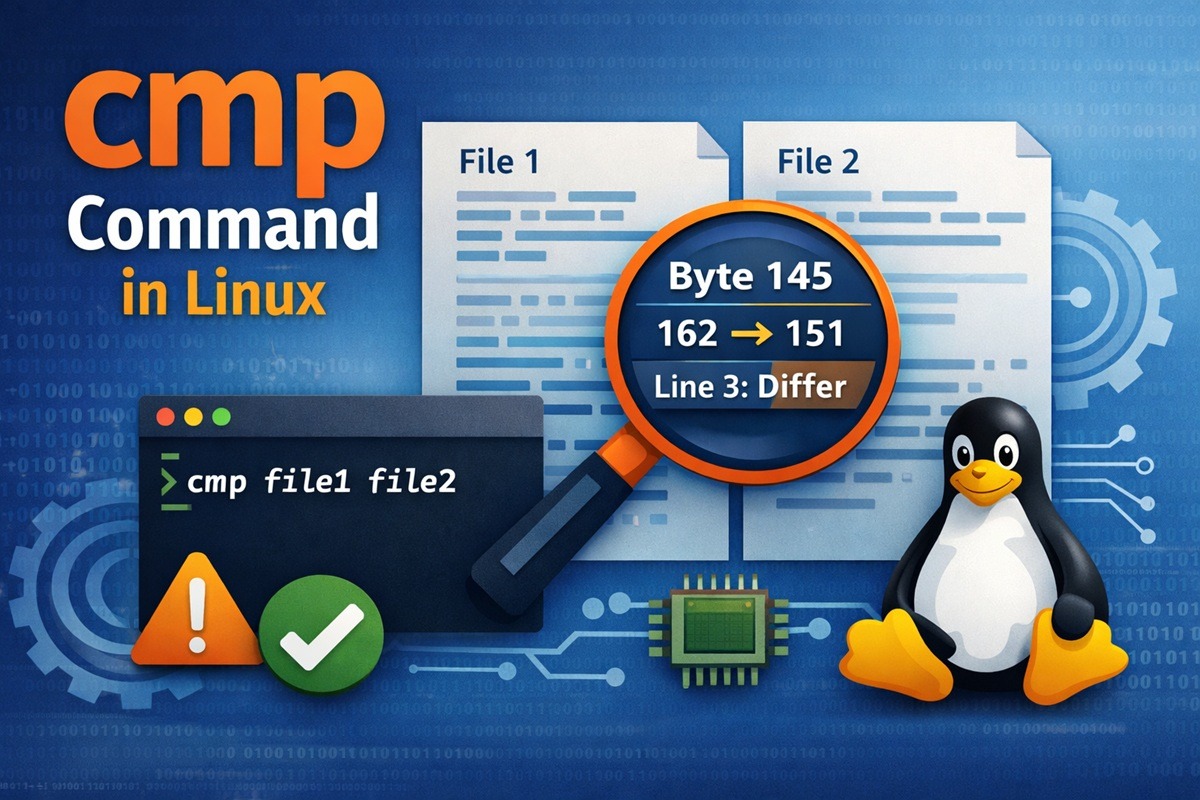
The cmp command is a lightweight Linux utility used to compare two files
byte by byte. Unlike diff, which works line by line, cmp focuses on
low-level comparison and reports the exact byte and line number where the
first difference occurs.
If the files are identical, cmp produces no output, making it ideal for
scripts and automated checks.
Basic cmp Command Usage
The cmp command compares two files byte by byte and reports the location
of the first difference. If both files are identical, cmp produces no output,
which makes it suitable for scripting and automated checks.
Compare two files byte by byte
Use the cmp command without any options to compare two files from the
beginning.
cmp file1 file2
If a difference is found, cmp reports the byte and line number of the first
mismatch:
file1 file2 differ: byte 145, line 3
If the files are identical, no output is displayed and the command exits silently.
Compare symbolic links
The cmp command can also be used to compare symbolic links. In this case,
cmp compares the contents of the files the links point to, not the symbolic
link paths themselves.
cmp symlink1 symlink2
You can also compare a symbolic link directly with its target file:
cmp symlink1 actual_file
If both resolve to the same underlying file content, cmp produces no output,
indicating that the files are identical. This is useful for validating
deployment symlinks and versioned configuration files.
Viewing Differences with cmp
The cmp command provides multiple options to control how differences
between files are displayed. By default, it stops at the first mismatch,
but with specific options you can inspect the actual byte values or view
all differences across the files.
Print differing bytes (-b)
Use the -b or --print-bytes option to display the actual differing
byte values when a mismatch is found.
cmp -b file1 file2
Sample output:
file1 file2 differ: byte 145, line 3 is 162 r 151 i
In this output:
- 145 is the byte number where the difference occurs
- 162 and 151 are the byte values
- r and i are the corresponding character representations
This option is useful when debugging text or binary files where the exact byte difference matters.
Display all differing bytes (-l)
By default, cmp stops after the first difference. Use the -l or
--verbose option to list all differing bytes between two files.
cmp -l file1 file2
Sample output:
145 162 151
146 145 163
147 160 40
148 157 141
...
Each line represents:
- The byte number
- The byte value from the first file
- The byte value from the second file
Skipping and Limiting Bytes in cmp
The cmp command allows you to skip a specific number of bytes or limit
how much of the files are compared. This is useful when files share a
common header or when only part of the content needs to be validated.
Skip initial bytes (-i)
Use the -i or --ignore-initial option to skip the first N bytes in
both files before comparison begins.
cmp -i 150 file1 file2
After skipping the specified number of bytes, cmp starts comparing
from the next byte and reports the first difference found.
Skip different bytes per file
You can skip a different number of bytes in each file by specifying two values separated by a colon.
cmp -i 150:180 file1 file2
This means:
- The first 150 bytes of
file1are skipped - The first 180 bytes of
file2are skipped
You can also skip bytes without using the -i option by passing them
as positional arguments.
cmp file1 file2 150
cmp file1 file2 150 180
Compare limited bytes (-n)
Use the -n or --bytes option to limit the comparison to a specific
number of bytes.
cmp -n 160 file1 file2
Only the first 160 bytes of both files are compared. This is useful when validating file headers, magic numbers, or partial file content without comparing the entire file.
Using cmp in Shell Scripts
The cmp command is especially useful in shell scripts because it
returns clear exit codes instead of requiring output parsing. This
makes it ideal for automation, validation checks, and conditional logic.
Silent comparison using exit codes (-s)
Use the -s, --quiet, or --silent option to suppress all normal
output and rely entirely on the exit status.
cmp -s file1 file2
You can then check the exit code using $? to determine the result.
cmp -s file1 file2
if [ $? -eq 0 ]; then
    echo "Files are identical"
elif [ $? -eq 1 ]; then
    echo "Files are different"
else
    echo "Comparison failed"
fi
Exit status meanings:
- 0 – Files are identical
- 1 – Files differ
- >1 – An error occurred
This approach avoids unnecessary output and keeps scripts clean.
Handle errors and suppress stderr
The -s option suppresses successful output but does not suppress
error messages. To hide errors, redirect standard error to /dev/null.
cmp file1 file2 extra_file 2>/dev/null
cmp Exit Codes and Version Info
cmp exit status explained
The cmp command returns a numeric exit code instead of verbose output,
making it ideal for conditional logic in shell scripts.
Exit status values:
- 0 – The files are identical
- 1 – The files are different
- >1 – An error occurred (missing file, permission issue, invalid arguments)
Example:
cmp -s file1 file2
echo $?
Check cmp version
To display the installed version of the cmp command, use the --version
option.
cmp --version
Sample output:
cmp (GNU diffutils) 3.10
Copyright (C) 2023 Free Software Foundation, Inc.
License GPLv3+: GNU GPL version 3 or later <https://gnu.org/licenses/gpl.html>.
This is free software: you are free to change and redistribute it.
There is NO WARRANTY, to the extent permitted by law.

Written by Torbjörn Granlund and David MacKenzie.
Summary
The cmp command is a simple yet powerful tool for comparing files at the
byte level in Linux. Unlike line-based tools, cmp focuses on detecting
exact binary differences and reports precise byte and line positions.
Key takeaways:
- Compares files byte by byte with minimal overhead
- Produces no output when files are identical
- Supports advanced options to view, skip, or limit comparisons
- Provides reliable exit codes for scripting and automation
- Ideal for binary files, configuration validation, and CI checks
When accuracy and automation matter, cmp is the preferred choice over
line-oriented comparison tools.
