
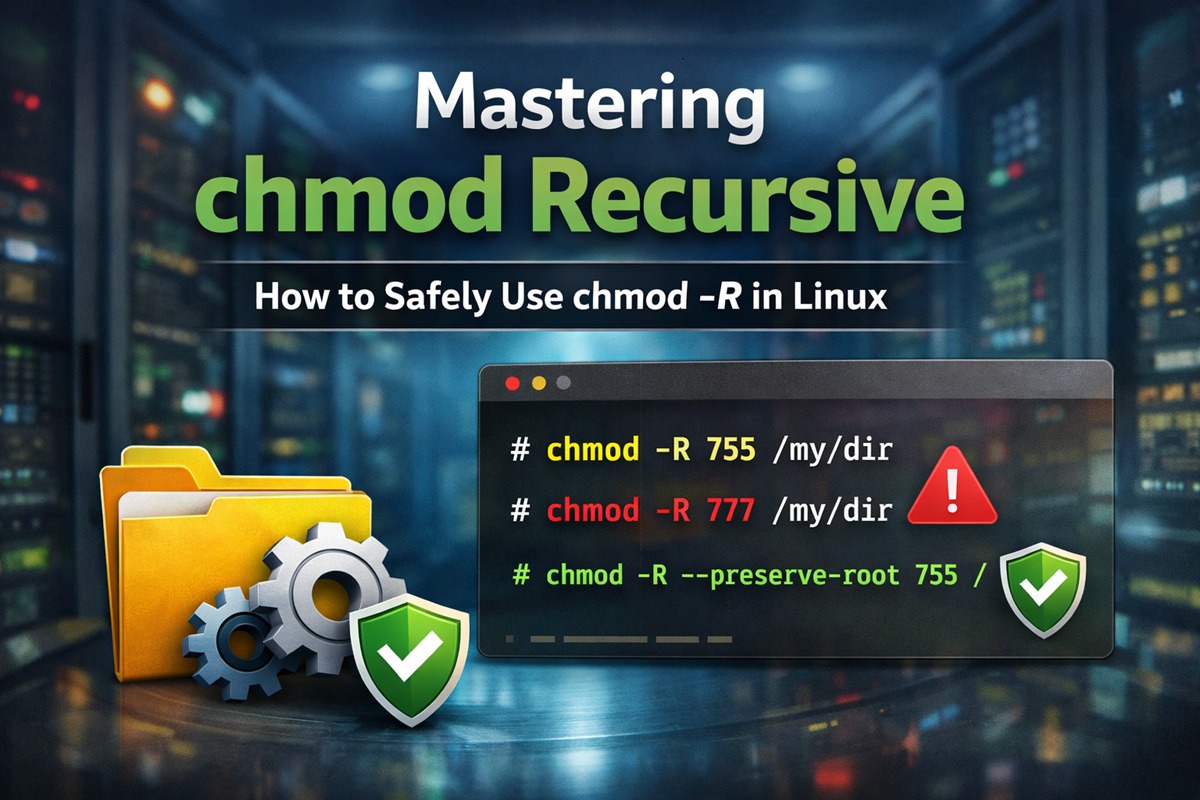
Introduction to File Permissions in Linux
In Linux and UNIX systems, file permissions control who can read, write, or execute files and directories. These permissions can be expressed in symbolic form (rwx) or numeric (octal) form.
Each permission has a numeric value:
- Read (r) = 4
- Write (w) = 2
- Execute (x) = 1
By adding these values, you get the permission number. For example:
rw-→ 4 + 2 = 6r-x→ 4 + 1 = 5rwx→ 4 + 2 + 1 = 7
Permission Values Explained
| Permission | Symbol | Octal | Meaning |
|---|---|---|---|
| Read | r | 4 | View file content or list directory |
| Write | w | 2 | Modify file or directory content |
| Execute | x | 1 | Run file or access directory |
Symbolic to Octal Mapping
| Permissions | Octal | Symbol |
|---|---|---|
| read + write + execute | 7 | rwx |
| read + write | 6 | rw- |
| read + execute | 5 | r-x |
| read only | 4 | r– |
| write + execute | 3 | -wx |
| write only | 2 | -w- |
| execute only | 1 | –x |
chmod Recursive – Quick Reference Cheat Sheet
| Use Case | Command | Notes |
|---|---|---|
| Change permissions recursively (directory + contents) | chmod -R 755 dir/ |
Common default for directories |
| chmod recursive 777 (⚠️ dangerous) | chmod -R 777 dir/ |
Avoid on production systems |
| Change permissions for directories only | find dir -type d -exec chmod 755 {} \; |
Best practice |
| Change permissions for files only | find dir -type f -exec chmod 644 {} \; |
Safe for config & web files |
| Remove execute permission from all files | find dir -type f -exec chmod a-x {} \; |
Prevents accidental execution |
| Remove write permission for group & others | chmod -R go-w dir/ |
Improves security |
| Recursive chmod with safety | chmod -R --preserve-root 755 dir/ |
Protects / directory |
| View permissions recursively | find dir -exec stat -c "%a %n" {} \; |
Useful before changes |
| Backup permissions | find dir -exec stat -c "%a %n" {} \; > perms.txt |
Always recommended |
File vs Directory Permissions (Very Important)
Permissions behave differently for files and directories, even though the same symbols are used.
File Permissions
- Read (r) – View file content
- Write (w) – Modify or truncate file
- Execute (x) – Run script or binary
File deletion depends on directory permissions, not file permissions.
Directory Permissions
- Read (r) – List directory contents (
ls) - Write (w) – Create, delete, rename files
- Execute (x) – Enter directory (
cd) and access files
Execute permission on directories is also called search permission.
Risky Permission Combinations
- Write without execute → User can delete files without accessing them
- Execute without read → User can access files only if path is known
- No execute → Directory is completely inaccessible
Understanding chmod Command
The chmod command is used to change the permission mode of files and directories in Linux.
Permissions control who can read, write, or execute a file or directory.
You can view the current permissions using:
ls -l
Example output:
-rwxr-xr--
This permission string is read as:
rwx→ owner has read, write, and execute permissionsr-x→ group has read and execute permissionsr--→ others have read-only permission
chmod Syntax
There are two common ways to use chmod.
Octal mode:
chmod 755 file
Here:
7(4+2+1) → owner: read, write, execute5(4+1) → group: read, execute5(4+1) → others: read, execute
Octal mode is compact and widely used in scripts and automation.
Symbolic mode:
chmod u+x file
This means:
u→ user (owner)+→ add permissionx→ execute permission
Symbolic mode is useful when you want to modify specific permissions without affecting others.
What Does chmod -R (Recursive) Mean?
The -R or --recursive option tells chmod to apply permission changes
to a directory and everything inside it.
When you run:
chmod -R 755 /path/to/directory
Linux applies the permissions to:
- The target directory
- All files inside it
- All subdirectories and their contents
This behavior is commonly referred to as:
- chmod recursive
- chmod recursively
- chmod directory recursively
IMPORTANT: Take Backup Before Recursive chmod
Applying chmod recursively can be dangerous. A single wrong permission change
can break applications, block access to directories, or even make a system unusable.
Always back up existing permissions before running recursive chmod.
Backup Permissions
Use the following command to capture the current permission state of all files and directories under a path:
find /path/to/dir -exec stat -c "%a %n" {} \; > permissions_backup.txt
What this does:
%a→ stores the octal permission (e.g. 755, 644)%n→ stores the file or directory name- The output is written to
permissions_backup.txt
This file can later be used to restore permissions exactly as they were.
Restore Permissions from Backup
If permissions are accidentally changed, you can restore them using this script:
#!/bin/bash
while read -r perm file; do
  chmod "$perm" "$file"
done < permissions_backup.txt
How this works:
- Reads the backup file line by line
- Extracts the permission and file path
- Re-applies the original permission using
chmod
chmod Recursive Examples
1. chmod Recursive on a Directory (Recommended)
chmod -R 755 /path/to/directory
- Owner: read, write, execute
- Group & others: read and execute
- Safe default for most directories
2. chmod 777 Recursive (⚠️ Dangerous – Avoid)
chmod -R 777 /path/to/directory
- Gives full permissions to everyone
- Major security risk on shared or production systems
Common searches:
- chmod 777 recursive
- chmod recursive 777
- chmod directory recursive 777
Use only for temporary debugging, never permanently.
3. chmod Directories Only (Best Practice)
find /path/to/directory -type d -exec chmod 755 {} \;
- Ensures directories remain accessible
- Prevents permission-related navigation errors
4. chmod All Files in Directory
find /path/to/directory -type f -exec chmod 644 {} \;
- Owner: read & write
- Group & others: read-only
- Ideal for configuration files and web content
5. Remove Execute Permission from All Files
find /path/to/directory -type f -exec chmod a-x {} \;
- Prevents accidental execution
- Improves system security
6. Remove Write Access for Group and Others
chmod -R go-w /path/to/directory
- Prevents unauthorized modification
- Common on shared servers
Bonus: --preserve-root (VERY IMPORTANT)
Running recursive chmod on the root (/) directory can break the entire system.
To prevent accidental damage, GNU chmod provides a safety option called
--preserve-root.
chmod --recursive --preserve-root 755 /
What happens here:
--recursiveapplies permissions recursively--preserve-rootprevents changes to/- Linux will stop the command automatically if the target is root
This protects your system from catastrophic mistakes.
Create a Safe chmod Alias (Highly Recommended)
You can permanently protect yourself by creating a safe alias:
alias chmod='chmod --preserve-root'
Add this line to:
~/.bashrc(single user)/etc/bashrc(all users)
After this, any accidental recursive chmod on / will be blocked by default.
Best Practices for Using chmod Recursively
Follow these rules to avoid permission-related disasters:
- Never use
777unless absolutely required - Always separate permissions for files and directories
- Take a permission backup before recursion
- Use
--preserve-rootwhenever possible - Test permission changes on non-production paths first
Conclusion
The chmod command can be used with the -R (or --recursive) option to
modify permissions for files and directories recursively. While powerful,
recursive chmod can also be destructive if used incorrectly.
To reduce risk:
- Combine recursive chmod with
--changesand--preserve-root - Redirect output if you do not want messages on the terminal
Example:
chmod --recursive --changes 755 /tmp/dir1/ > /tmp/logfile 2>&1
This command:
- Applies permissions recursively
- Logs all changes and errors to
/tmp/logfile - Keeps the terminal output clean for debugging later
References
I have used the following external reference for this tutorial guide:
