
![How to check Disk Interface Types in Linux [7 Methods]](/check-disk-type-linux/check_disk_type.jpg)
In Linux, it is important to be able to identify the disk type of a particular drive. This information is necessary for performing certain operations, such as creating a partition or formatting a disk. There are several methods to check disk type in Linux, and each method provides different information about the disk.
One method to check disk type in Linux is to use the “lsblk” command. This command lists all block devices, including disks, partitions, and other storage devices. By using the “lsblk” command, you can identify the device name, size, and type of each disk.
Another method to check disk type in Linux is to use the “fdisk” command. This command provides more detailed information about the disk, including the partition table type and the sector size.
Additionally, you can use the “blkid” command to check disk type in Linux. This command displays the UUID and filesystem type of each device, including disks and partitions.
By using these methods, you can easily identify the disk type of a particular drive in Linux. This information is essential for performing disk-related operations and maintaining the health and performance of your system.
Different Disk Interface Types
Now that you are familiar with the type of disk you are using, you should know the type of disk interface you are using in your environment. The different types of available disk interface types are
- Advanced technology attachment (ATA) is a standard interface used for connecting storage devices, such as hard disk drives and CD/DVD drives, to a computer’s motherboard. ATA was developed in the 1980s and has since gone through several iterations, including ATA-1, ATA-2, ATA-3, and ATA-4. The latest version of the ATA standard is called SATA (Serial ATA).
- Integrated Drive Electronics (IDE) was a popular disk interface used in older computers. IDE drives use a wide ribbon cable to connect to the motherboard and have a maximum data transfer rate of 133 MB/s.
- Serial ATA (SATA) is a newer disk interface used in modern computers. SATA drives use a thin cable to connect to the motherboard and have a maximum data transfer rate of 600 MB/s.
- Small Computer system interface (SCSI) is a high-performance disk interface used in servers and other high-end systems. SCSI drives use a small cable to connect to the motherboard and have a maximum data transfer rate of 320 MB/s.
- Serial attached SCSI (SAS) is a high-performance disk interface used in enterprise-level servers and storage systems. SAS drives use a small cable to connect to the motherboard and have a maximum data transfer rate of 12 Gb/s.
- NVMe (Non-Volatile Memory Express): NVMe is a newer disk interface designed specifically for SSDs. NVMe drives use a high-speed PCIe connection to connect to the motherboard and have a maximum data transfer rate of 32 GB/s.
Linux commands to check Disk Interface Types
1. Using lspci command
lspci is a utility for displaying information about PCI buses in the
system and devices connected to them. We can
grep for the
specific interface type from the output of lspci
~]# /usr/sbin/lspci | grep IDE
00:01.1 IDE interface: Intel Corporation 82371AB/EB/MB PIIX4 IDE (rev 01)

~]# /usr/sbin/lspci | grep SATA
00:0d.0 SATA controller: Intel Corporation 82801HM/HEM (ICH8M/ICH8M-E) SATA Controller [AHCI mode] (rev 02)

~]# /usr/sbin/lspci | grep Fibre
04:00.2 Fibre Channel: Emulex Corporation OneConnect 10Gb FCoE Initiator (be3) (rev 01)
04:00.3 Fibre Channel: Emulex Corporation OneConnect 10Gb FCoE Initiator (be3) (rev 01)
2. Using lshw command
lshw is a small tool to extract detailed information on the hardware
configuration of the machine. It can report exact memory configuration,
firmware version, mainboard configuration, CPU version and speed, cache
configuration, bus speed, etc. on DMI-capable x86 or IA-64 systems and
on some PowerPC machines. It currently supports DMI (x86 and IA-64
only), OpenFirmware device tree (PowerPC only), PCI/AGP, CPUID (x86),
IDE/ATA/ATAPI, PCMCIA (only tested on x86), SCSI and USB
Here is a sample output with SCSI disk interface
~]# lshw -c storage -c disk
...
     *-disk:0
          description: SCSI Disk
          bus info: scsi@0:1.0.0
...
     *-disk:1
          description: SCSI Disk
          bus info: scsi@0:1.0.1
...
Here is a sample output with SATA interface
...
  *-sata
       description: SATA controller
       product: 82801HM/HEM (ICH8M/ICH8M-E) SATA Controller [AHCI mode]
       vendor: Intel Corporation
       physical id: d
       bus info: pci@0000:00:0d.0
...
Here is a sample output from NVME disks
...
  *-storage
       description: Non-Volatile memory controller
       product: Samsung Electronics Co Ltd
       vendor: Samsung Electronics Co Ltd
       physical id: 0
       bus info: pci@0000:41:00.0
...
Here is a sample output with ATA disk interface
...
     *-disk:0
          description: ATA Disk
          bus info: scsi@2:0.0.0
          logical name: /dev/sda
...
     *-disk:1
          description: ATA Disk
          bus info: scsi@3:0.0.0
          logical name: /dev/sdb
Why the bus info is SCSI when the disk interface type is ATA Disk?
If you observe the above output, we have ATA as the disk interface
while the bus info is SCSI. The bud info is SCSI because that is the
subsystem that provides IO for
these disks.
It basically means that even though the disk interface is ATA, the
drivers interact to the next kernel layer (the generic disk driver)
using SCSI. This isn’t actually true of all SATA drivers on all kernel
versions with all kernel compile-time configurations, but it’s common.
Even PATA devices can appear as SCSI at that level (again, that depends
on the kernel
version and kernel compile-time configuration, as well as whether
the ide-scsi module is used).
You can read more about this at Why do my SATA devices show up under /proc/scsi/scsi?
3. Using hdparm command
hdparm provides a command line interface to various kernel interfaces
supported by the Linux SATA/PATA/SAS “libata” subsystem and the older
IDE driver sub-system. Many newer (2008 and later)
USB
drive enclosures now also support “SAT” (SCSI-ATA Command
Translation) and therefore may also work with hdparm.
We can use -I with hdparm which will request identification info directly from the drive, which is displayed in a new expanded format. Here are some example outputs:
# hdparm -I /dev/sda

/dev/sda:

ATA device, with non-removable media
Standards:
        Likely used: 1
Configuration:
        Logical         max     current
        cylinders       0       0
        heads           0       0
        sectors/track   0       0
        --
        Logical/Physical Sector size:           512 bytes
        device size with M = 1024*1024:           0 MBytes
        device size with M = 1000*1000:           0 MBytes
        cache/buffer size  = unknown
...
But hdparm works exclusively with devices which speak the ATA
protocol, for disks with other protocols, you may get the following
error:
HDIO_DRIVE_CMD(identify) failed: Inappropriate ioctl for device
4. Using lsblk command
This can be one of the most reliable method to get the disk
interface type. lsblk lists information about all available or the
specified block devices. Using -o with lsblk we can print additional
columns. To get the disk interface type we can use “TRAN” which will
print the device transport type.
For example on a server using Fibre Channel:
~]# lsblk -do name,tran | egrep -v loop
NAME TRAN
sda  fc
sdb  fc
sdc  fc
sdd  fc
sde  fc
sdf  fc
sdg  fc
sdh  fc
On a server using HDD, here both the disks are using SAS protocol.
~]# lsblk -do name,tran | egrep -v loop
NAME  TRAN
sda   sas
sdb   sas
On Virtual Box environment, the virtual disks are using SATA while the DVD is using ATA protocol:
~]# lsblk -do name,tran | egrep -v loop
NAME TRAN
sda  sata
sdb  sata
sr0  ata
sr1  ata
5. Using smartctl command
The smartctl command is a Linux utility that is used to check the
health and performance of storage devices, including hard disk drives
(HDDs), solid-state drives (SSDs), and other storage devices. The
command is based on the Self-Monitoring, Analysis, and Reporting
Technology (SMART) standard, which is used by modern storage devices to
monitor their health and performance.
The smartctl command provides detailed information about the device’s
attributes, performance, and error log. It can be used to check the
disk’s temperature, power-on time, spin-up time, read error rate, and
many other parameters that can help diagnose issues with the disk. The
command can also be used to perform self-tests on the disk, including
short, extended, and conveyance tests.
$ sudo smartctl -a /dev/sda
=== START OF INFORMATION SECTION ===
Model Family:     Western Digital Caviar Green (Adv. Format)
Device Model:     WDC WD30EZRX-00MMMB0
Serial Number:    WD-WCAWZ1958001
LU WWN Device Id: 5 0014ee 0ae1e0f1c
Firmware Version: 80.00A80
User Capacity:    3,000,592,982,016 bytes [3.00 TB]
Sector Sizes:     512 bytes logical, 4096 bytes physical
Rotation Rate:    5400 rpm
Form Factor:      3.5 inches
Device is:        Not in smartctl database [for details use: -P showall]
ATA Version is:   ATA8-ACS T13/1699-D revision 4
SATA Version is:  SATA 3.0, 6.0 Gb/s (current: 3.0 Gb/s)
Local Time is:    Tue Apr 05 09:15:29 2023 PDT
SMART support is: Available - device has SMART capability.
SMART support is: Enabled
Understanding HDD and SSD
HDD (Hard Disk Drive) and SSD (Solid State Drive) are two different types of storage devices used in computers and other electronic devices.
HDDs are the traditional mechanical storage devices that use spinning disks or platters to store and retrieve data. They are typically larger in size and offer higher storage capacities compared to SSDs. HDDs use magnetic heads to read and write data on the spinning disks and are generally slower than SSDs in terms of data transfer rates and access times.
On the other hand, SSDs are newer storage devices that use NAND flash memory to store data. They have no moving parts and are faster and more reliable than HDDs. SSDs offer faster data transfer rates and access times, making them ideal for applications that require fast data processing, such as gaming, video editing, and database management.
You can use the following methods to identify your disk type whether it is HDD or SSD
Linux commands to check if Disk is HDD or SSD
1. Check if the disk is rotational
You should check the value of /sys/block/sdX/queue/rotational, where
sdX is the drive name. If the value is 0, you’re dealing with an
SSD, and 1 means plain old HDD.
These are the available disks on my Linux server:
# lsscsi
[0:0:0:0]    storage HP       P244br           6.30  -
[0:1:0:0]    disk    HP       LOGICAL VOLUME   6.30  /dev/sda
[0:1:0:1]    disk    HP       LOGICAL VOLUME   6.30  /dev/sdb
Now we can check the rotational value of these individual disks:
# cat /sys/block/sda/queue/rotational
1

# cat /sys/block/sdb/queue/rotational
1
As the value for both the disks are 1, it means my both the disks are HDD.
2. Check Using lsblk command
Here also we will use the concept of identifying the disks with
rotational feature to check the disk type. Although here we are using
lsblk to list all the available connected disk types and their
respective rotational values:
# lsblk -d -o name,rota
NAME  ROTA
sda      1
sdb      1
loop0    1
loop1    1
So all the identified disks have rotational value as 1 so this means they all are part of HDD.
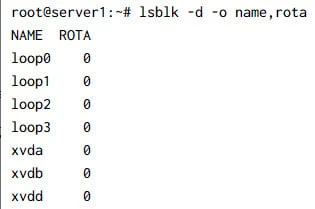
Here I have another setup with SSD disks:
3. Check Using disk model number
We can get the model number of the disk using lsblk command:
# lsblk -d -e 7 -o NAME,ROTA,DISC-MAX,MODEL
NAME    ROTA DISC-MAX MODEL
nvme0n1    0       2T SAMSUNG MZQLB960HAJR-00007
nvme1n1    0       2T SAMSUNG MZQLB960HAJR-00007
If you are using any kind of RAID such as hardware or software raid then it is possible you won’t get the model number with above command. In such case we have to rely on some third party tools. For example on my HPE Proliant Blades we are using hardware and software raid so on those servers I get following output:
# lsblk -d -e 7 -o NAME,ROTA,DISC-MAX,MODEL
NAME ROTA DISC-MAX MODEL
sda     1       0B LOGICAL VOLUME
sdb     1       0B LOGICAL VOLUME
As you see instead of Model Number, I get “LOGICAL VOLUME” so here I
rely on HPE third party software such as ssacli and HPE Array
Configuration Utility (acu cli) to get the model number. First we need
the physical drive location, which can be collected using:
# ssacli ctrl slot=0 pd all show status

   physicaldrive 1I:1:1 (port 1I:box 1:bay 1, 900 GB): OK
   physicaldrive 1I:1:2 (port 1I:box 1:bay 2, 900 GB): OK
Now that we have the Physical Drive location i.e. 1I:1:1, we can query the details for this PD:
# ssacli ctrl  slot=0 pd 1I:1:1 show detail

Smart Array P244br in Slot 0 (Embedded)

   Array A

      physicaldrive 1I:1:1
         Port: 1I
         Box: 1
         Bay: 1
         Status: OK
         Drive Type: Data Drive
         Interface Type: SAS
         Size: 900 GB
         Drive exposed to OS: False
         Logical/Physical Block Size: 512/512
         Rotational Speed: 10000
         Firmware Revision: HPD6
         Serial Number: 17E0A0DXFUWB1702
         WWID: 50000397881B3406
         Model: HP      EG0900JETKB
         Current Temperature (C): 31
         Maximum Temperature (C): 40
         PHY Count: 2
         PHY Transfer Rate: 12.0Gbps, Unknown
         Drive Authentication Status: OK
         Carrier Application Version: 11
         Carrier Bootloader Version: 6
         Sanitize Erase Supported: True
         Sanitize Estimated Max Erase Time: 4 hour(s), 14 minute(s)
         Unrestricted Sanitize Supported: False
         Shingled Magnetic Recording Support: None
As you see it gives us a bunch of information about the drive we are using along with the model number.
Now that we have the model number of both our disk, we can search for the specification guide of these disks. For example the above model number is for Smasung disk which as per their online specification guide is SSD
You can also use different commands to get the model number of the disks, such as
# dmesg | grep -i -e scsi -e ata
This can give you a long list of output but you can filter the model number from the output, sample below from my server:
[    2.637090] hpsa 0000:07:00.0: scsi 0:0:0:0: added RAID              HP       P244br           controller SSDSmartPathCap- En- Exp=1
[    2.637106] hpsa 0000:07:00.0: scsi 0:0:1:0: masked Direct-Access     HP       EG0900JETKB      PHYS DRV SSDSmartPathCap- En- Exp=0
[    2.637115] hpsa 0000:07:00.0: scsi 0:0:2:0: masked Direct-Access     HP       EG0900JETKB      PHYS DRV SSDSmartPathCap- En- Exp=0
Conclusion
In summary, there are various methods available to check the type of disk interface used by a storage device in Linux. Commands like lsblk, lshw, smartctl, hdparm, and dmesg can provide information about the disk’s interface type, along with other details like the disk’s health and performance, partition table type, and file system type.
The smartctl command is a particularly useful tool that allows you to
check the health and performance of your storage device using the SMART
standard. With smartctl, you can view a wealth of information about
the disk’s attributes, performance, and error log, and perform
self-tests to identify any potential issues with the disk. This can be
particularly useful for system administrators and users who want to
monitor the health of their storage devices and take appropriate action
before data loss or system failure occurs.
