
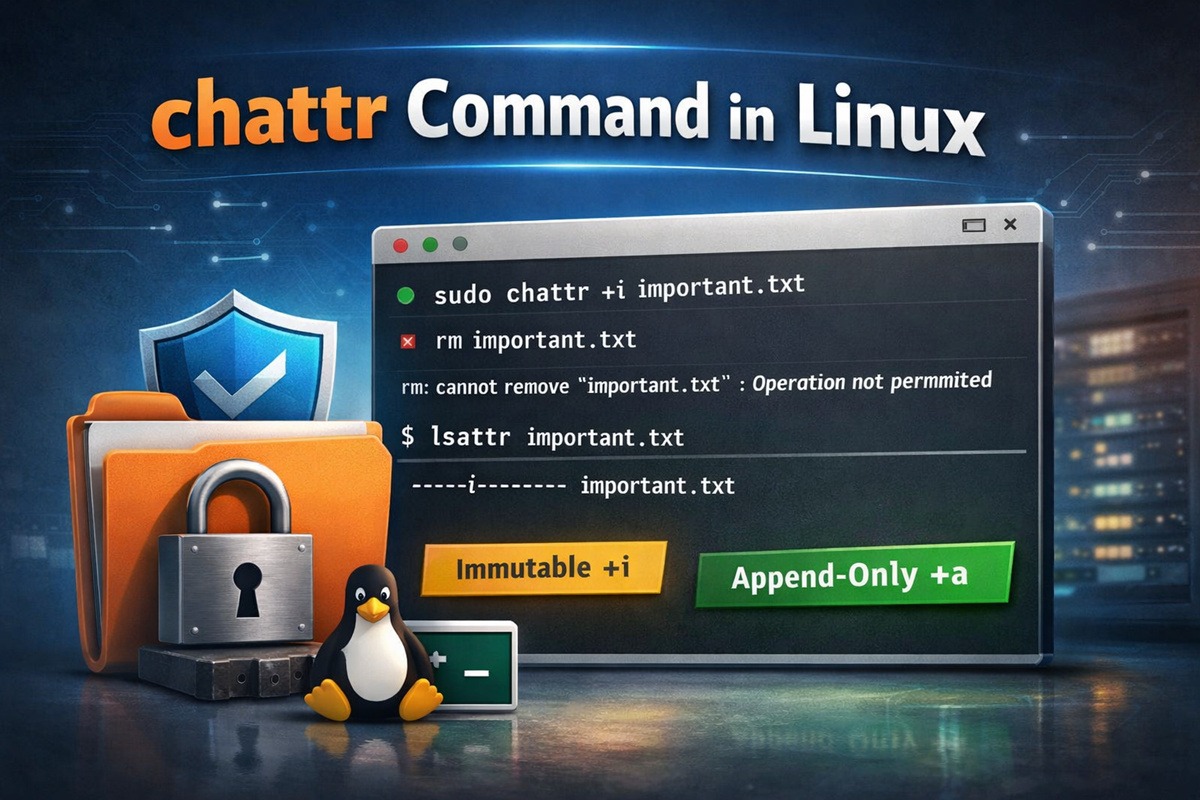
In Linux, files and directories have special filesystem-level attributes that control how they behave beyond standard permissions.
The chattr command is used to change these attributes. It allows you to protect files from deletion, restrict modifications, enforce append-only writes, and apply additional safety controls—even against the root user in some cases.
Unlike chmod, which controls who can read, write, or execute a file,
chattr enforces deeper restrictions at the filesystem level.
The companion command lsattr is used to view these attributes.
Common use cases include:
- Preventing accidental deletion of critical configuration files
- Securing system logs from modification
- Hardening Linux servers and production systems
- Protecting files from malware or misconfigured scripts
Understanding Linux File Attributes
What Are Linux File Attributes?
Linux file attributes are special flags stored by the filesystem that define how a file or directory can be accessed or modified.
These attributes:
- Apply in addition to standard permissions
- Are enforced by the filesystem itself
- Can restrict even privileged users in some cases
File attributes are commonly used on ext2, ext3, and ext4 filesystems.
You can view file attributes using the lsattr command:
lsattr filename
And modify them using chattr:
sudo chattr +attribute filename
Common File Attributes Explained
The following table lists commonly used Linux file attributes and their purpose:
| Attribute | Description |
|---|---|
i |
Makes a file immutable (cannot be modified, deleted, or renamed) |
a |
Allows only append operations (useful for log files) |
A |
Disables updating access time |
d |
Excludes file from dump backups |
S |
Forces synchronous disk writes |
s |
Secure deletion by zeroing data blocks |
e |
Indicates use of extents (default on ext4) |
To check which attributes are set on a file:
lsattr filename
To add or remove an attribute:
sudo chattr +i filename
sudo chattr -i filename
chattr vs ACLs (When to Use What)
chattr and ACLs serve different purposes and should not be confused.
| Feature | chattr | ACLs |
|---|---|---|
| Purpose | Enforce file behavior | Control access permissions |
| Granularity | File/system-level | User and group-level |
| Prevent deletion | Yes (+i) |
No |
| Multi-user control | No | Yes |
Use chattr when:
- Protecting critical system files
- Preventing accidental deletion
- Enforcing append-only logs
Use ACLs when:
- Managing access for multiple users
- Fine-grained permission control
- Replacing complex chmod setups
Difference Between chattr and chmod
Although both commands control file behavior, chattr and chmod serve very different purposes.
| Feature | chattr | chmod |
|---|---|---|
| Controls | Filesystem attributes | File permissions |
| Scope | Deep filesystem-level | User/group level |
| Can block root | Yes (e.g., immutable files) | No |
| Common use | File protection and hardening | Access control |
| Examples | Immutable, append-only | Read, write, execute |
Summary:
Use chmod to manage who can access a file.
Use chattr to control what can happen to a file.
chattr Limitations on Filesystems (ext4, xfs, btrfs)
Not all Linux filesystems support all chattr attributes.
Filesystem support overview:
ext4→ Full support for most attributes (+i,+a,+A,+S)xfs→ Limited support (mainly+iand+a)btrfs→ Partial support; many attributes are ignoredtmpfs→ No attribute support
Check filesystem type:
df -T /path/to/file
Common symptoms of unsupported filesystems:
Operation not supportederrors- Attribute appears set but has no effect
- Attributes disappear after remount
Important note:
chattr is most reliable on ext4 filesystems.
Syntax of chattr and lsattr Commands
The chattr and lsattr commands follow a simple and consistent syntax designed to modify or inspect filesystem-level attributes.
chattr command syntax
sudo chattr [options] [+|-|=attributes] file_or_directory
+adds the specified attributes-removes the specified attributes=sets only the specified attributes and removes all others
lsattr command syntax
lsattr [options] file_or_directory
These commands work primarily on ext2, ext3, and ext4 filesystems.
Viewing File Attributes Using lsattr
How to View File Attributes Using lsattr
The lsattr command displays the attributes currently set on files and directories.
To check attributes of a specific file:
lsattr filename
Sample output:
----i-----------e----- filename
Each letter represents a file attribute, while dashes indicate attributes that are not set.
To list attributes of all files in the current directory:
lsattr
List Hidden Files with Attributes Using lsattr -a
By default, lsattr does not display hidden files (files starting with .).
You can include them using the -a option.
To list attributes of all files, including hidden ones:
lsattr -a directory_name
This is useful when inspecting configuration files such as .bashrc
or .profile, which are often hidden.
List Directory Attributes Without Listing Contents
Normally, lsattr lists attributes for all files inside a directory.
If you want to view only the directory’s own attributes, use the -d option.
Example:
lsattr -d directory_name
This helps when checking whether a directory itself is immutable or has special attributes set.
View File Generation Number Using lsattr -v
The -v option with lsattr displays the file’s version or
generation number maintained by the filesystem.
To view the generation number:
lsattr -v filename
This value changes when certain filesystem-level operations occur and is mainly useful for low-level debugging and forensic analysis.
Modifying File Attributes Using chattr
Make a File Immutable Using chattr (+i)
The immutable attribute prevents a file from being:
- Modified
- Renamed
- Deleted
- Linked
This applies even to the root user.
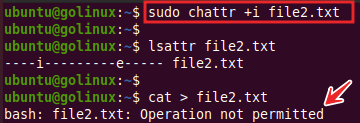
To make a file immutable:
sudo chattr +i filename
Once set, attempts to modify or delete the file will fail with a permission error.
This is commonly used to protect:
- System configuration files
- Security-sensitive data
- Application binaries
Remove Immutable Attribute from a File
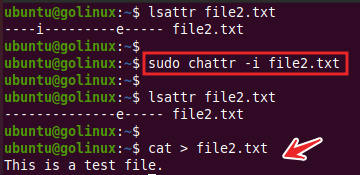
To restore normal behavior, the immutable attribute must be removed before modifying or deleting the file.
Use the following command:
sudo chattr -i filename
After removing the attribute, the file can again be edited, renamed, or deleted normally.
Make a File Append-Only Using chattr (+a)
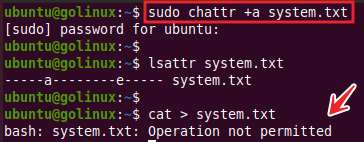
The append-only attribute allows data to be added to a file but prevents existing content from being modified or removed.
To enable append-only mode:
sudo chattr +a filename
This attribute is particularly useful for:
- Log files
- Audit trails
- Security event records
Even the root user cannot overwrite existing content while this attribute is active.
Set Only Specific Attributes Using = Symbol
The = symbol sets only the specified attributes and removes
all others from the file.
To apply a clean set of attributes:
sudo chattr =i filename
This ensures that the file has only the immutable attribute and no previously set flags.
Use this option carefully, as it may unintentionally remove important attributes already applied to the file.
Change Attributes Recursively on Directories
The recursive option allows you to apply file attributes to a directory and all its files and subdirectories in one command.
To change attributes recursively:
sudo chattr -R +a directory_name
This command applies the append-only attribute to the directory and everything inside it.
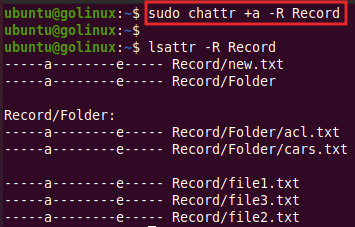
Use this option with caution, especially on system directories, as it may affect many files at once.
chattr on Directories vs Files (Important Differences)
File attributes behave differently when applied to files versus directories, and this distinction is critical for correct usage.
On regular files:
+i(immutable) prevents modification, deletion, or renaming+a(append-only) allows data to be added but not removed or modified
On directories:
+iprevents:- Creating new files
- Deleting files
- Renaming files inside the directory
- Existing files inside the directory are unaffected unless they also have attributes set
Example:
chattr +i /etc
Result:
- No files can be added or removed inside
/etc - Existing files can still be modified unless they are individually marked immutable
Controlling Output and Errors
Suppress Error Messages in chattr
When modifying attributes, chattr may display error messages for unsupported files or permission issues.
To suppress these non-critical errors, use the -f option:
sudo chattr -f +a filename
This option hides error messages but does not suppress fatal errors. It is useful when running chattr in scripts or automation.

Display Verbose Output and Version Information
The chattr command normally produces no output.
To view detailed information and the program version, use the -V option.
Example:
sudo chattr -V +i filename
This displays:
- chattr version
- Attributes applied to the file
Verbose mode is helpful for debugging and verification.
Common chattr Errors and Troubleshooting
Below are common issues encountered when using chattr and how to fix
them.
Operation not permitted:
- Ensure you are running as root
- Check filesystem support
- Verify the file is not on tmpfs or overlayfs
Operation not supported:
- Filesystem does not support attributes
- Switch to ext4 if attribute enforcement is required
Attribute appears set but has no effect:
- Filesystem silently ignores the attribute
- Confirm using:
lsattr filename
Cannot delete immutable file:
- Remove immutable flag first:
chattr -i filename
Practical Use Cases for chattr in Linux Servers
The chattr command is widely used in production environments to improve system reliability and security.
Protect critical configuration files
sudo chattr +i /etc/passwd
sudo chattr +i /etc/resolv.conf
Secure log files from tampering
sudo chattr +a /var/log/auth.log
sudo chattr +a /var/log/syslog
Prevent accidental deletion of application files
sudo chattr -R +i /opt/application/config
Harden servers against malicious scripts
- Stops malware from overwriting binaries
- Prevents unauthorized configuration changes
- Adds an extra layer beyond file permissions
Frequently Asked Questions
1. Is chattr supported on all Linux filesystems?
No. chattr works primarily on ext2, ext3, and ext4 filesystems.2. Can chattr protect files from the root user?
Yes. Attributes such as immutable apply even to the root user.3. What happens if I forget to remove the immutable flag?
The file cannot be modified or deleted until the immutable attribute is removed using chattr -i.4. Is chattr a replacement for chmod?
No. chmod manages access permissions, while chattr controls filesystem-level behavior.5. How do I check if a file is immutable?
Use lsattr and look for the i flag in the output for the file.Conclusion
This tutorial explained how to use the chattr and lsattr commands in Linux to control file behavior at the filesystem level.
The chattr command allows you to protect files from deletion, modification, and overwrites, while lsattr helps you inspect and verify these attributes. Together, they provide an additional layer of protection beyond standard file permissions.
Understanding and using file attributes correctly can help improve system stability, security, and operational safety.
