
In this tutorial I will share the steps to change background image of your GRUB2 menu which is also referred as splash screen in Linux. The default splash screen varies across different Linux distributions. In this article I will use RHEL 8 but the same steps would be valid for any other distribution using GRUB2 such as Ubuntu, Debian, CentOS, SuSE etc.
1. Default GRUB2 background image
With my Linux distribution, below is the default GRUB2 background image.
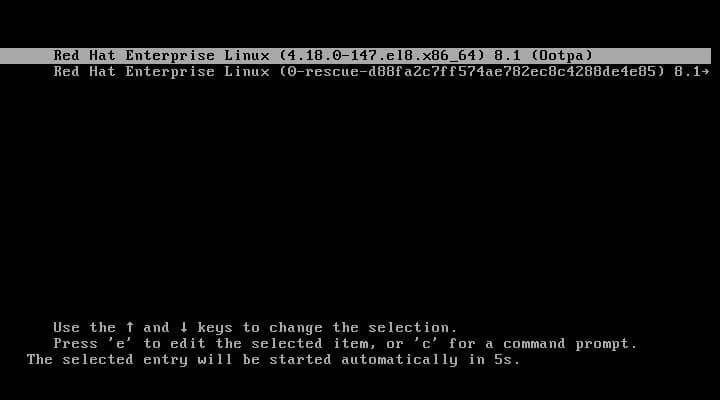
Default GRUB2 boot loader splash screen
As you see, it is a plain black background image. In default RHEL
distribution they use isolinux/splash.png which is nothing but a plain
background image.
vesamenu.c32 (graphical) and menu.c32 (text
mode only) but those cannot be used for grub2 background here.
2. Place your custom image on the server
You can use JPG/JPEG or PNG images as your new background image instead
of the default splash screen. make sure the image resolution is 600*600
or higher. You can put the image any preferred location, we will create
a new directory /boot/grub2/images
# mkdir /boot/grub2/images
Next copy your image inside this directory
# ls -l
total 384
-rw-r--r-- 1 root root 363046 Aug 28 13:39 RHEL_8_Desktop.png
So now we have our image. Let’s go to the next step.
2. Update GRUB2 with new background image
Update your GRUB2 and add or modify below variables in
/etc/default/grub
# cat /etc/default/grub
GRUB_TIMEOUT=5
GRUB_DISTRIBUTOR="$(sed 's, release .*$,,g' /etc/system-release)"
GRUB_DEFAULT=saved
GRUB_DISABLE_SUBMENU=true
#GRUB_TERMINAL_OUTPUT="console"  <-- Commented out this entry
GRUB_CMDLINE_LINUX="resume=/dev/mapper/rhel-swap rd.lvm.lv=rhel/root rd.lvm.lv=rhel/swap rhgb quiet biosdevname=0 net.ifnames=0"
GRUB_DISABLE_RECOVERY="true"
GRUB_ENABLE_BLSCFG=true
GRUB_TERMINAL_OUTPUT="gfxterm"   <-- Use gfxterm
GRUB_BACKGROUND="/boot/grub2/images/RHEL_8_Desktop.png"  <-- provide the location of your image
4. Rebuild GRUB2
Next rebuild your GRUB2 configuration on legacy BIOS
# grub2-mkconfig -o /boot/grub2/grub.cfg
Generating grub configuration file ...
Found background: /boot/grub2/images/RHEL_8_Desktop.png
done
/boot/efi/EFI/redhat/grub.cfgfor rebuilding GRUB2
5. Verify the new GRUB2 background image
We are all set, next reboot the node and verify your new GRUB2 background image
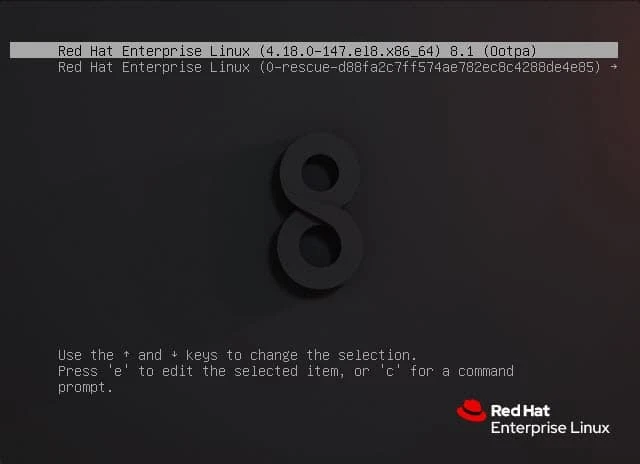
Custom GRUB2 background image
So now we have our new GRUB2 background image
Conclusion
In this turorial we learned about how we can change the GRUB2 background image with our own splash screen. These steps are tested only on running Linux environment and not on custom ISO DVD. The steps required to change GRUB2 background image in ISO dvd will vary. Since I do not have a UEFI environment, I could not verify that part. if you face any issues kindly drop in a comment available at the bottom of this article.
References
I have used below external references for this tutorial guide
How to
change splash screen on grub menu during boot?
