

The chage command in Linux is used to view and modify user account aging information. It allows system administrators to control how long a user password remains valid, when it must be changed, and when a user account should expire or become inactive.
Using the chage command, you can manage:
- Password expiry date
- Last password change date
- Minimum and maximum password age
- Account inactivity lock period
- Account expiration date
- Warning period before password expiry
The chage command works by updating password aging fields maintained by the Linux shadow password system. It is commonly used on multi-user Linux systems to enforce security policies and prevent stale or unused accounts from remaining active.
Who Can Run the chage Command
Only users with administrative privileges can run the chage command.
This includes:
- The root user
- Users with sudo access
Regular (non-privileged) users cannot modify password aging information using chage, even for their own accounts. This restriction ensures that account and password policies cannot be altered without proper authorization.
chage Command Syntax and Overview
chage Command Syntax
The chage command follows a simple syntax where options are used to control different password aging and account expiration parameters.
sudo chage [OPTIONS] USER
Only the root user or users with sudo privileges can run this command. The USER argument specifies the login name of the account whose aging information you want to view or modify.
If no options are provided, the chage command runs in interactive mode and prompts for each aging parameter one by one.
Shadow File Fields Modified by chage (Quick Reference)
The chage command modifies specific password aging and account
expiration fields stored in the /etc/shadow file. All date-related
fields are stored as the number of days since January 1, 1970
(Unix epoch).
A typical entry in the /etc/shadow file looks like this:
username:password:lastchg:min:max:warn:inactive:expire:reserved
The fields are defined as follows:
| Field No. | Field Key | Field Name | Description | chage Option |
|---|---|---|---|---|
| 1 | username | Username | Login name of the user | Not modified |
| 2 | password | Encrypted password | Hashed password or lock indicator | Not modified |
| 3 | lastchg | Last password change | Date of last password change (days since epoch) | -d |
| 4 | min | Minimum password age | Minimum days between password changes | -m |
| 5 | max | Maximum password age | Maximum password validity in days | -M |
| 6 | warn | Password warning period | Days before expiry to warn user | -W |
| 7 | inactive | Password inactivity period | Days after expiry before account lock | -I |
| 8 | expire | Account expiration date | Date when account is disabled | -E |
| 9 | reserved | Reserved | Reserved for future use | Not modified |
All date-related fields are stored as the number of days since January 1, 1970 (Unix epoch).
The chage command modifies only the aging-related fields and does not change the password hash itself.
Changing these values directly impacts login behavior, password expiration, and account accessibility on the system.
Viewing Account Aging Information
Show User Account Aging Information
Use this option to view the current password and account aging details of a user. This is useful for auditing existing accounts.
sudo chage -l username
This command displays information such as last password change, password expiry date, inactivity period, and account expiration.
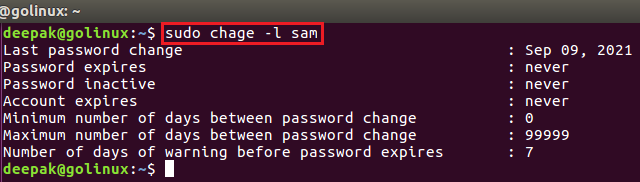
Password Change and Expiry Configuration
Change Last Password Change Date
You can modify the date when a user last changed their password. This is useful for forcing or deferring password expiry.
sudo chage -d YYYY-MM-DD username
OR
sudo chage --lastday YYYY-MM-DD user
You can also provide the number of days since January 1, 1970 instead of a calendar date.
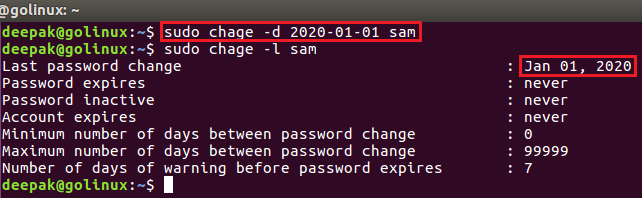
Set Minimum Days Between Password Changes
Define the minimum number of days a user must wait before changing their password again.
sudo chage -m NUMBER_OF_DAYS username
A value of 0 allows the user to change the password at any time.
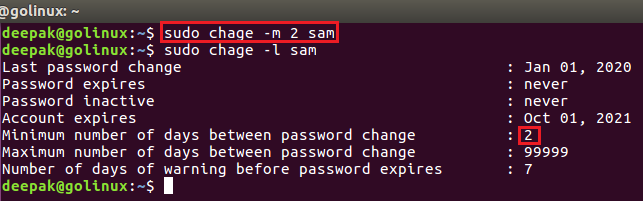
Set Maximum Password Validity
Specify the maximum number of days a password remains valid before the user is forced to change it.
sudo chage -M NUMBER_OF_DAYS username
Setting the value to -1 removes password expiry.
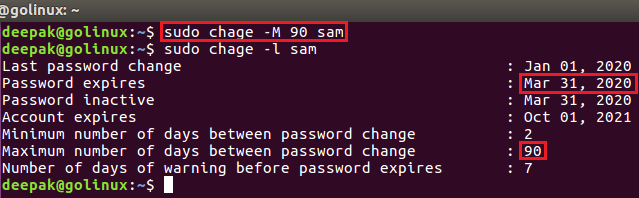
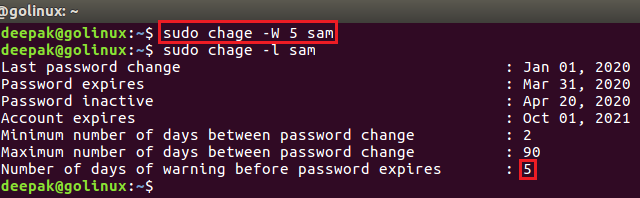
Configure Password Expiry Warning Days
Set the number of days before password expiry when the user should start receiving warnings.
sudo chage -W NUMBER_OF_DAYS username
This helps users change their password before access is restricted.
Set Password to Never Expire
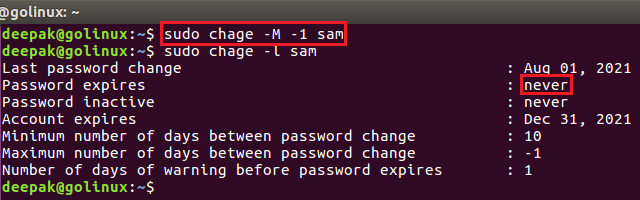
To configure a user password so that it never expires, remove the maximum password age limit.
sudo chage -M -1 username
This is commonly used for system or service accounts.
Account Expiration and Inactivity Policies
Set Account Expiry Date
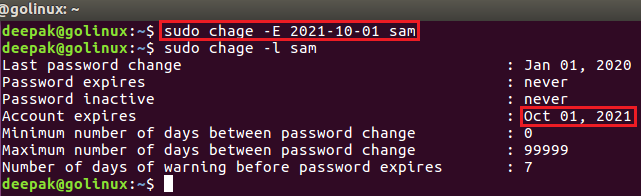
Set a specific date after which the user account will be disabled and login will no longer be allowed.
sudo chage -E YYYY-MM-DD username
This is commonly used for temporary or contract-based user accounts.
Remove Account Expiry Date
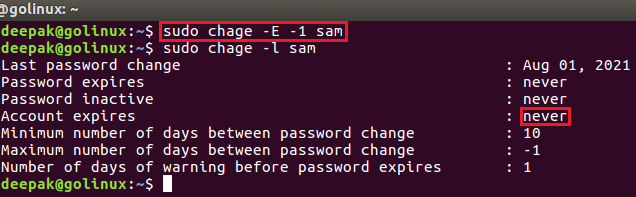
Remove the account expiration date so the user account never expires.
sudo chage -E -1 username
This keeps the account permanently active unless disabled manually.
Lock Account After Password Inactivity
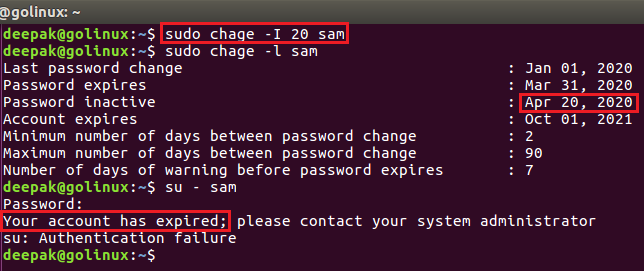
A user account can become locked due to inactivity when the password expires and the user does not change it within the configured inactivity period.
This behavior is controlled by the inactive days setting in chage
(-I option).
How it works:
- Password expires after the maximum password age (
-M) - The user has N inactive days (
-I) to change the password - If the password is not changed within this window, the account is locked automatically
Check current inactivity settings:
chage -l username
Sample output:
Password expires                    : Aug 15, 2026
Password inactive                   : Aug 25, 2026
Account expires                     : never
In this example:
- The password expired on Aug 15
- The account became inactive (locked) on Aug 25
- The user cannot log in after this date
Set account to lock after 10 days of password inactivity: chage -I 10 username
Remove inactivity lock (account never locks due to inactivity):
chage -I -1 username
Enforcing Password Change Policies
Force User to Change Password at Next Login
You can force a user to change their password during the next login by setting the last password change date to zero.
sudo chage -d 0 username
When this command is executed, the system treats the password as expired and immediately prompts the user to set a new password upon next login.
This method is commonly used in scenarios such as:
- Resetting a compromised password
- Enforcing password change after account creation
- Applying new security policies
- Onboarding new users on shared systems
This approach does not lock the account; it only requires the user to update their password before gaining access.
Use chage in Interactive Mode
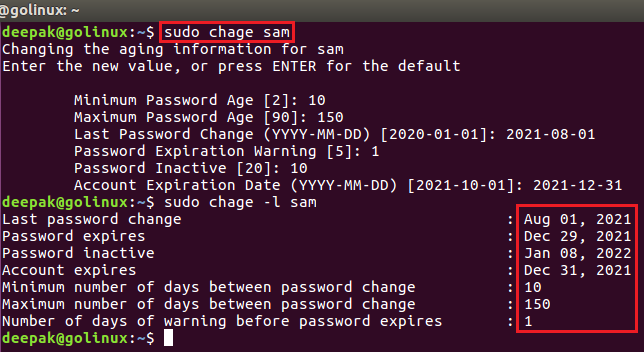
Running chage without any options launches interactive mode. You can update each aging field one by one.
sudo chage username
Press Enter to keep the current value shown in brackets.
Frequently Asked Questions
1. What is the chage command used for?
The chage command in Linux is used to manage user password expiration, account aging, inactivity lock, and account expiry dates. It helps system administrators enforce password and security policies.2. Does chage lock user accounts?
Yes. The chage command can lock user accounts automatically by setting password inactivity days or an account expiration date. Once these limits are reached, the user will not be able to log in.3. Can chage force password change?
Yes. By setting the maximum password age or modifying the last password change date, chage can force users to change their password on the next login.4. Is chage available on all Linux distributions?
The chage command is available on most Linux distributions as part of the shadow-utils package, including Ubuntu, Debian, RHEL, CentOS, Rocky Linux, AlmaLinux, and SUSE.5. Can non-root users run chage?
No. Only the root user or users with sudo privileges can run the chage command to modify account aging information.Summary
The chage command in Linux is a powerful utility for managing user password expiration and account aging policies. Using chage, system administrators can control when passwords expire, lock inactive accounts, enforce password rotation, and manage temporary or service user accounts.
Proper use of the chage command helps improve system security, maintain account hygiene, and meet compliance requirements on multi-user Linux systems.
