

Tested on Ubuntu 22.04 / 24.04 and Debian 12
The cat command in Linux and Unix is one of the most basic yet powerful utilities for working with text files. The name cat comes from concatenate, which explains its primary role: reading, combining, and displaying file contents.
At its simplest, cat prints the contents of one or more files to standard output. With options, it can also show line numbers, highlight tabs and trailing spaces, and even help create or append files.
This article is written as a beginner-friendly cat command cheat sheet, optimized for quick learning and real-world usage.
How to use cat command
The cat command is commonly used to:
- View small text files quickly
- Combine multiple files into one
- Create or append files using standard input
- Inspect invisible characters such as tabs or trailing spaces
Although cat is not a full text editor, it is often used with redirection operators (> and >>) for simple file creation and updates.
When you should NOT use cat
Although the cat command is widely used, it is not always the best choice:
- Avoid
cat largefile | grep ...— usegrep filedirectly - Avoid
cat file | while read— preferwhile read < file - Avoid using cat for paging — use
lessormore
cat is best suited for small files, debugging, concatenation, and inspection, not for processing very large files.
cat Command Syntax and Overview
cat command syntax
cat [OPTION] [FILE]...
You can run cat:
- Without options
- With one or more options
- With one or multiple files
- With standard input (
-)
Common cat Command Options
| Option | Description |
|---|---|
-n |
Number all output lines |
-b |
Number non-empty lines only |
-E |
Show end-of-line as $ |
-T |
Show TAB characters as ^I |
-s |
Squeeze multiple blank lines into one |
-v |
Display non-printing characters |
-A |
Equivalent to -vET |
- |
Read from standard input |
cat Command – Quick Reference
| Task / Use case | Command |
|---|---|
| Display file contents | cat file.txt |
| Display multiple files | cat file1 file2 |
| Create a new file | cat > file.txt |
| Append to an existing file | cat >> file.txt |
| Show line numbers (all lines) | cat -n file.txt |
| Show line numbers (non-empty only) | cat -b file.txt |
| Show TAB characters | cat -T file.txt |
| Show end-of-line characters | cat -E file.txt |
| Merge repeated empty lines | cat -s file.txt |
| Show all non-printing characters | cat -A file.txt |
| Read from standard input | cat - |
| Concatenate files into one | cat file1 file2 > merged.txt |
| Insert input between files | cat file1 - file2 > out.txt |
| Show first 10 lines (with head) | cat file.txt | head -n 10 |
| Show last 10 lines (with tail) | cat file.txt | tail -n 10 |
cat vs less vs more (When to Use What)
These commands serve different purposes for viewing file content.
| Command | Best Used For |
|---|---|
cat |
Display small files or pipe data |
less |
Interactive viewing of large files |
more |
Basic paging (older alternative) |
Key differences:
catprints everything at once and exitslesssupports scrolling, searching, and jumpingmoreonly allows forward navigation
Recommendation:
- Use cat for simple output and pipelines
- Use less for almost all interactive viewing
- Use more only on minimal systems where
lessis unavailable
Basic File Viewing with cat
Display File Contents Using cat
cat file.txt
This prints the entire contents of file.txt to the terminal.
Show Line Numbers with cat
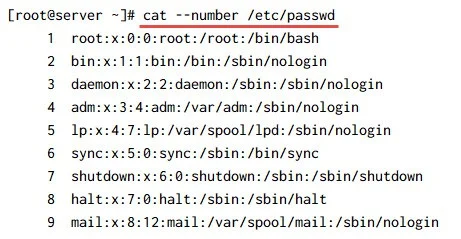
We can use --number or -n argument to print the line numbers of the file:
But to get the number of lines excluding and blank or empty lines we use -b or --number-nonblank:
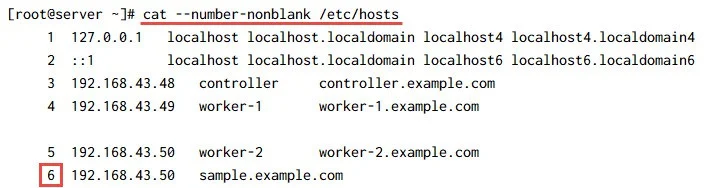
Completely empty lines are skipped, so line numbers may jump when blank lines exist in the file.
NOTE:
-btakes priority over-nwhen both are used.
Number Non-Blank Lines Using cat
Use the -b option to number only non-empty lines. Blank lines are
not counted.
Command:
cat -b file.txt
Explanation:
-bnumbers only lines that contain content- Blank lines are printed without line numbers
- Useful when blank lines should not affect numbering
Difference from -n:
-n→ numbers all lines (including empty ones)-b→ numbers only non-blank lines
Display TAB Characters Using cat
To reveal tab characters inside a file:
cat -T file.txt
Tabs will appear as ^I, which is useful for debugging formatting issues.
Sample output:
here I have used^ITAB
here I added multiple TAB^I^I
Show End-of-Line Characters (Trailing Spaces)
Trailing whitespaces can break scripts and configs. We can use -E or --show-ends arguments with cat command to add $ (dollar sign) at the end of the line which can show us trailing whitespace (if any).
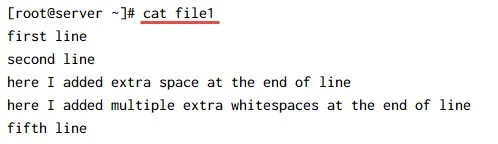
cat -E file1 | grep '[[:blank:]]\$'
Each line will end with a $ symbol.
Sample output:
here I added extra space at the end of line $
here I added multiple extra whitespaces at the end of line  $
Creating and Modifying Files Using cat
Create a New File Using cat Command
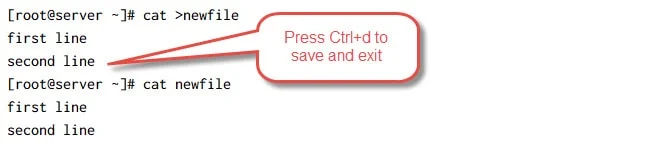
You can create a new file and add content interactively:
cat > newfile
first line
second line
Ctrl+D
Append Data to a File Using cat
Use >> to append content instead of overwriting:
cat >> fruits.txt
apple
mango
Ctrl+D
Append more data later:
cat >> fruits.txt
guava
grapes
Ctrl+D
Replace Multiple Empty Lines with a Single Empty Line
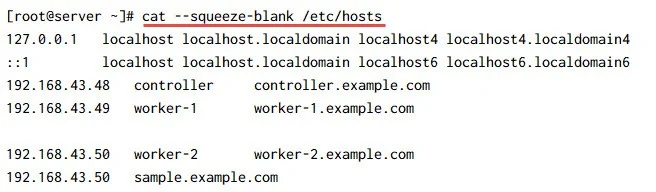
Use -s or --squeeze-blank with cat command to suppress repeated empty output lines.
For example here I have added multiple empty lines in my /etc/hosts file:
127.0.0.1   localhost localhost.localdomain localhost4 localhost4.localdomain4
::1         localhost localhost.localdomain localhost6 localhost6.localdomain6
192.168.43.48   controller     controller.example.com
192.168.43.49   worker-1       worker-1.example.com
<-- Empty Line 1-->
<-- Empty Line 2-->
<-- Empty Line 3-->
192.168.43.50   worker-2       worker-2.example.com
192.168.43.50   sample.example.com
Let’s replace repeated empty lines with single empty line:
Merge Multiple Empty Lines
To squeeze repeated blank lines into a single line:
cat -s file.txt
This improves readability when viewing logs or large text files.
Suppress Repeated Empty Lines Using -s
The -s option collapses multiple consecutive empty lines into a
single empty line.
Command:
cat -s file.txt
Explanation:
- Replaces multiple blank lines with one
- Helps clean poorly formatted files
- Commonly used when preprocessing text output
Working with Multiple Files
Concatenate Multiple Files Using cat
You can combine multiple files:
cat file1 file2 file3
To save the combined output:
cat file1 file2 > merged.txt
Insert Input Between Files Using -
You can insert custom input while merging files:
cat file1 - file2 > output.txt
⚠️ The terminal waits for user input at -. Press Ctrl+D to continue.
This technique is powerful but requires careful tracking of input order.
Standard Input and Pipelines
Read from Standard Input with cat
Use - to read from standard input:
cat -
Everything you type is echoed back until you press Ctrl+D.
Using cat with Pipes (stdin → stdout)
cat is often used in pipelines to pass input from one command to
another.
Read from standard input:
cat
Pipe input into cat:
echo "Hello World" | cat
Combine cat with other commands:
cat file.txt | grep "error"
cat file.txt | awk '{ print $1 }'
Use cat to merge streams:
cat file1.txt file2.txt | sort
Explanation:
catreads from stdin and writes to stdout- Acts as a bridge between commands in pipelines
- Useful for combining, redirecting, or inspecting streams
View Binary Files Safely with cat
Using cat directly on binary files can corrupt the terminal or display
unreadable characters. Use safe alternatives when inspection is needed.
Avoid:
cat binaryfile
Safer options:
cat binaryfile | less
cat binaryfile | hexdump -C
cat binaryfile | strings
Explanation:
lessprevents terminal corruptionhexdumpshows a structured hex viewstringsextracts readable text from binaries
Tip: If the terminal becomes unreadable, reset it using:
reset
cat Command in Real-World Usage
Using cat command in loops
In production environments, cat is often used with loops to process file contents line by line.
Example: Extract usernames and UIDs from /etc/passwd:
for i in $(cat /etc/passwd); do
  USERNAME=$(echo "$i" | cut -d: -f1)
  UID=$(echo "$i" | cut -d: -f3)
  echo "User: $USERNAME | UID: $UID"
done
Tip: For large files, prefer
while readloops for better performance.
Using cat in Shell Scripts
The cat command is commonly used in shell scripts to read files,
combine content, or feed input into other commands.
Read a file inside a script:
cat config.txt
Assign file content to a variable (small files only):
content=$(cat file.txt)
Concatenate multiple files into one:
cat part1.txt part2.txt > combined.txt
Use cat with here-documents:
cat <<EOF > message.txt
Hello User,
This is a generated file.
EOF
When NOT to Use cat (Use less, head, tail Instead)
While cat is useful, it is not always the right tool.
Avoid using cat when:
- Viewing very large files
- You need interactive scrolling or searching
- You only need the start or end of a file
Better alternatives:
- Use
lessfor interactive viewingless largefile.log - Use
headto view the first lineshead file.txt - Use
tailto view the last linestail file.txt - Use
tail -fto follow logs in real timetail -f app.log
Rule of thumb:
- Small files →
cat - Large or interactive viewing →
less - Partial content →
headortail
[[AQ]]
