

Tested on Ubuntu 22.04 / 24.04, Debian 12, and compatible Linux distributions
The bzip2 command in Linux is a widely used file compression utility that reduces file size using the Burrows–Wheeler algorithm and Huffman coding. Compared to gzip, bzip2 usually provides a better compression ratio, making it suitable when saving disk space is more important than speed.
Note that bzip2 can compress only files, not directories. To compress
folders, it is commonly used together with the tar command.
bzip2 Command Syntax and Overview
bzip2 Command Syntax
bzip2 [options] filename
If no filename is provided, bzip2 reads from standard input and writes to
standard output. By default, it replaces the original file with a .bz2
compressed version.
bzip2 Command – Quick Cheat Sheet (Table)
| Task | Command | Description |
|---|---|---|
| Compress a file | bzip2 file.txt |
Compresses file.txt into file.txt.bz2 and removes the original file |
| Compress & keep original | bzip2 -k file.txt |
Creates file.txt.bz2 while keeping file.txt |
| Compress multiple files | bzip2 file1 file2 file3 |
Compresses multiple files individually |
| Compress using wildcard | bzip2 *.txt |
Compresses all .txt files in the directory |
| Decompress a file | bzip2 -d file.txt.bz2 |
Extracts .bz2 file and restores original |
| Decompress (alternate) | bunzip2 file.txt.bz2 |
Same as bzip2 -d, clearer for decompression |
| Test compressed file | bzip2 -t file.txt.bz2 |
Checks integrity without extracting |
| Force overwrite | bzip2 -f file.txt |
Overwrites existing output files |
| Fast compression | bzip2 -1 file.txt |
Fastest compression, lower compression ratio |
| Best compression | bzip2 -9 file.txt |
Highest compression, slower speed |
| Verbose output | bzip2 -v file.txt |
Displays compression ratio and progress |
| Quiet mode | bzip2 -q file.txt |
Suppresses non-critical warnings |
| Output to stdout | bzip2 -c file.txt > file.txt.bz2 |
Writes compressed output to stdout |
| Pipe with tar | bzip2 -dc archive.tar.bz2 | tar tf - |
Lists tar contents without extracting |
| Low memory mode | bzip2 -s file.txt |
Reduces memory usage during operation |
Basic Compression and Decompression
Compress a File Using bzip2
This example compresses a single file and replaces it with a .bz2 file.
It is the most basic and commonly used bzip2 operation.
bzip2 test.txt
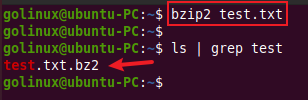
After execution, test.txt is replaced by test.txt.bz2.
Decompress a File
Use the -d or --decompress option to extract a .bz2 file back to its
original format.
bzip2 -d test.txt.bz2
The compressed file is replaced with the decompressed original file.
Decompress Files Using bunzip2
The bunzip2 command is functionally equivalent to bzip2 -d and is often
preferred for readability when only decompression is required.
bunzip2 test.txt.bz2
This command restores test.txt from test.txt.bz2.
Working with Multiple Files
Compress Multiple Files
You can compress multiple files in a single command by listing them space-separated. Each file is compressed individually.
bzip2 file1.txt file2.txt file3.txt
Each input file is replaced by its corresponding .bz2 version.
Compress Files Using Wildcards
Wildcards allow you to compress multiple files of the same type in one go. This is useful when working with log files or text files in bulk.
bzip2 *.txt
All .txt files in the current directory are compressed.
Preserving and Overwriting Files
Keep Original Files After Compression or Decompression
By default, bzip2 removes the input file. The -k or --keep option
preserves the original file.
bzip2 -k test.txt
Both test.txt and test.txt.bz2 will exist after the command completes.
Force Overwrite Existing Files
If the output file already exists, bzip2 refuses to overwrite it. Use the
-f or --force option to override this behavior.
bzip2 -f test.txt
This option is useful in scripts where manual confirmation is not possible.
Handling .bz2 Files Without Removing Original
By default, bzip2 removes the original file after compression and
removes the .bz2 file after decompression. To preserve the original
file, use the -k (keep) option.
Compress a file and keep the original:
bzip2 -k file.txt
Result:
file.txt(original file is preserved)file.txt.bz2(compressed file)
Decompress a file without deleting the .bz2 file:
bzip2 -dk file.txt.bz2
Result:
file.txt.bz2(compressed file is preserved)file.txt(decompressed file)
To explicitly keep the original file during decompression, combine
-d(decompress) with-ki.e.bzip2 -dk archive.bz2
Compression Control and Performance
Set Compression Level
bzip2 supports compression levels from -1 (fastest) to -9 (best
compression). The default level is -6.
bzip2 -1 test.txt
bzip2 -9 test.txt
Higher levels reduce file size further but require more CPU time.
Reduce Memory Usage
The -s or --small option reduces memory consumption during compression,
decompression, and testing. This is useful on low-memory systems.
bzip2 -s test.txt
This option trades performance for lower memory usage.
Parallel Compression Using pbzip2
pbzip2 is a parallel implementation of bzip2 that uses multiple CPU
cores to significantly speed up compression and decompression.
Install pbzip2:
sudo apt install pbzip2
Compress a file using all available CPU cores:
pbzip2 file.txt
Decompress a file:
pbzip2 -d file.txt.bz2
Limit the number of CPU cores used:
pbzip2 -p4 largefile.log
Preserve the original file during compression:
pbzip2 -k file.txt
Note:
- Output files remain fully compatible with standard
bzip2 - Best suited for files larger than a few hundred MB
When NOT to Use bzip2 (Performance Trade-offs)
While bzip2 provides better compression ratios than gzip, it is
not always the best choice.
Avoid bzip2 when:
- You need very fast compression or decompression
- Working with small files (overhead is not worth it)
- Running on low-memory or low-CPU systems
- Real-time streaming performance is required
Comparison summary:
gzip→ fastest compression and decompressionbzip2→ better compression, slower speedxz→ best compression, highest CPU and memory usage
Typical recommendations:
- Use gzip for logs and frequent access
- Use bzip2 for medium-term storage
- Use xz for long-term archival where speed is less important
Enable Verbose Output
Verbose mode displays detailed information such as compression ratio and processing status.
bzip2 -v test.txt
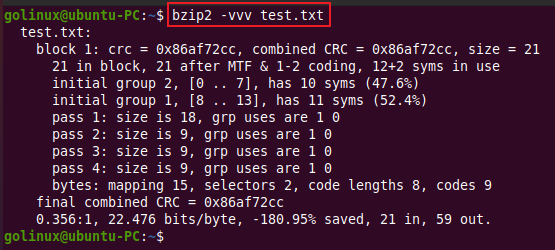
Adding multiple -v flags increases the verbosity level.
Validation and Integrity Checks
Test Integrity of a Compressed File
The -t or --test option verifies whether a .bz2 file is valid and
uncorrupted without extracting it.
bzip2 -t test.txt.bz2
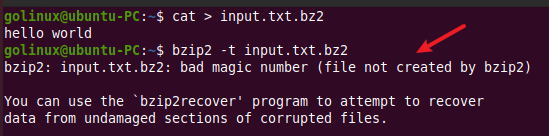
If the file is healthy, bzip2 reports an ok status.
Check Compressed File Size Without Decompression
You can check the size of a .bz2 file without decompressing it using
standard file inspection commands. This is useful when verifying storage
usage or estimating transfer size.
Check compressed file size using ls:
ls -lh archive.bz2
Check size using du (actual disk usage):
du -h archive.bz2
View detailed file information:
stat archive.bz2
Note:
- These commands show the compressed size only
- They do not reveal the original (uncompressed) size
To see both compressed and uncompressed sizes, use bzip2 -tv archive.bz2
Streams and Pipelines
Compress or Decompress to Standard Output
The -c or --stdout option sends output to standard output instead of
creating or replacing files. This is commonly used with pipes.
bzip2 -c test.txt > test.txt.bz2
bzip2 -dc archive.tar.bz2 | tar tf -
This approach is useful for chaining bzip2 with other commands.
Compress a Directory Using tar and bzip2
bzip2 works on individual files. To compress an entire directory,
combine it with tar.
Create a .tar.bz2 archive:
tar -cjf backup.tar.bz2 mydir/
Explanation:
-c→ create archive-j→ use bzip2 compression-f→ specify output file
Preserve permissions and ownership (recommended for backups):
tar -cjpSf backup.tar.bz2 mydir/
Extract tar.bz2 Archives
Extract a .tar.bz2 archive using tar.
Extract archive contents:
tar -xjf backup.tar.bz2
Explanation:
-x→ extract files-j→ use bzip2 decompression-f→ specify archive file
Extract to a specific directory:
tar -xjf backup.tar.bz2 -C /path/to/destination
List contents without extracting:
tar -tjf backup.tar.bz2
Frequently Asked Questions
1. What is the bzip2 command in Linux?
The bzip2 command in Linux is a file compression utility that uses the Burrows–Wheeler algorithm and Huffman coding to reduce file size. It provides better compression than gzip but is usually slower.2. How do I decompress a .bz2 file in Linux?
You can decompress a .bz2 file using eitherbzip2 -d filename.bz2 or the bunzip2 filename.bz2 command.3. Does bzip2 compress directories?
No, bzip2 can compress only files. To compress directories, you must first archive them using the tar command and then compress the archive with bzip2.4. What is the difference between bzip2 and gzip?
bzip2 generally provides a better compression ratio than gzip, resulting in smaller files, but gzip is faster for compression and decompression.5. What is the default compression level of bzip2?
By default, bzip2 uses compression level 6, which balances compression speed and compression ratio.Conclusion
The bzip2 command is a reliable and efficient compression tool in Linux, particularly when disk space optimization is a priority. With options for compression control, integrity testing, and pipeline integration, bzip2 fits well into both interactive use and automation scripts.
