

Getting started with the recovery
Ideally you can boot into rescue mode only after providing root user password. But what if you have forgotten the password and you have a requirement to boot into rescue mode?
Let’s further explore this topic and I will share you step by step instructions to achieve this requirement.
TheAnacondainstallation program’s rescue mode is a minimal Linux environment that can be booted from the RedHat EnterpriseLinux 7 (RHEL/CentOS) DVD or other boot media. It contains command-line utilities for repairing a wide variety of issues. This rescue mode can be accessed from theTroubleshootingsubmenu of the boot menu. In this mode, you can mount file systems as read-only or even to not mount them at all, blacklist or add a driver provided on a driver disc, install or upgrade system packages, or manage partitions.
To boot intoAnacondarescue mode, you must be able to boot the system using one RedHat EnterpriseLinux (RHEL) boot media, such as a minimal boot disc or USB drive, or a full installation DVD.
What is the difference between Anaconda rescue mode and other rescue modes
I am sure you may have heard about rescue mode, emergency mode words during your tenure and you must have been wondering how are these different? Let me help you with some bullet points comparing different types of rescue mode we have
| Anaconda Rescue Mode | GRUB2 Rescue Mode | GRUB2 Emergency Mode |
|---|---|---|
| Requires ISO to boot into rescue mode | No ISO Required. Just some config changes in GRUB2 | No ISO Required. Just some config changes in GRUB2 |
| Supports mounting file system as both RW and RO mode | Mounts file system as RW | Mounts file system as RO |
| Does not require root or any password to get a shell | Requires root user password to get a shell | Requires root user password to get a shell |
| There is a probability to fix root file system related issues as the file system by default is mounted on /mnt/sysimage | If root file system is corrupted then it cannot be fixed as it will still be in use. | If root file system is corrupted then it cannot be fixed as it will still be in use. |
| Can be used to change root password | If existing root password is not known then you will not get a shell to execute any commands | If existing root password is not known then you will not get a shell to execute any commands |
| <a | ||
| href=“https://www.golinuxcloud.com/boot-rescue-mode-emergency-rhel-centos-7/" | ||
| target="_blank” rel=“noopener” | ||
| title=“Boot into Anaconda Rescue Mode using ISO”>Boot into Anaconda | ||
| Rescue Mode using ISO | <a | |
| href=“https://www.golinuxcloud.com/boot-in-single-user-mode-rhel-centos-8-linux/#1_Boot_into_single_user_mode_or_rescue_mode_rescuetarget" | ||
| target="_blank” rel=“noopener” title=“Boot into single user mode”>Boot | ||
| into single user mode | <a | |
| href=“https://www.golinuxcloud.com/boot-in-single-user-mode-rhel-centos-8-linux/#2_Boot_into_emergency_mode_emergencytarget" | ||
| target="_blank” rel=“noopener” | ||
| title=“Boot into emergency mode (emergency.target)">Boot into emergency | ||
| mode (emergency.target) |
Booting into Anaconda Rescue Mode in RHEL/CentOS 7
Step-1: Boot up using ISO
Boot the system from either minimal boot media, or a full installation DVD or USB drive, and wait for the boot menu to appear.
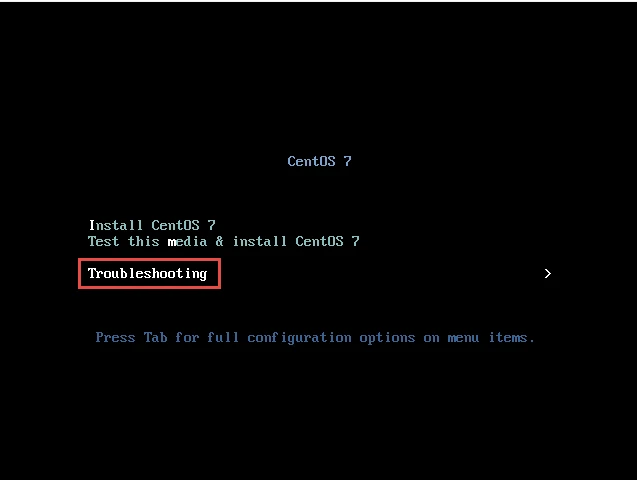
Step-2: Enter Rescue Mode
In the boot menu for the installation media, select the Rescue an installed system option, or edit the kernel command line to include the word rescue.
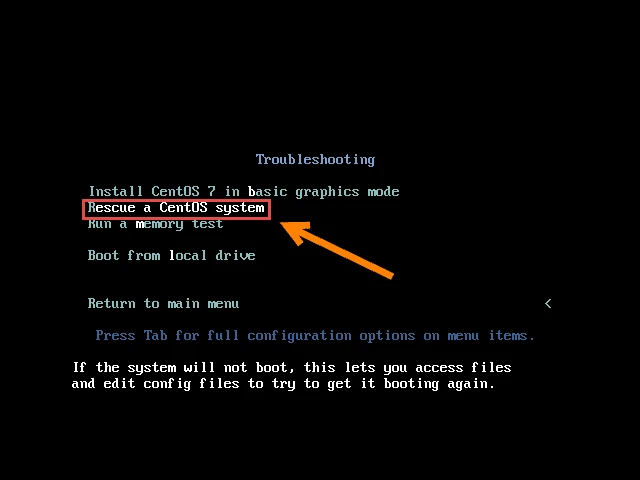
Step-3: Mount root file system
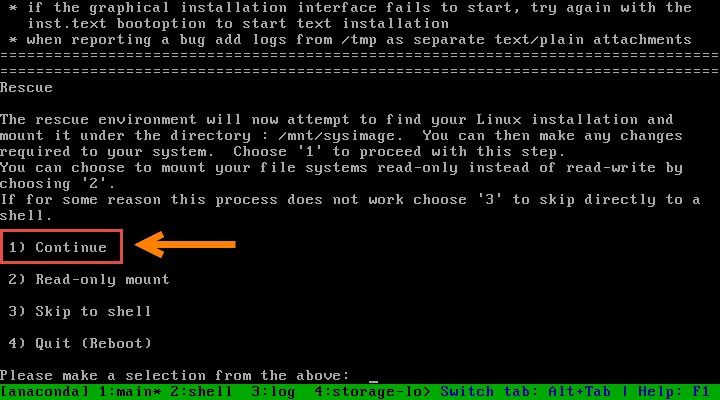
When prompted about mounting the disks for the target system to be
rescued, select option 1 (Continue). This will mount the system
under /mnt/sysimage.
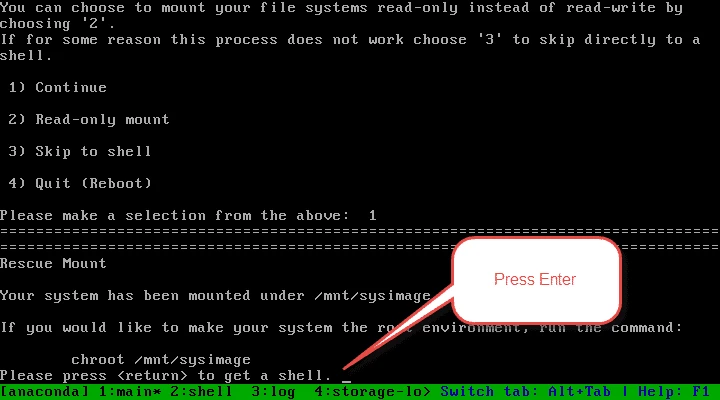
Press Enter to obtain a shell when prompted. This shell will live
inside the installation/rescue environment, with the target system
mounted under /mnt/sysimage.
This shell has a number of tools available for rescuing a system, such
as all common file system, disk, LVM, and networking tools. The various
bin directories of the target
system are added to the default executable search path (${PATH}) as
well.
Even if your file system is mounted, the default root partition while
inAnacondarescue mode is a temporary root partition, not the root
partition of the file system used during normal user mode
(multi-user.targetorgraphical.target). If you selected to mount
your file system and it mounted successfully, you can change the root
partition of theAnacondarescue mode environment to the root partition
of your file system by executing the following command:
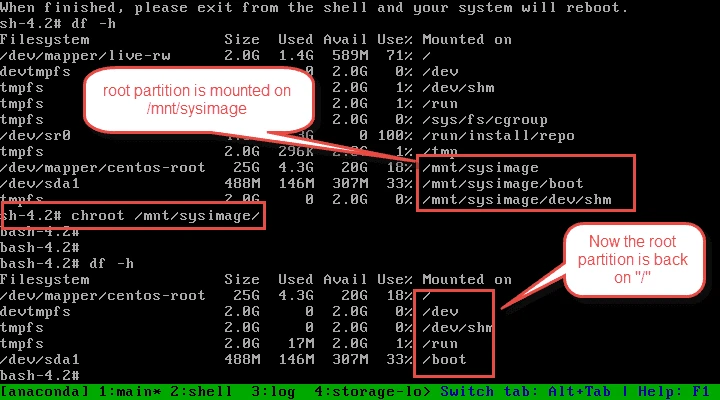
This is useful if you need to run commands, such asrpm, that require
your root partition to be mounted as/. To exit
thechrootenvironment, typeexitto return to the prompt.
Lastly I hope the steps from the article to boot into rescue mode or emergency mode using DVD ISO image in RHEL or CentOS 7 Linux was helpful. So, let me know your suggestions and feedback using the comment section.
References:
Anaconda boot into rescue
mode
Related Keywords: how to boot in rescue mode in redhat linux 7, rescue mode in linux, grub rescue mode, difference between rescue mode and emergency mode in linux, boot into rescue mode centos 7, grub rescue mode commands, boot into rescue mode rhel 8